How to Create Custom Blends
A combination of two or more crops. Each crop in a blend contributes to the weight of the blend based on a percentage.

Written by Garrett Corwin
Last updated1. Navigate to https://microgreenmanager.com/dashboard
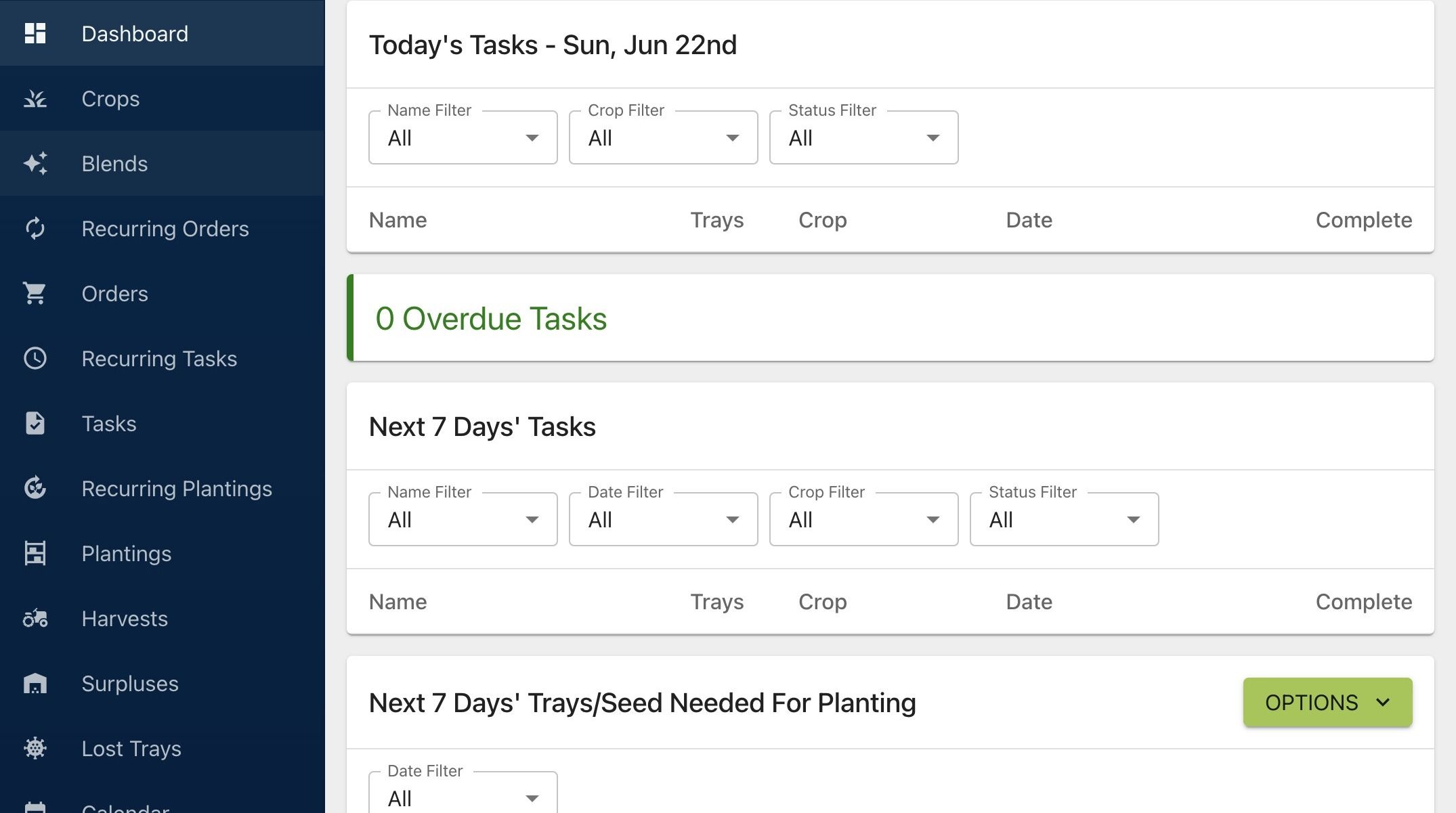
2. Click "Blends"
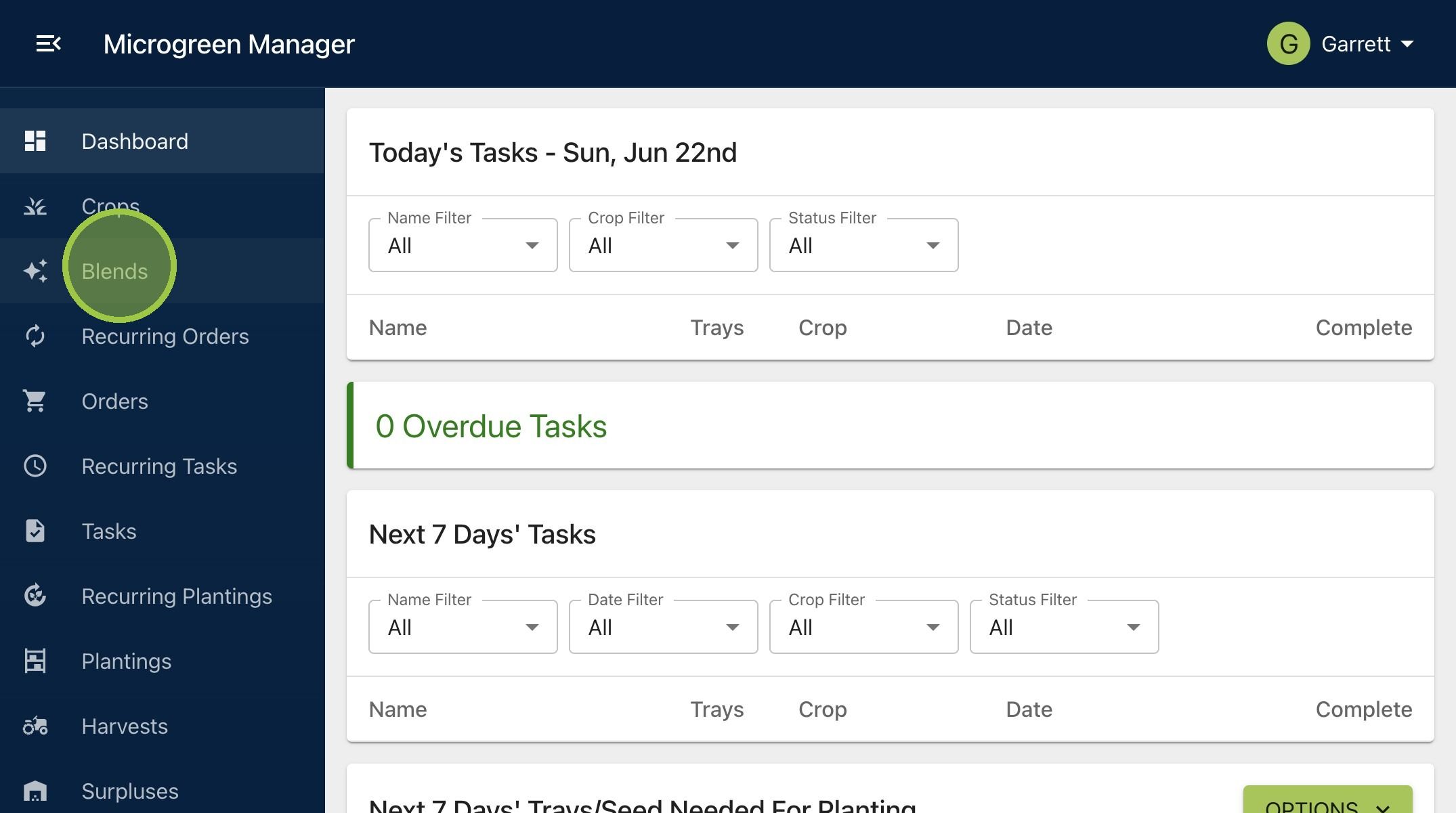
3. Click "New Blend"
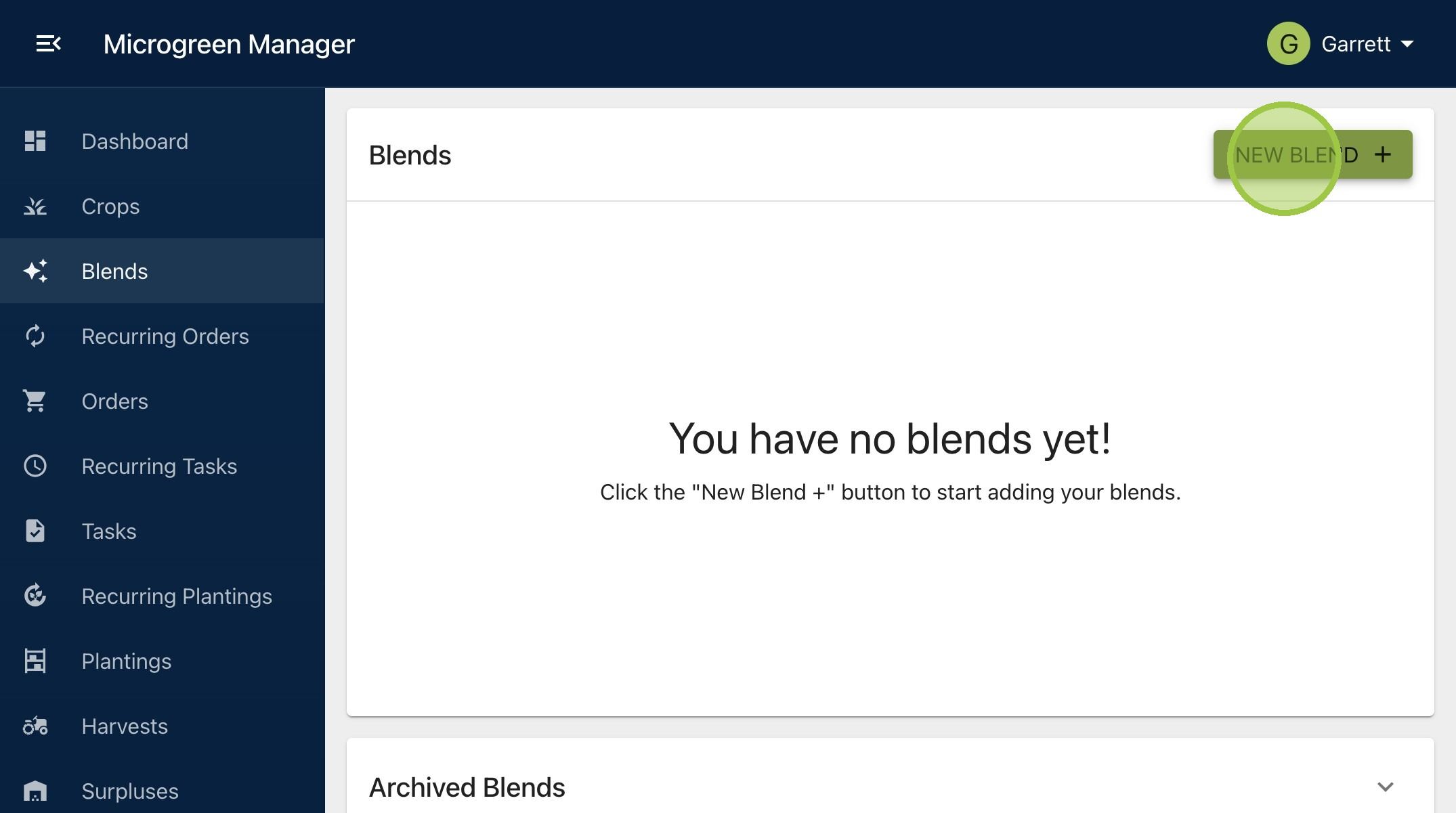
4. Give the blend a name

5. Add any notes about the blend
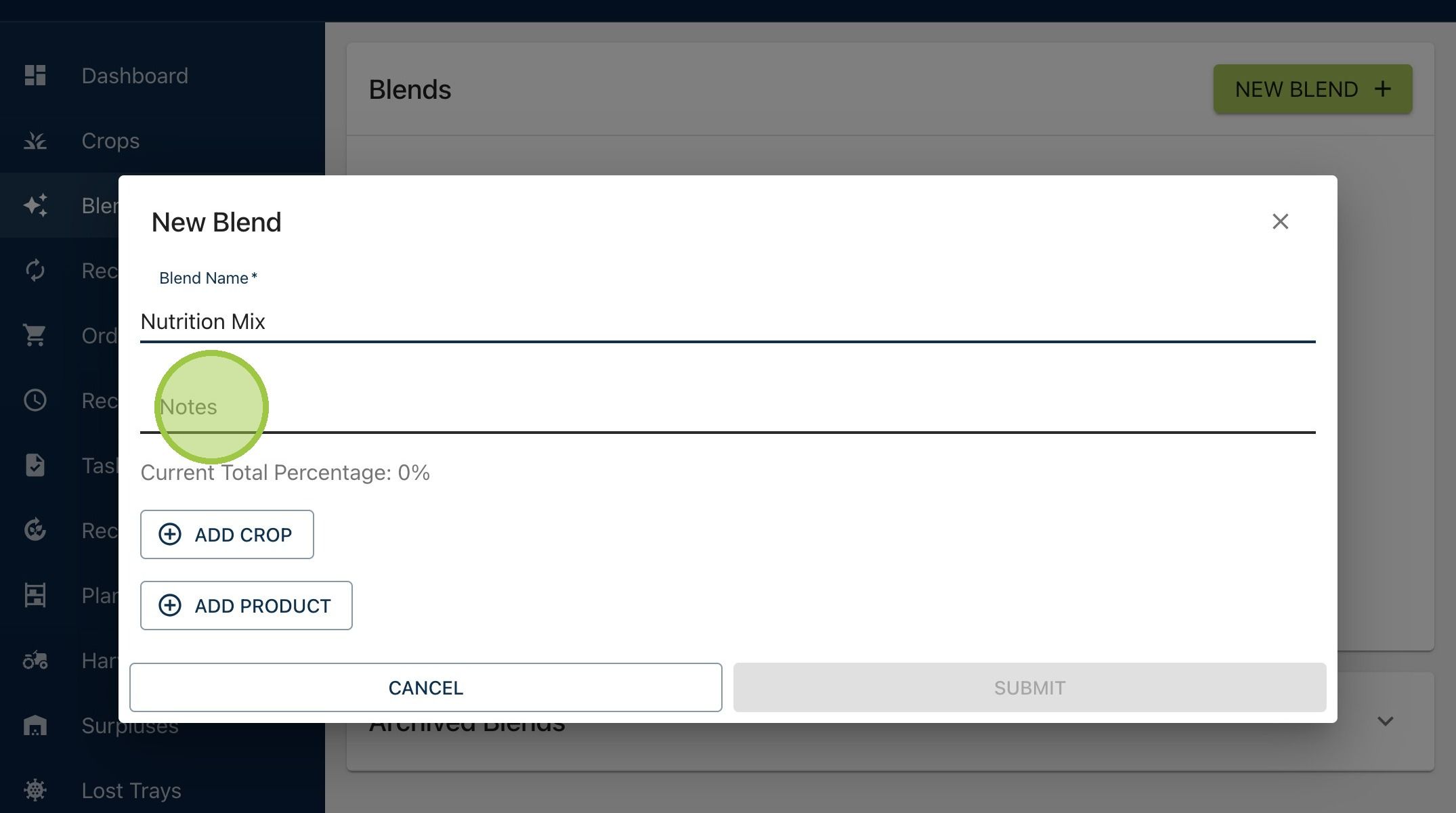
6. Microgreen Manager will calculate the total percentage from the crops you pick for the blend. You will not be able to submit the blend until the components total 100%

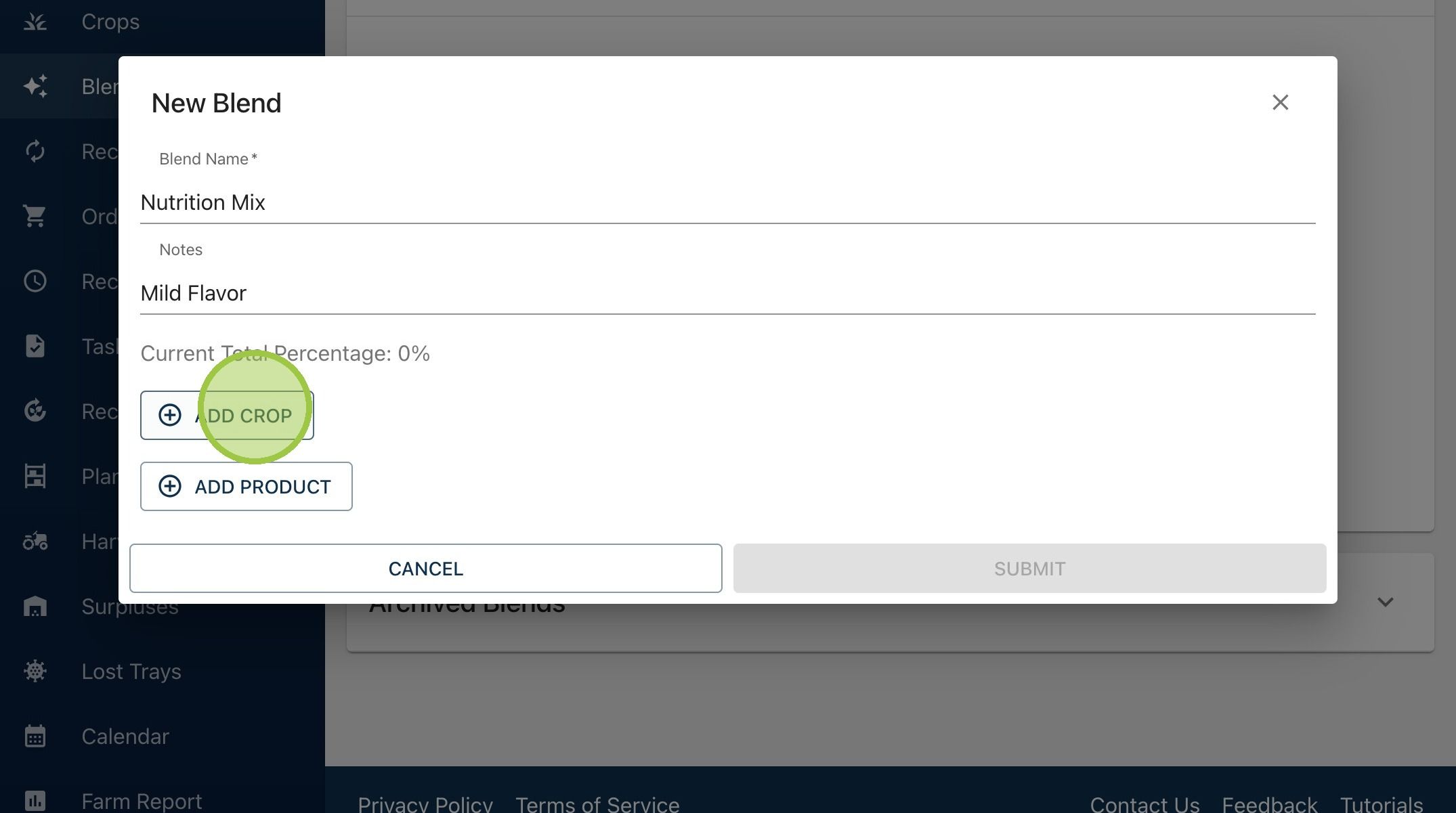
7. Click "Add Crop"
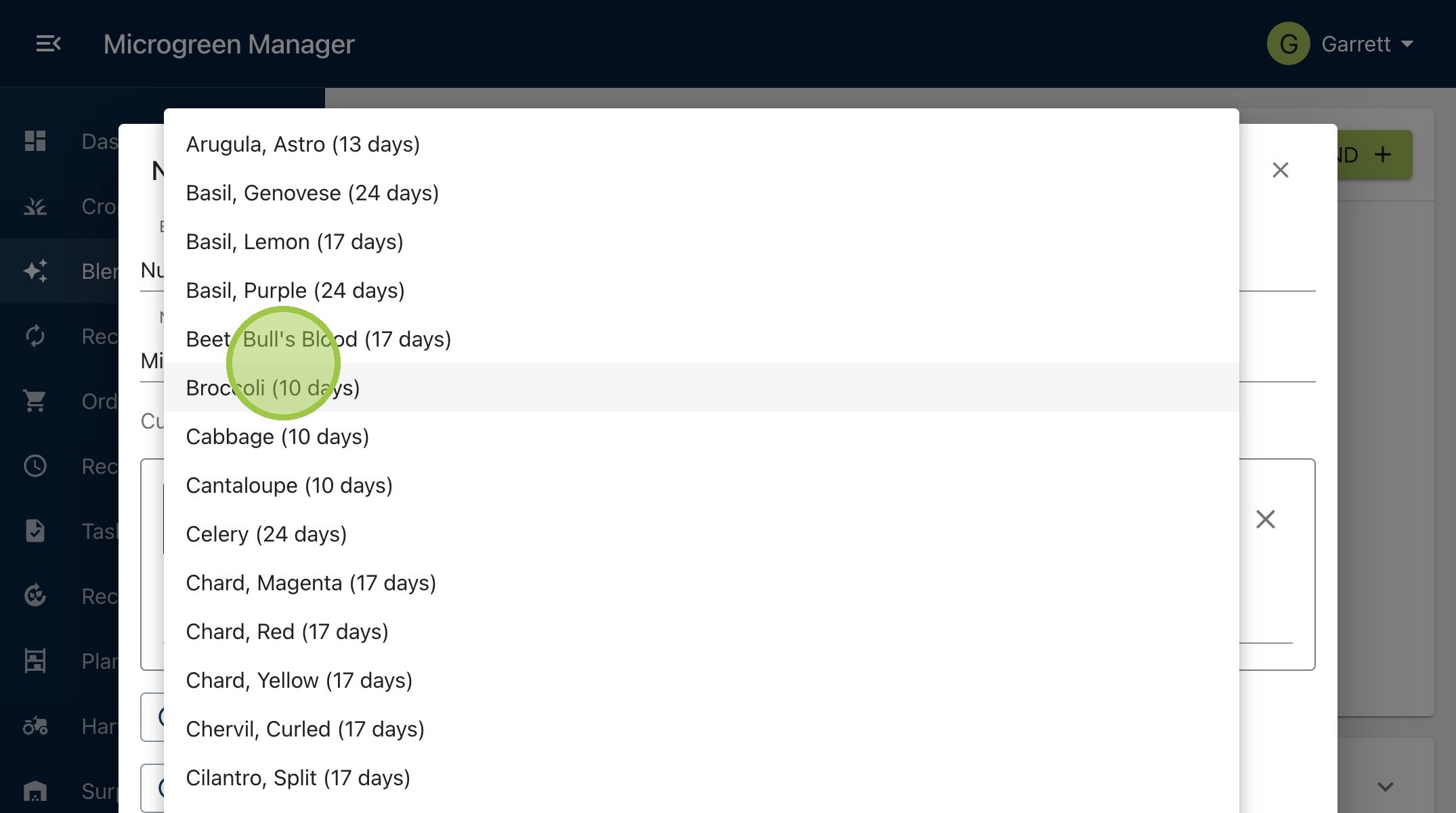
8. Select your first crop from the dropdown. The list of options is everything from your crops dashboard
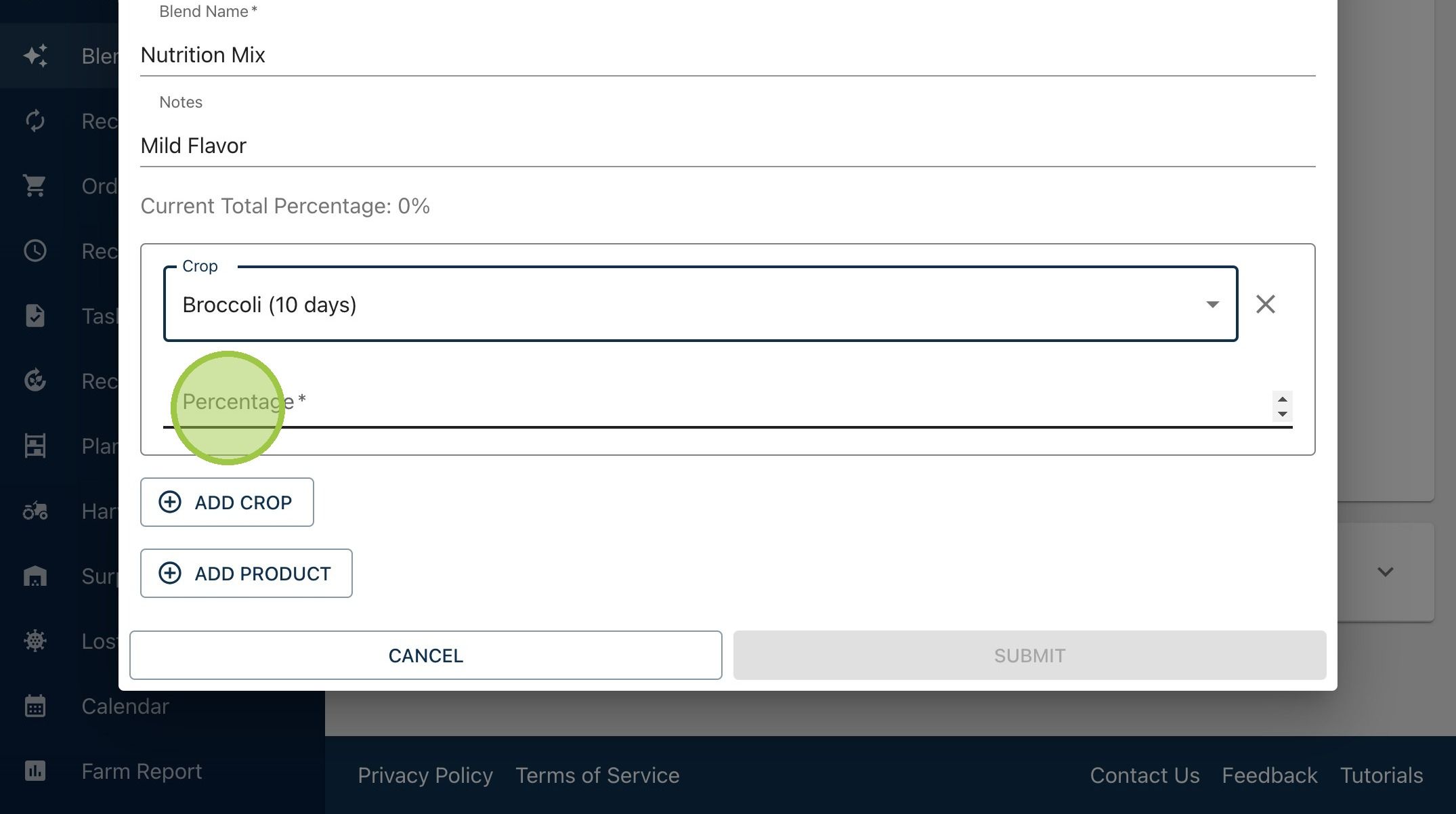
9. Enter how much of this crop you want to contribute to the blend
10. Repeat the process until you've added all the crops you want in this blend. In our example, the Nutrition Mix is a combination of broccoli, cabbage, and kohlrabi
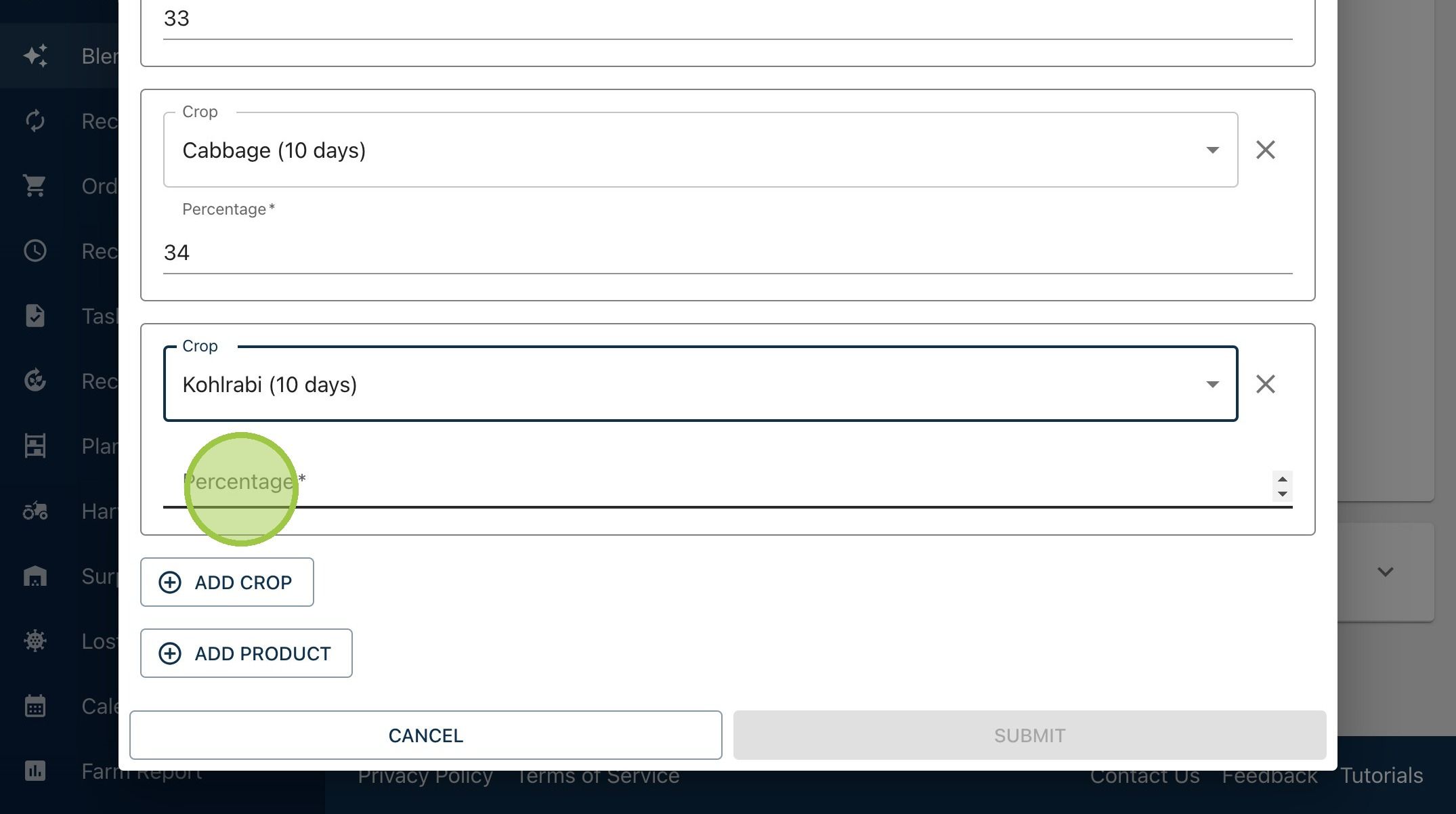
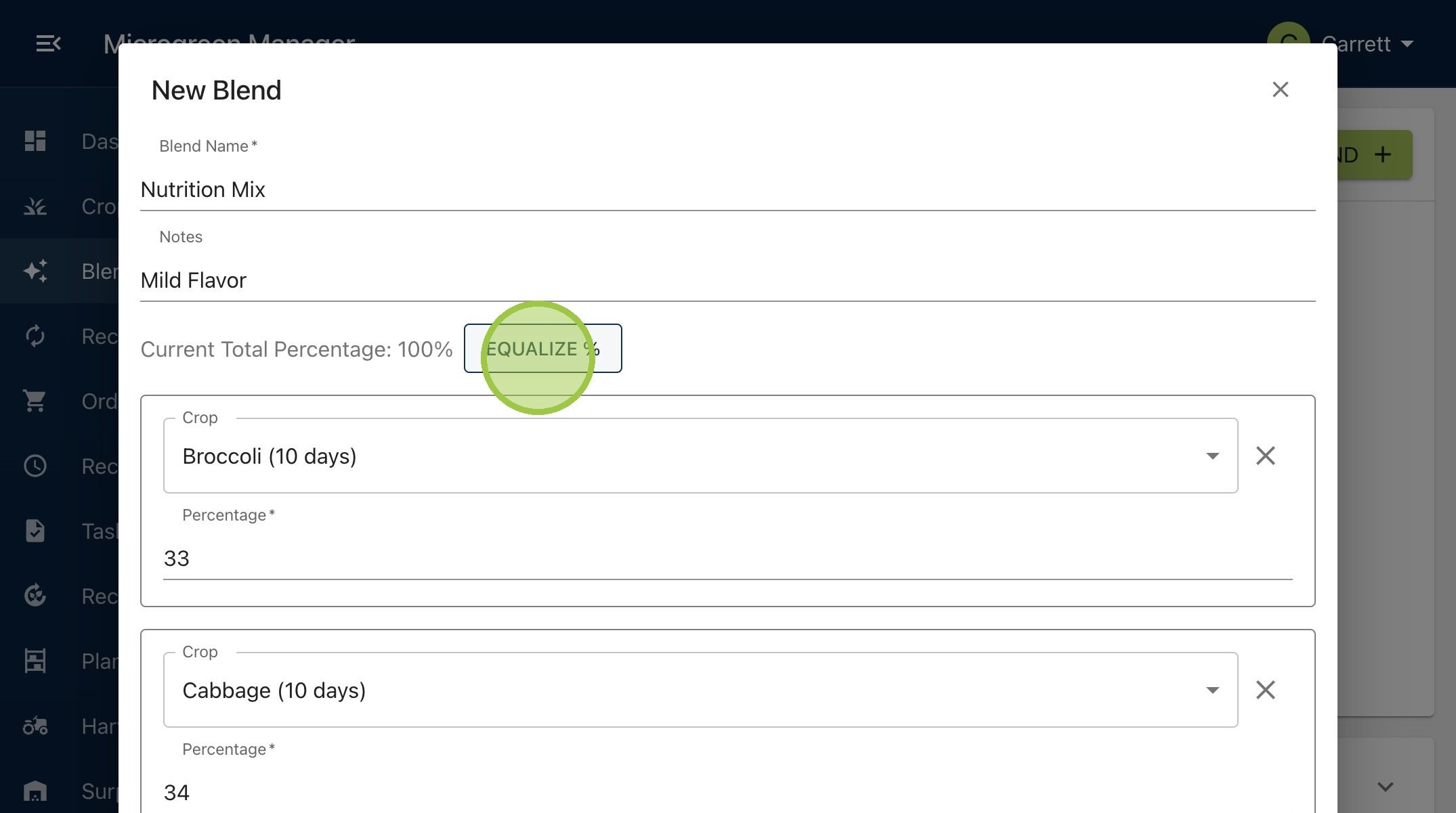
11. After you start adding crops, and "Equalize %" button will appear. Click "Equalize %" to split the contribution equally among all listed crops
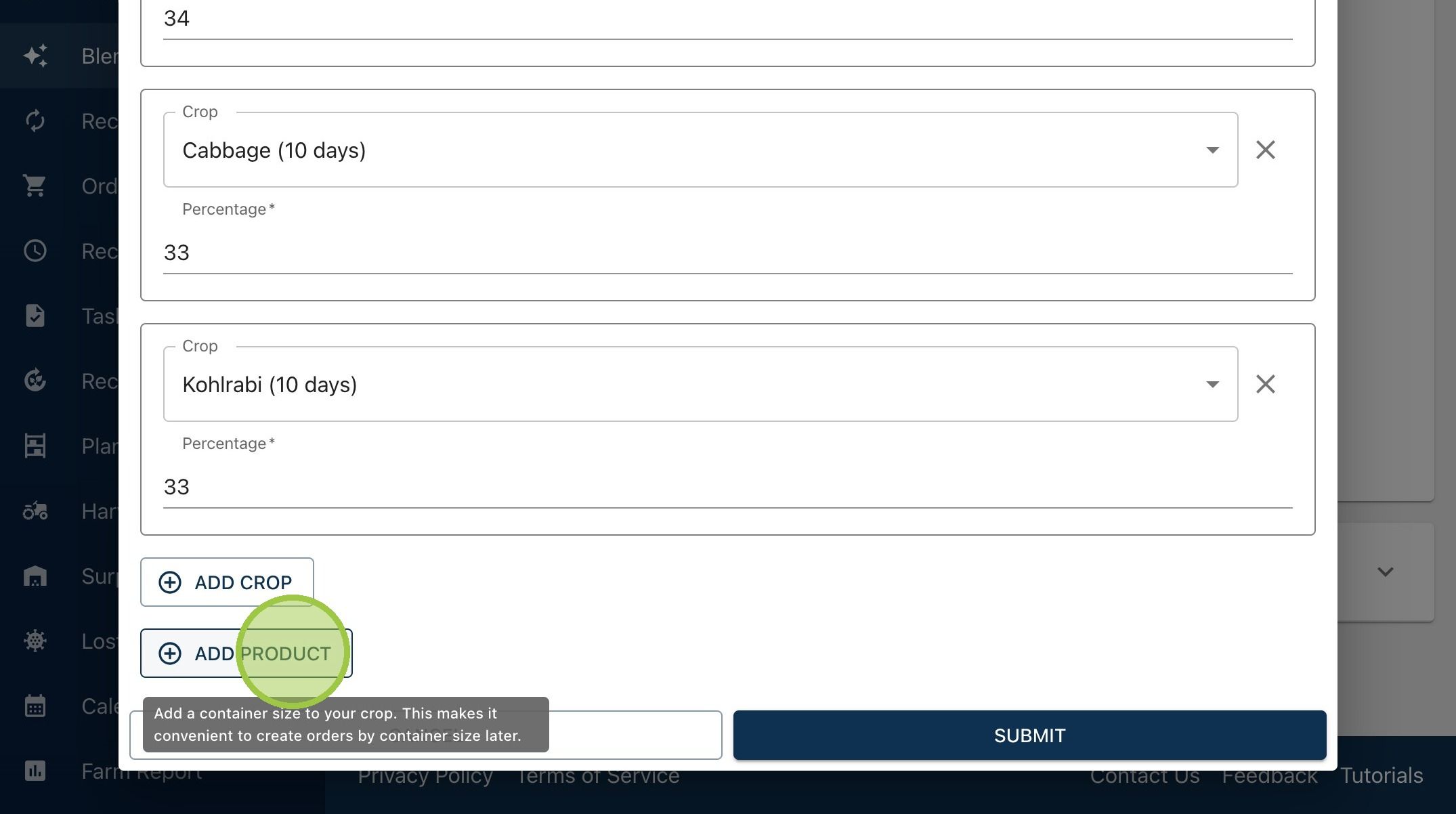
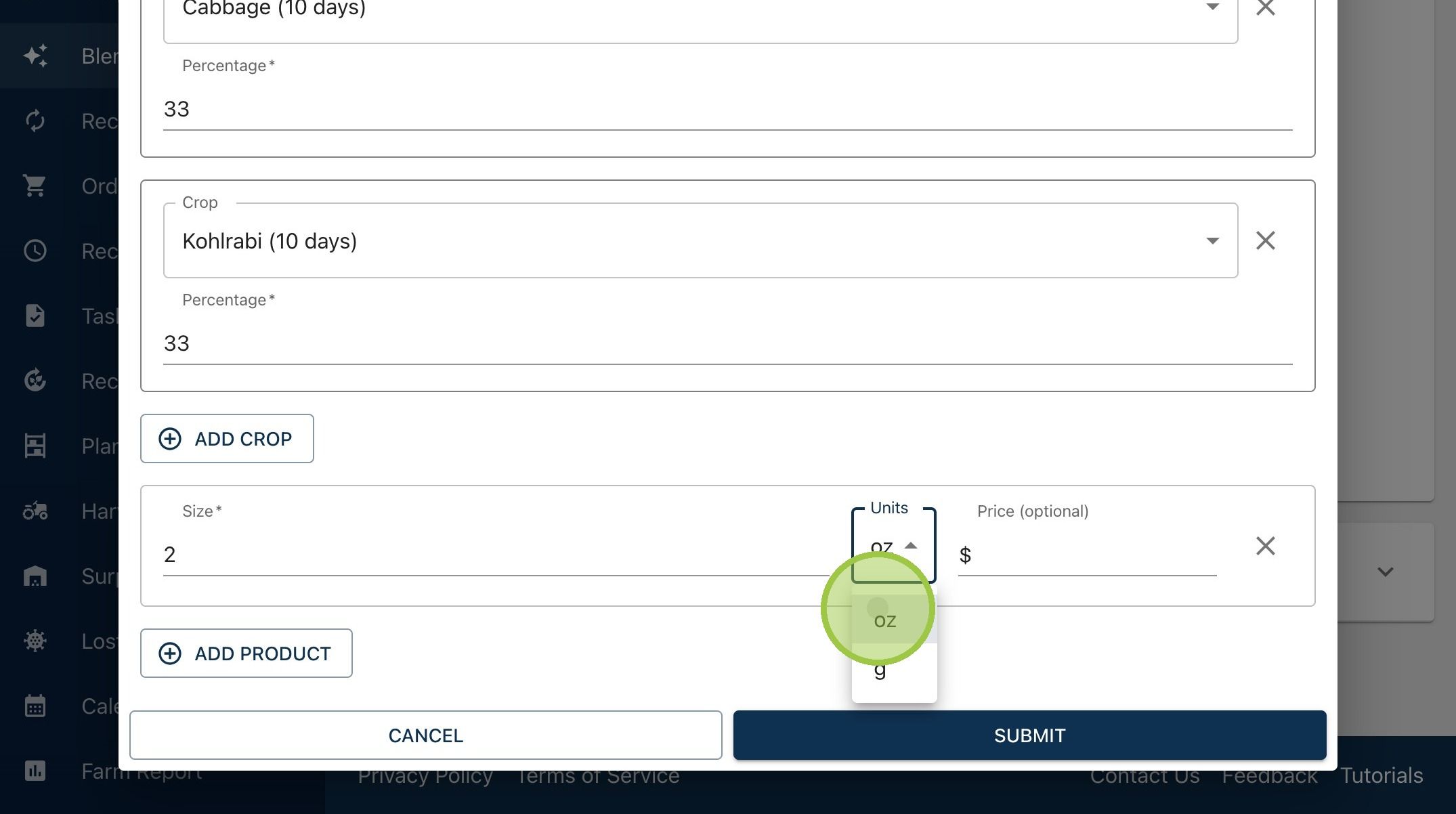
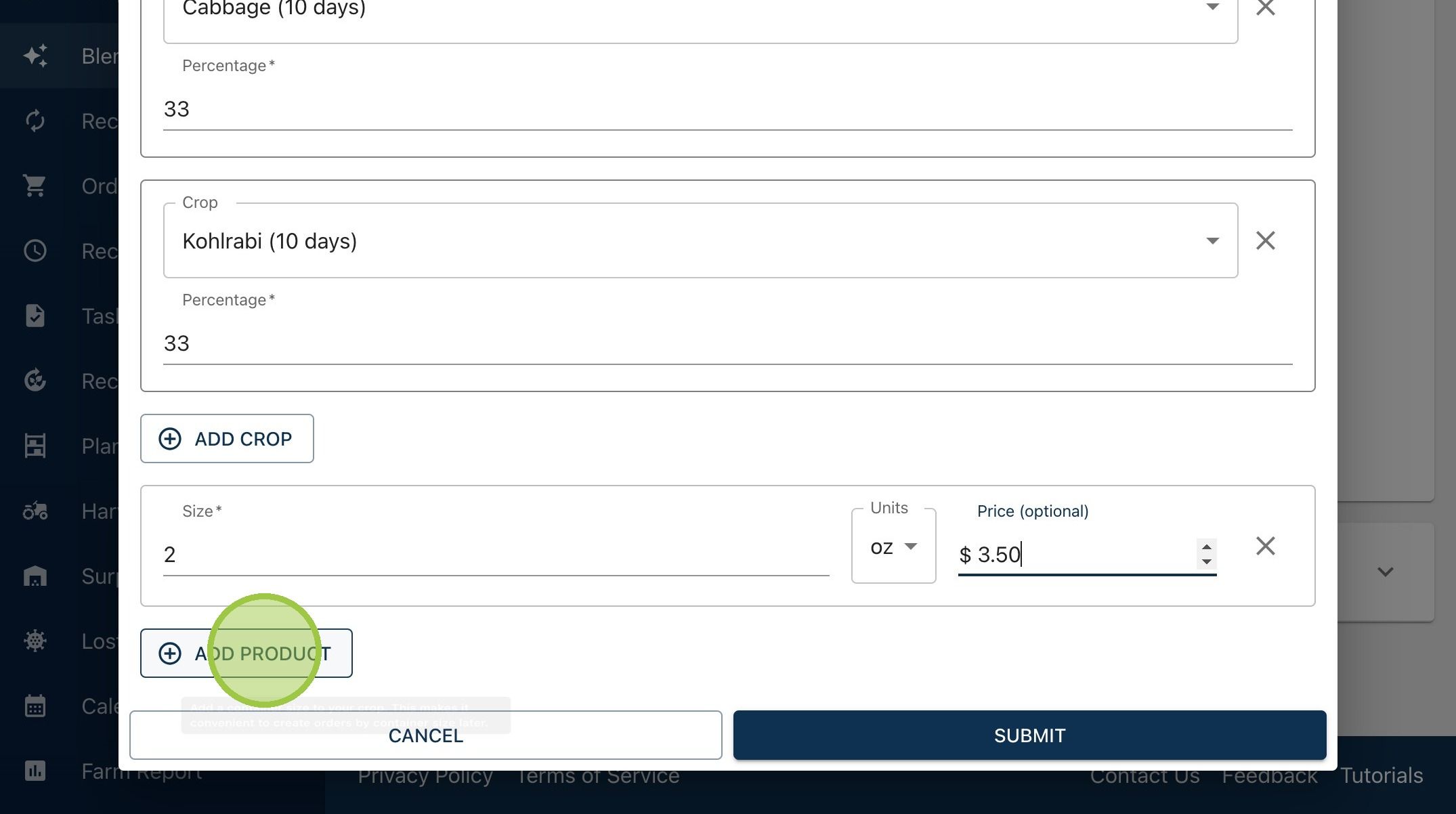
12. Next, we'll add products. Products are predefined container sizes for the blend. A product consists of a size and unit, with the option to add a price. Click "Add Product"
13. Enter the size
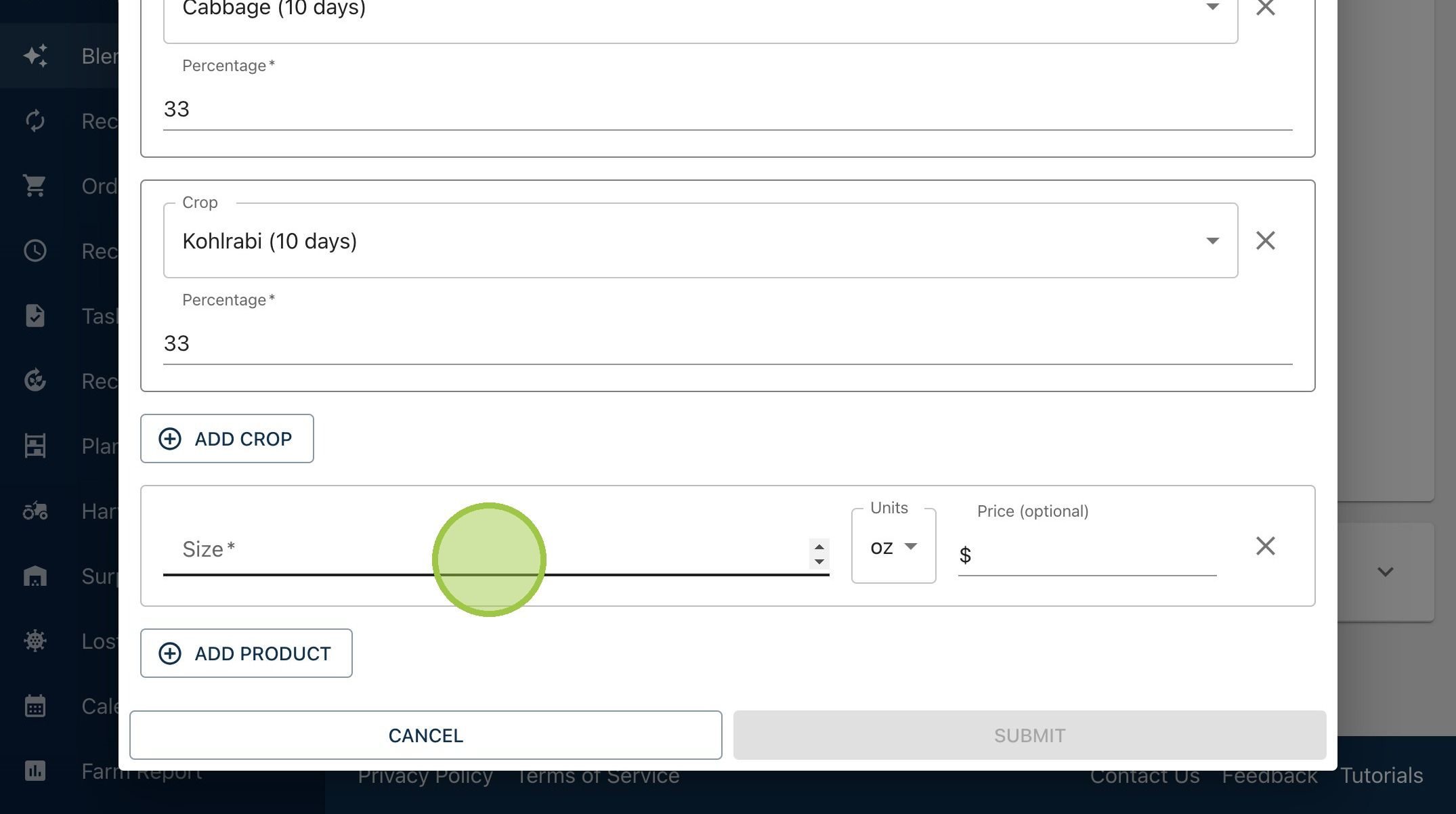
14. Select the units, grams or ounces. Entering a price is optional
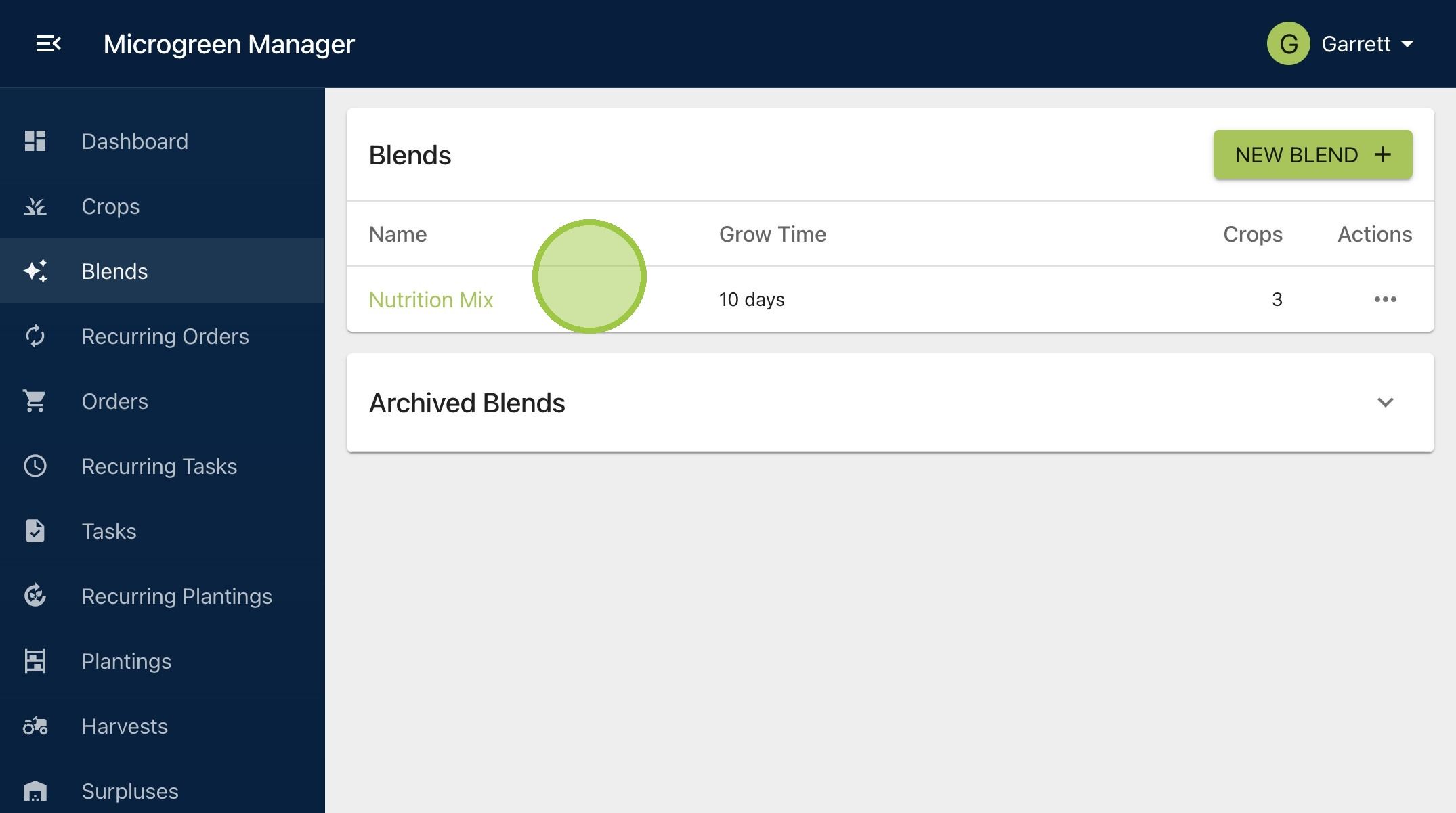
15. Click "Add Product" to repeat the process
16. Click "Submit"

17. You just created your first custom blend!