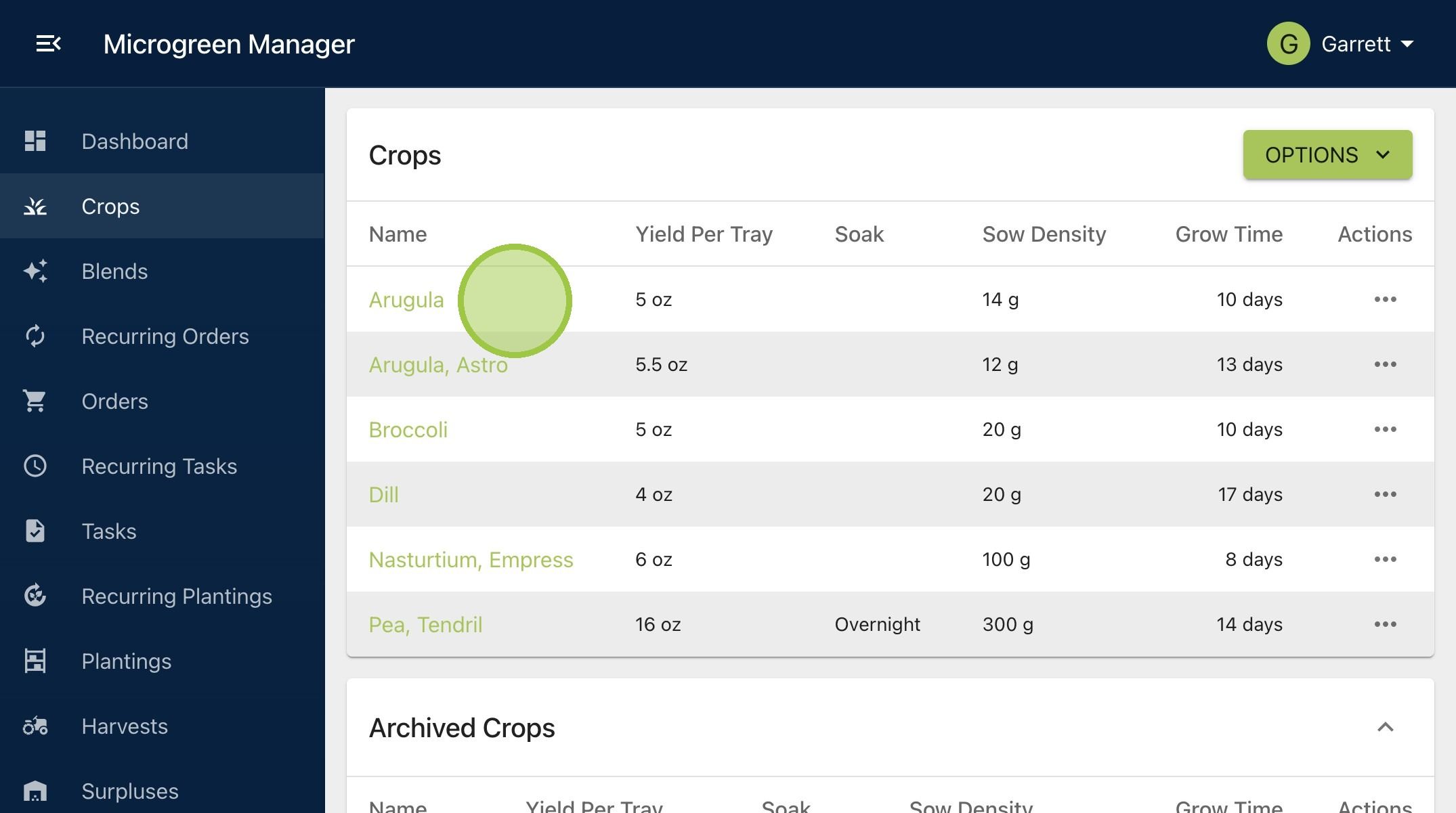
How to Bulk Import Your Own Crops
We offer a template for bulk importing your own crops. Download the file from the Crops page. Read the instructions. Add your crops, and then import the file to fill your crops dashboard.

Written by Garrett Corwin
Last updated1. Navigate to https://microgreenmanager.com/crops
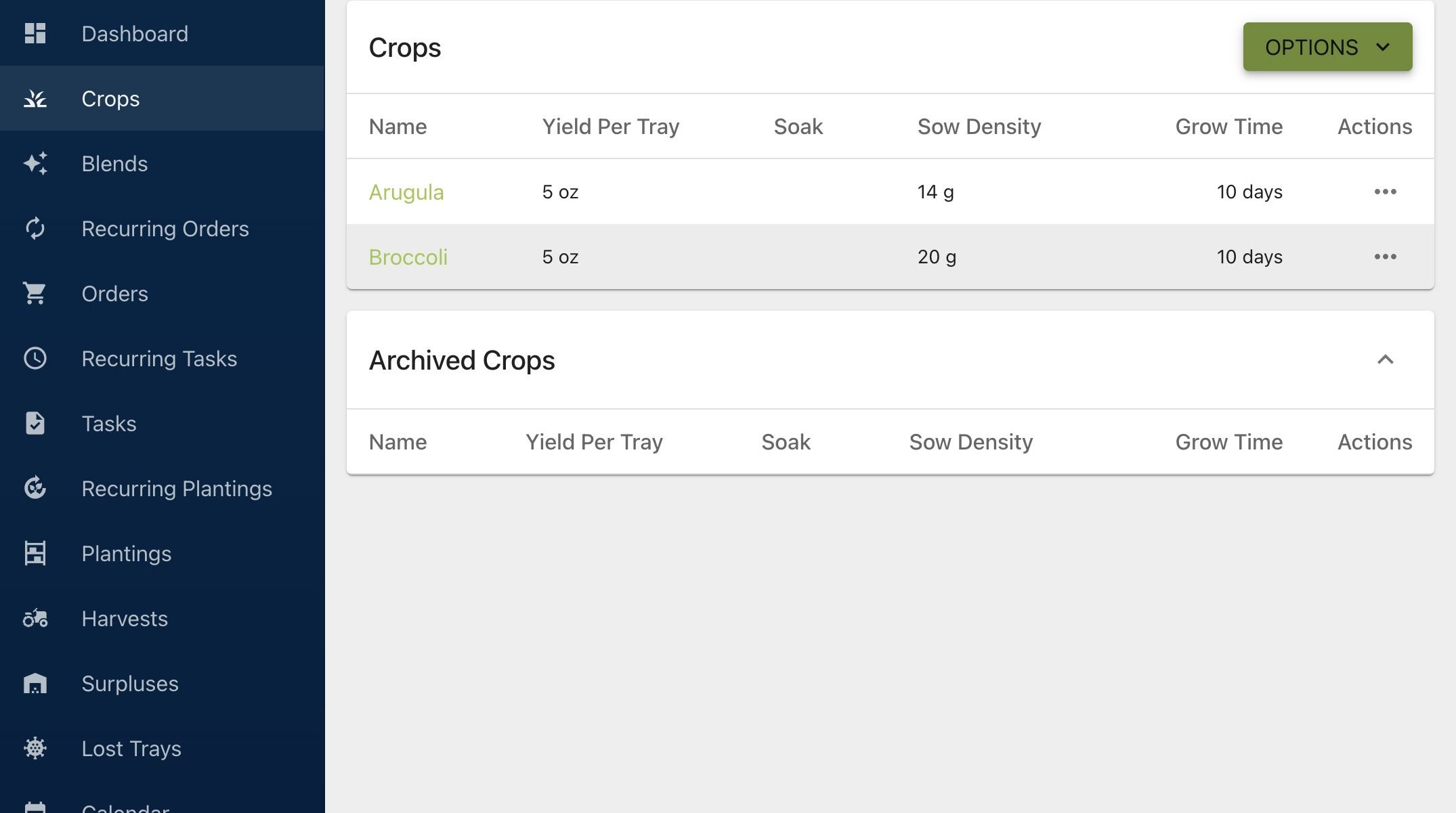
2. Click "Import Crops With CSV"
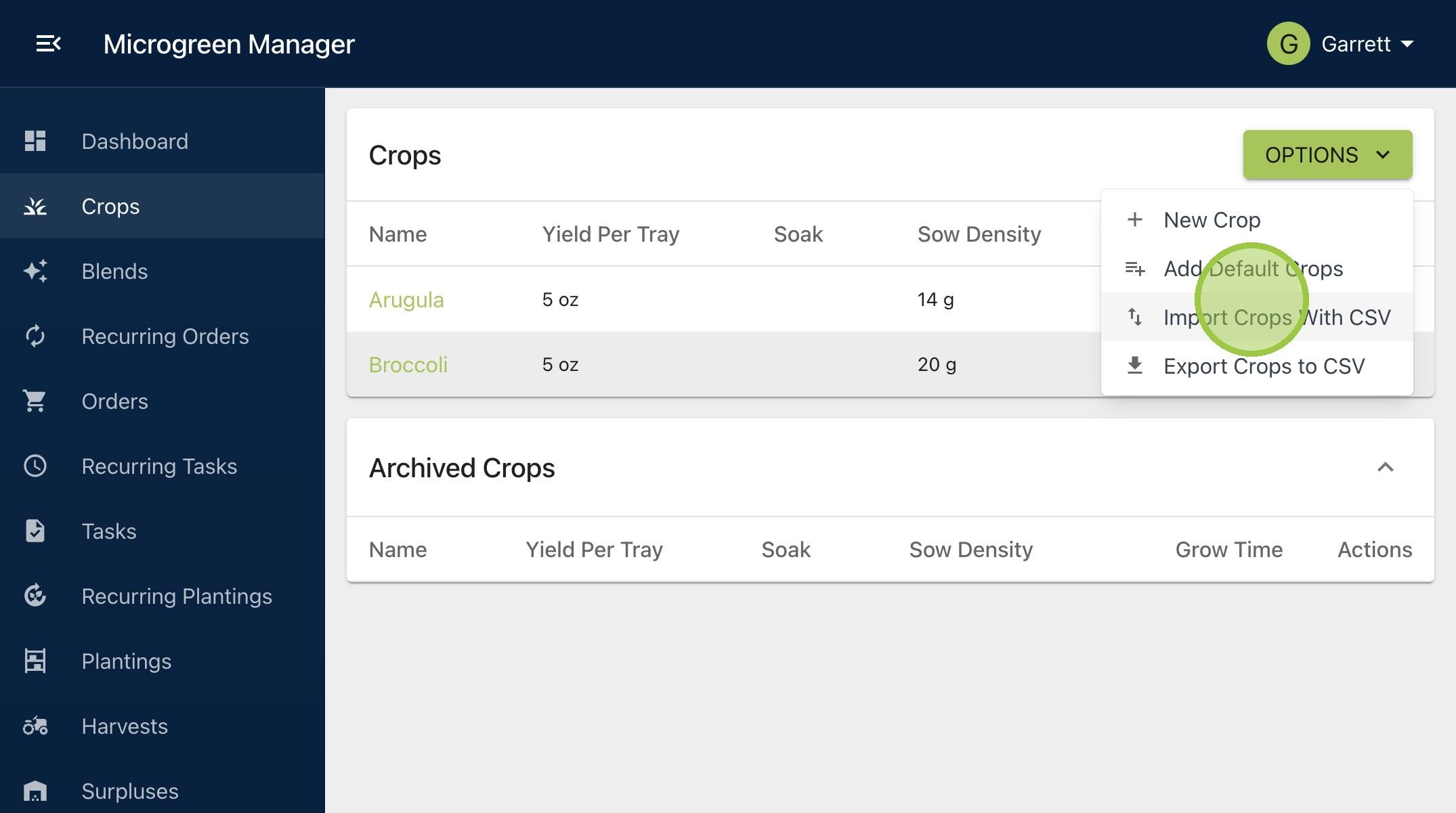
3. Click "Get Template," download the file, and open it in Excel
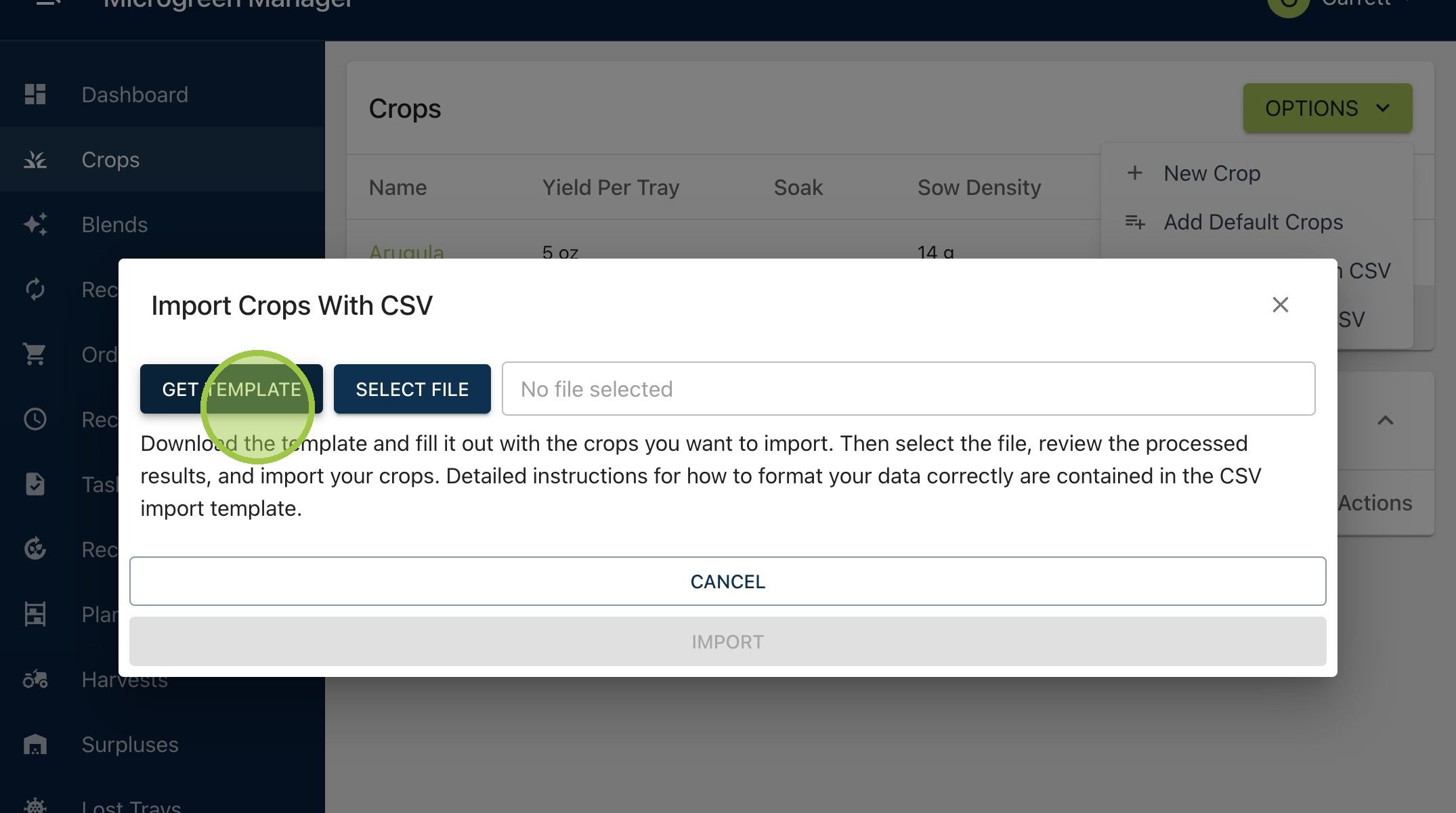
4. The Excel workbook will be pre-populated with the 30 default crops we offer
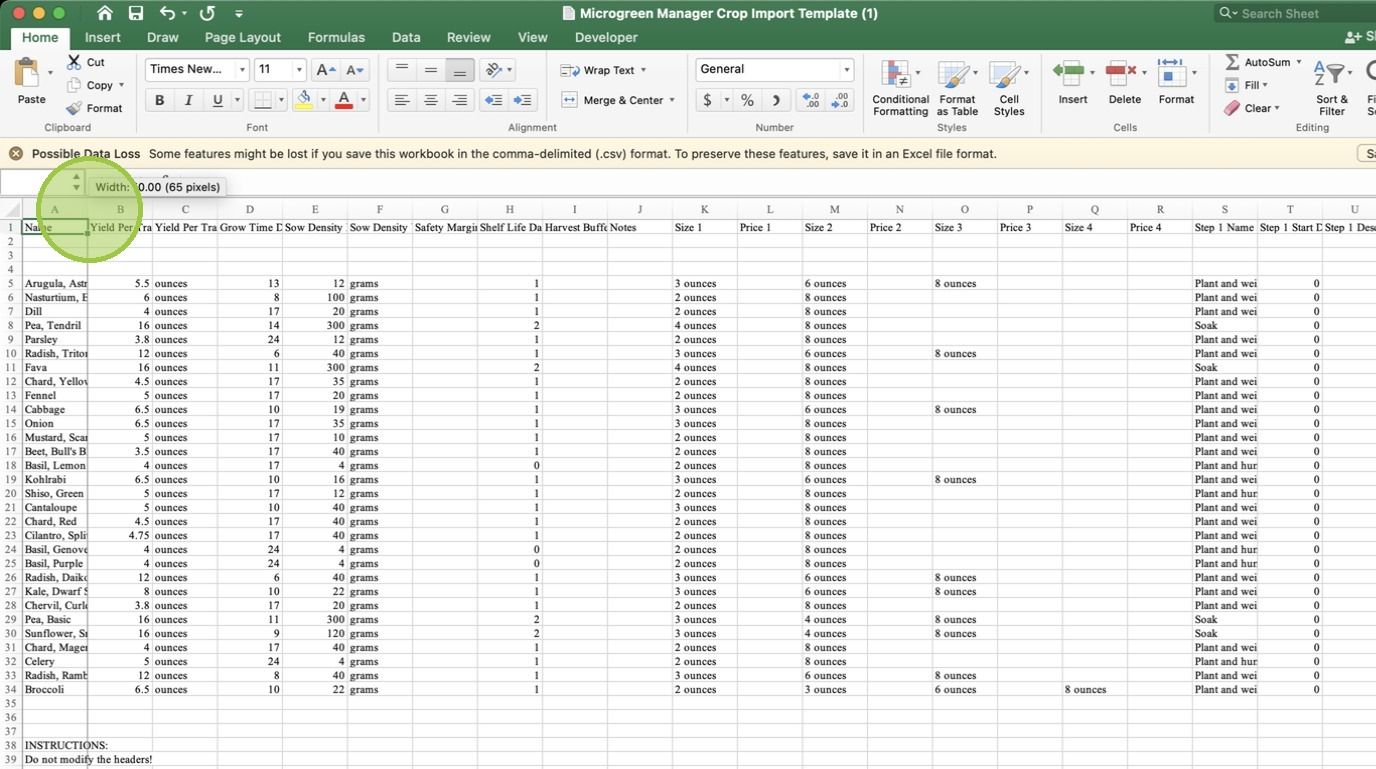
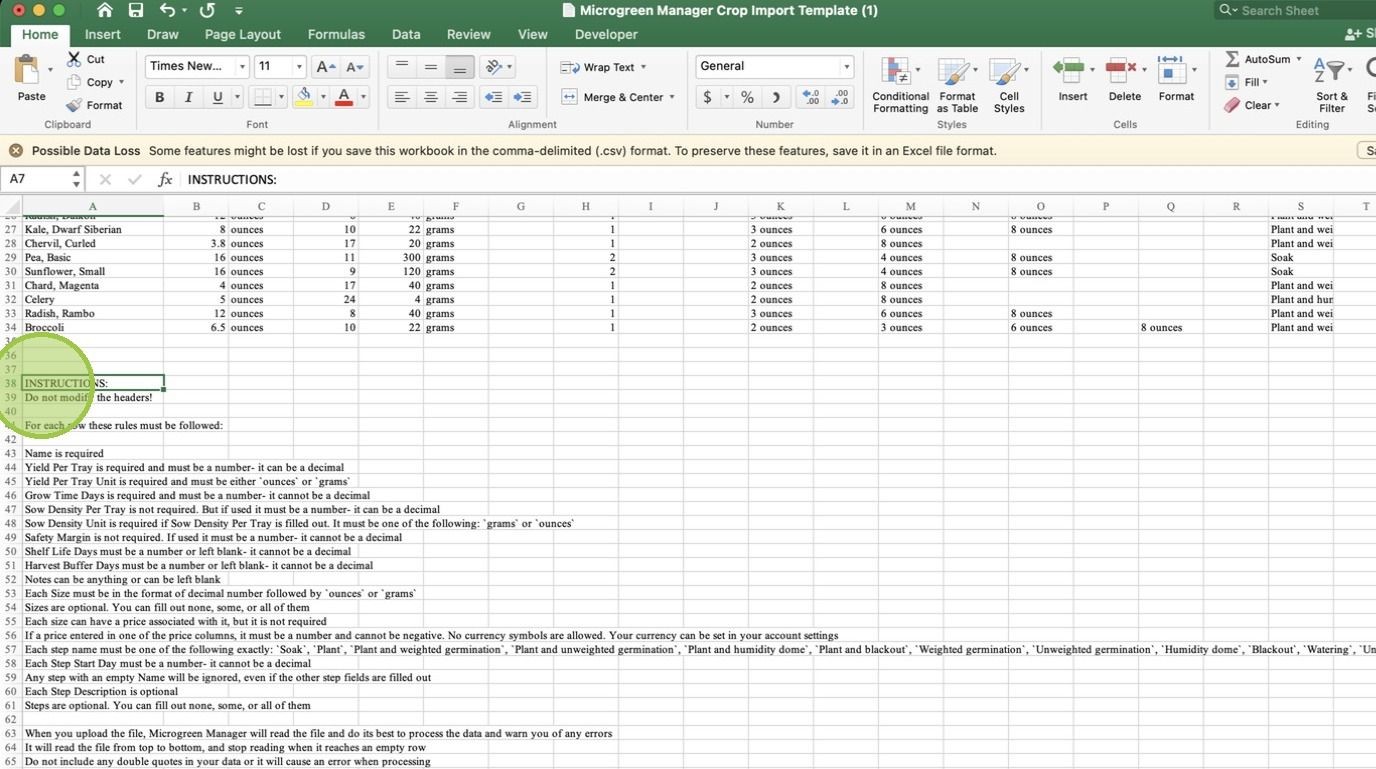
5. Follow the instructions for adding and importing your crops
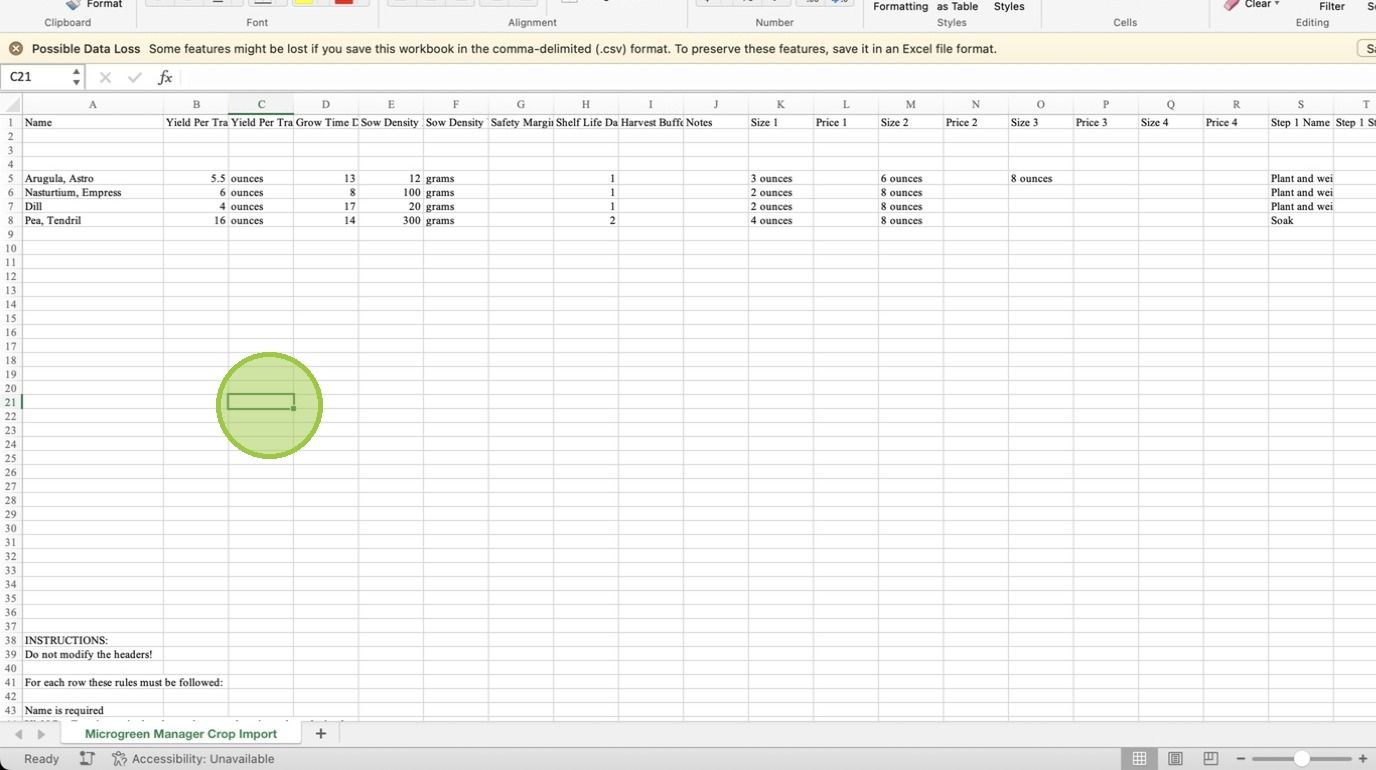
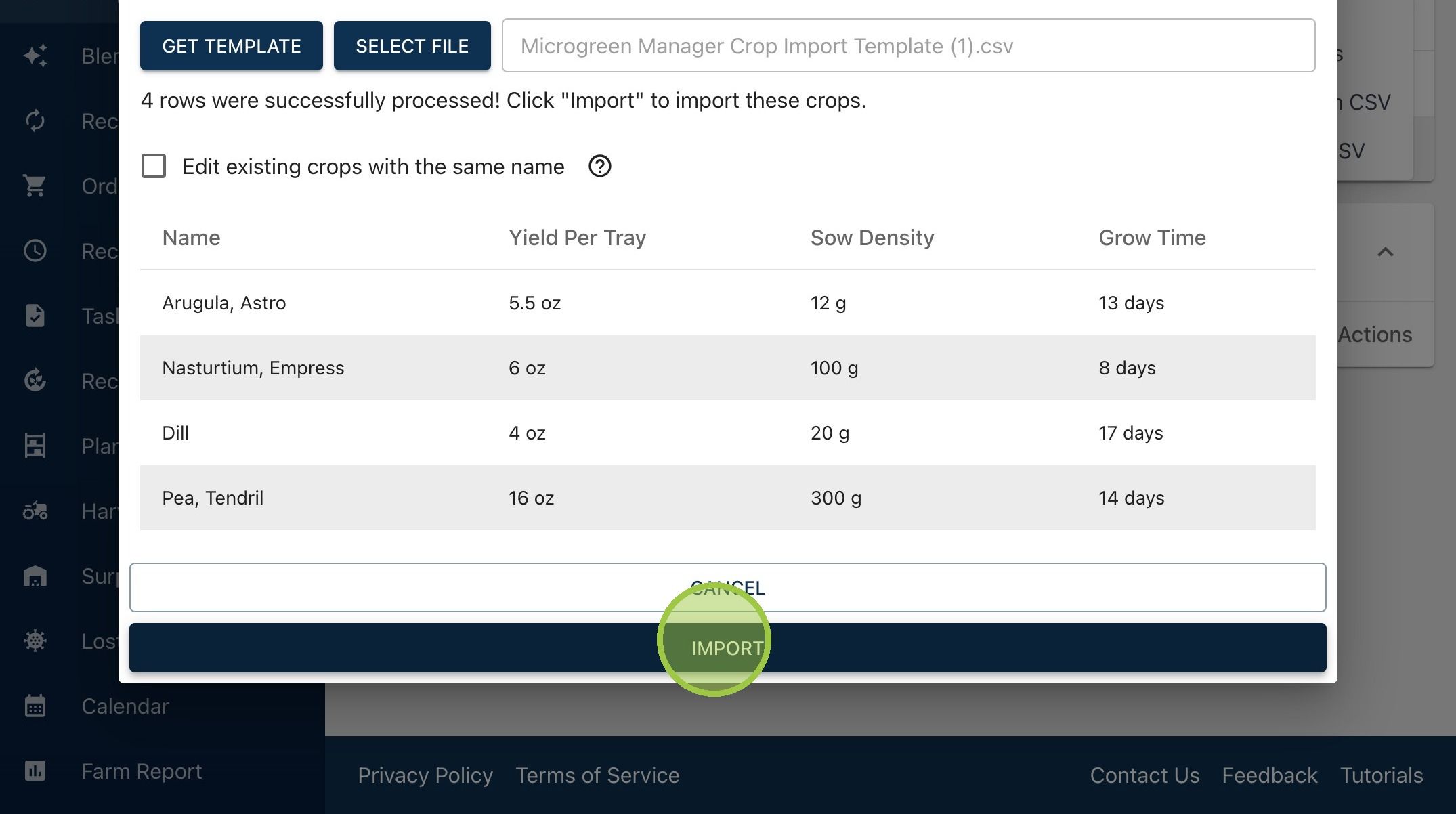
6. In this example, we deleted all but four of the default crops
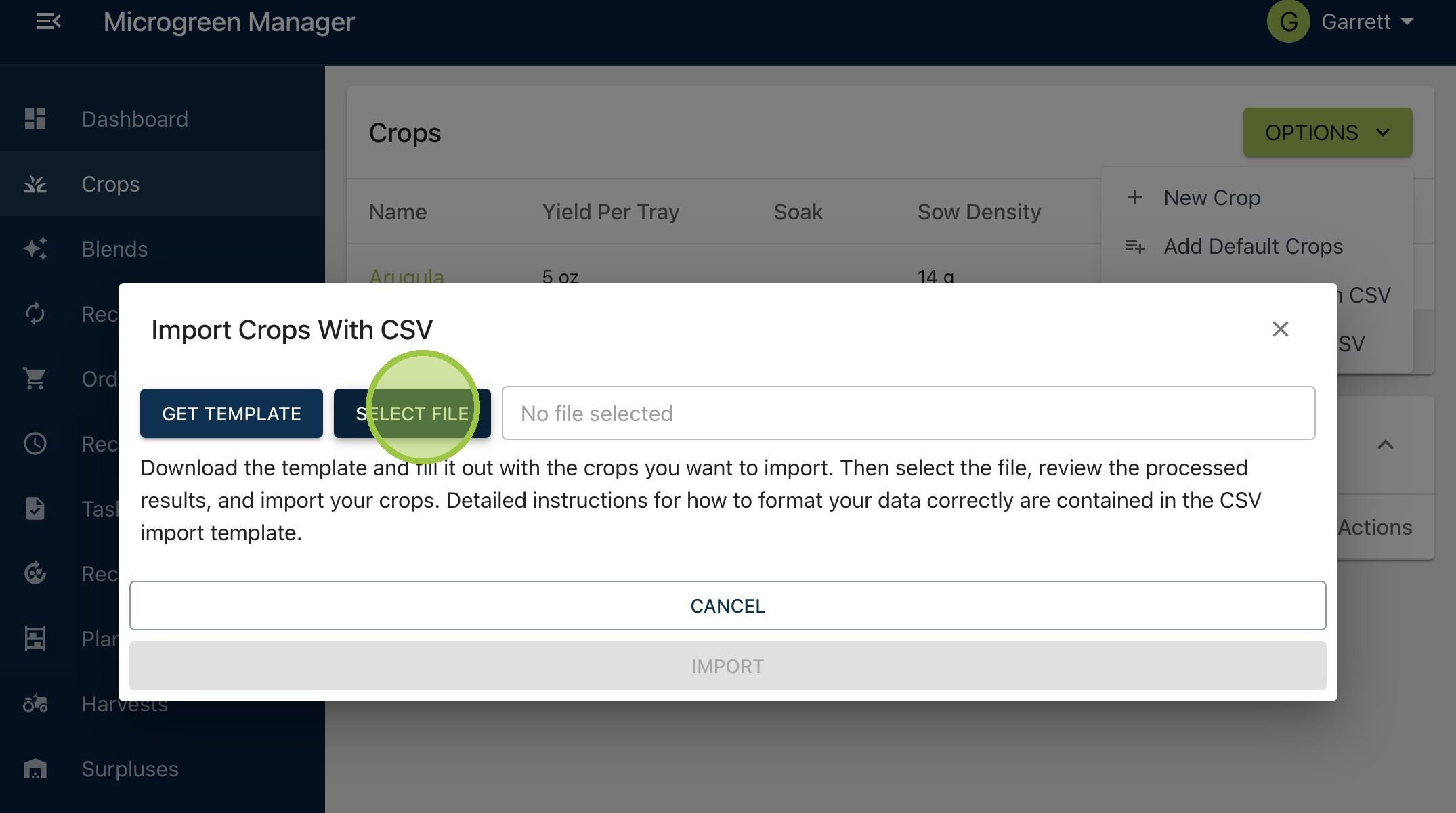
7. When you're ready, return to Microgreen Manager. Click "Select File" to import the updated Excel workbook
8. Before importing the crops, Microgreen Manager will scan the file for any errors. The form will display the name and crop parameters for the varieties it can detect in the Excel sheet. If everything looks correct, click "Import"
9. Your new crops will appear in the crops dashboard