How to Create Custom Crops
If you don't like our default crops, you can create custom crops from scratch.

Written by Garrett Corwin
Last updated1. Navigate to https://microgreenmanager.com/crops
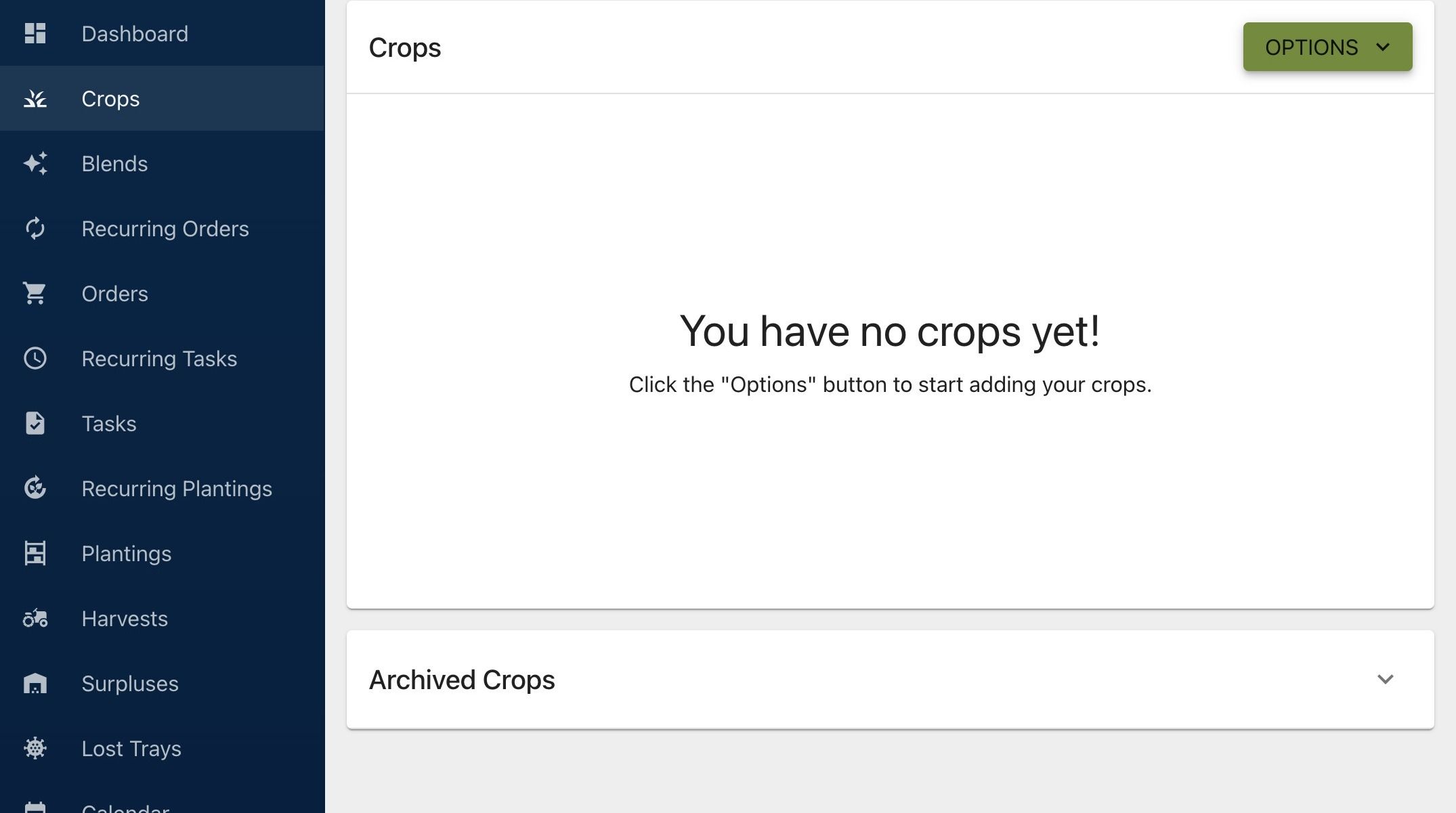
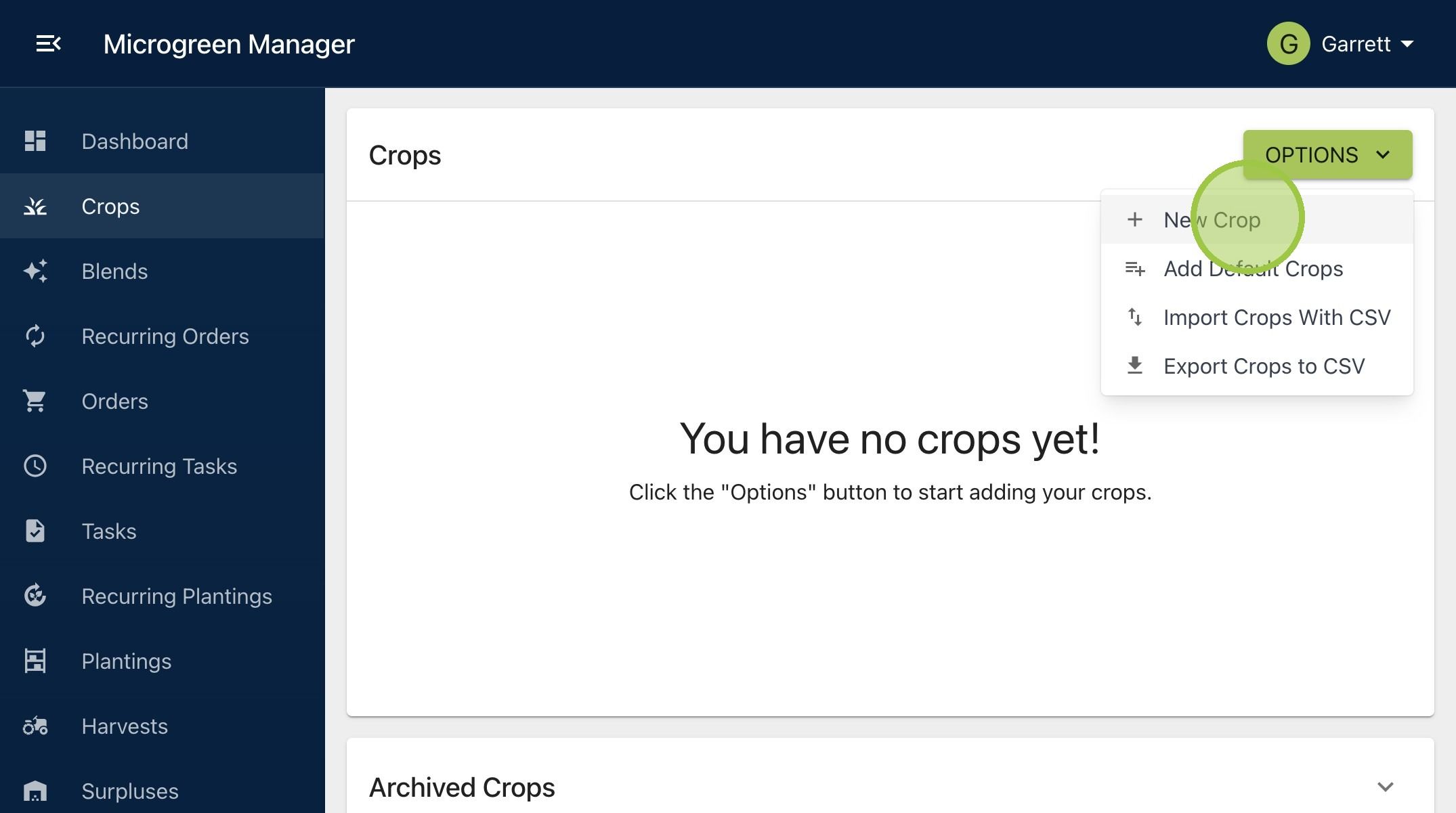
2. Click "New Crop." A Crop is a single type of microgreen. A crop can be generic, such as "Basil", or specific, such as "Purple Basil," "Genovese Basil," or "Lemon Basil"
3. Add your crop information, starting with the Crop Name. We'll use Arugula for this example. Add your Total Grow Time, which is the duration between the first step and the last step, which is Harvest. Add your Expected Yield per Tray and select the units, grams or ounces. We'll grow our Arugula for 10 days and expect an average yield of 5 oz. per tray
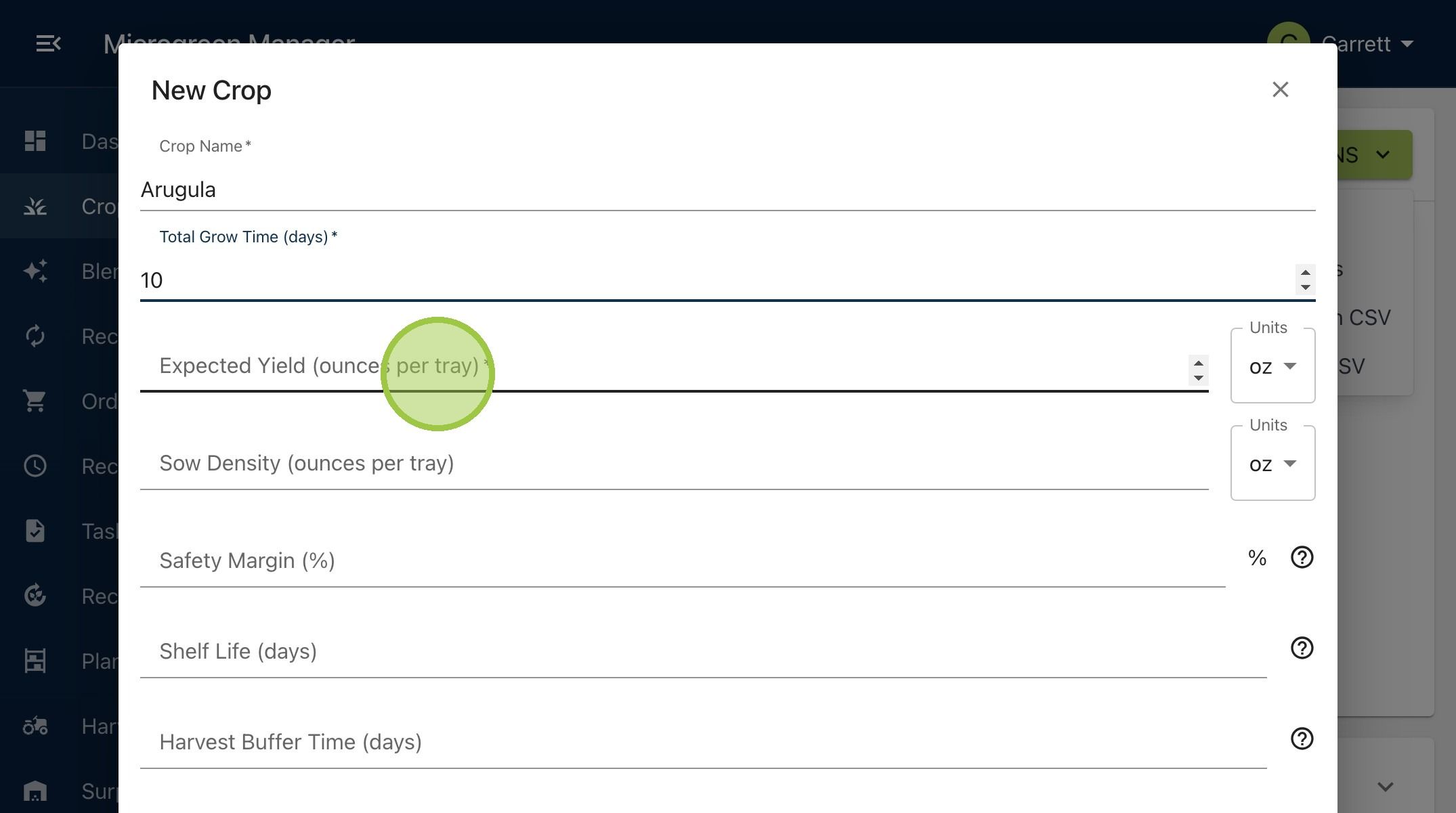
4. The first three fields are required, but the next few are optional. Sow Density is the amount of seed you plant per tray for this crop. Don't forget to select the correct units. We'll plant 12g of seed for our Arugula
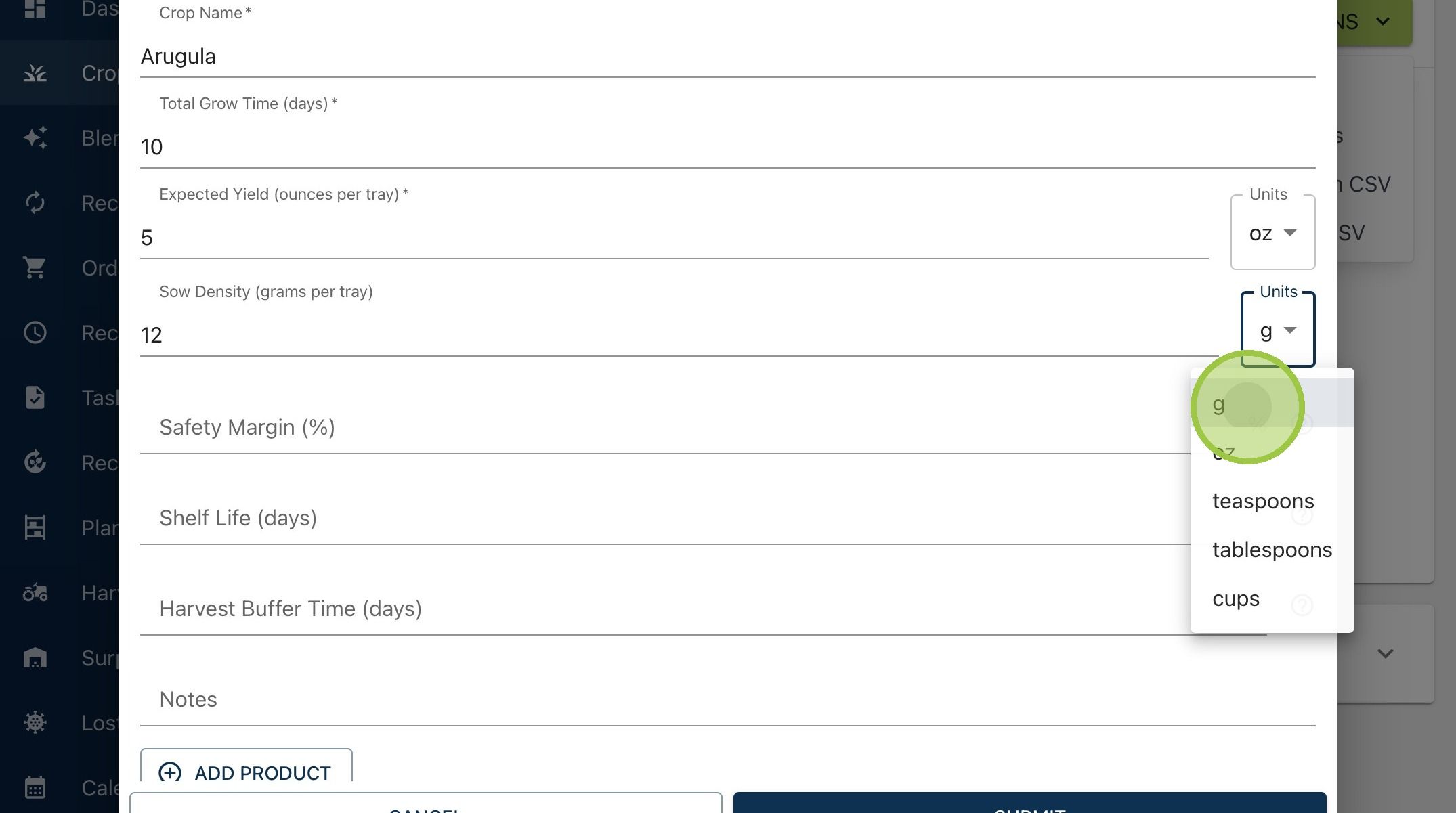
5. The Safety Margin is used to automatically add a buffer to the number of trays you grow for an order. If an order needs ten trays of Arugula, and you set the safety margin to 10%, the software adds one more tray as a buffer
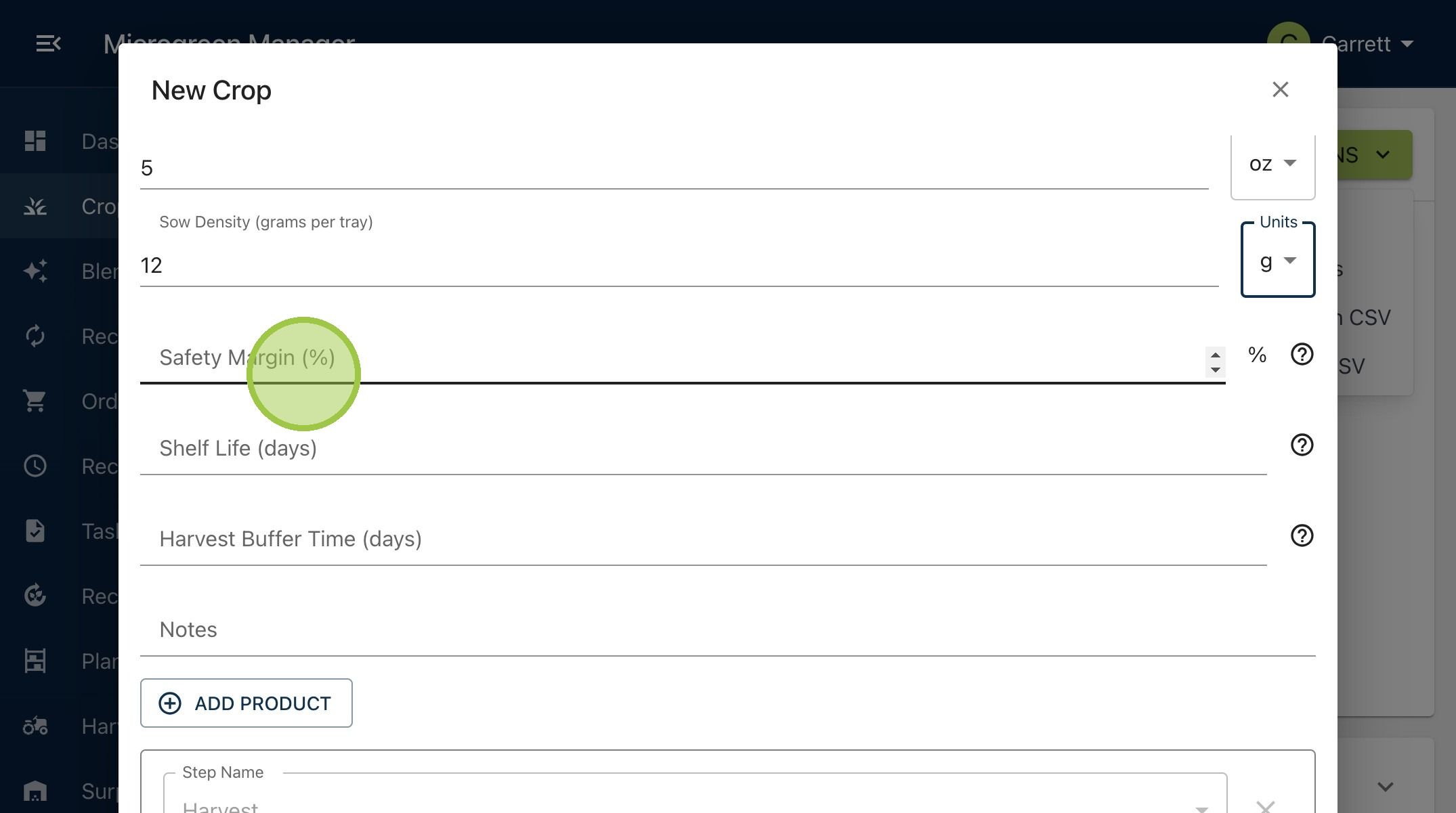
6. The Shelf Life determines how long you will keep a crop after harvest before you can no longer sell it. If you harvest Arugula on Thursday and the shelf life is 1, it will be sellable on Friday. It will no longer be an option by Saturday
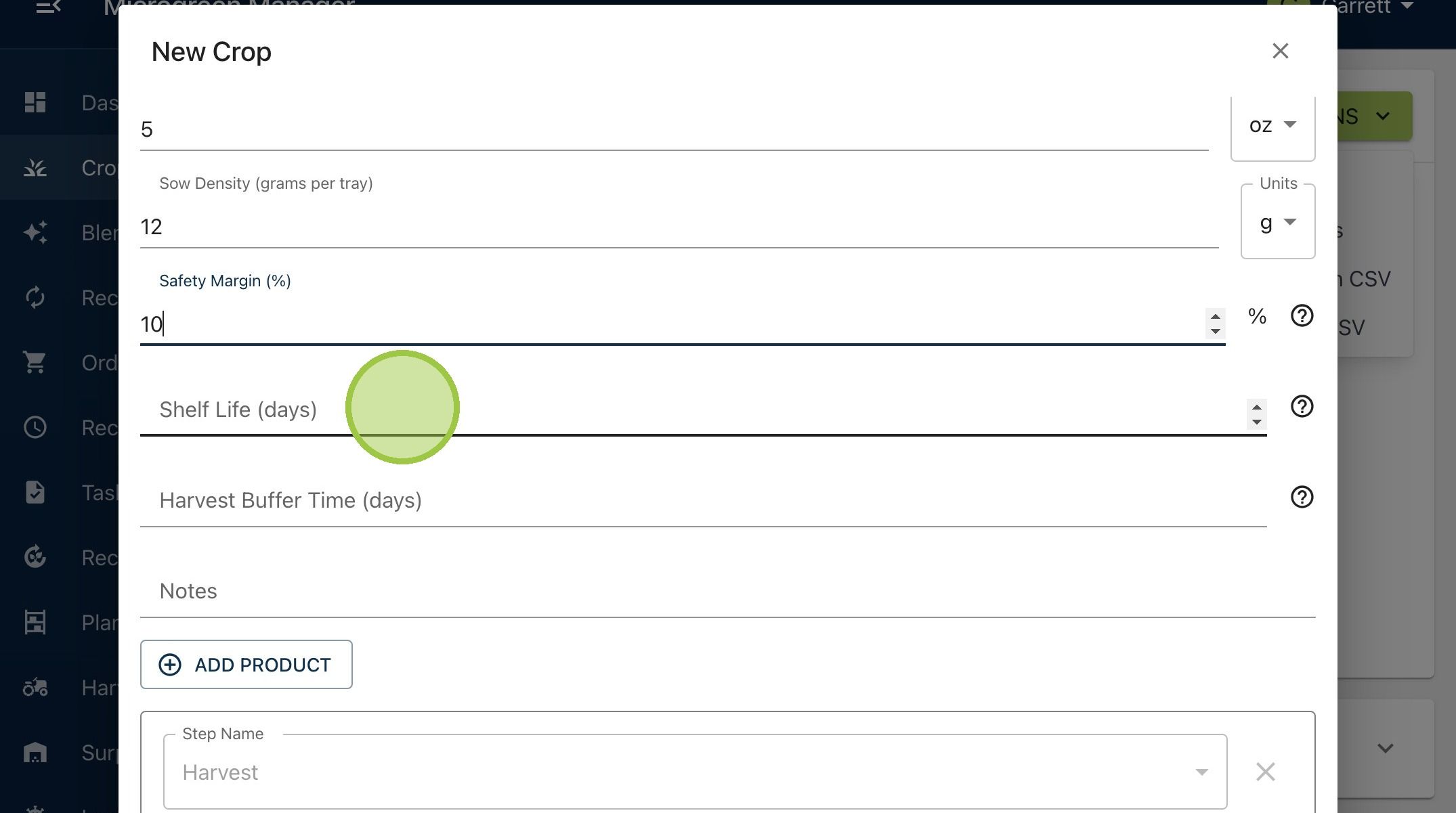
7. The Harvest Buffer Time tells you when to harvest the crop before delivery. For example, if an order is due on Friday and the harvest buffer time is 1, you will harvest the Arugula on Thursday
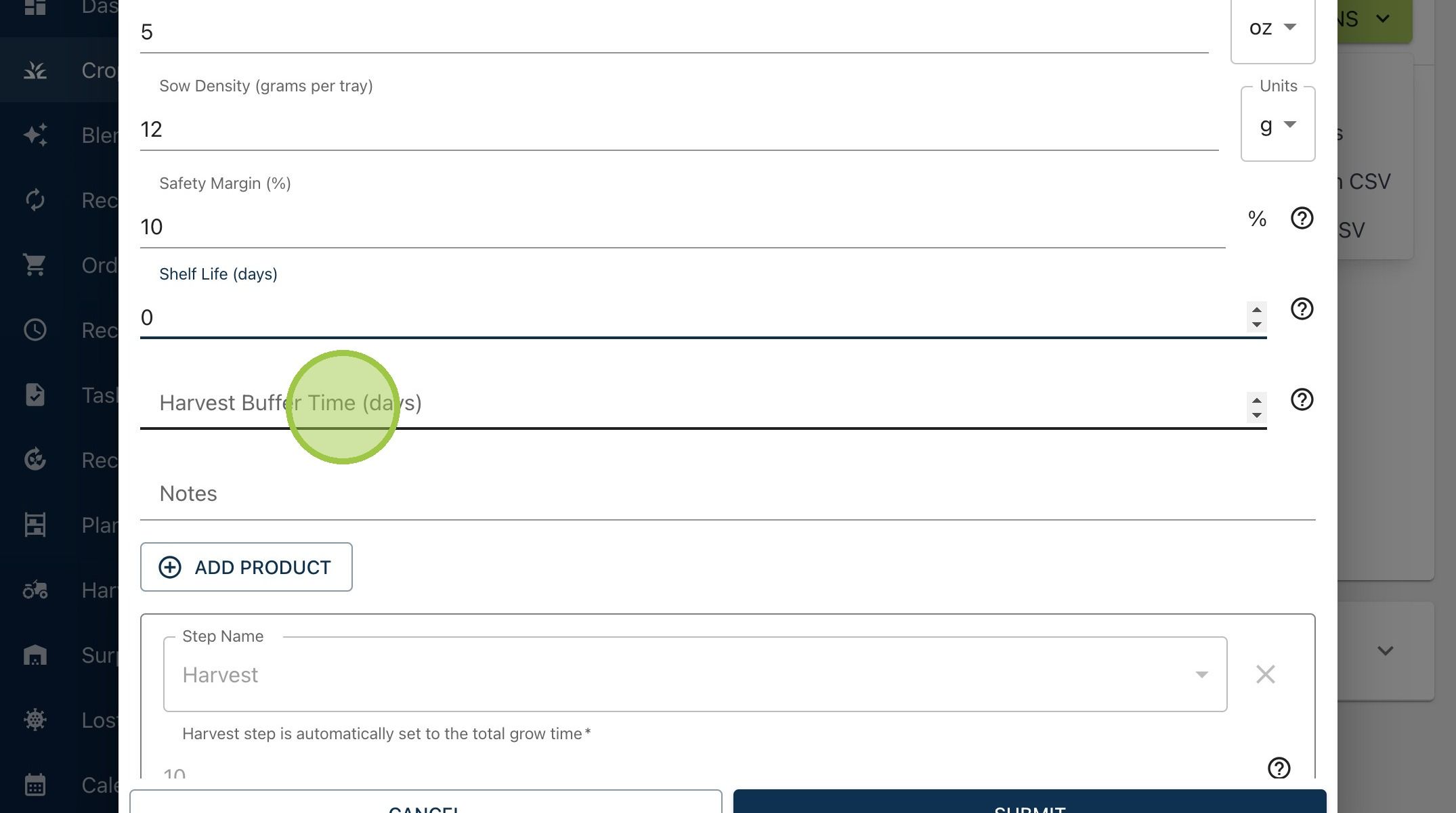
8. Add any special Notes about the crop
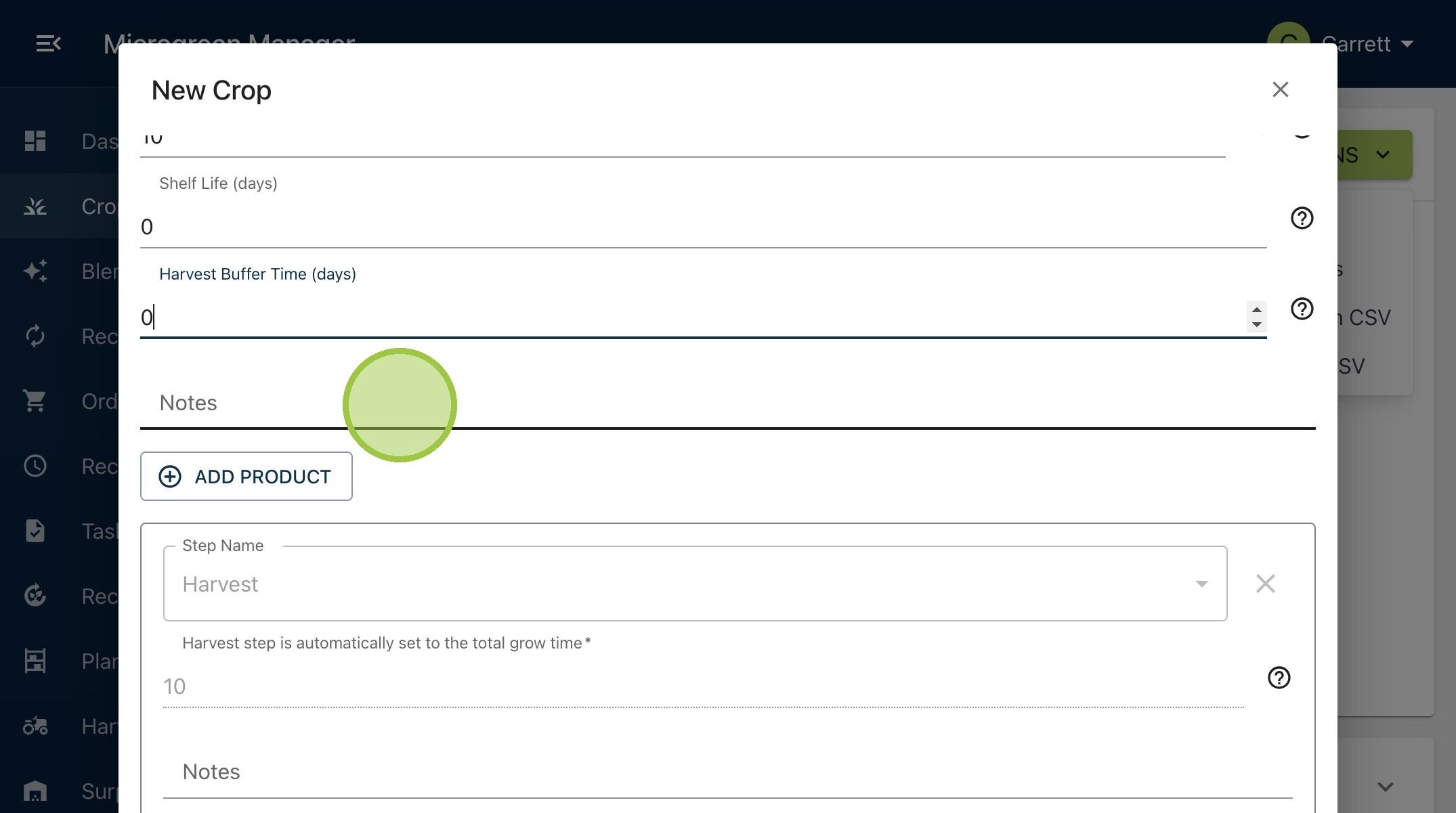
9. A Product is a specified container size for that crop. Products are optional
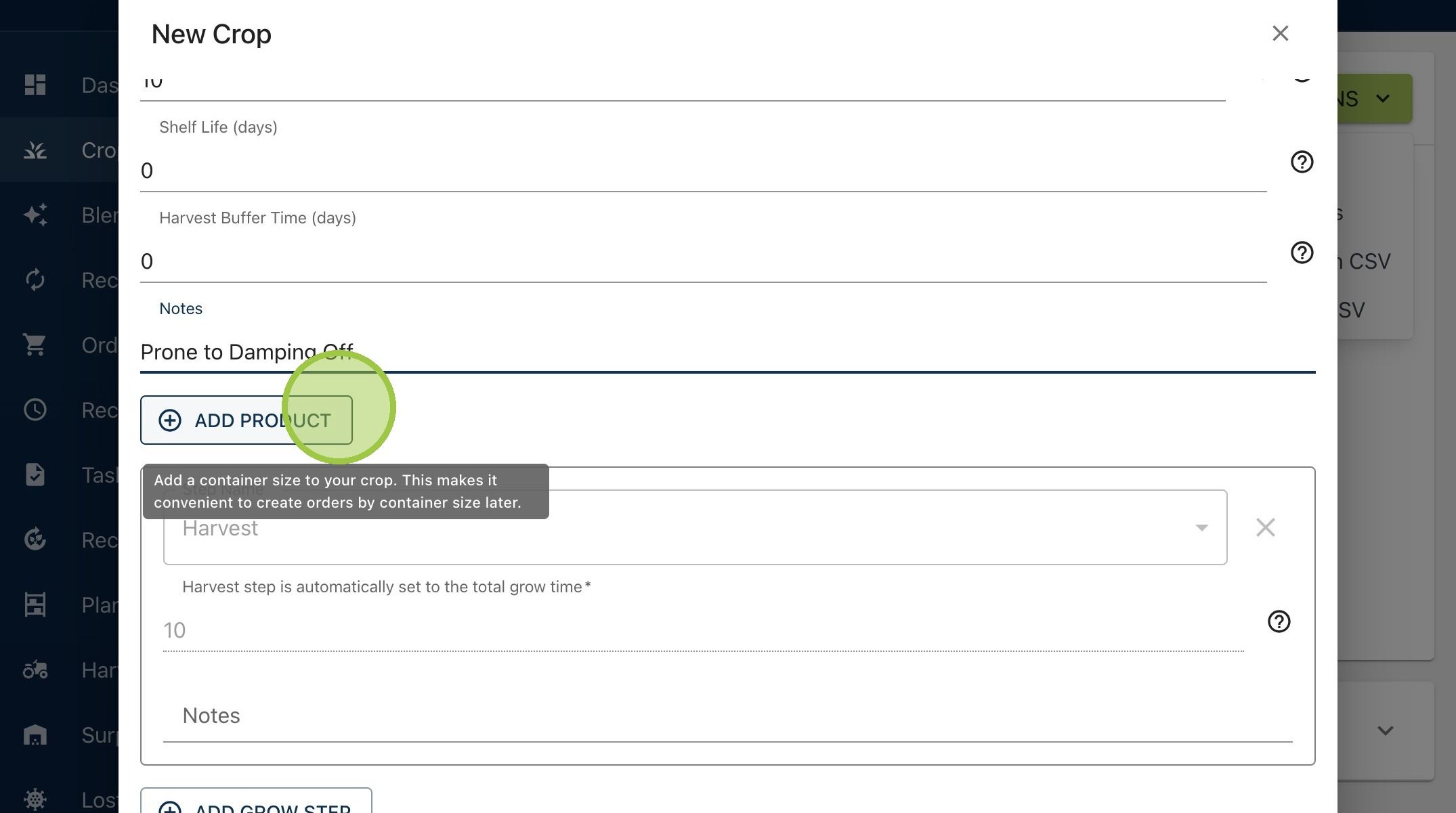
10. A product requires a size and unit with an option to include a price
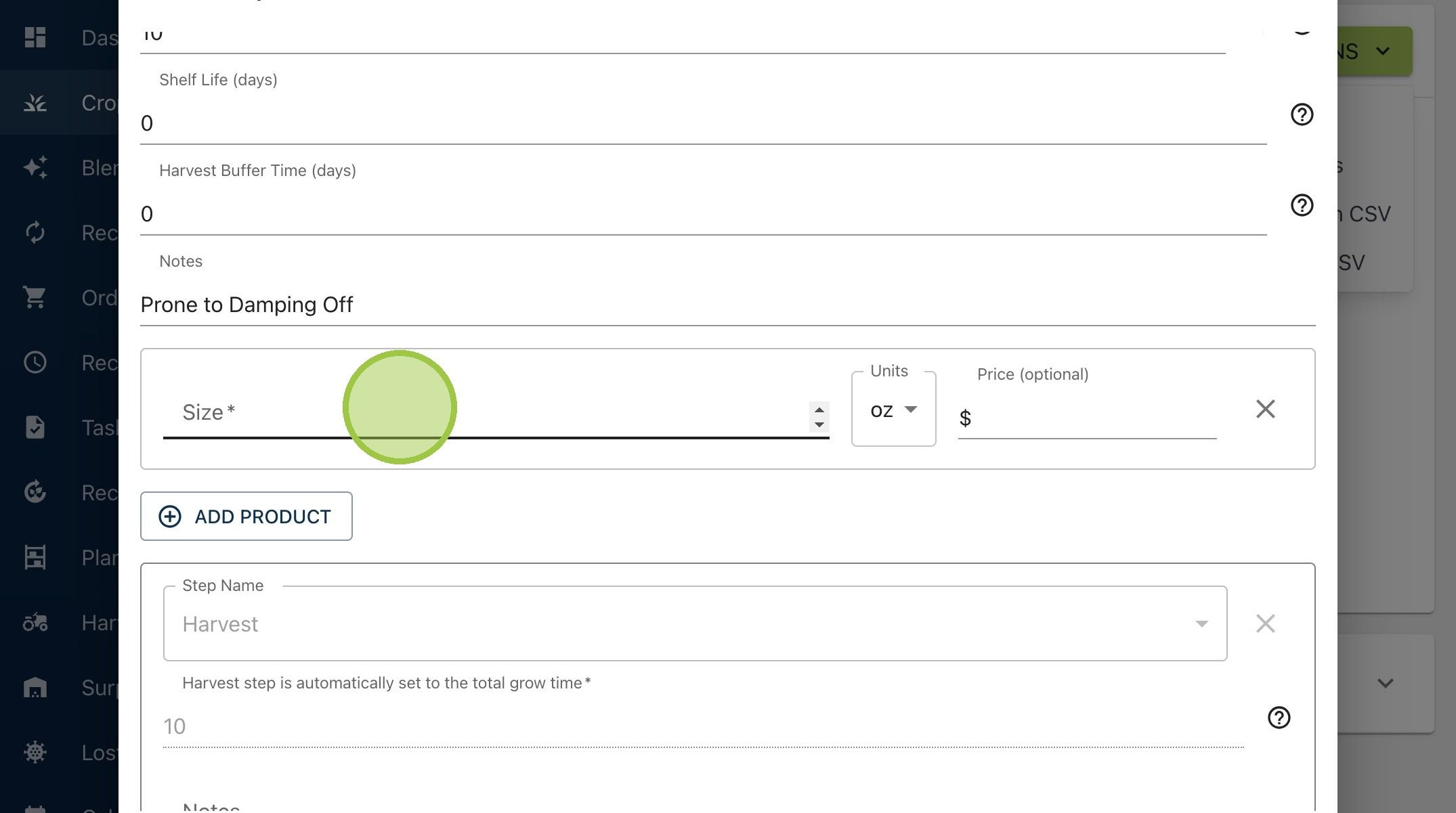
11. You can create as many products for a crop as you want. We'll create a 4 oz. option for $12.00 and an 8 oz. option for $20.00
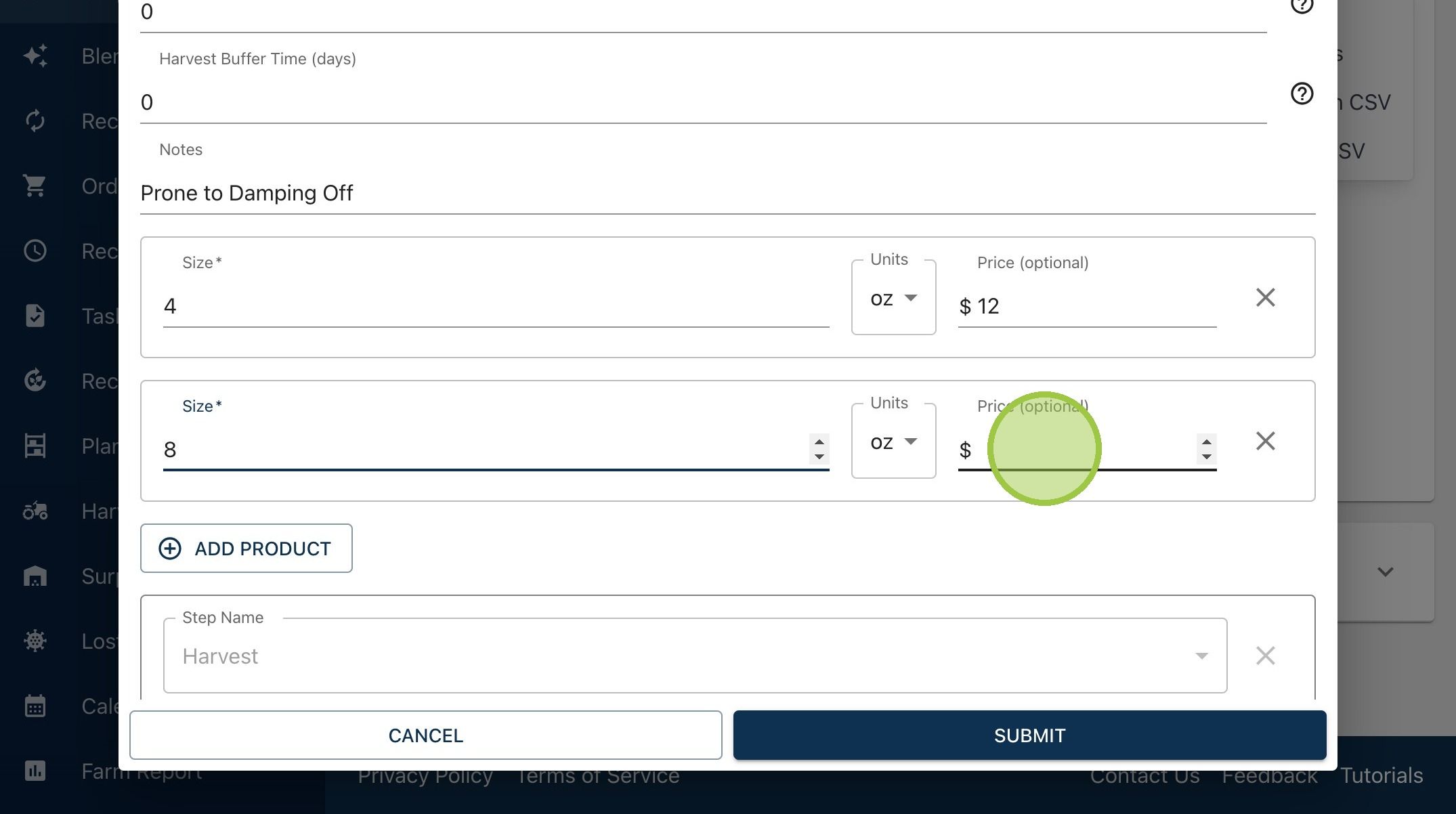
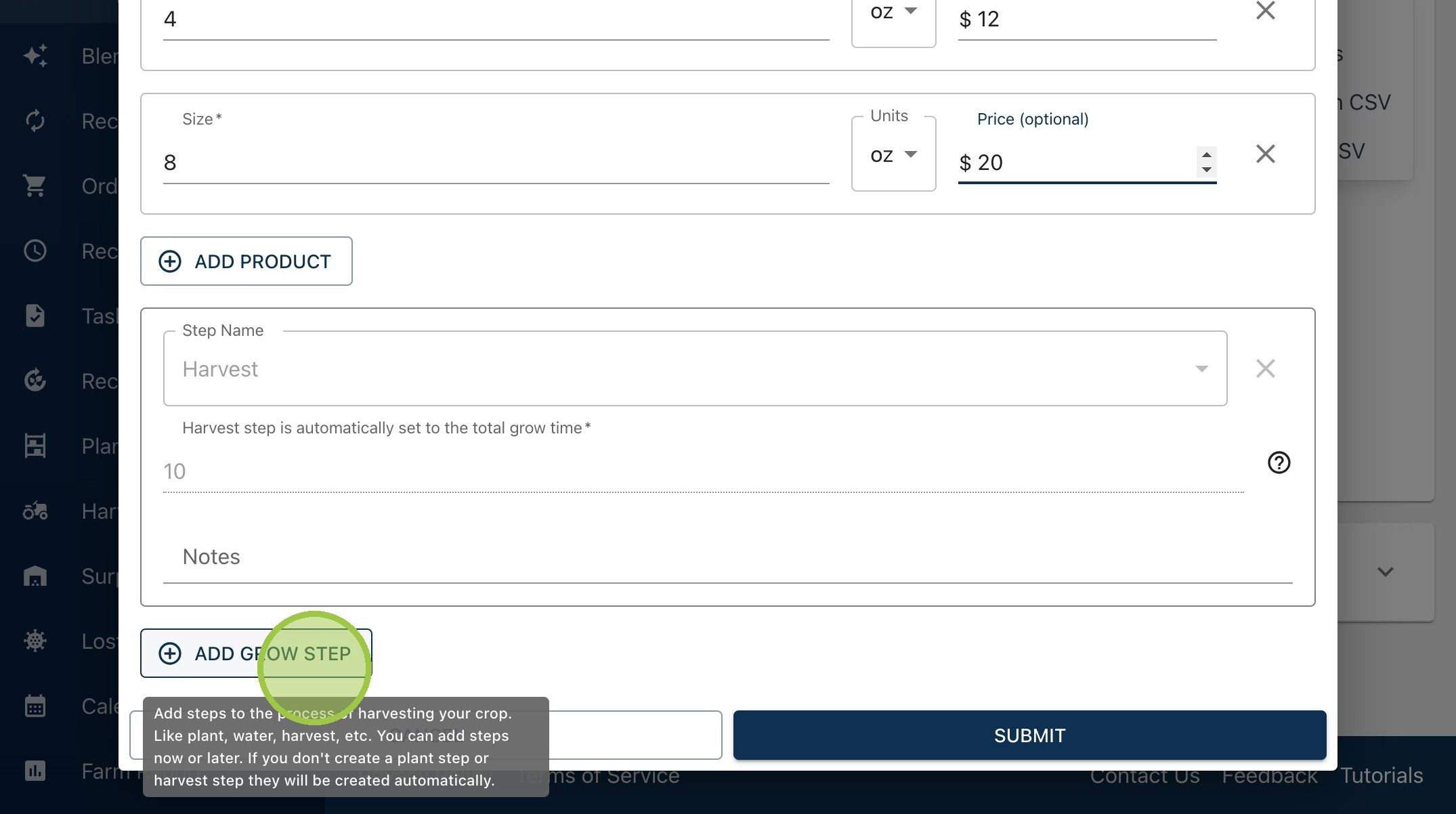
12. Last, we'll add our Grow Steps. Every Crop has at least two steps - Plant and Harvest. By default, Plant is set for Day 0, and Harvest is set for the same day as the total grow time you entered. Click "Add Grow Step" to create custom steps
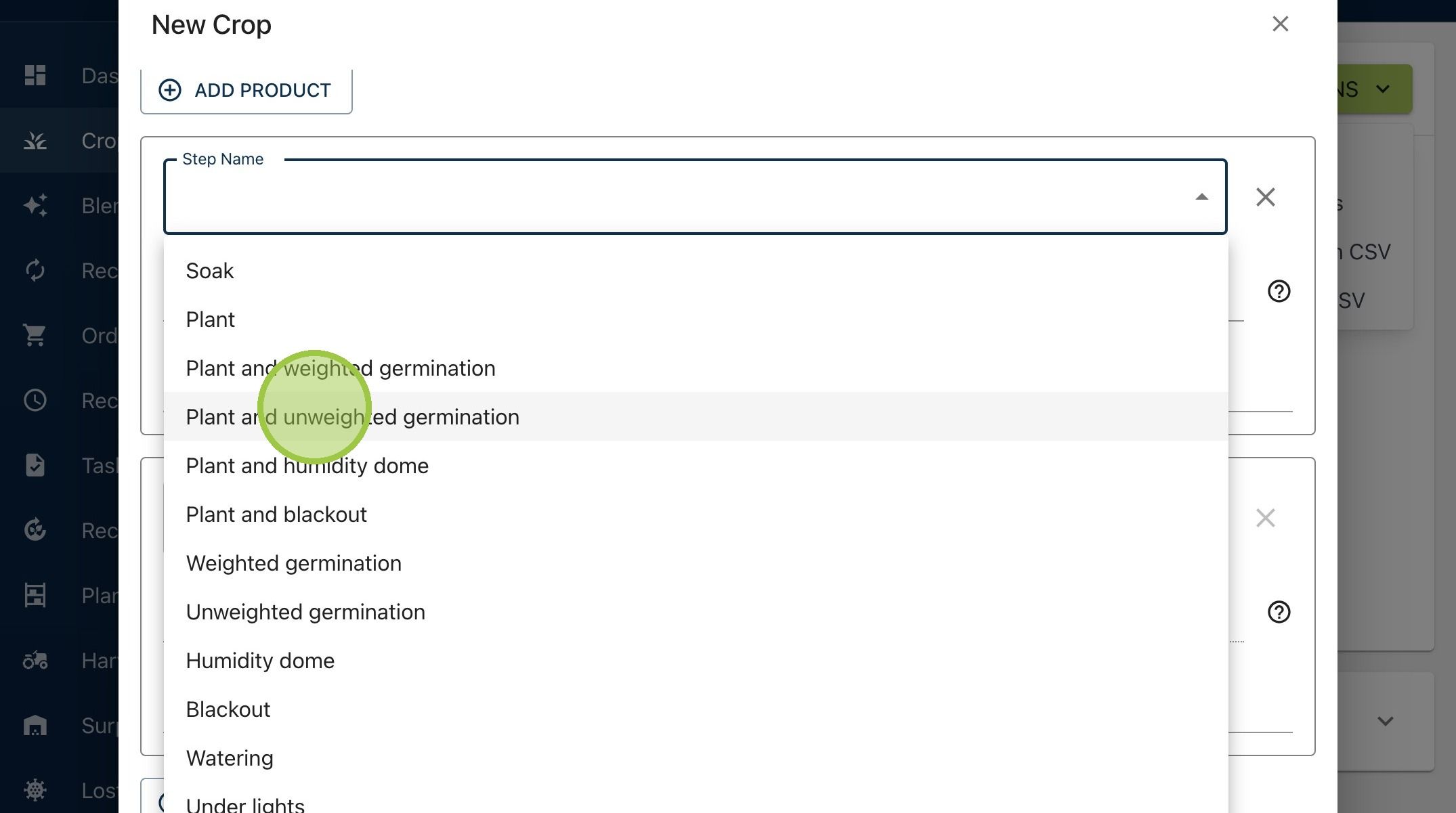
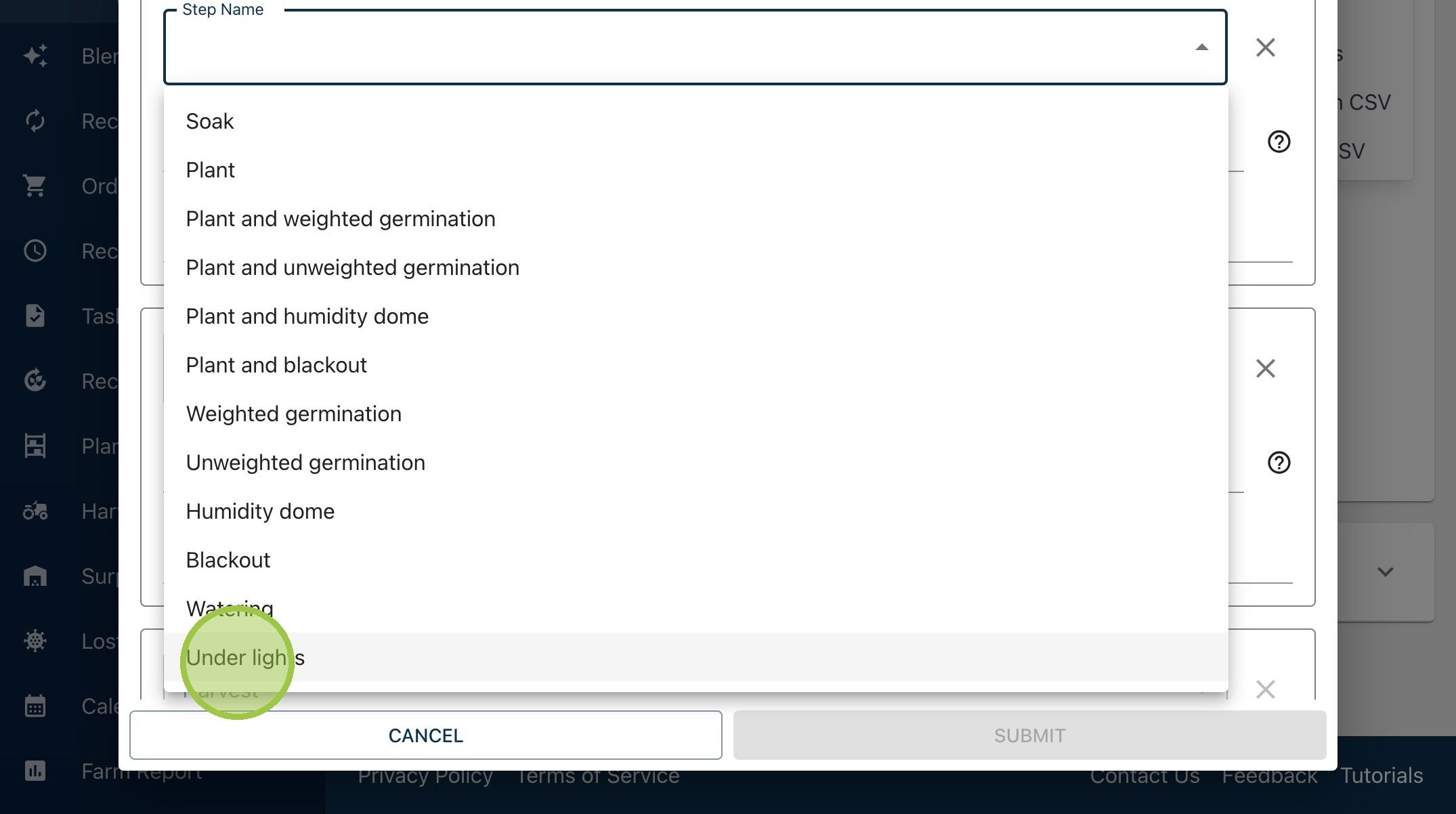
13. Select one of the predefined options as your first step. We plan to plant the Arugula and put it into germination right after, without any weight on top. We'll select that option
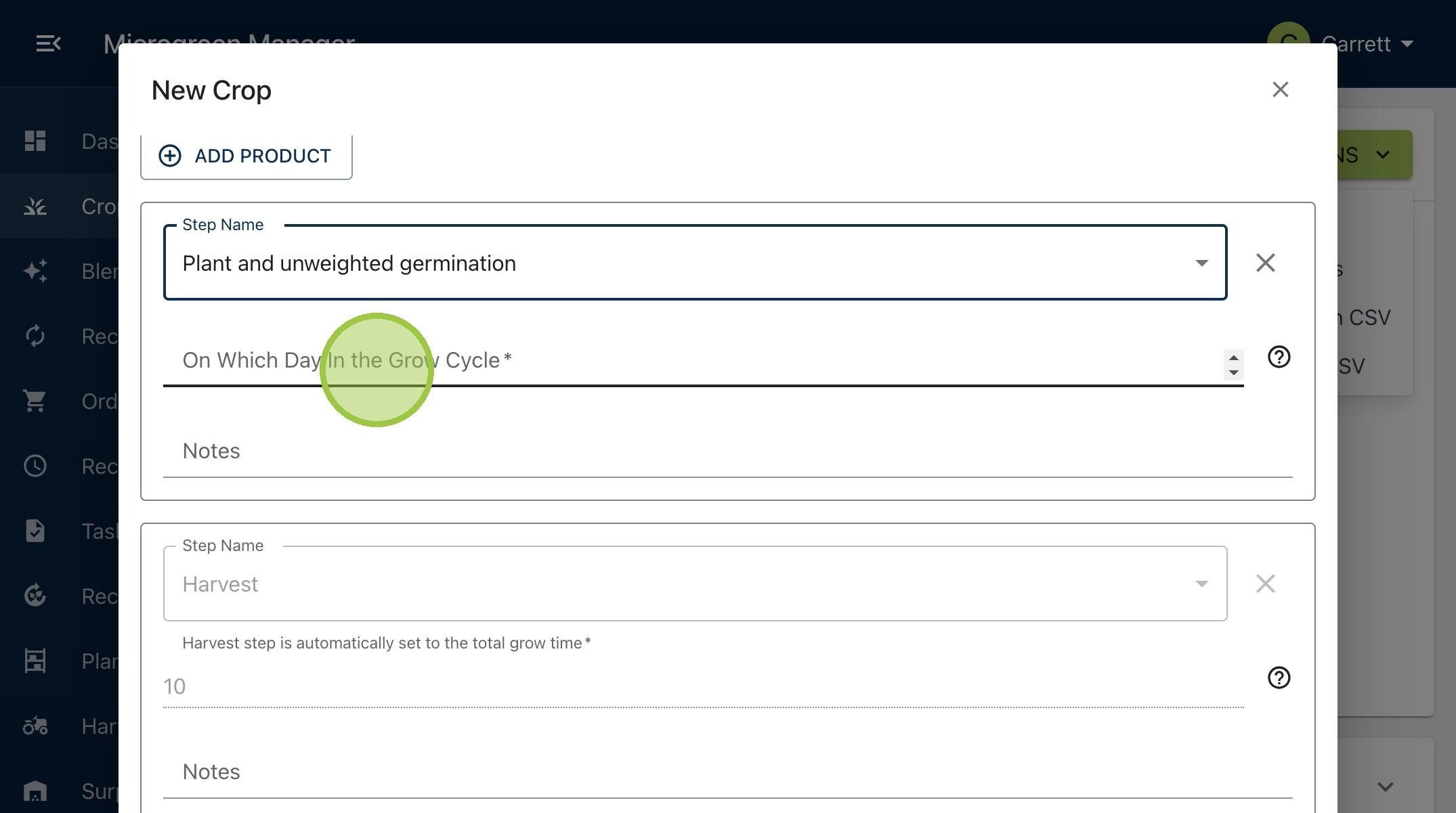
14. The next field, "On Which Day In the Grow Cycle," asks you when a particular action takes place. Since planting and unweighted germination happen together on the first day, we'll enter 0. This is the first step in Arugula's grow cycle
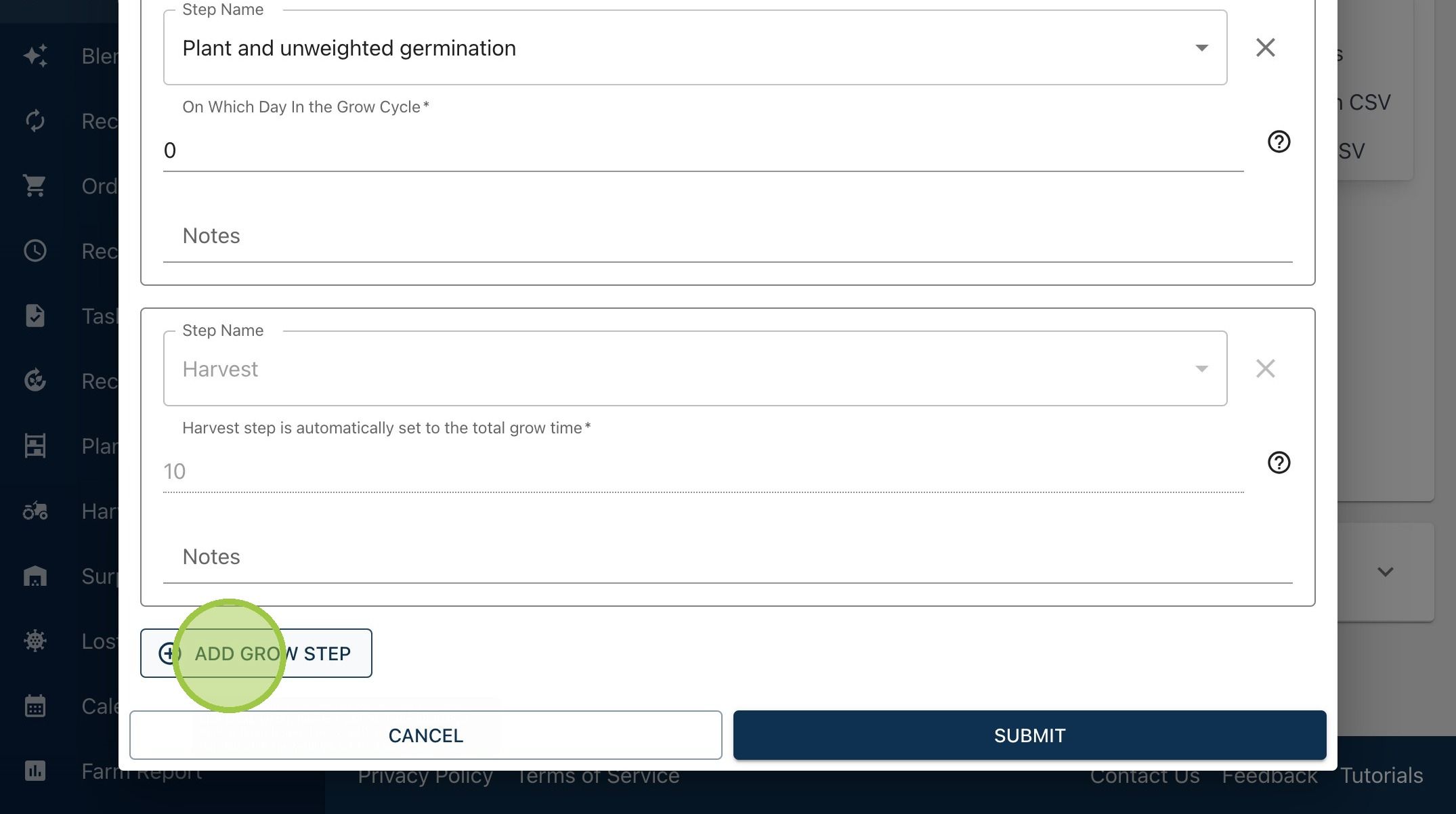
15. We'll add another step to know when to put the Arugula onto the grow racks. Click "Add Grow Step" again
16. Click "Under lights"
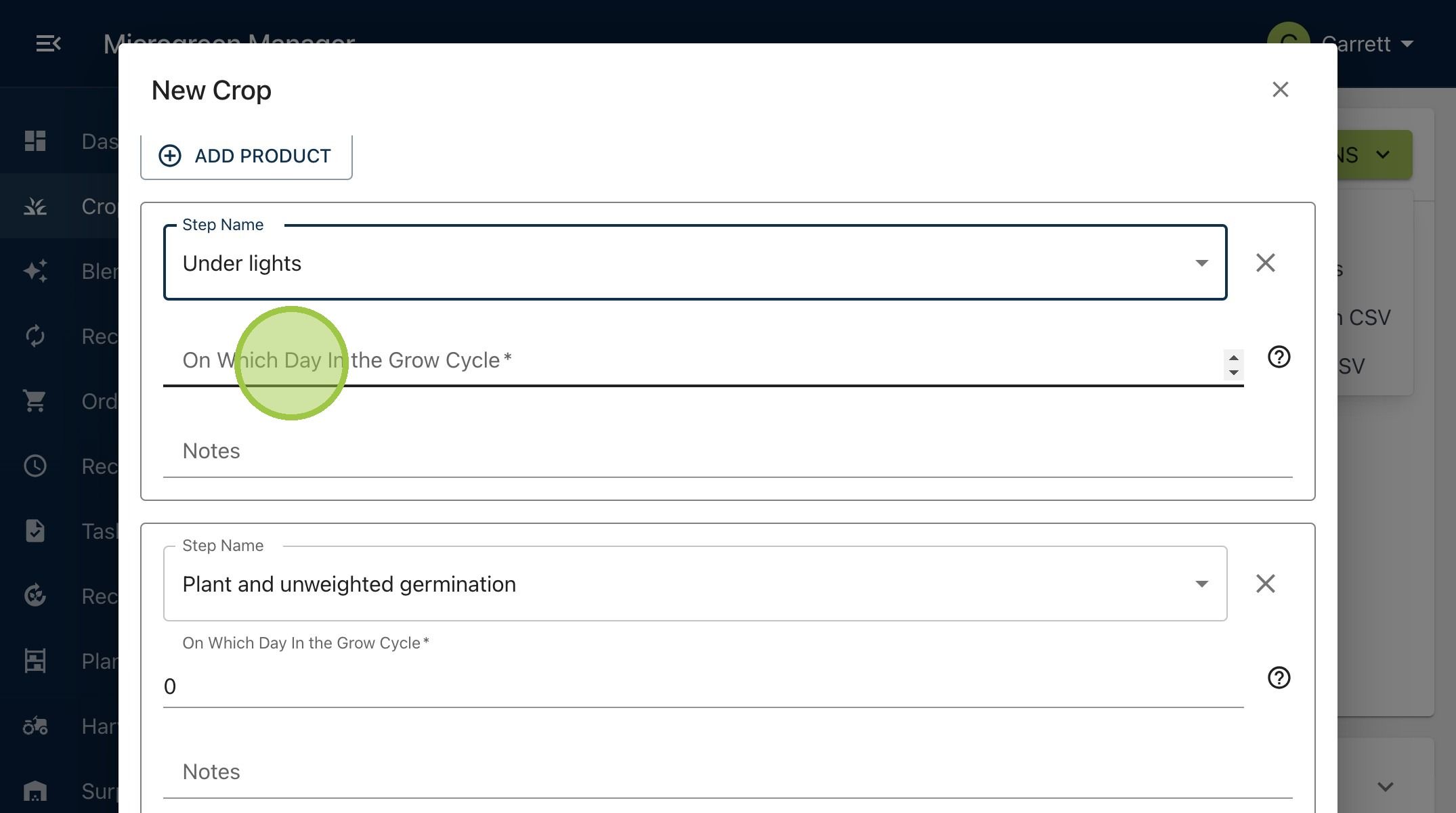
17. Arugula will be in germination for three days, which means it will go Under Lights on day three
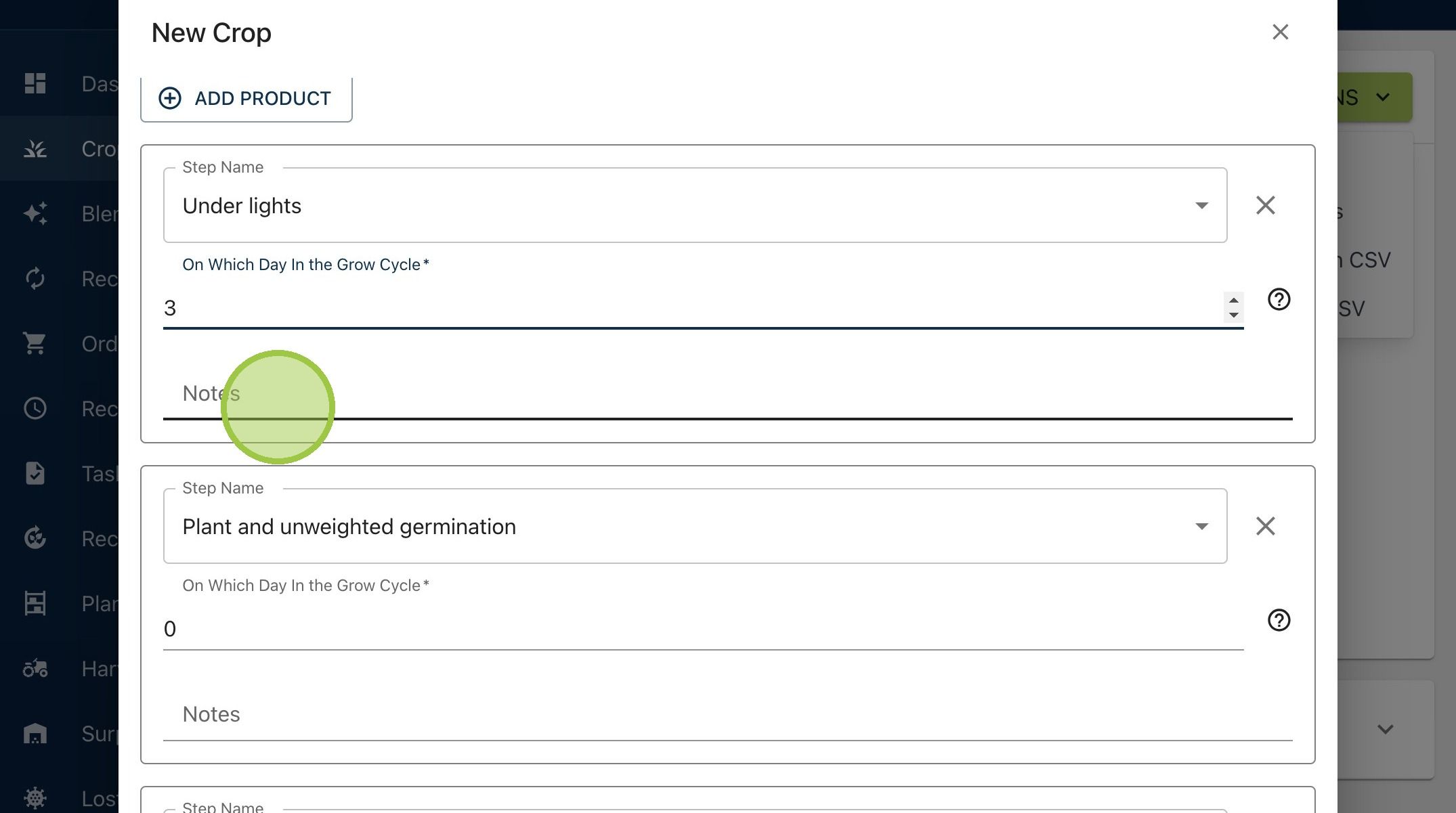
18. Click the "Notes" field to make any special remarks. You can add different notes for each step in the grow cycle
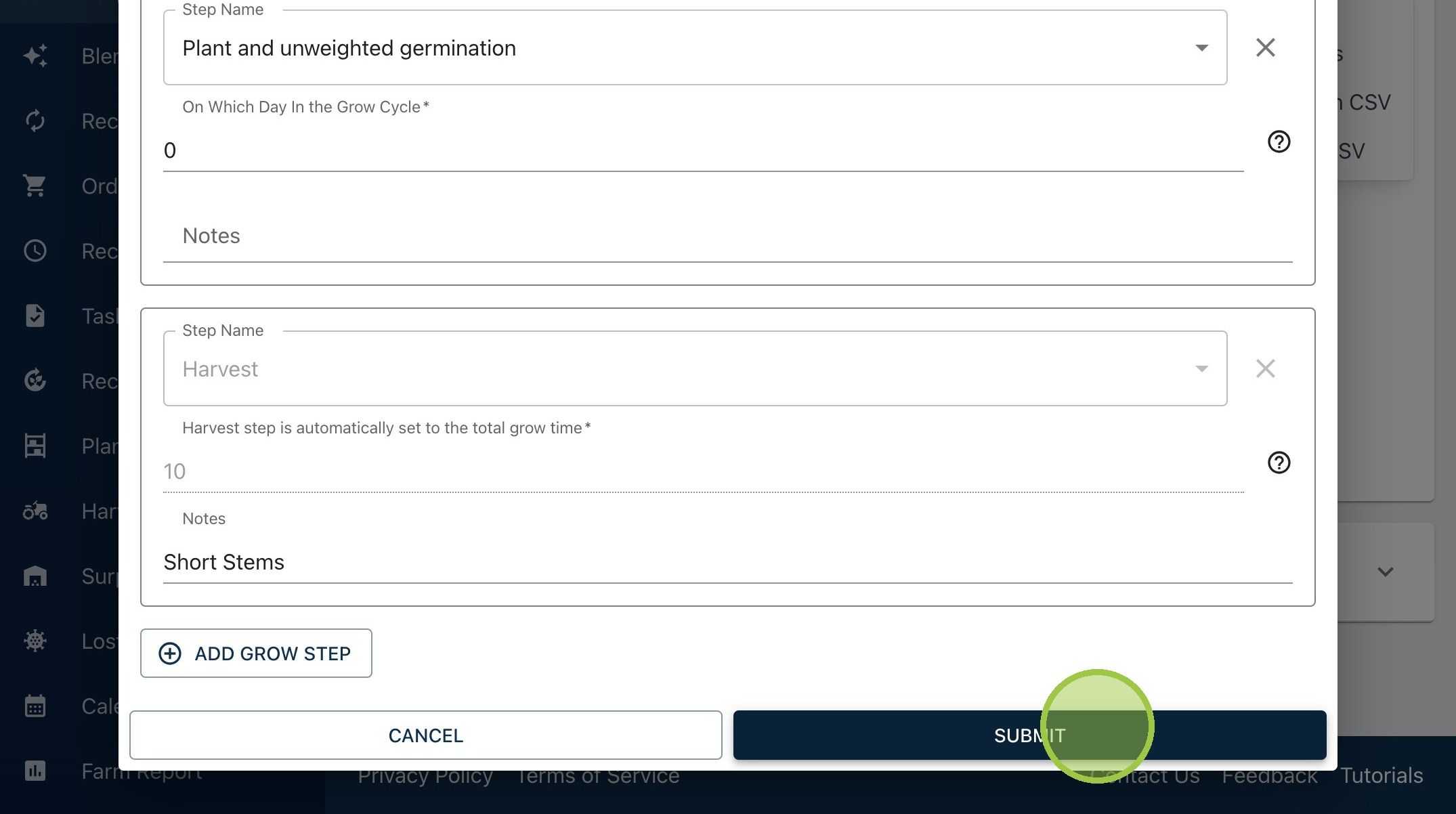
19. Click "Submit" to create your Custom Crop
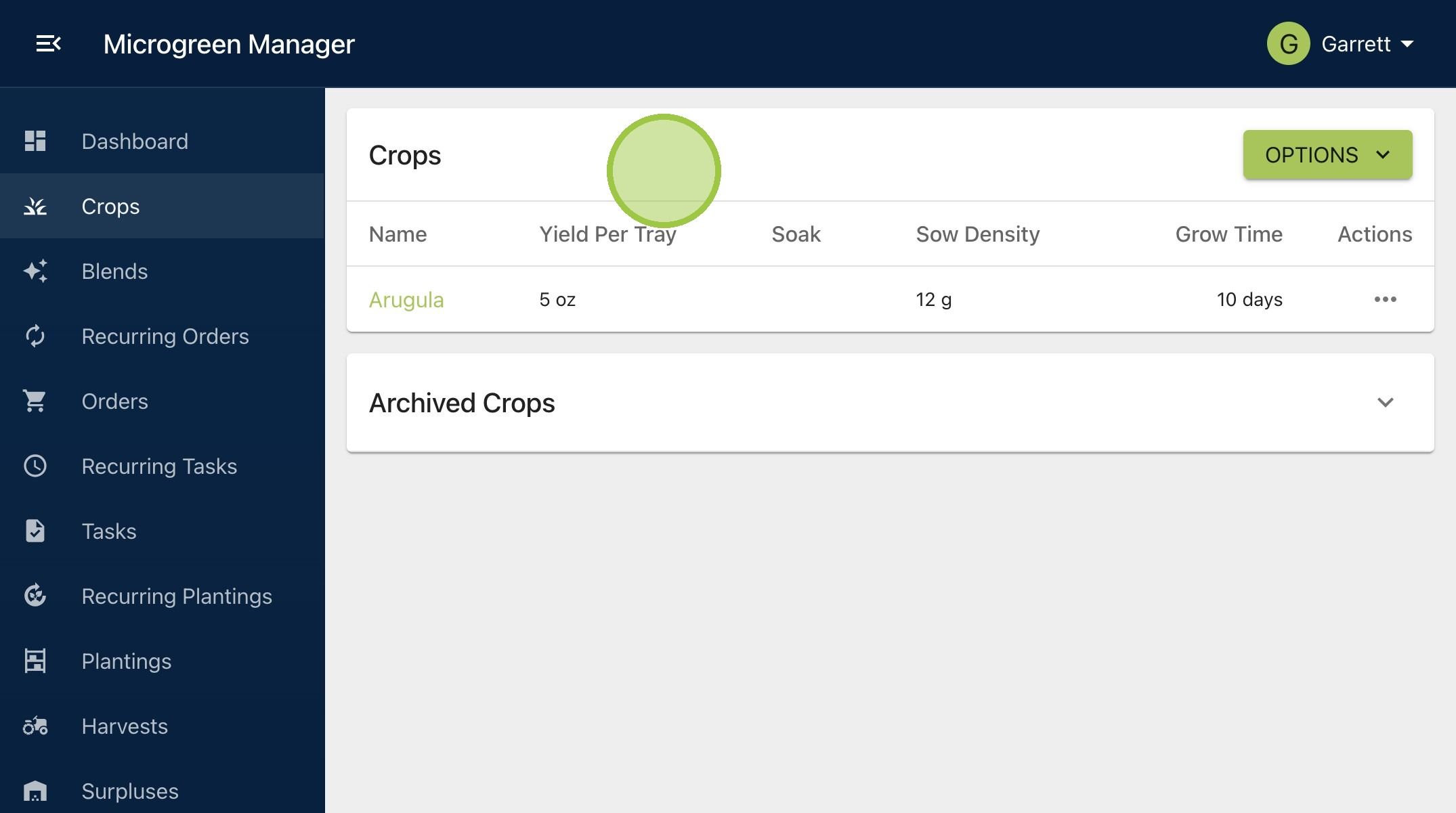
20. The custom crop will appear on your crops dashboard alongside any other default or custom crops that already exist