How to Edit Your Crop Parameters
You can edit all aspects of the crop parameters, whether you imported our default crops or created custom crops. This guide won't cover adding or editing products, or cloning or archiving crops.

Written by Garrett Corwin
Last updated1. Navigate to your crops dashboard
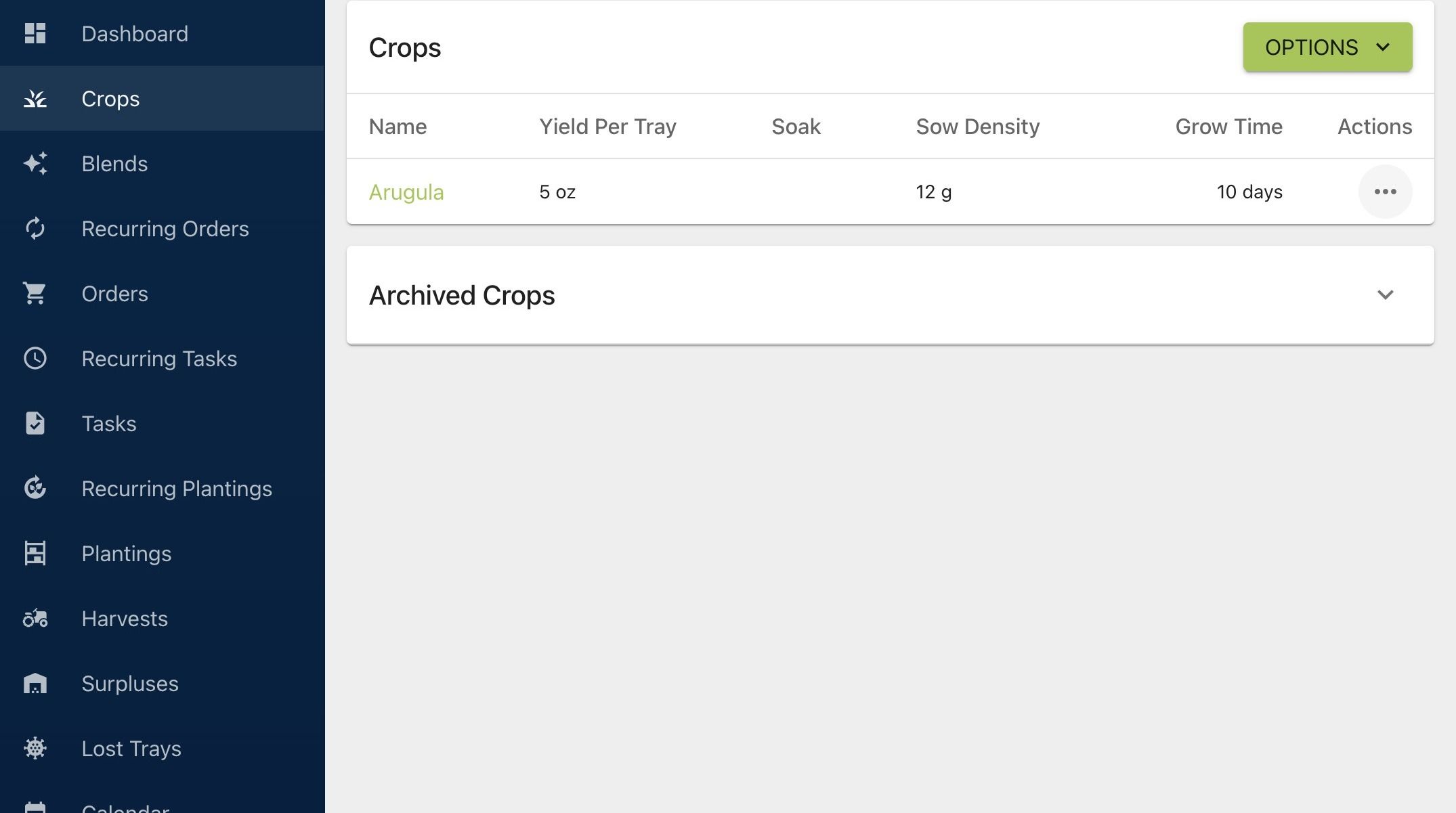
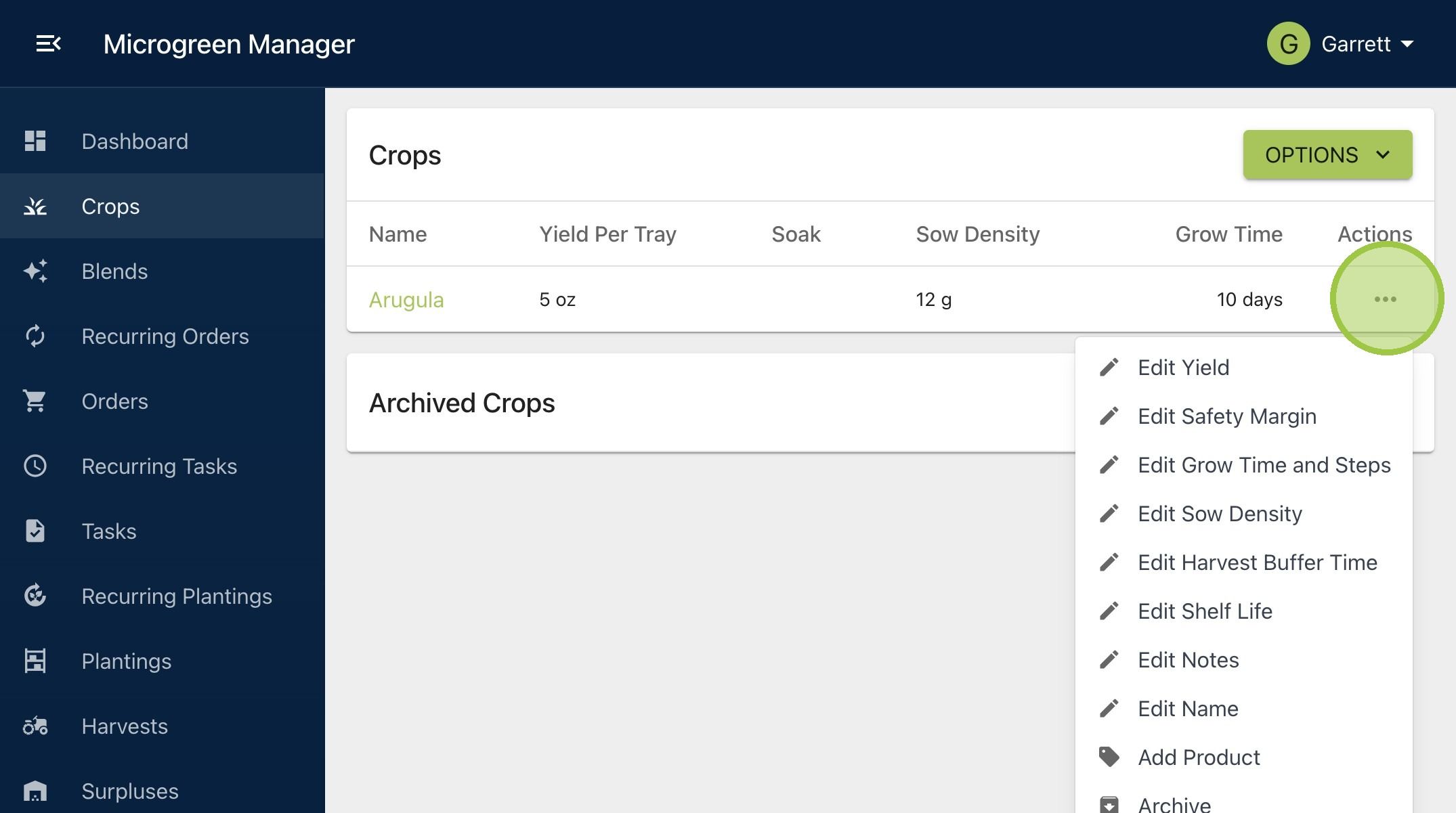
2. You can edit a crop from the crops dashboard by clicking the associated button under "Actions"
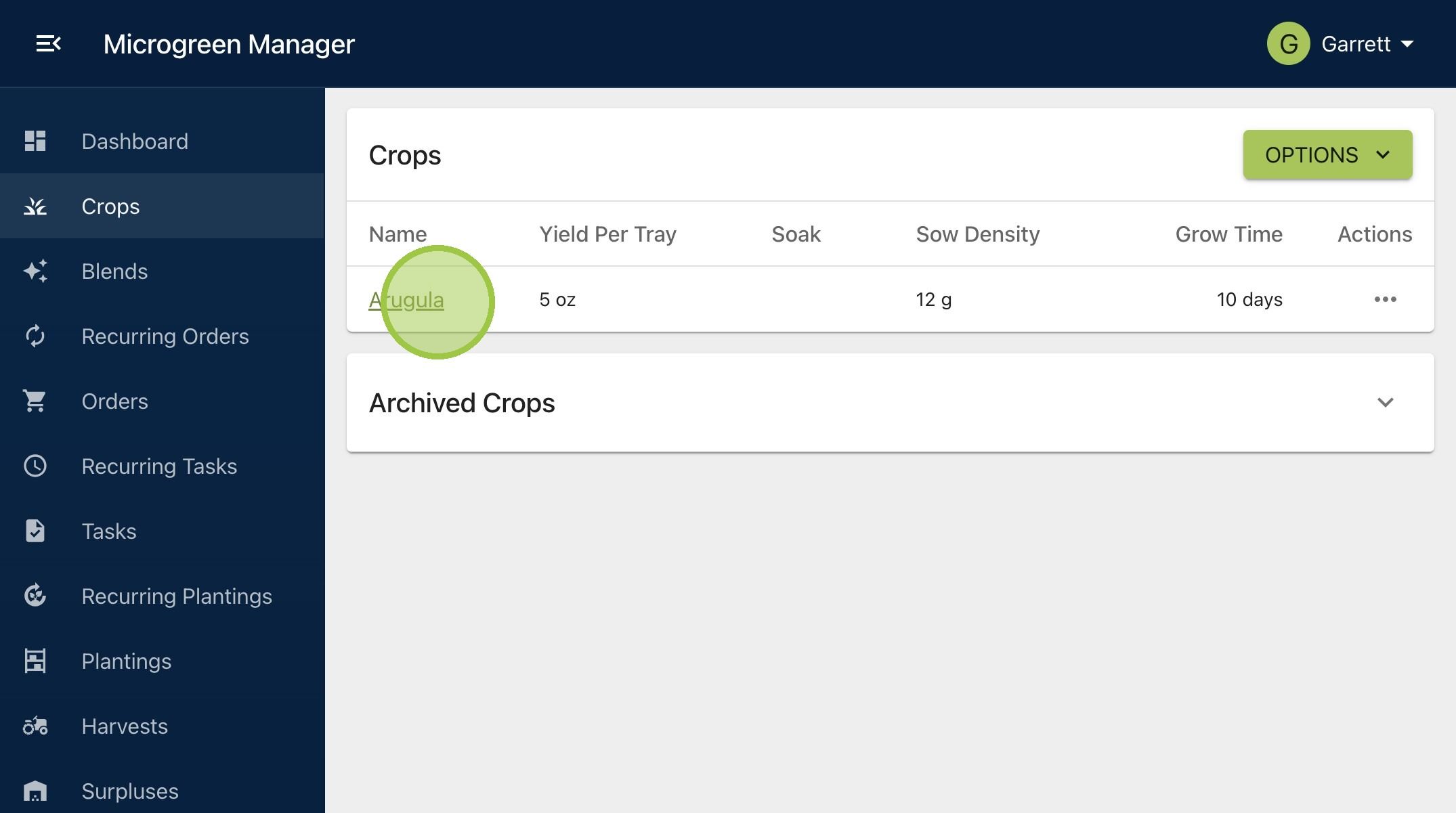
3. You can also click the crop name to open a full page with the crop's parameters
4. Once inside the crop page, click "Options" to see your editing options
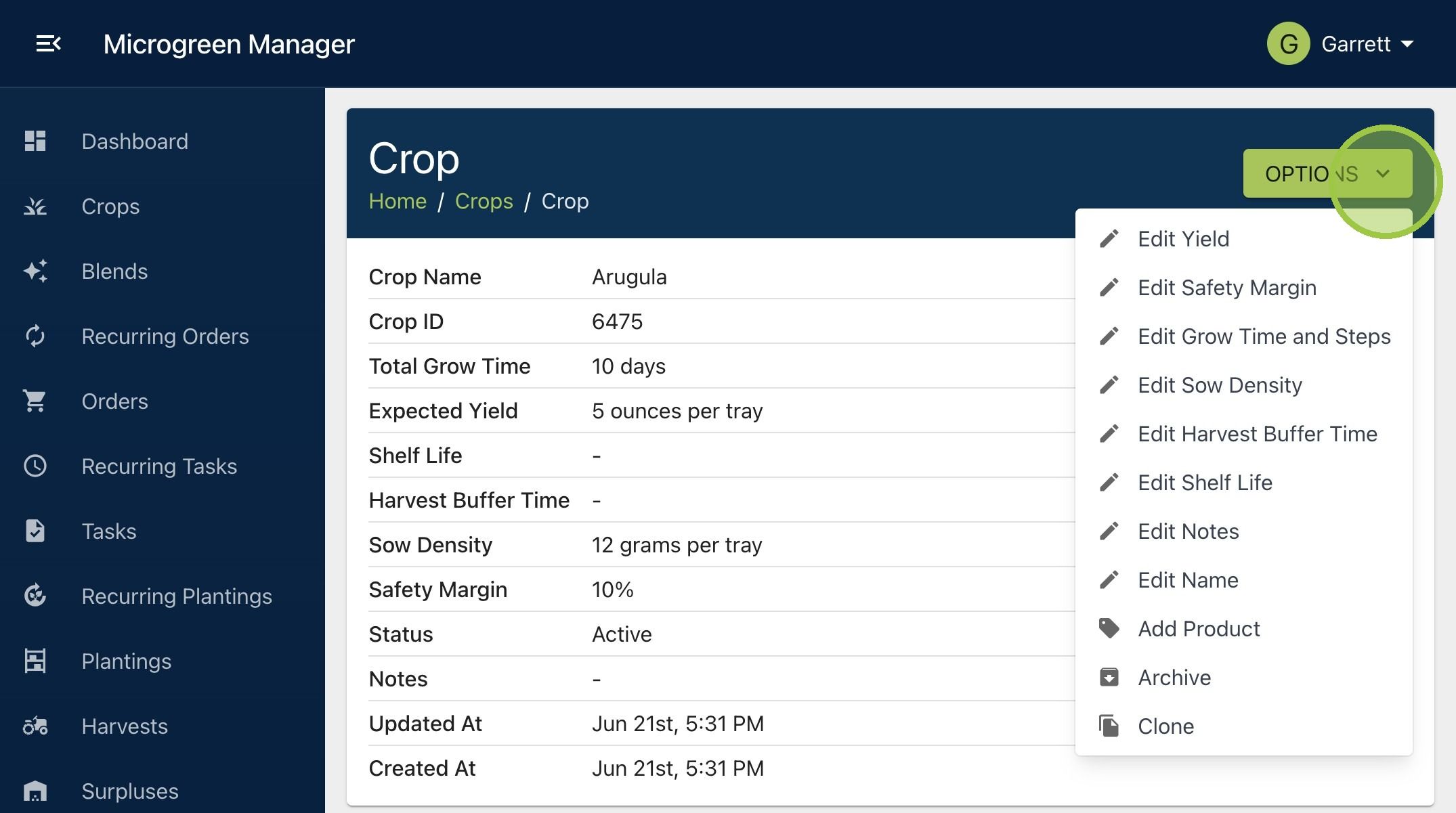
5. Click "Edit Yield"
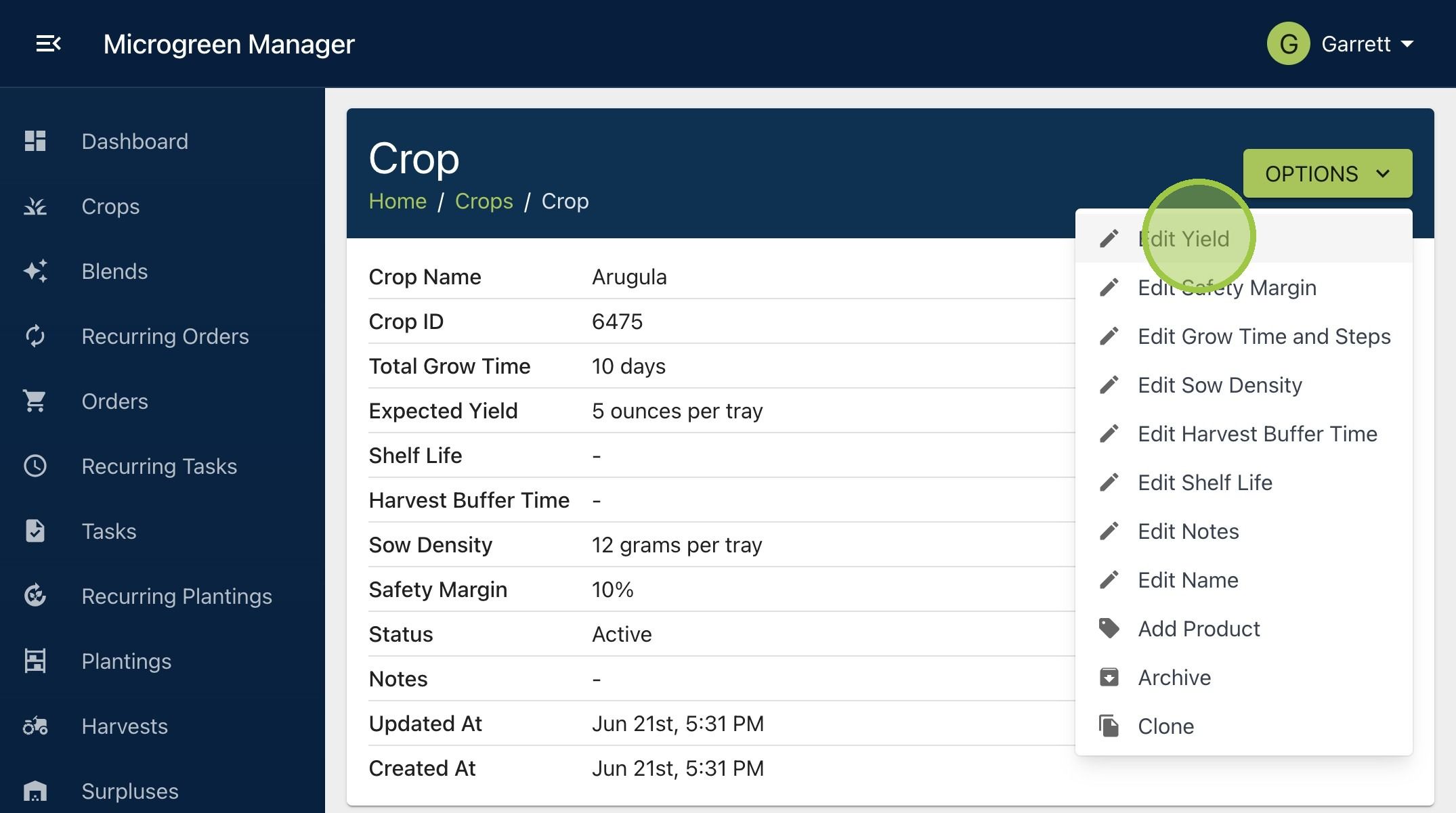
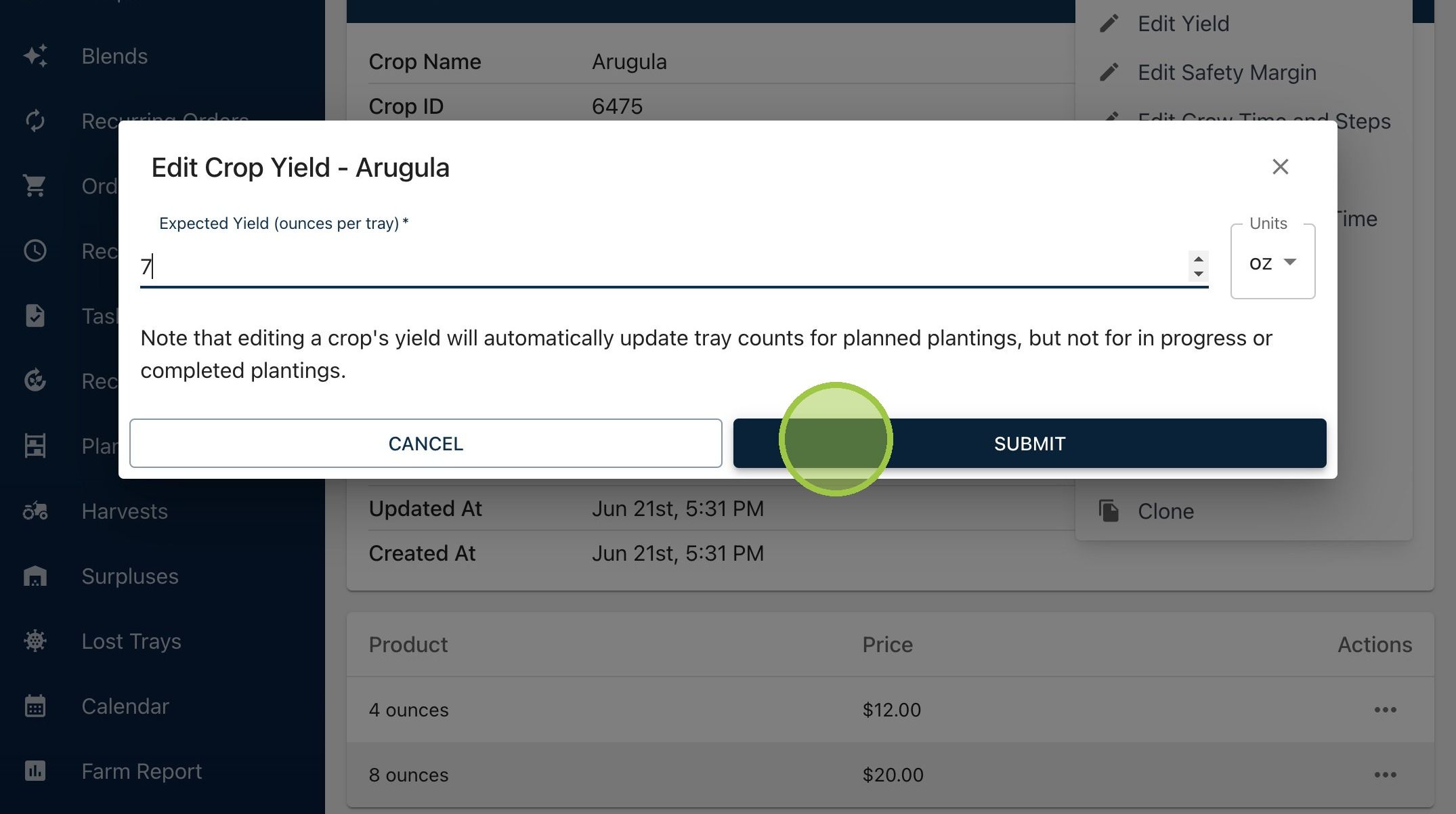
6. Changes to the yield will only impact orders linked to this crop that haven’t begun yet
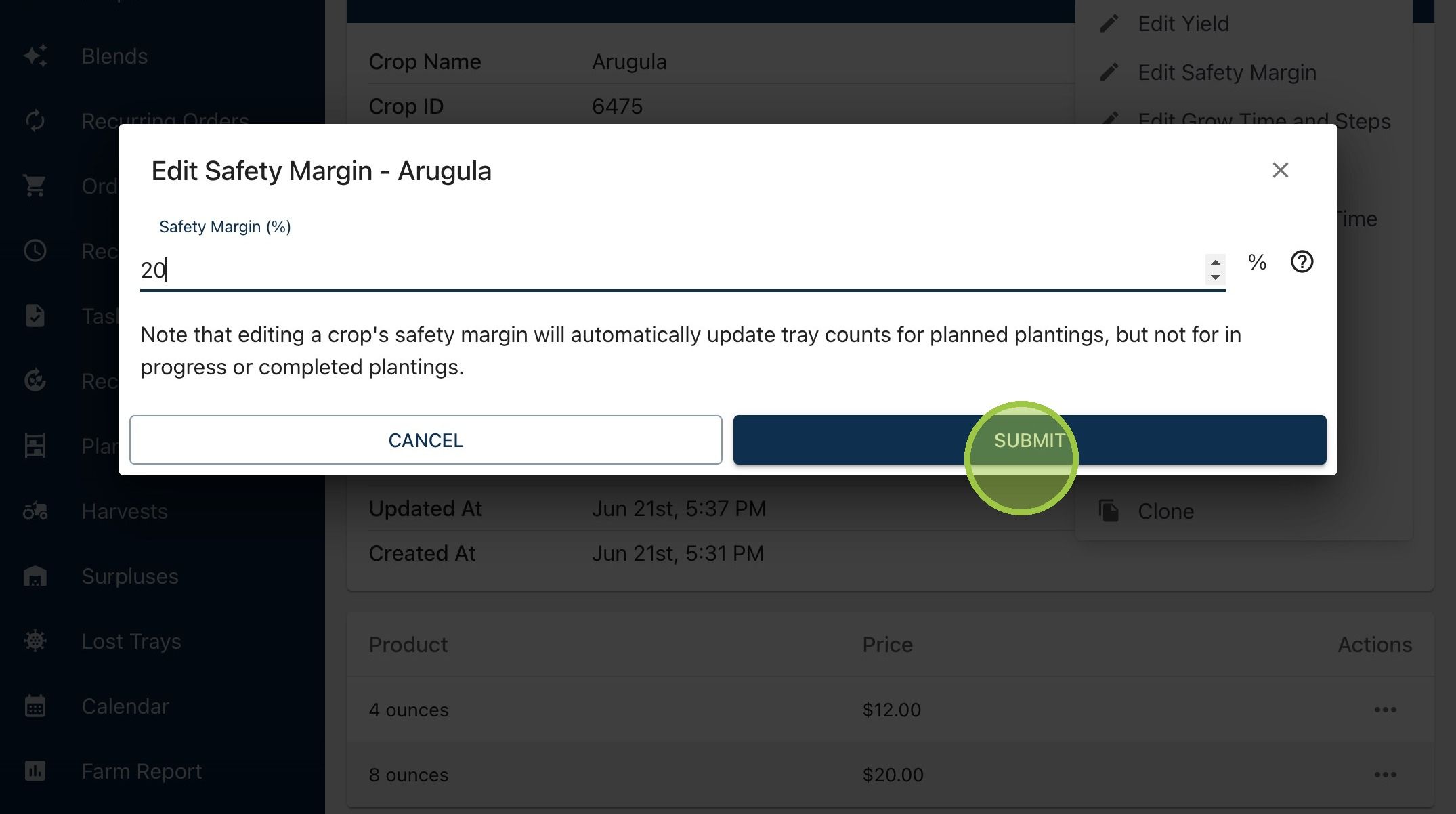
7. Click "Edit Safety Margin"
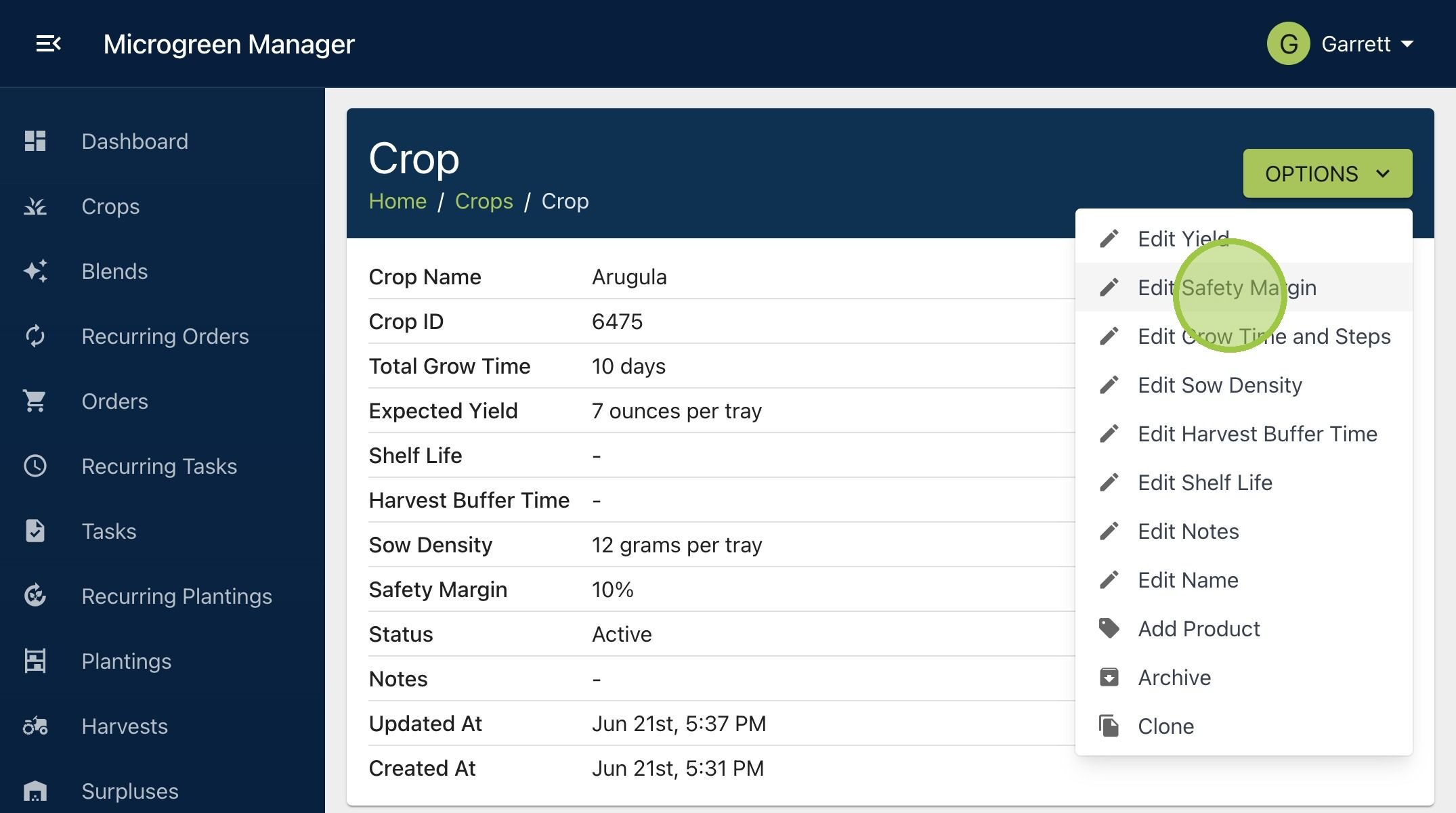
8. Changes to the safety margin will only impact orders linked to this crop that haven’t begun yet
9. Click "Edit Grow Time and Steps"
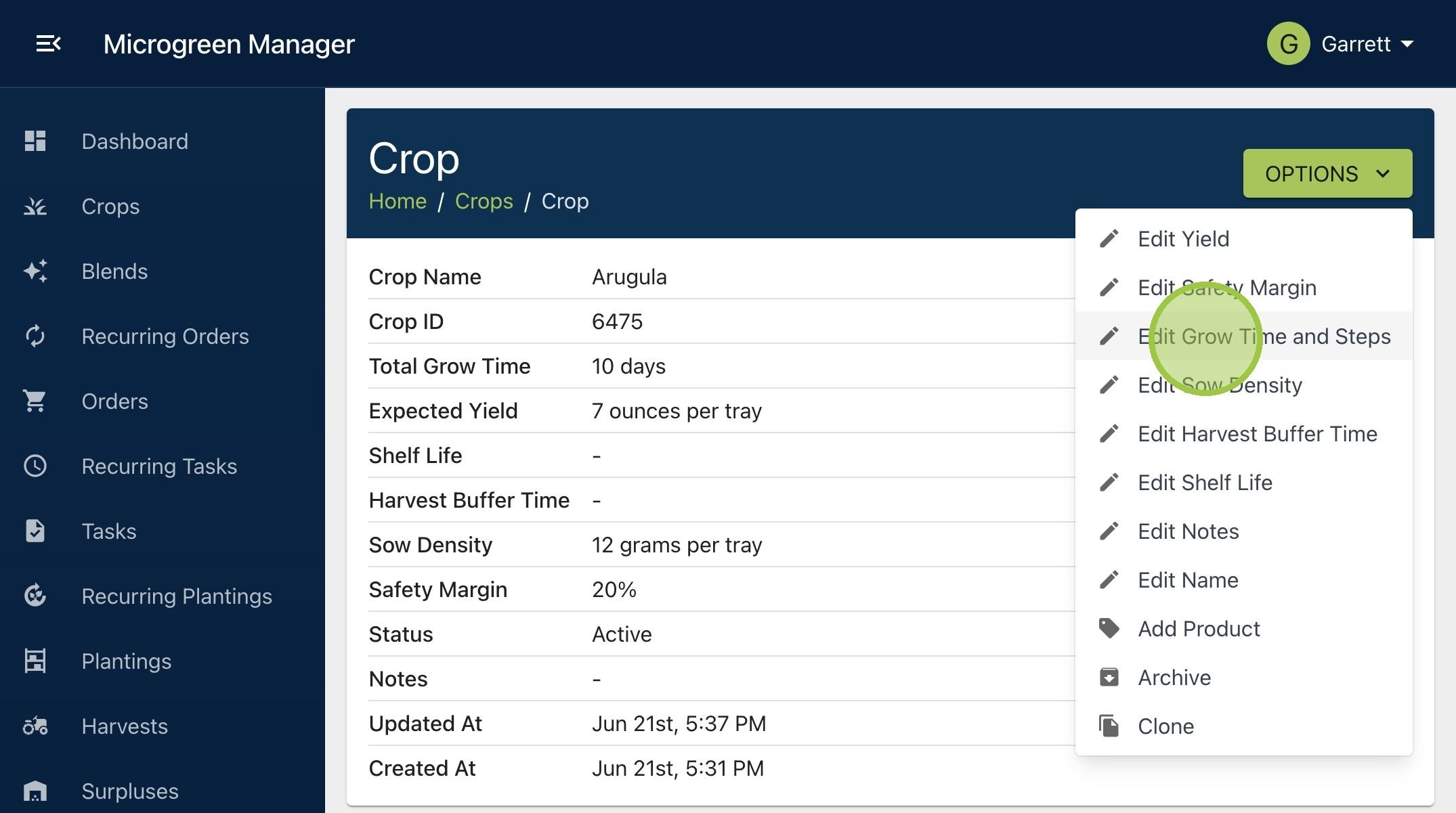
10. Changing the total grow time or steps for a crop will automatically update tasks for "Planned" plantings. It won't affect plantings that are in progress or completed. Changing the total grow time will also update the Harvest step to happen on the same day
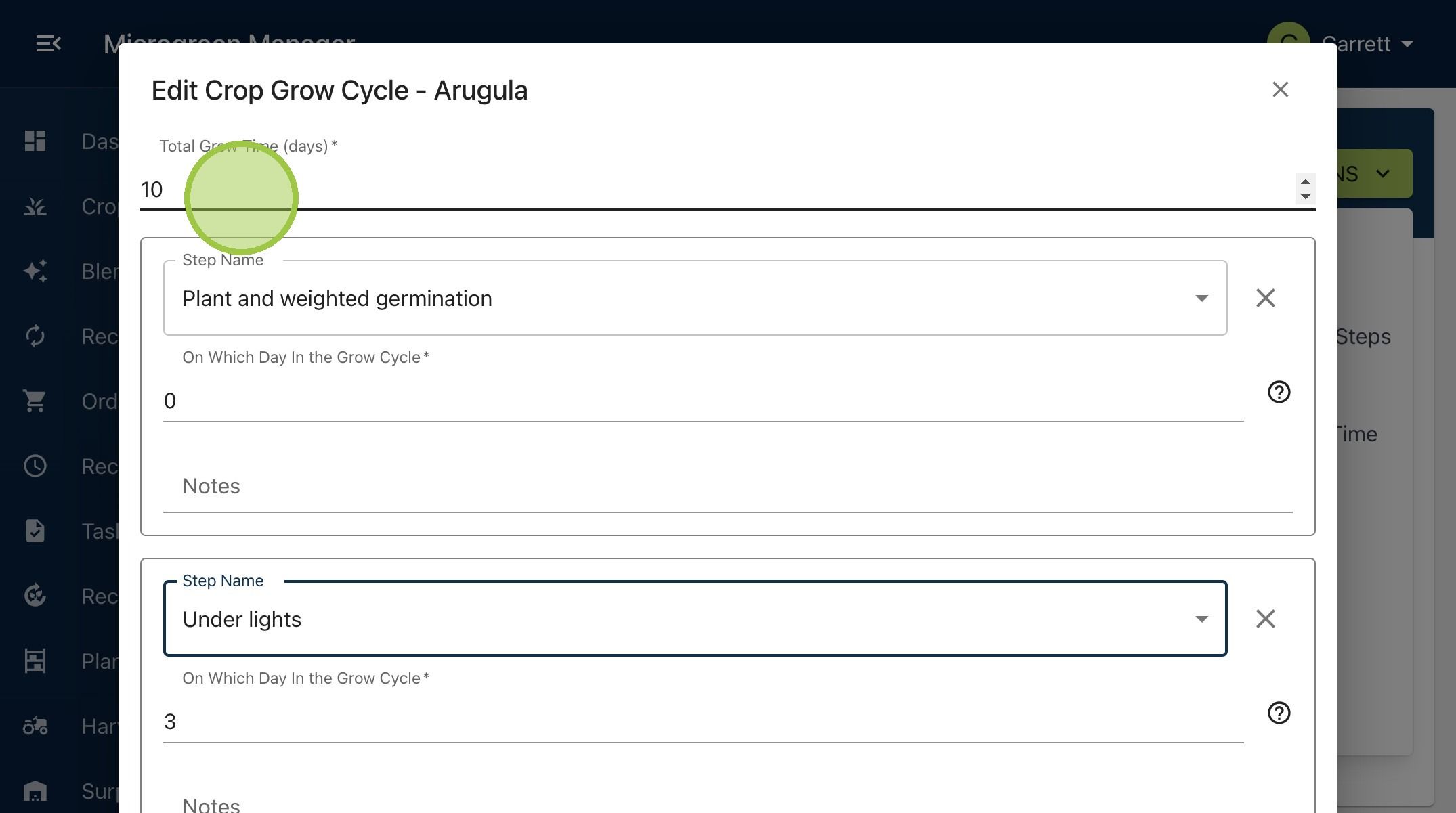
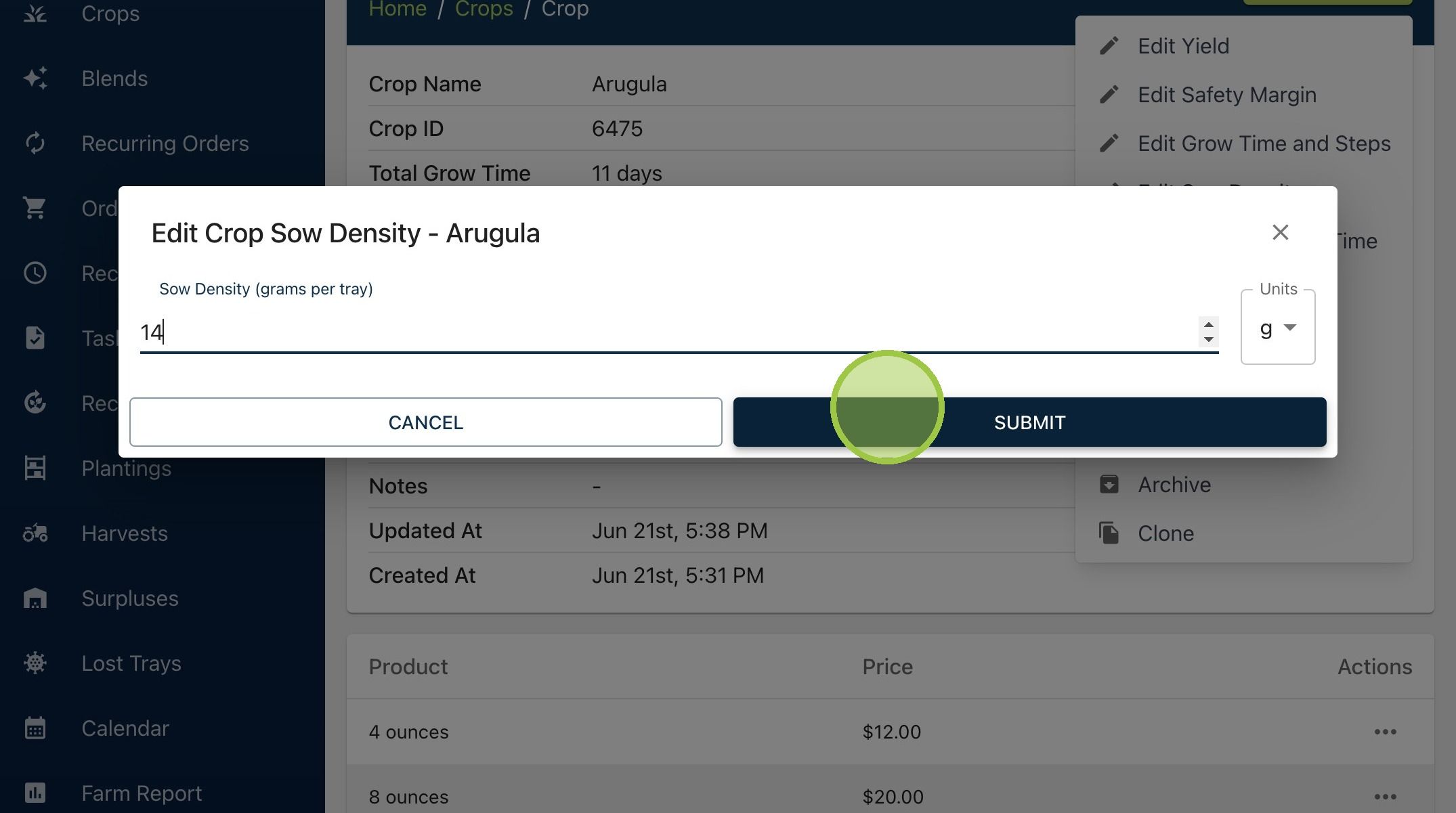
11. Click "Edit Sow Density"
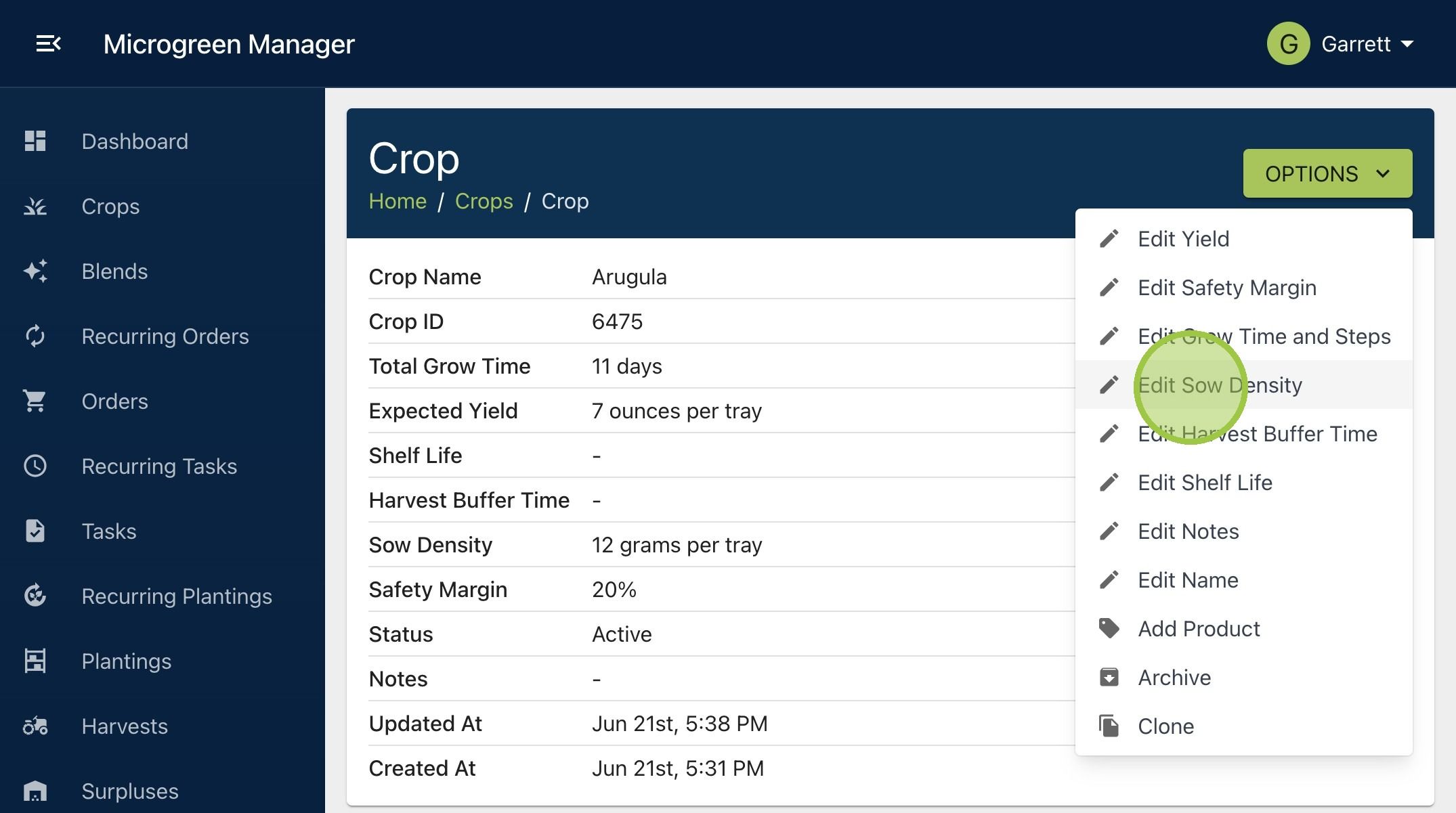
12. Changing the sow density will update plantings linked to this crop that haven’t begun yet
13. Click "Edit Harvest Buffer Time"
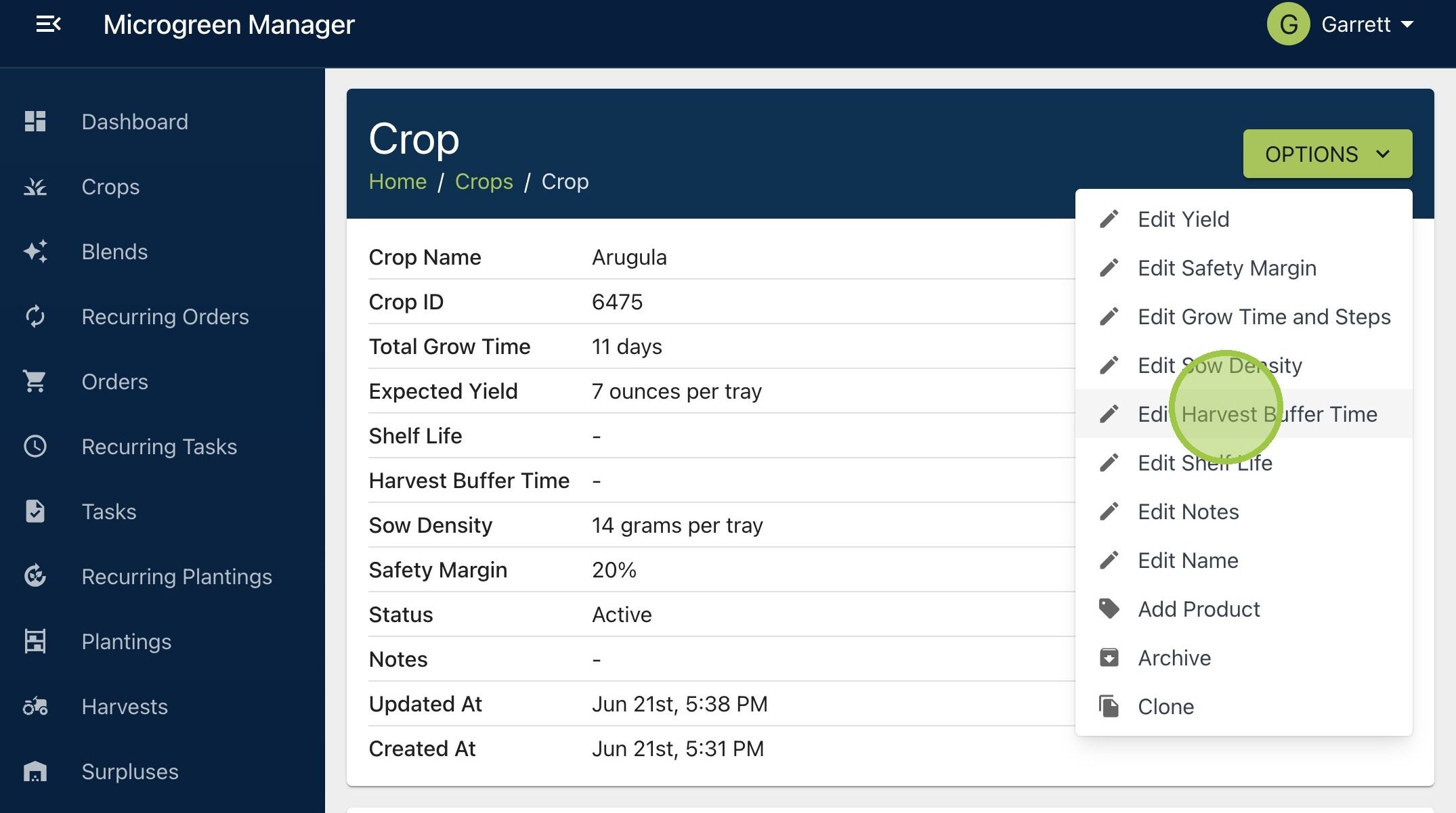
14. Click "Edit Harvest Buffer Time." The harvest buffer time is how far before the delivery date you want to harvest this crop. If you set this parameter to 0, the harvest date will always be the same as the delivery date. If you set it to 1, Microgreen Manager will prompt you to harvest this crop the day before delivery
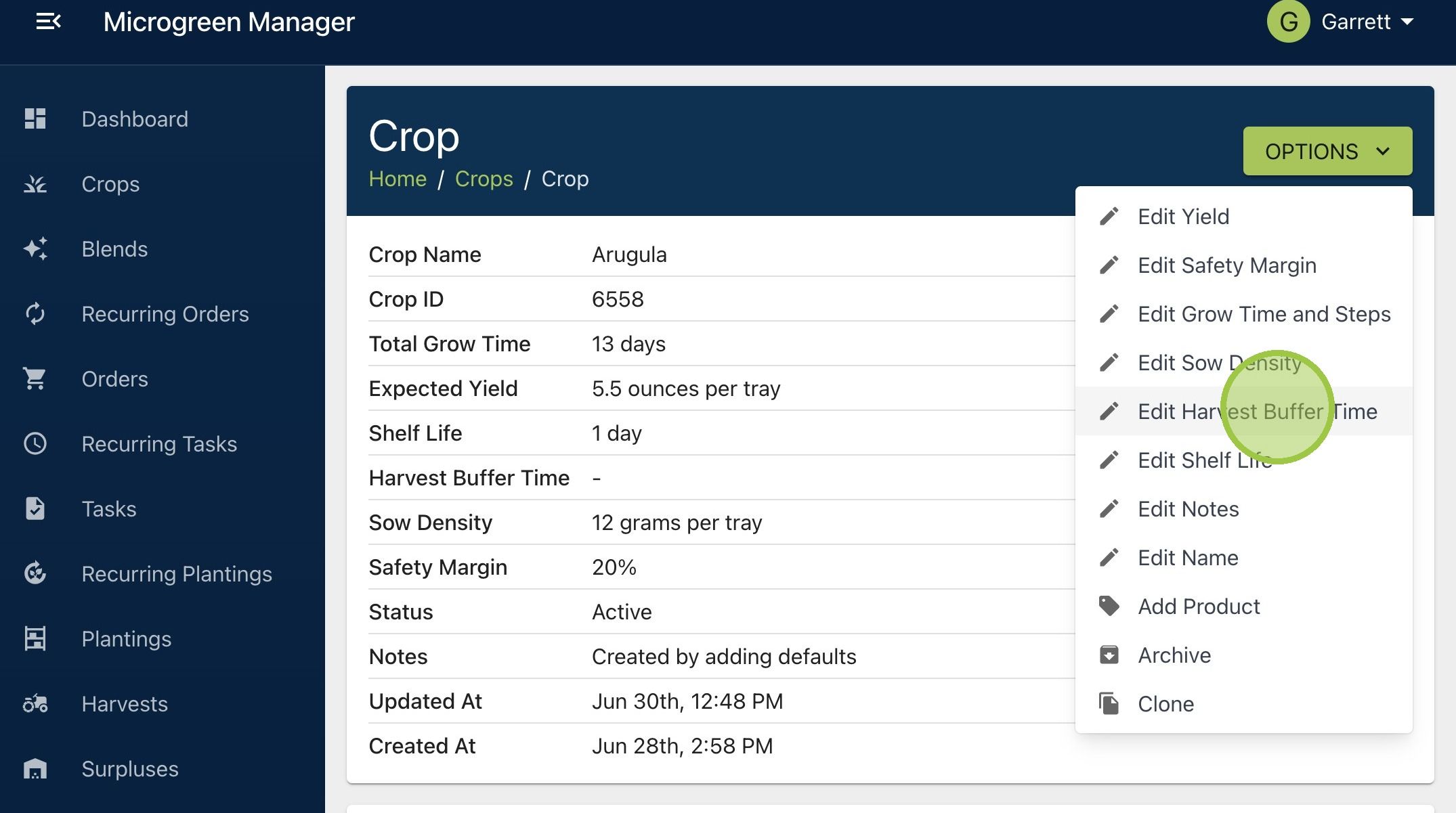
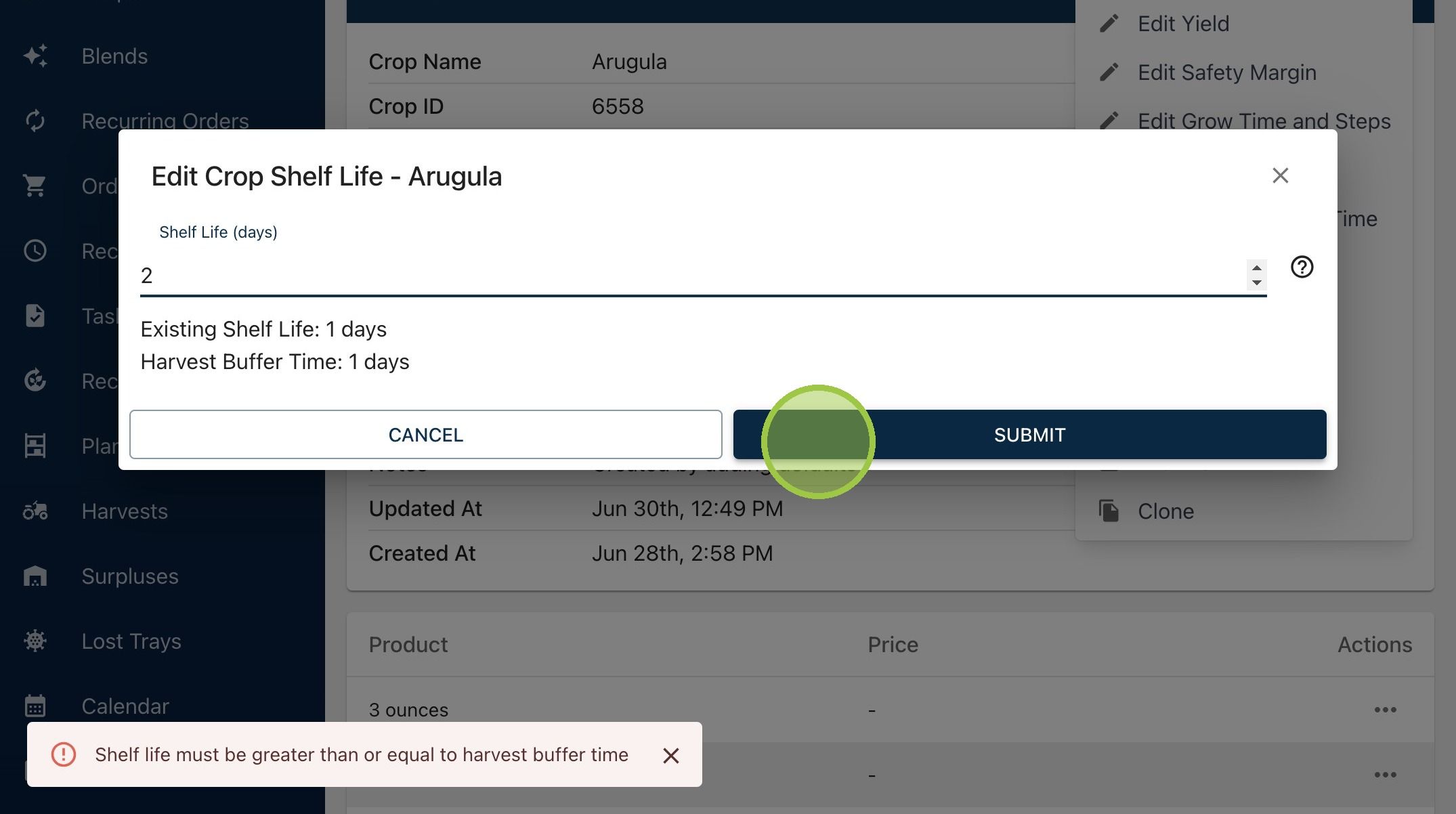
15. When you open the form, you'll see the current harvest buffer time and the shelf life. The harvest buffer time must be less than or equal to the shelf life. In this example, the harvest buffer time can be 0 or 1
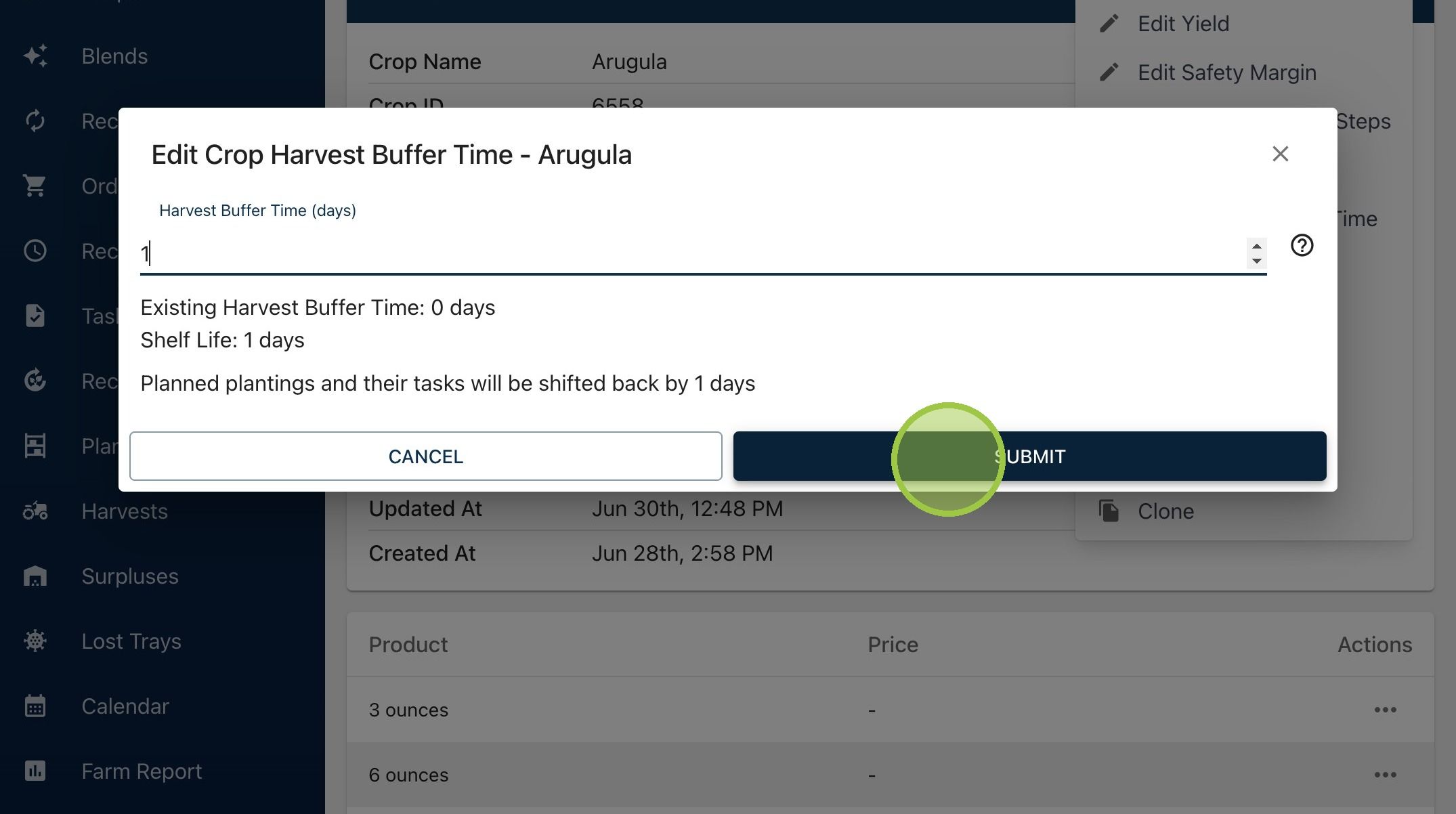
16. To edit the shelf life, click "Options" then "Edit Shelf Life." The shelf life is the time after harvest that you can keep this product before it’s seen as "spoiled" or unsellable
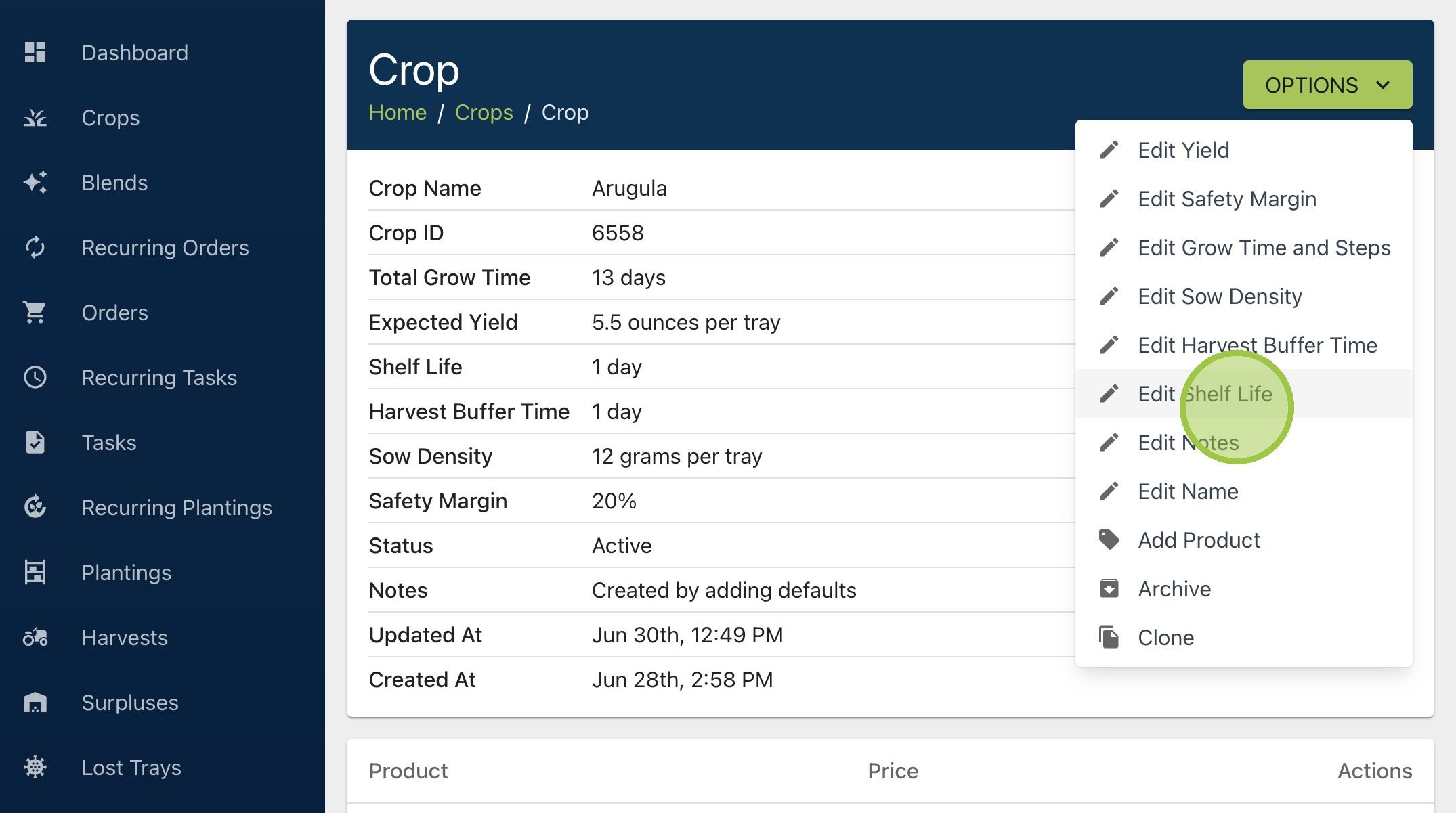
17. The shelf life has to be greater than or equal to the harvest buffer time. If the shelf life is shorter than the harvest buffer time, the product will spoil before delivery
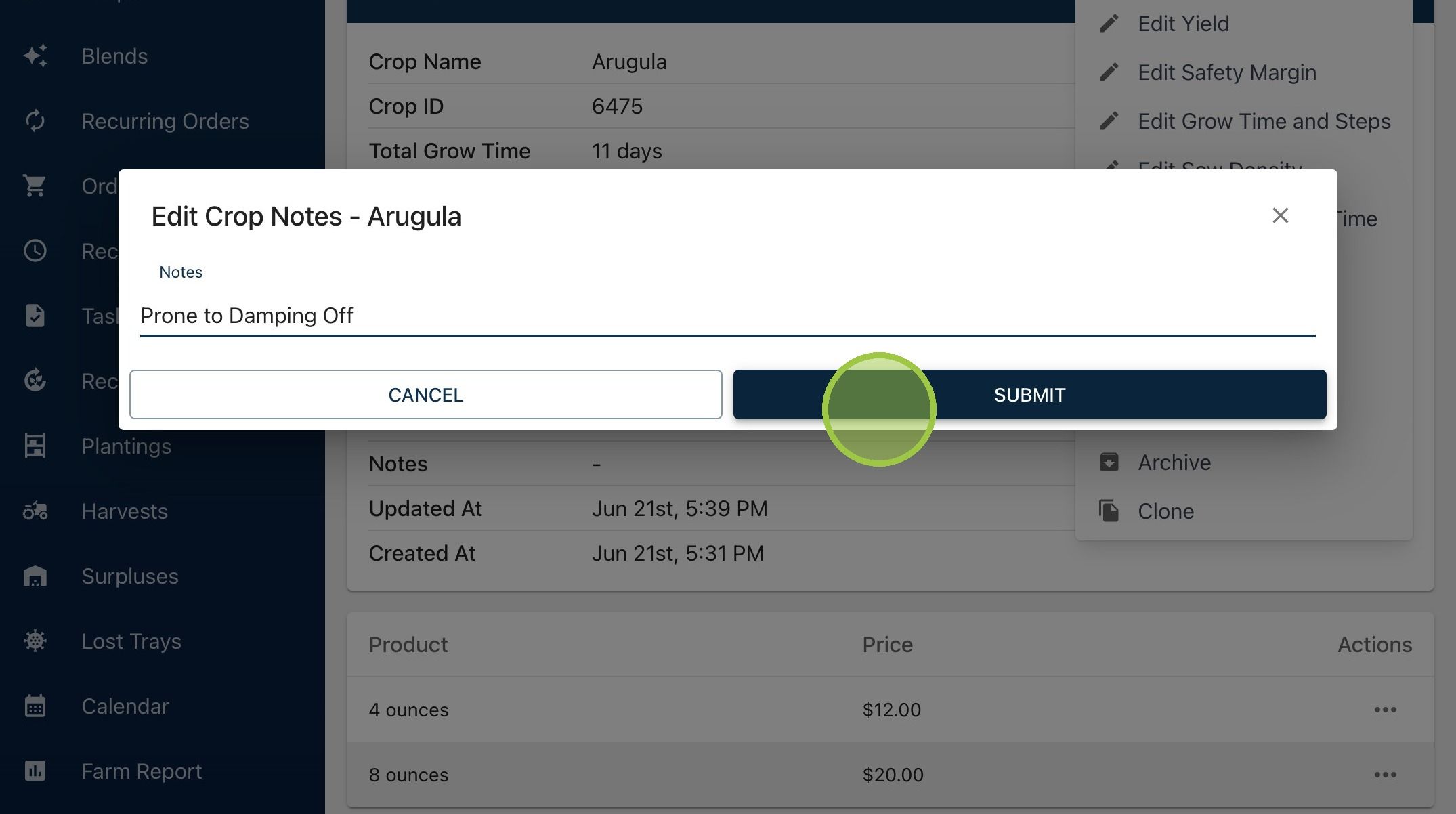
18. Click "Edit Notes"
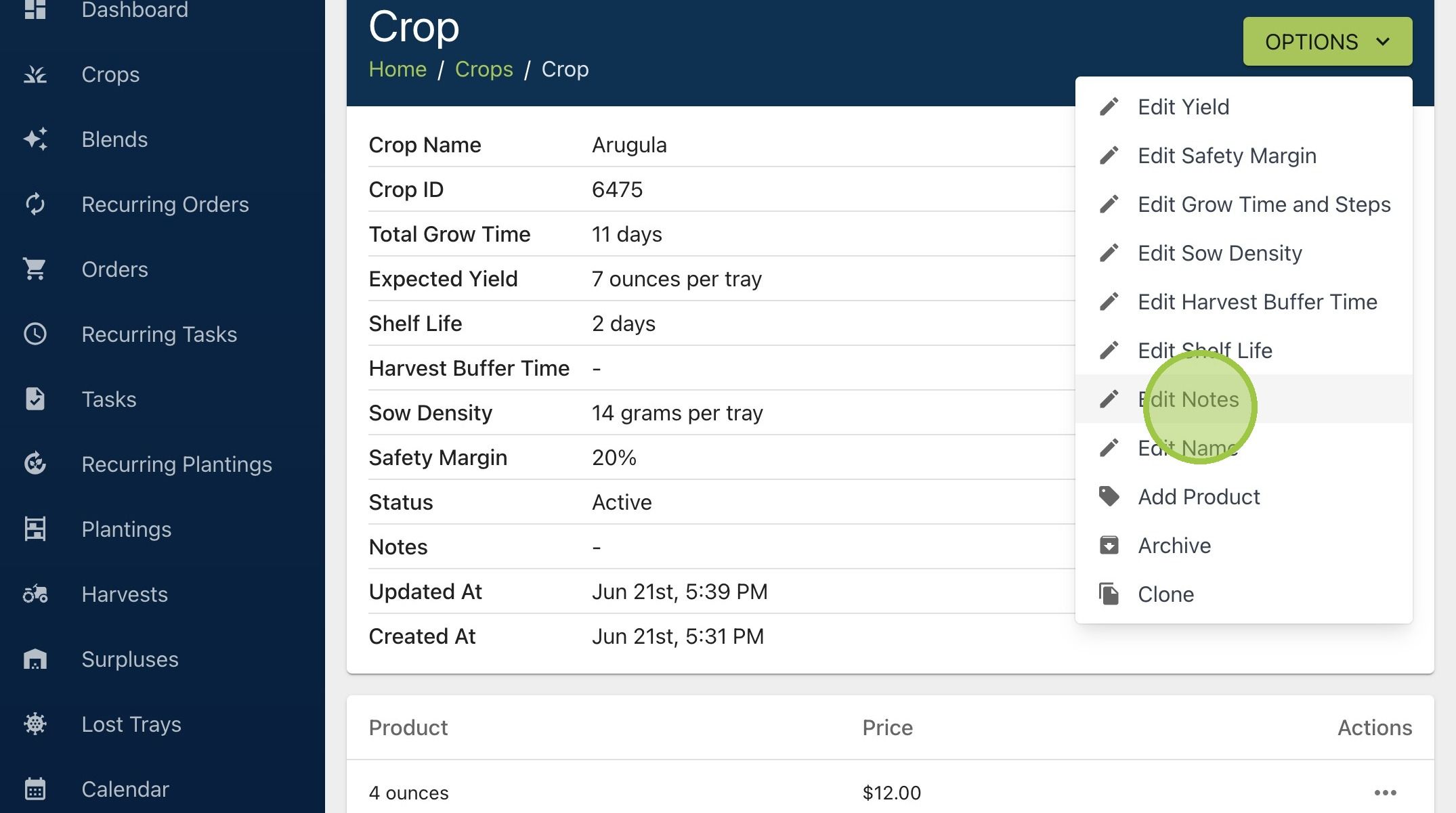
19. Crop notes automatically transfer to any plantings using this crop
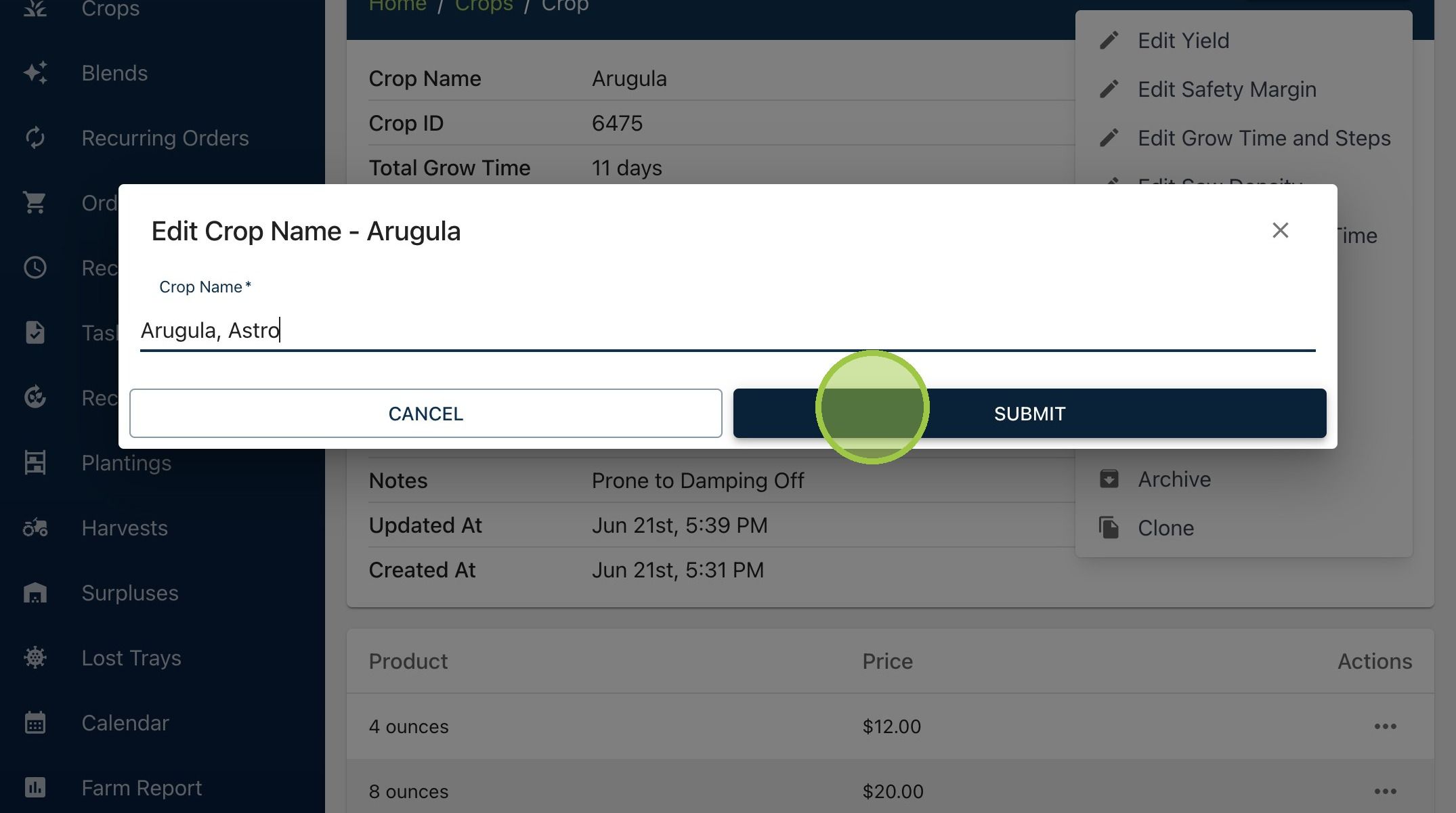
20. Click "Edit Name"
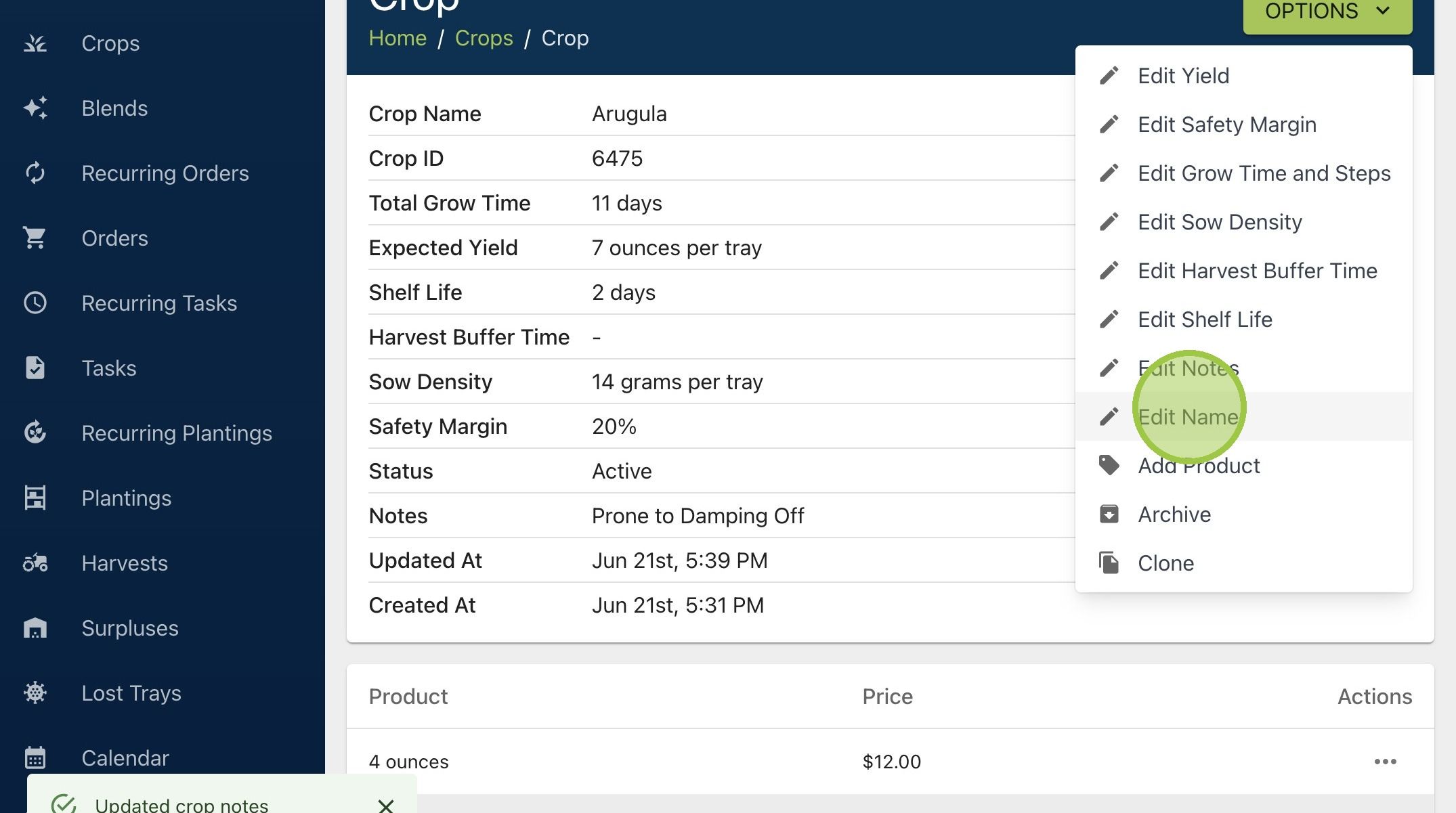
21. You can change the name to match what you're growing. For example, update generic arugula to a specific variety, like Astro