What it Means to “Create Overdue Orders” (Recurring Orders)
This guide explains what it means to "Create Overdue Orders" for recurring orders. We'll show you how to make overdue orders. You can do this from the recurring order form. You can also create them later from the recurring order page.

Written by Garrett Corwin
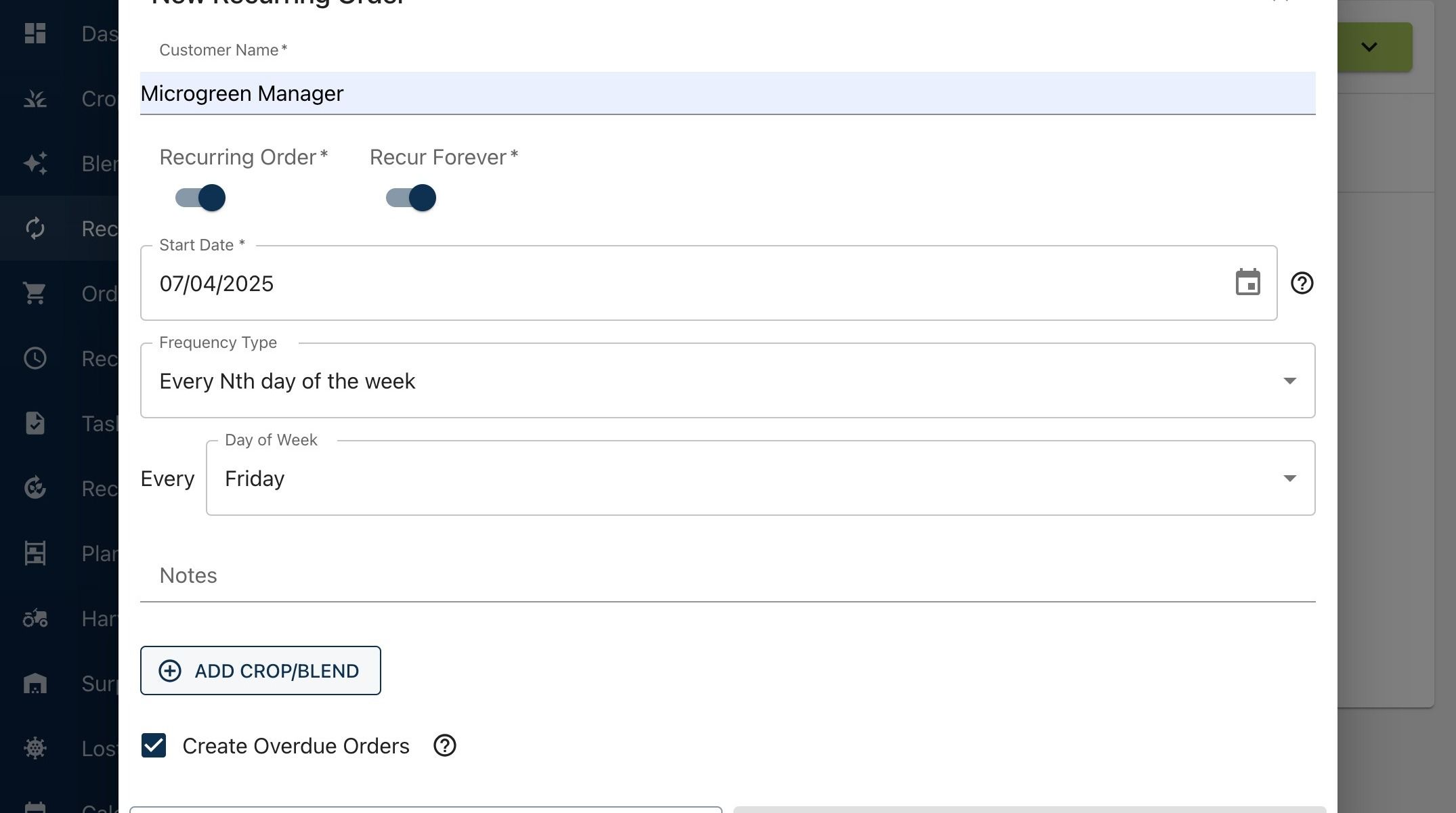
Last updated1. First, we'll show you how to create overdue orders from the recurring orders form. We'll describe what it means and why it could be useful. For this example, we have a recurring order with a start date of July 4th. The recurring order has a weekly frequency for every Friday
2. We'll add a long growing crop, like Genovese basil, which has a grow time of 24 days. Today's date is June 24th, just 10 days from the first delivery date, which is not enough time to grow the basil
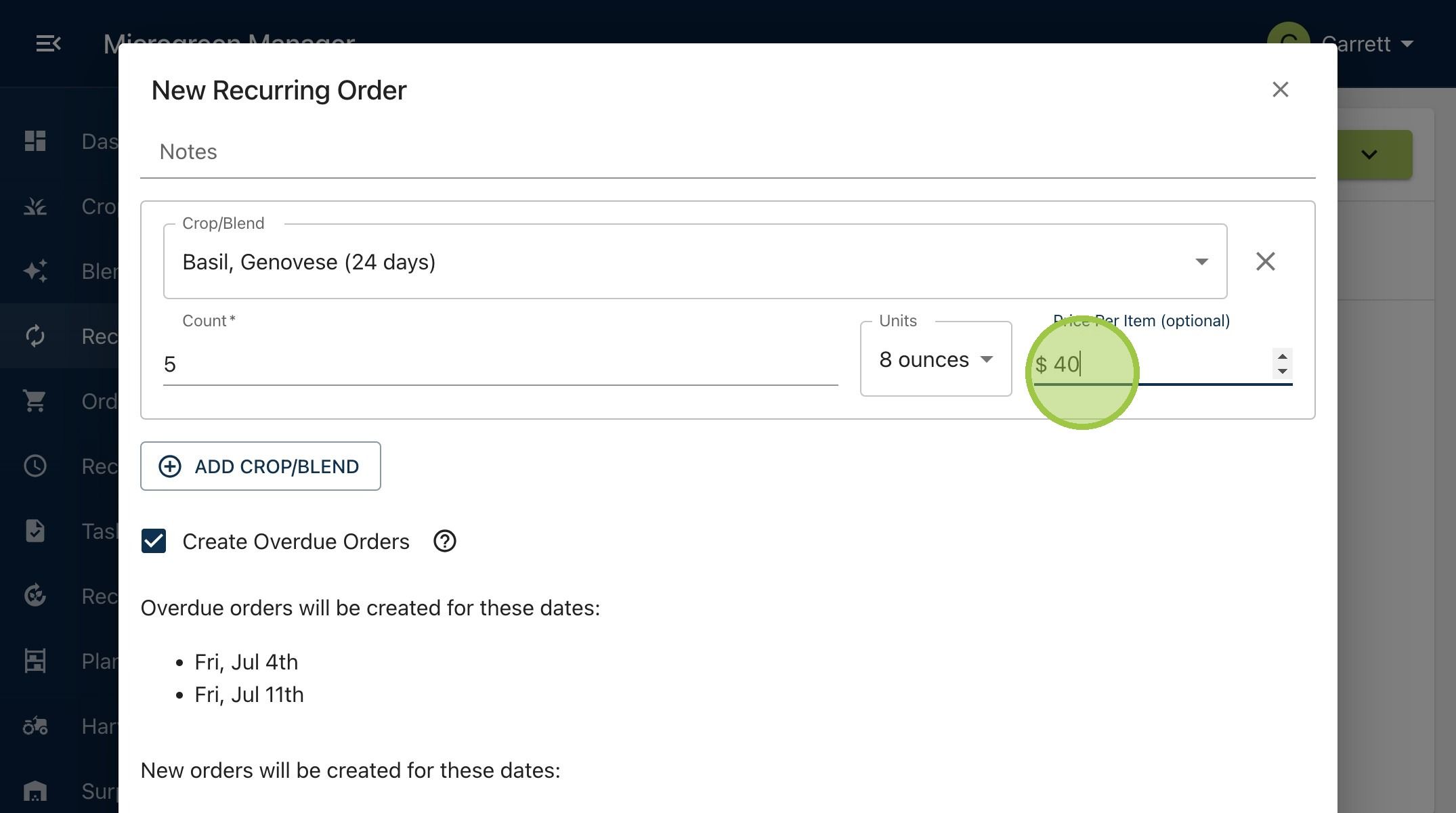
3. Now we can explain what it means to "Create Overdue Orders." The tooltip says that checking this button will create child orders. These orders will be too late to plant, based on the delivery date and the grow time of the products
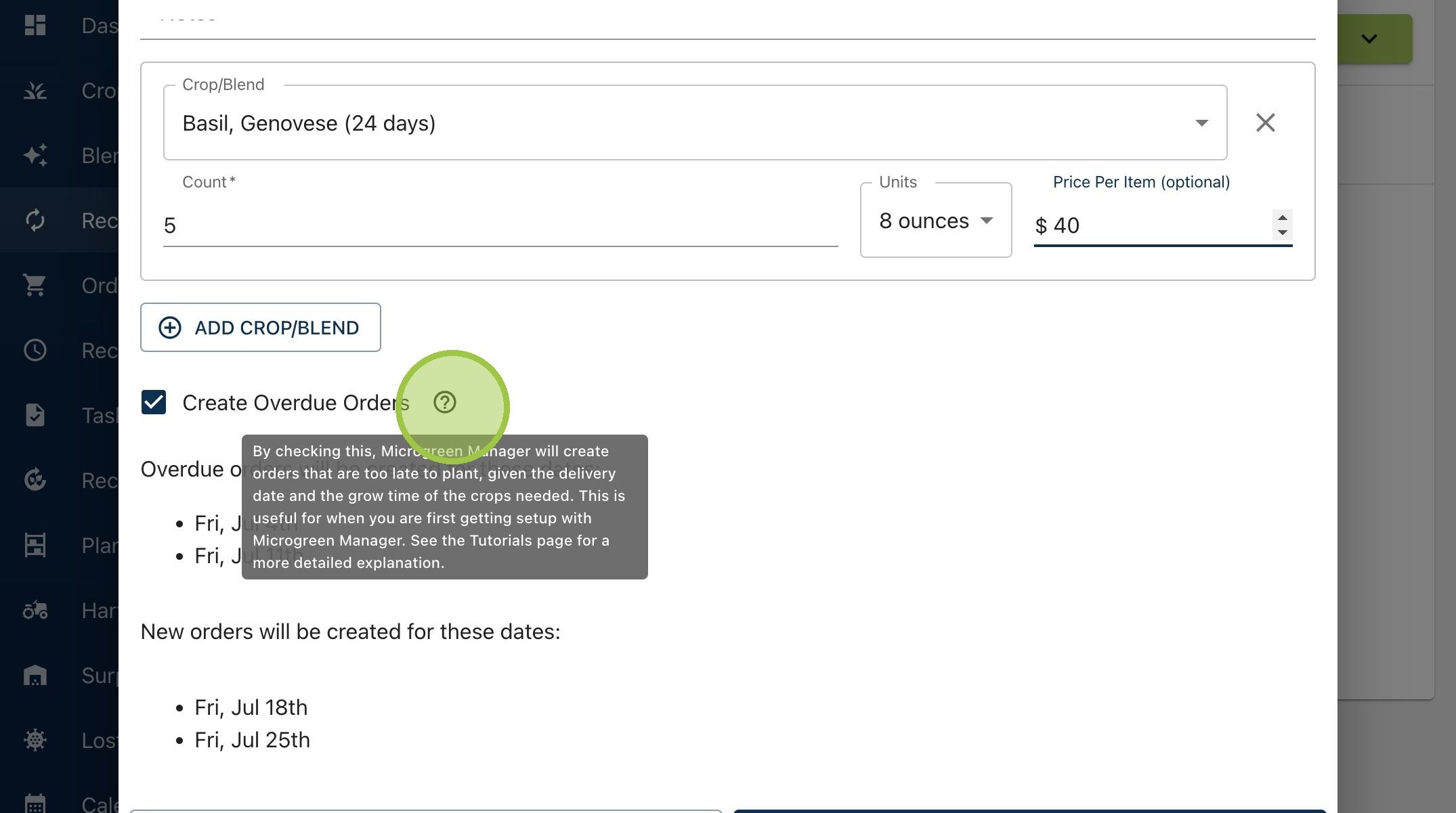
4. For this example, it's too late to plant basil to be ready in time for the July 4th and July 11th orders. There isn't enough time. However, there is enough time for the July 18th and July 25th orders. The main reason for making overdue orders is when you're getting set up with Microgreen Manager. When you first use the software, you probably have everything you need for your next orders ready to go. Creating overdue orders helps match the software to reality
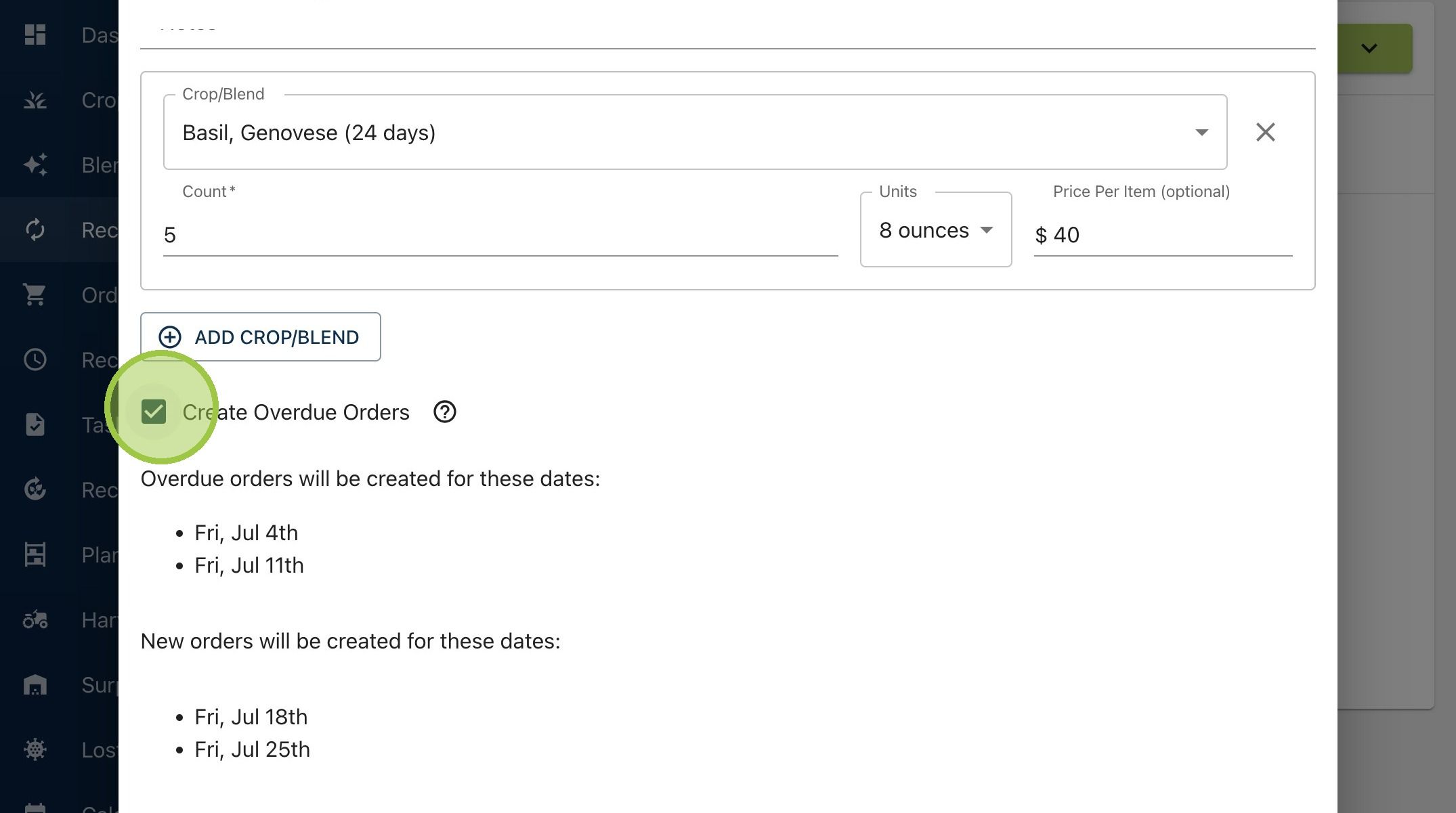
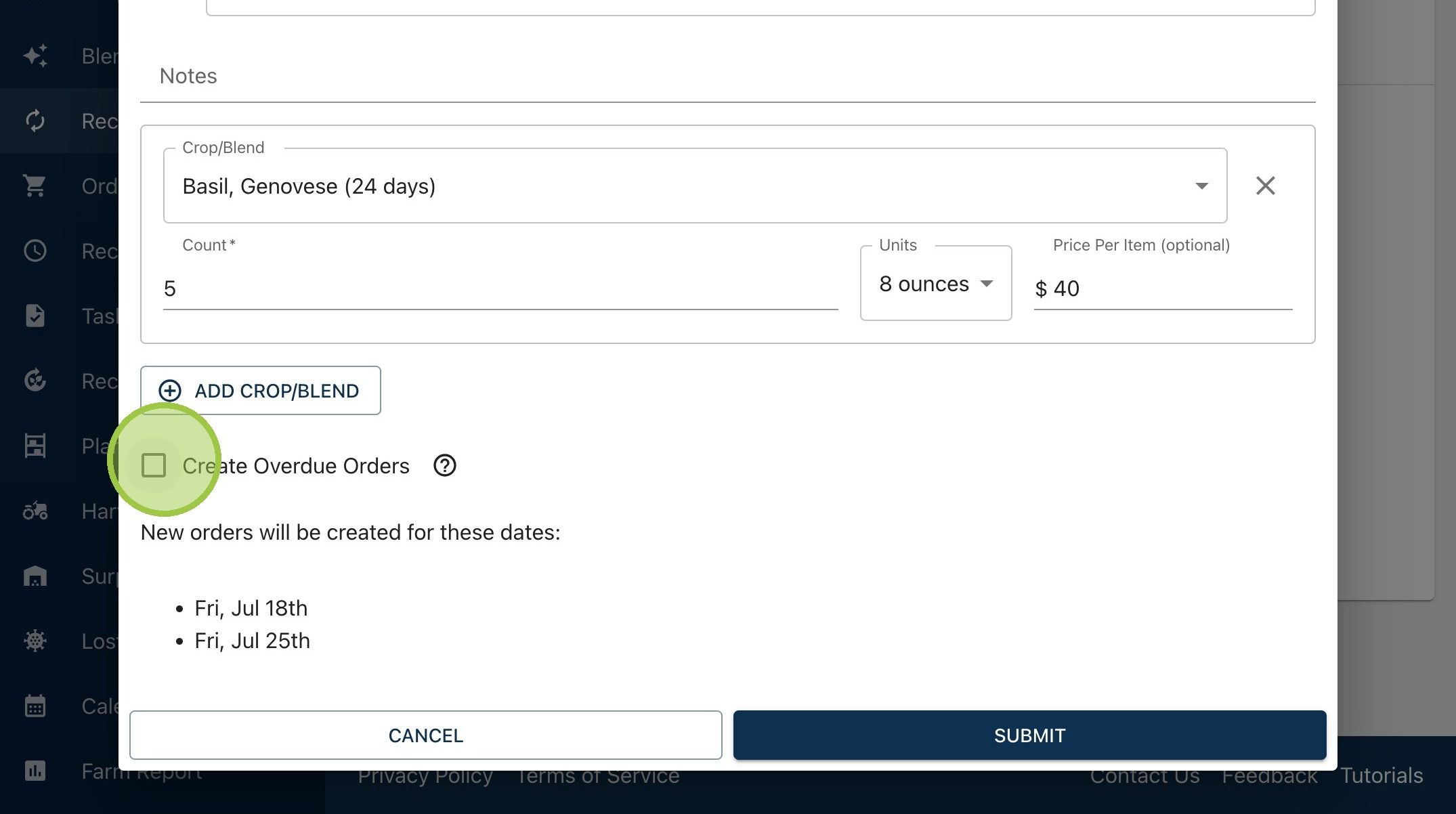
5. Deselecting "Create Overdue Orders" means the software will create child orders starting with the next earliest order where there's enough time to grow all products in the order
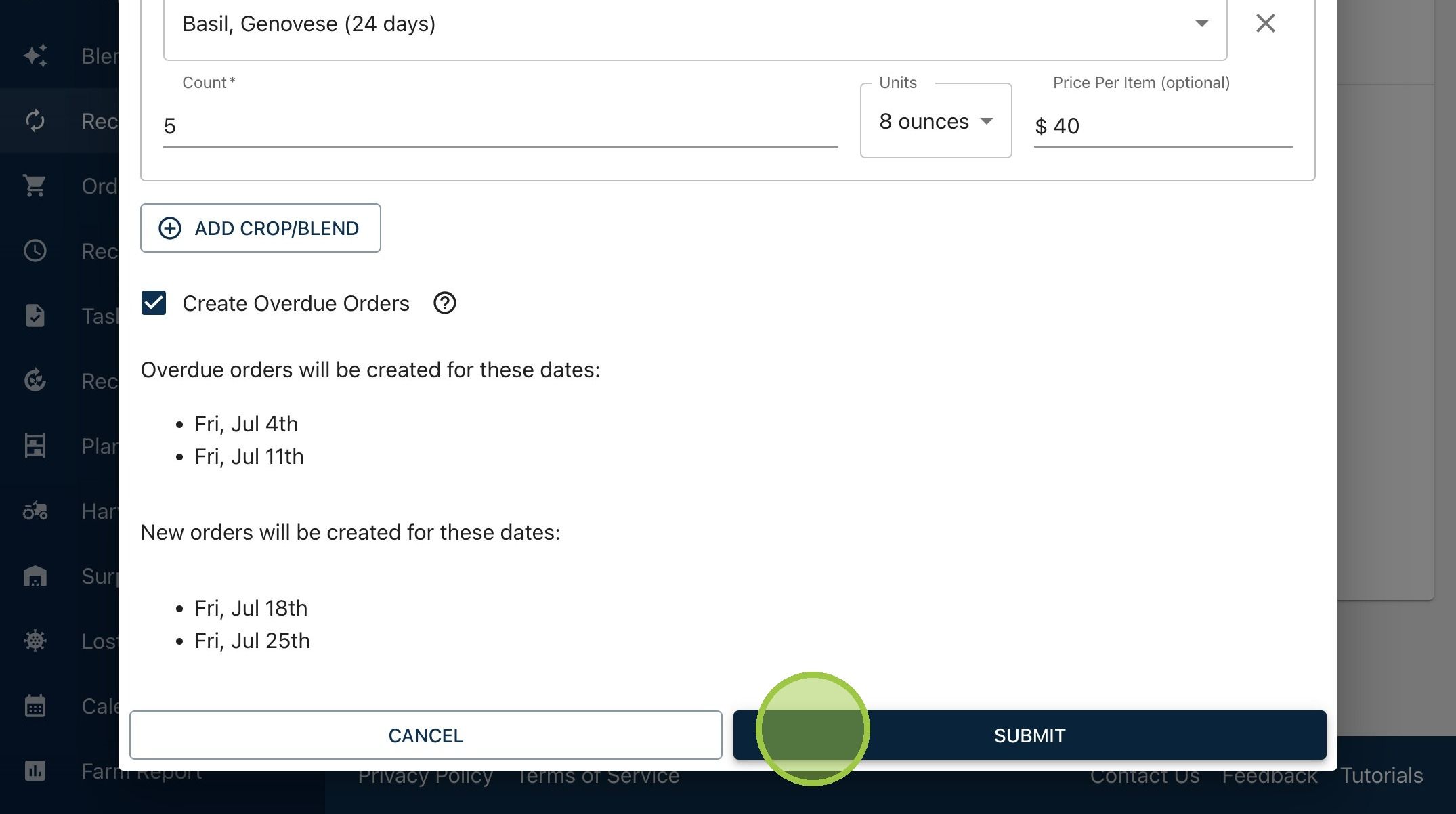
6. Click "Submit"
7. Let's inspect the new recurring order
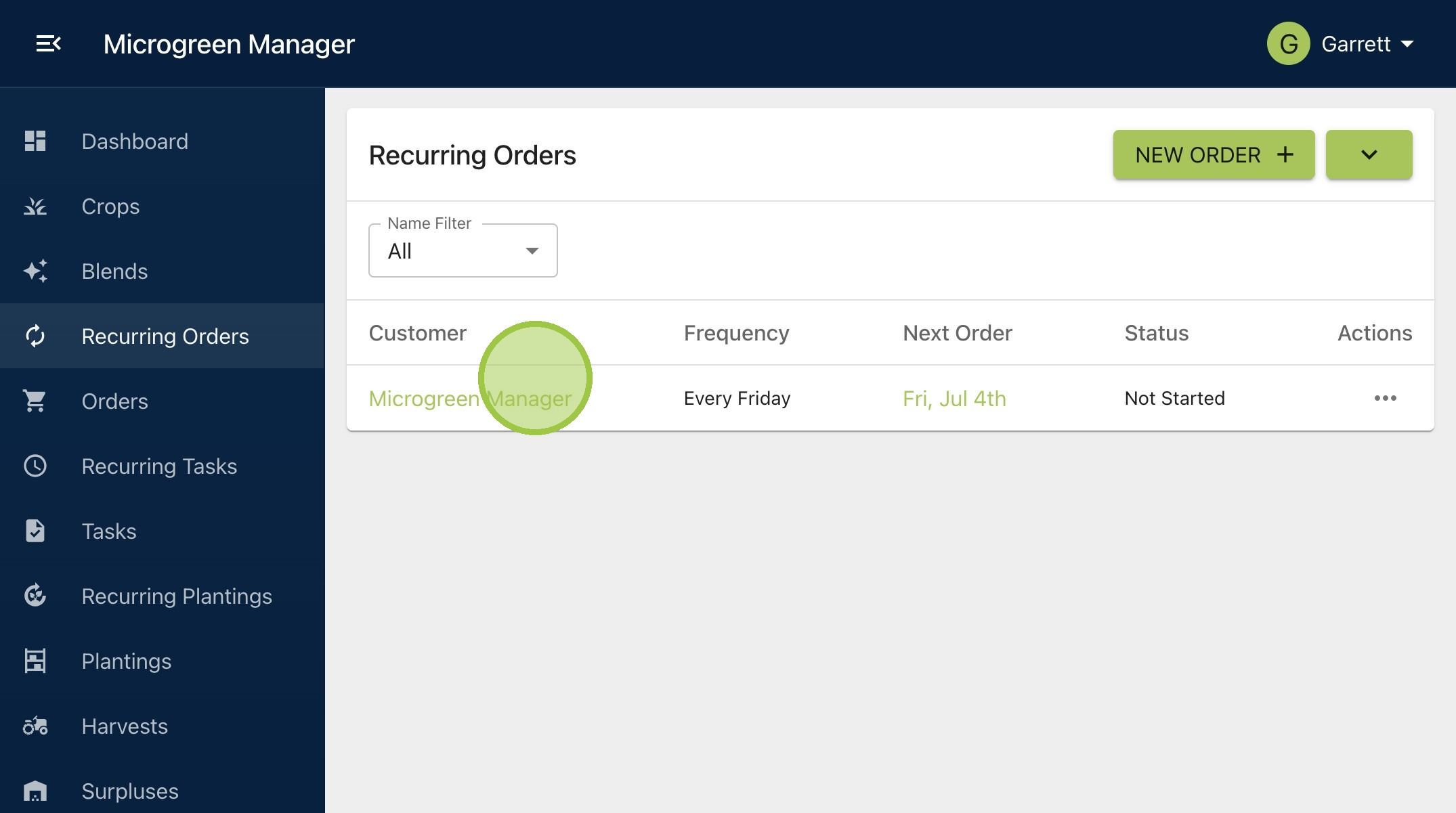
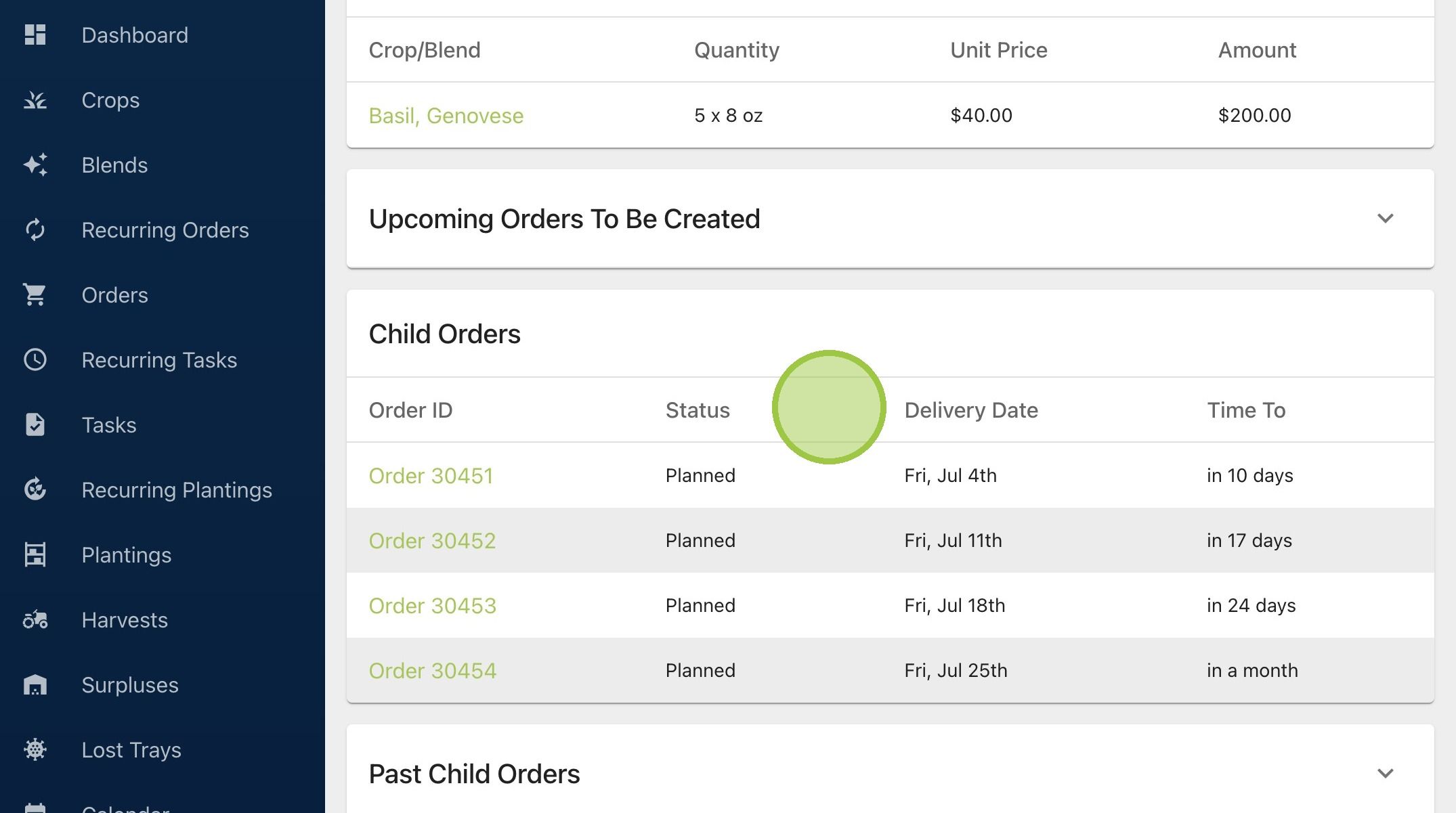
8. Since we decided to create all overdue orders, we will have four child orders. There are two overdue orders for July 4th and 11th, and the two other orders for July 18th and 25th. They all have a status of "Planned" because we haven't marked any tasks for any of them as complete yet
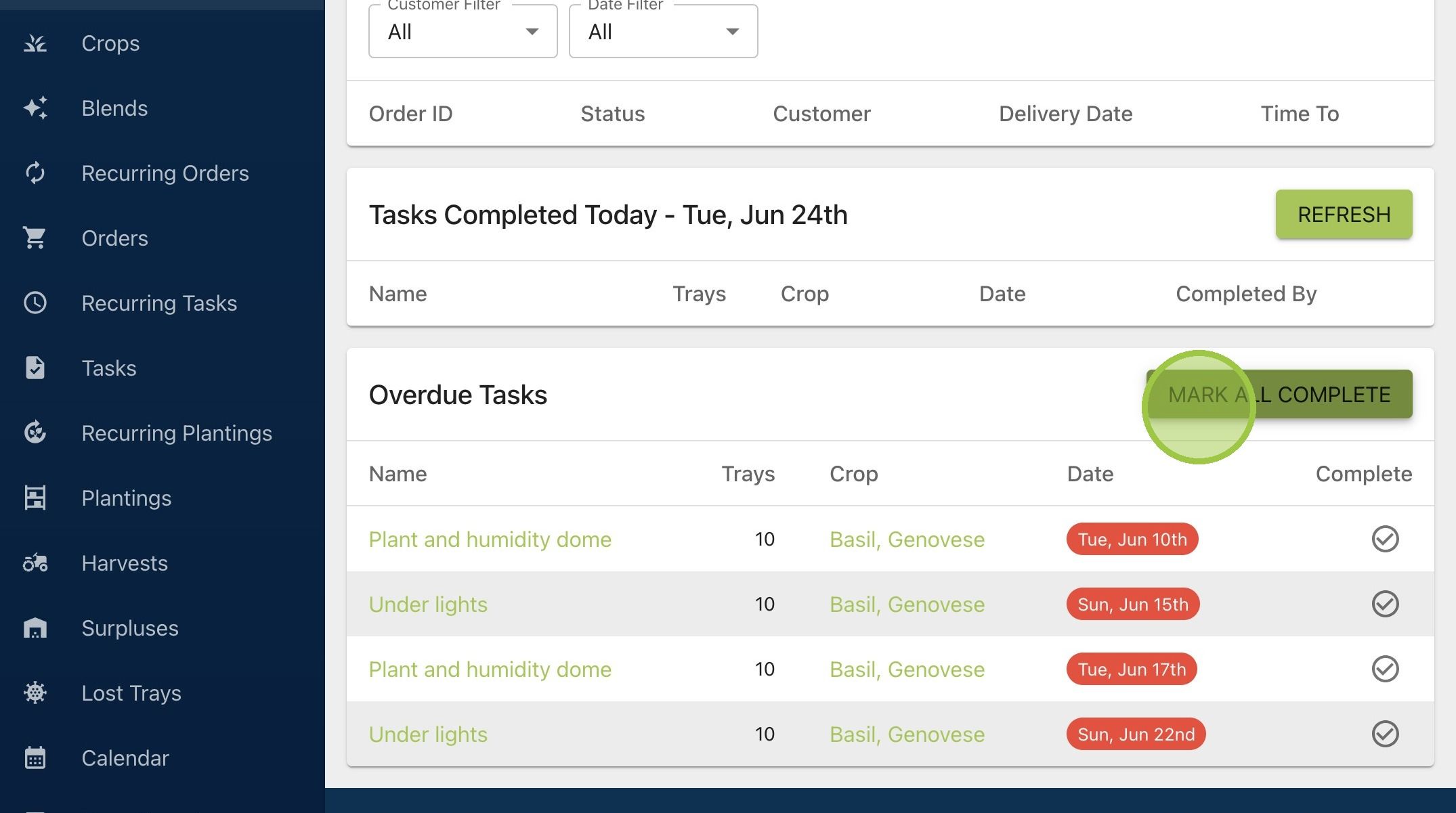
9. Let's check the dashboard. Under overdue tasks, we’ll find the past due tasks for the two overdue orders. We can see there's a set of steps for planting and putting the trays under lights for both orders. We're assuming these have all been completed, so we'll mark them as complete
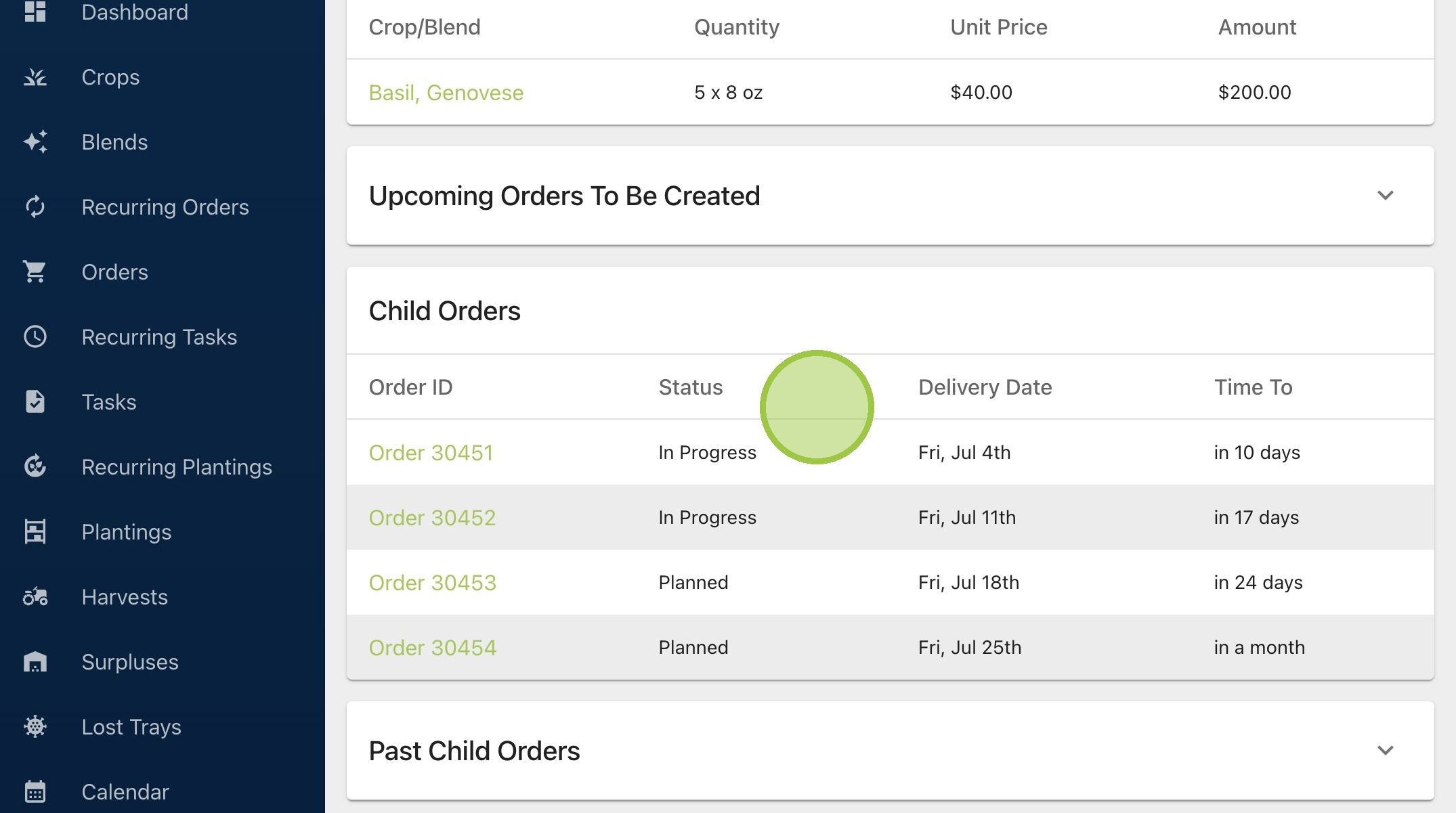
10. If we go back to the recurring order and check the status of the two overdue orders, we'll see they're now "In Progress." The software is now 'caught up' to reality
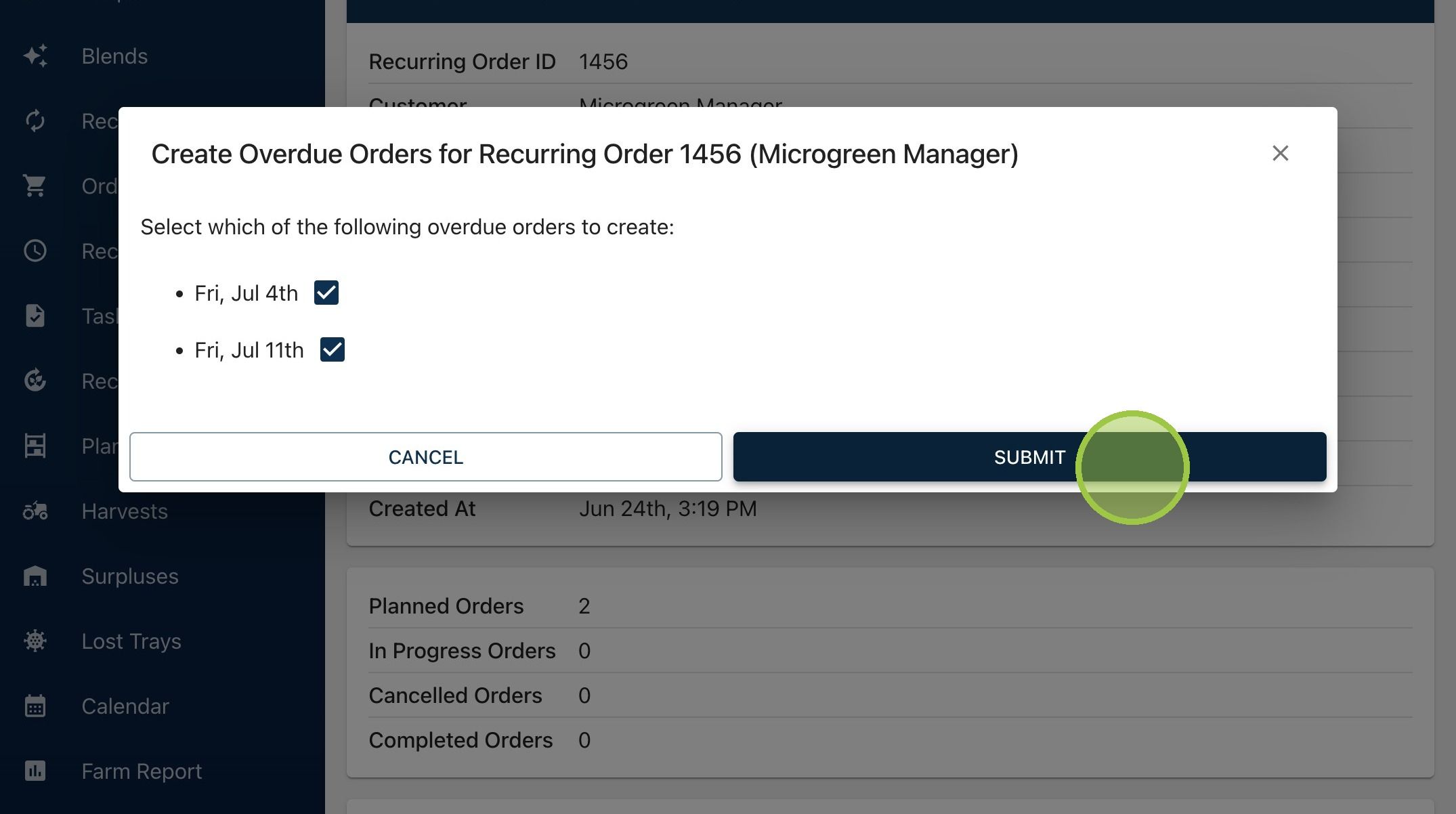
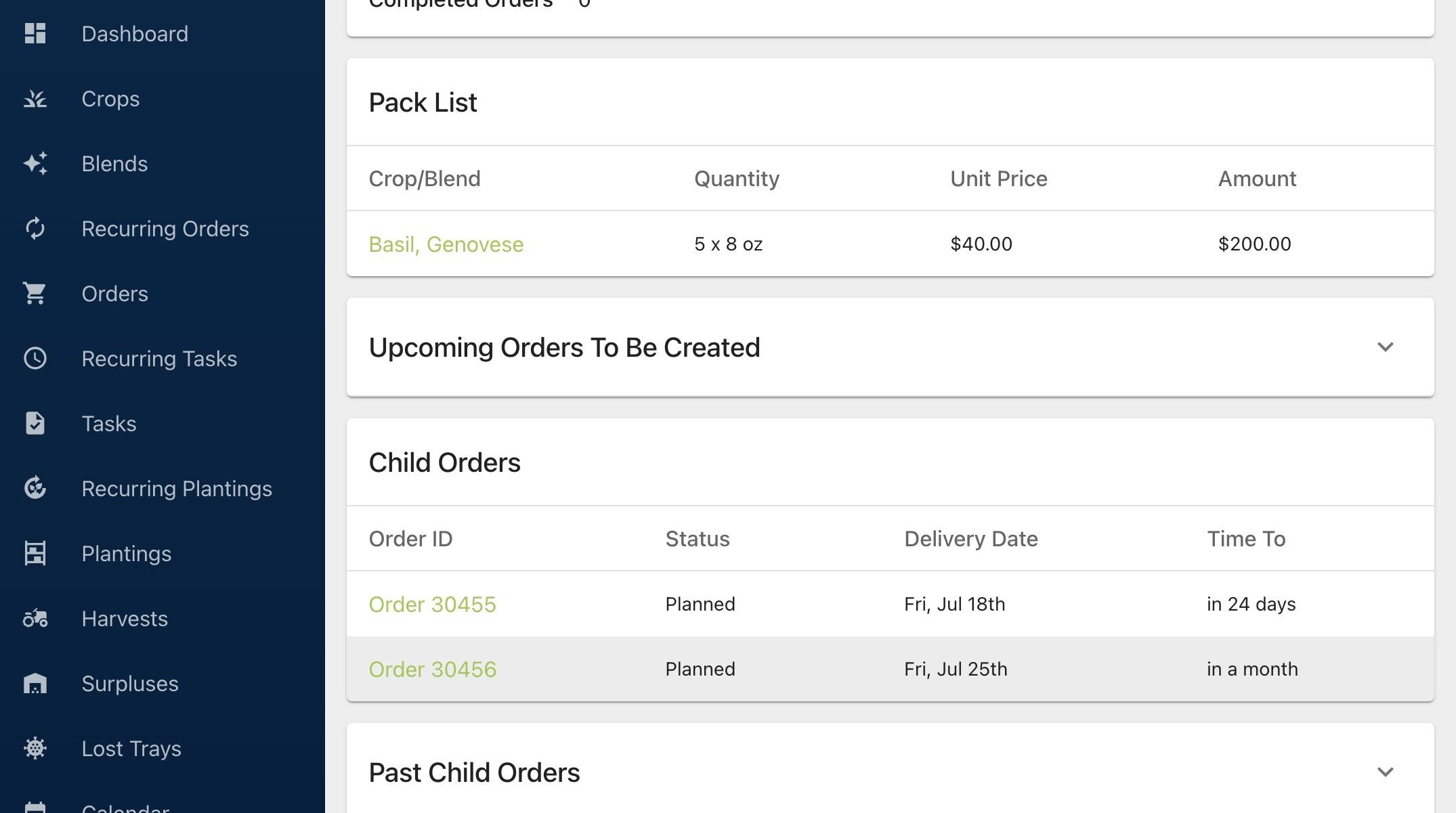
11. What happens if you forget to check "Create Overdue Orders" when you submit a recurring order? What if it was deliberate, but you changed your mind? We have a solution for that too. This is an identical order to the first example, except we didn't create the overdue orders for July 4th and 11th
12. Click "Options" at the top of the recurring order, then select "Create Overdue Orders"
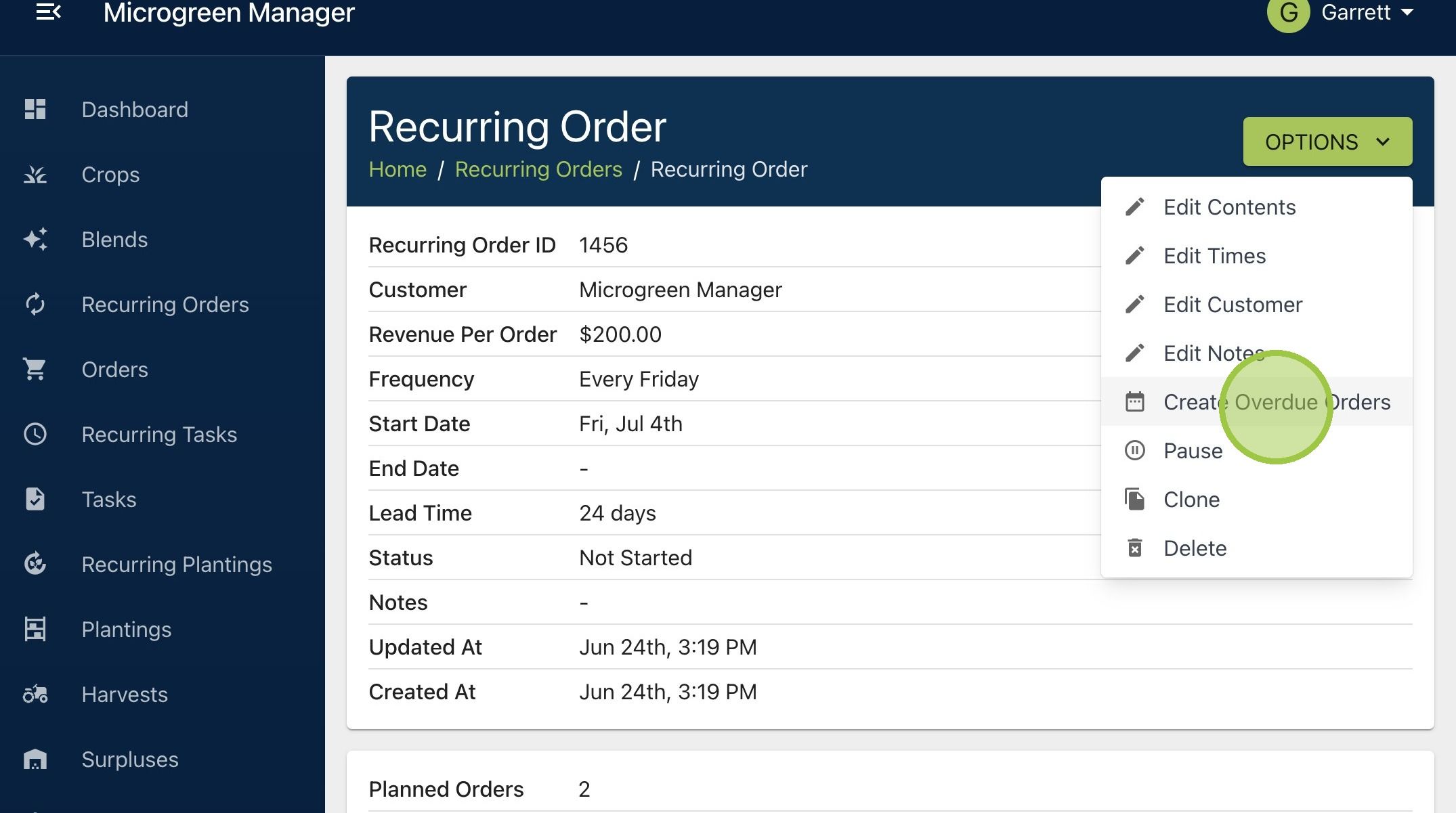
13. A form will appear with all overdue orders that haven't been created yet. You can decide to create all or just certain ones
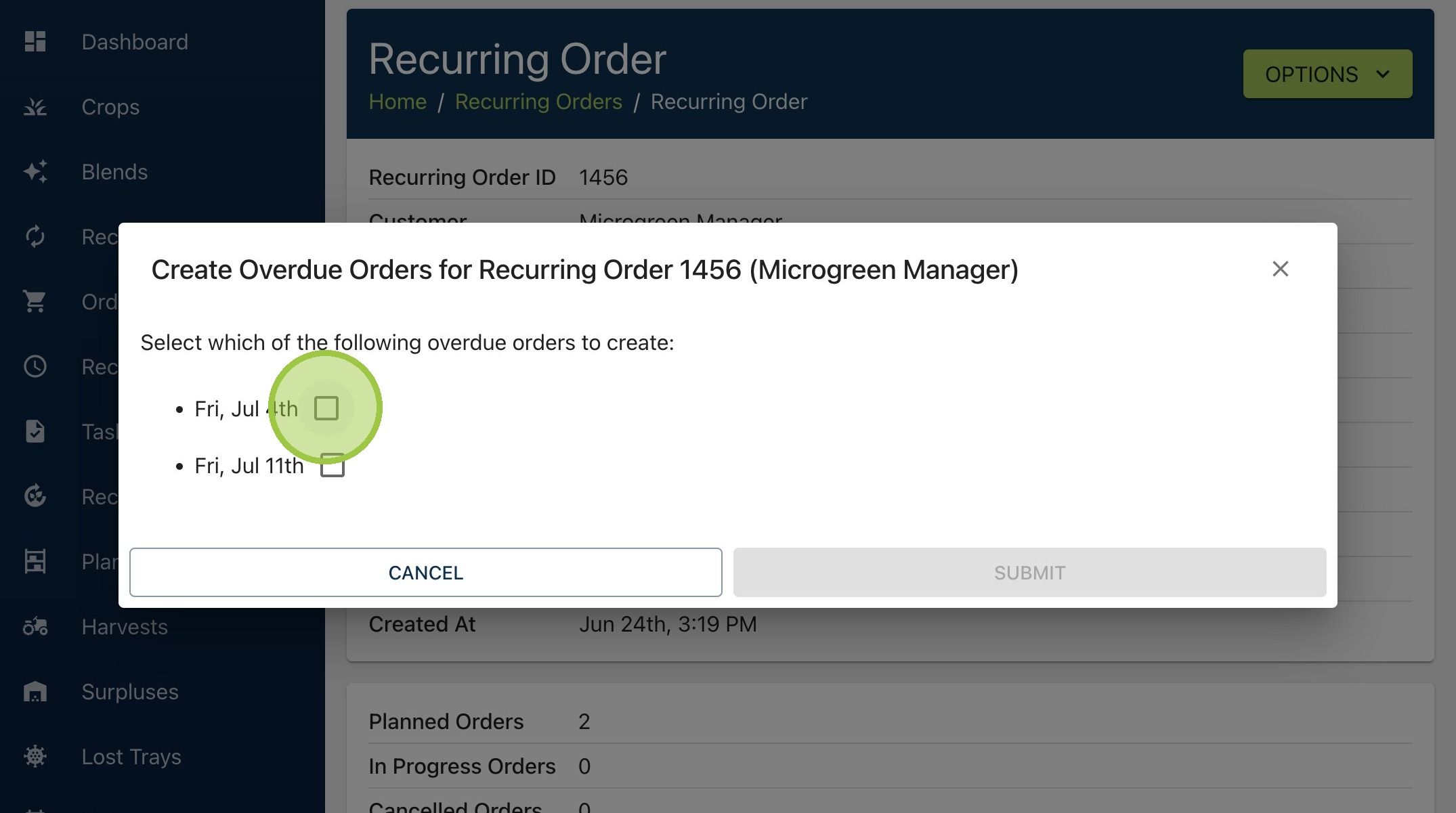
14. Click the "Fri, Jul 11th" field.
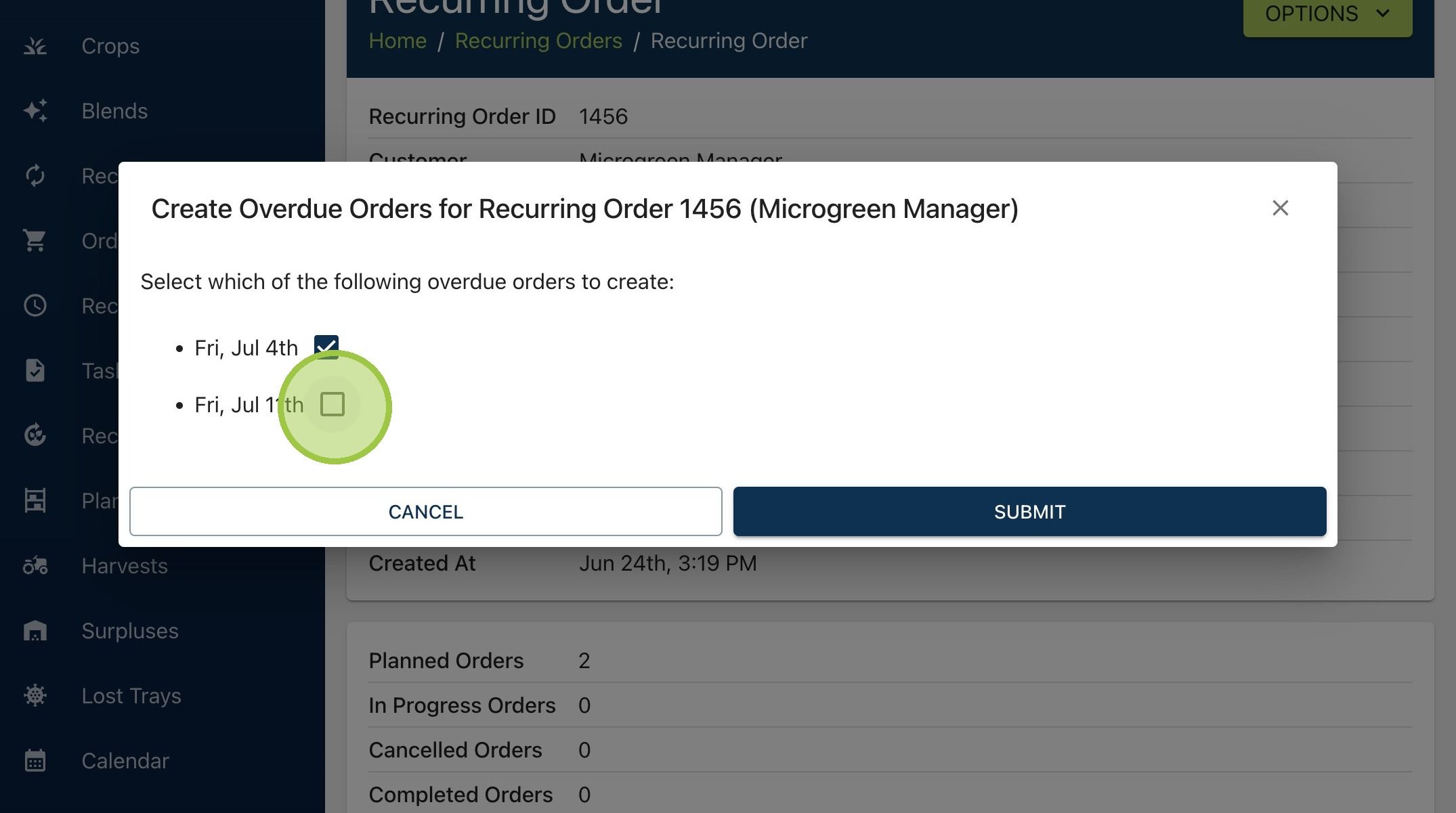
15. Click "Submit"