How to Create One-Time Tasks
Microgreen Manager automatically generates your production tasks. However, you can still make custom one-time tasks for anything you want. Custom tasks are great for things like replacing broken lights, cleaning the company vehicle, ordering seeds, and much more.

Written by Garrett Corwin
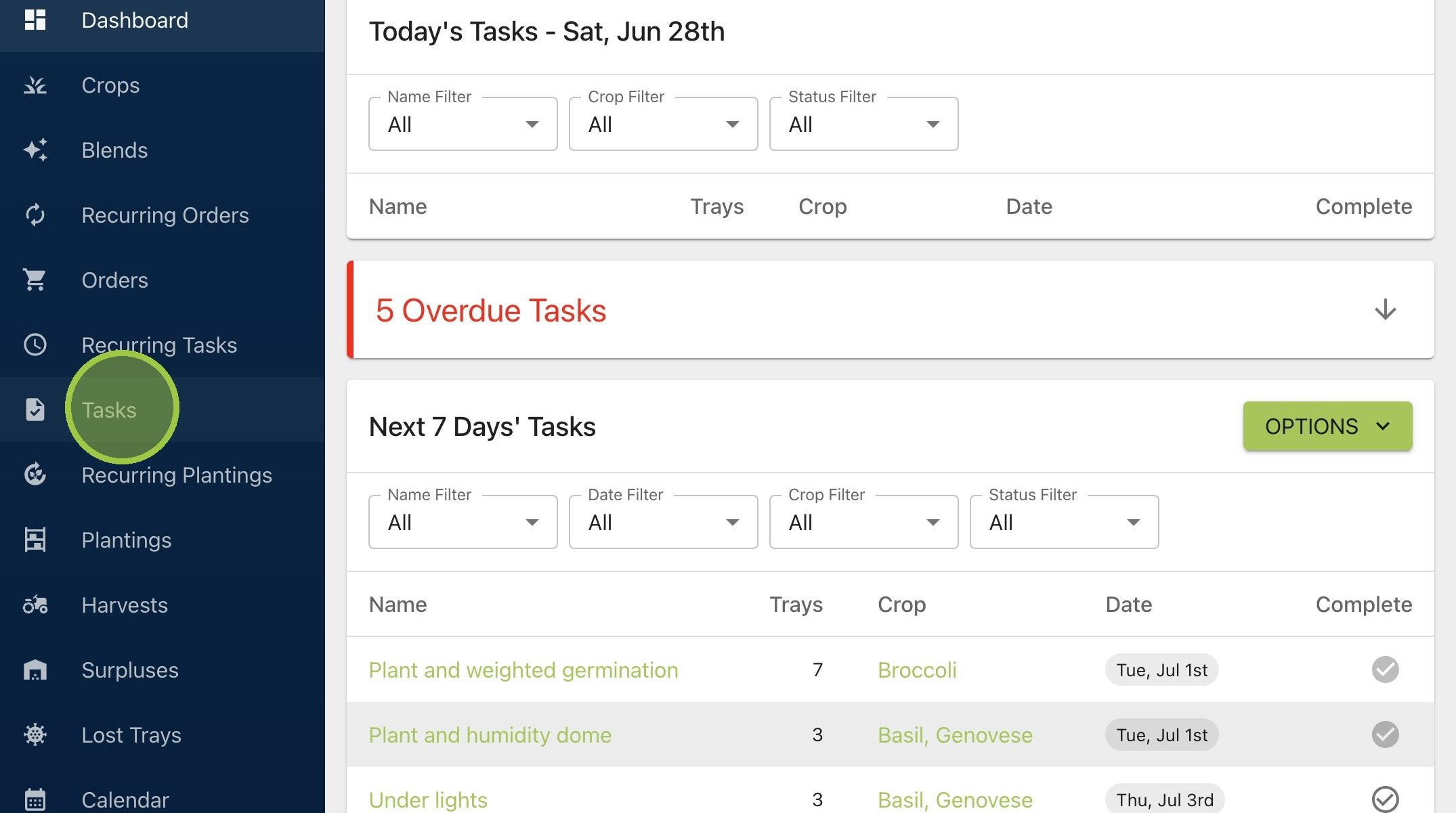
Last updated1. Click "Tasks" in the navigation bar
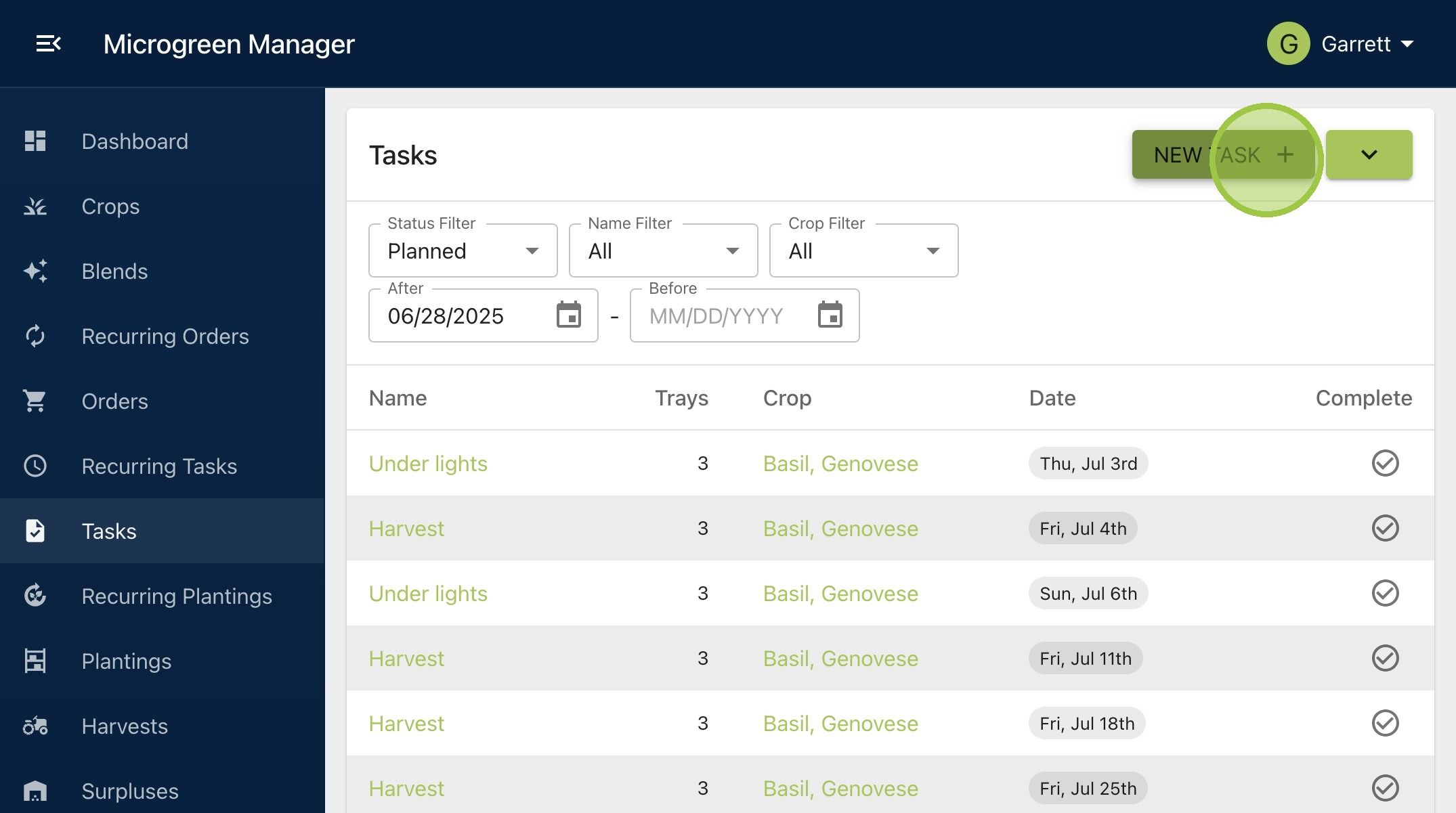
2. Click "New Task"
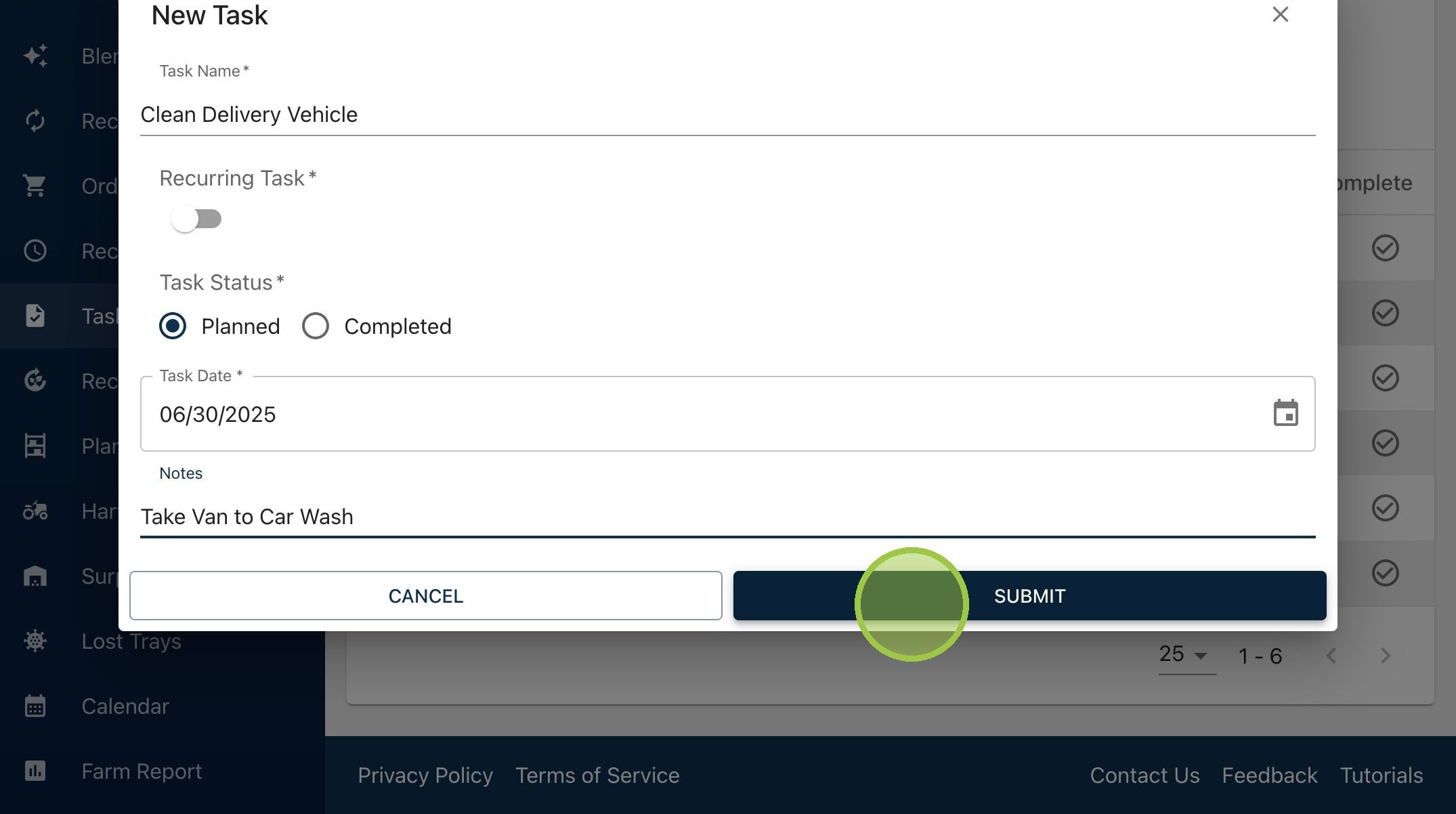
3. Enter a task name. We'll make this a one-time task to get the company vehicle cleaned
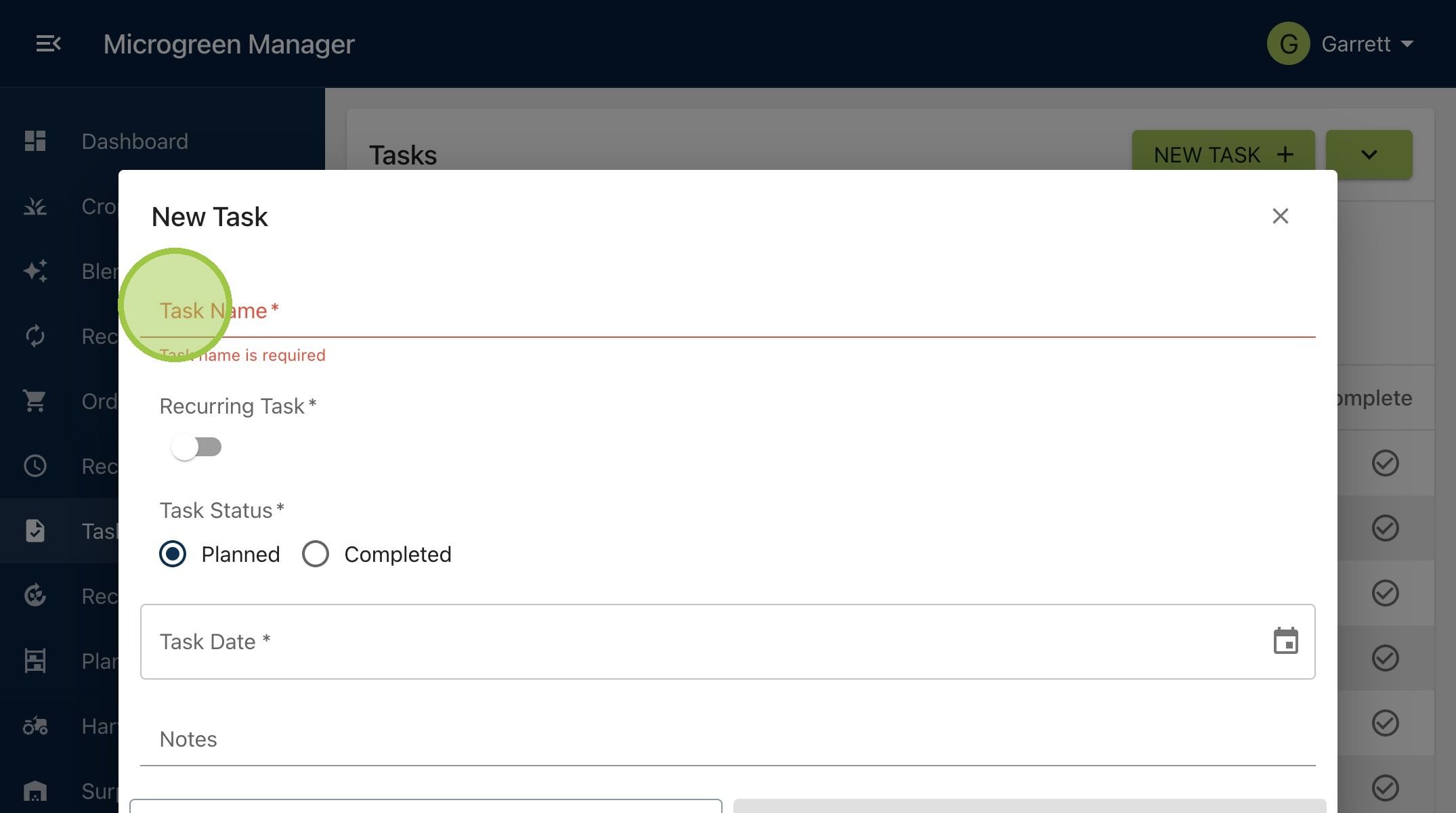
4. We can create a recurring task using the same form, but we'll save that for another guide
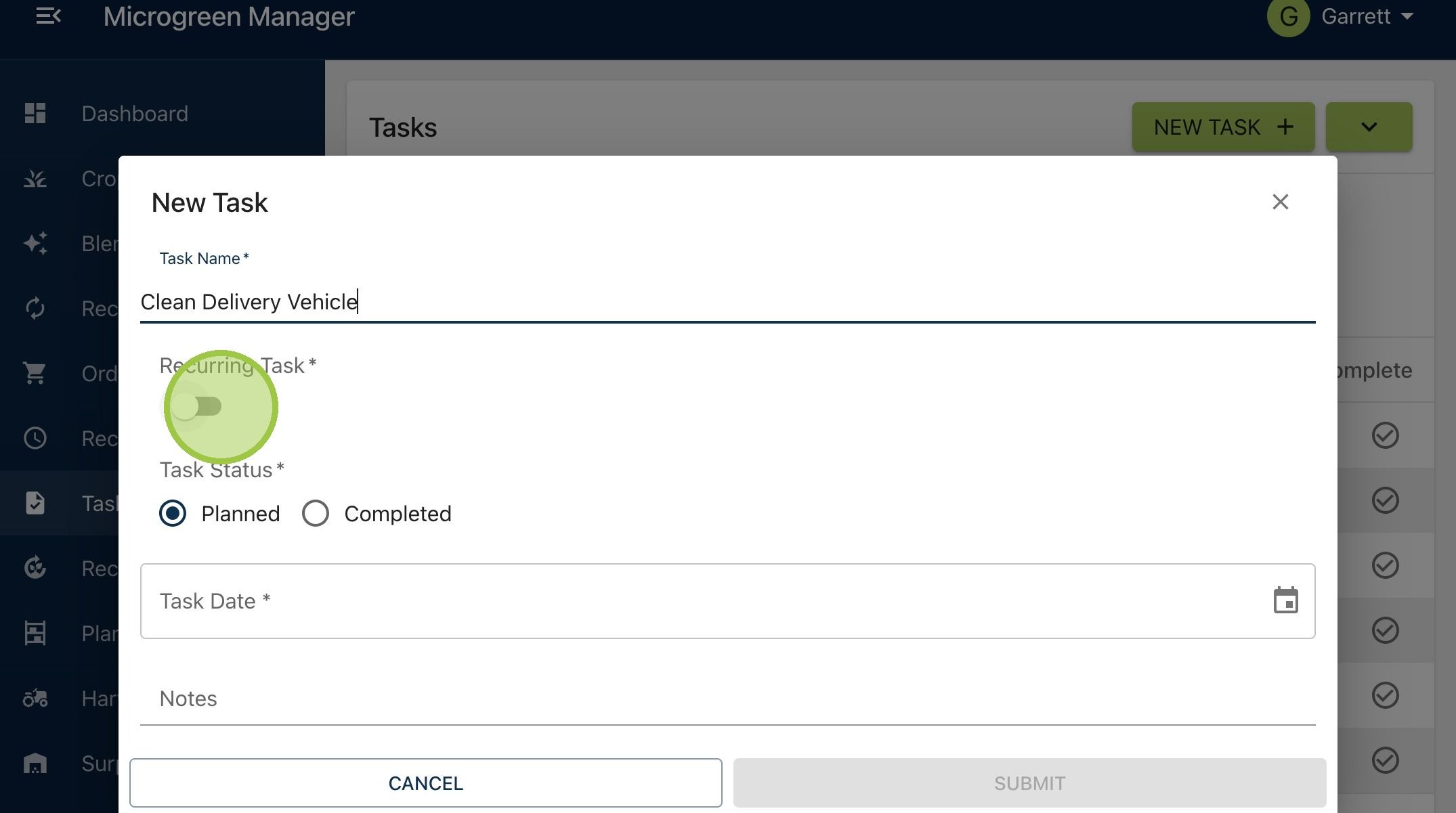
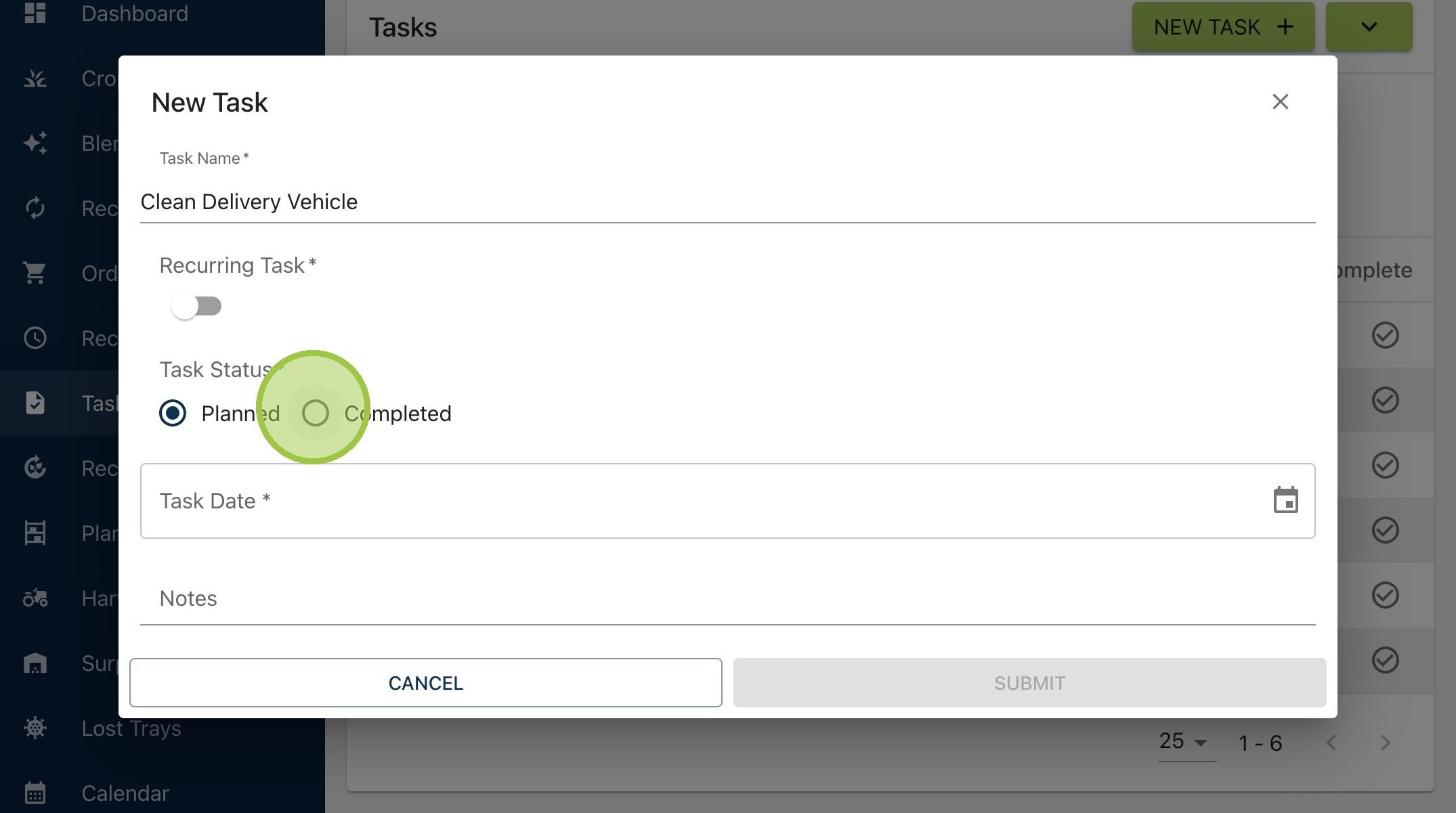
5. Select the task's status. If you want to document a task that's already finished, mark the status "Completed." If the task is for the future, leave the status "Planned"
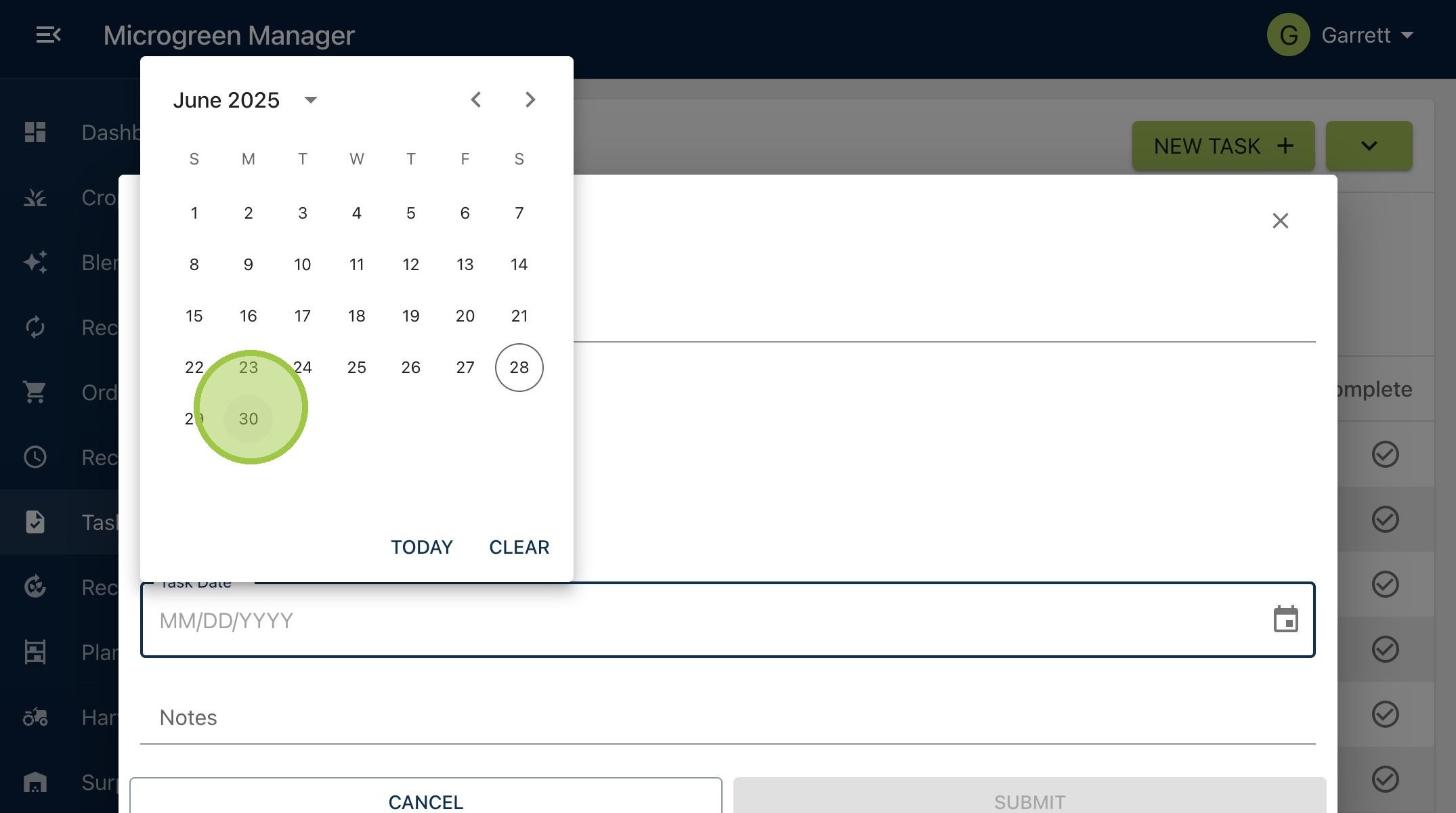
6. Select the date for the task
7. Add any notes you'd like. For example, we want to take the van to a local carwash rather than cleaning it ourselves
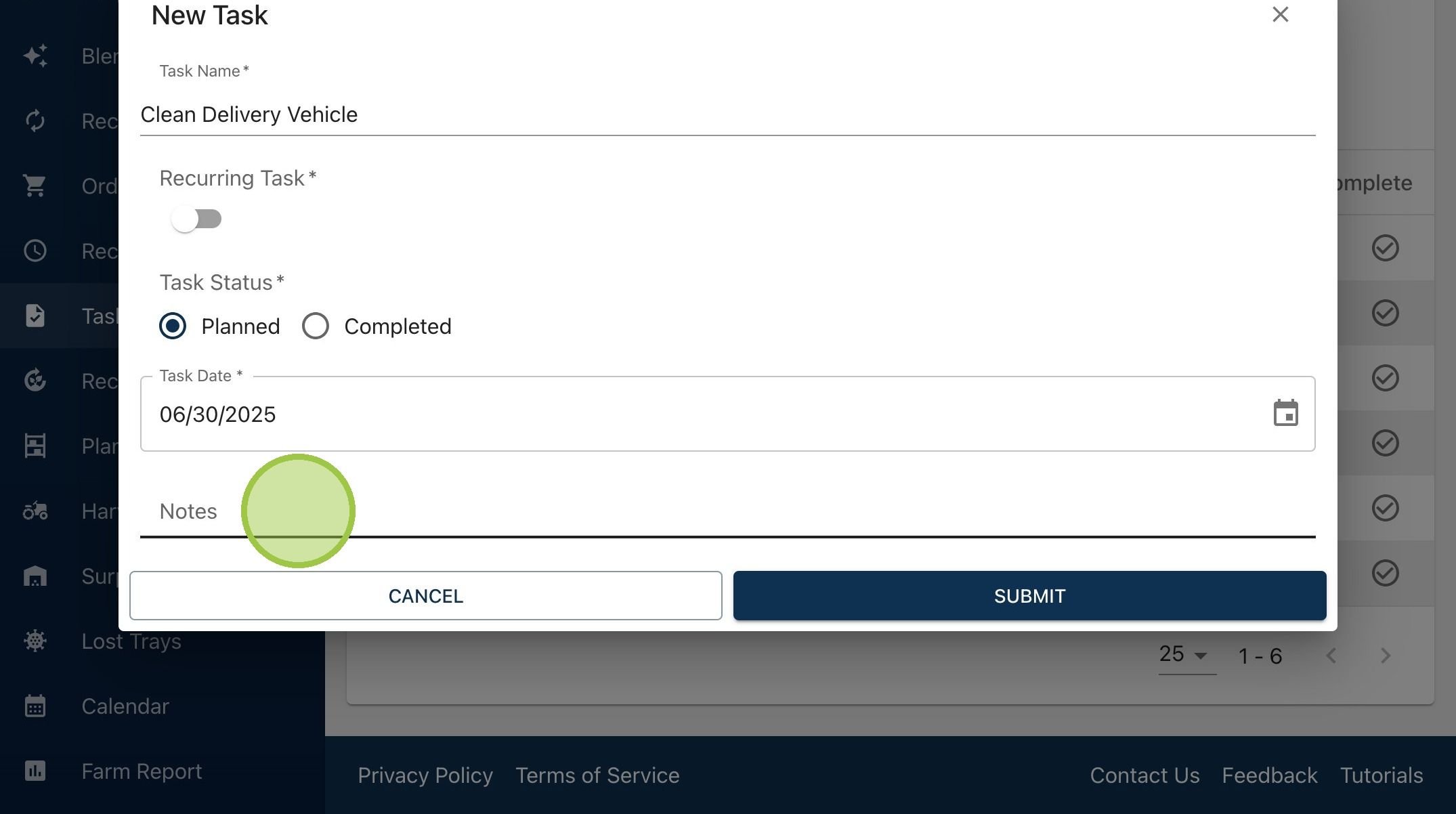
8. Click "Submit"
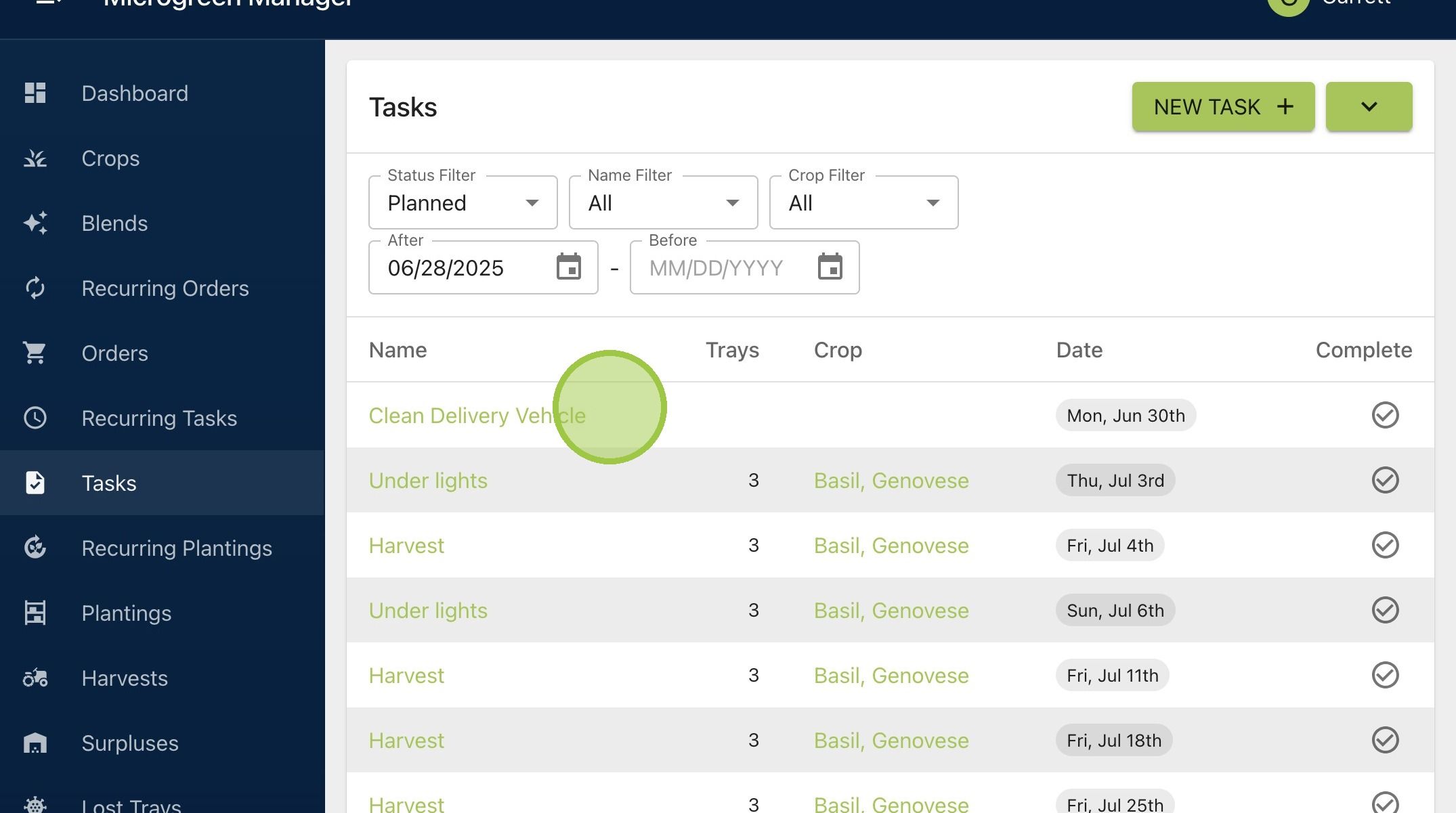
9. The new one-time task will appear in the tasks dashboard. Since this isn't a production task, there are no related "Trays" or "Crops" details