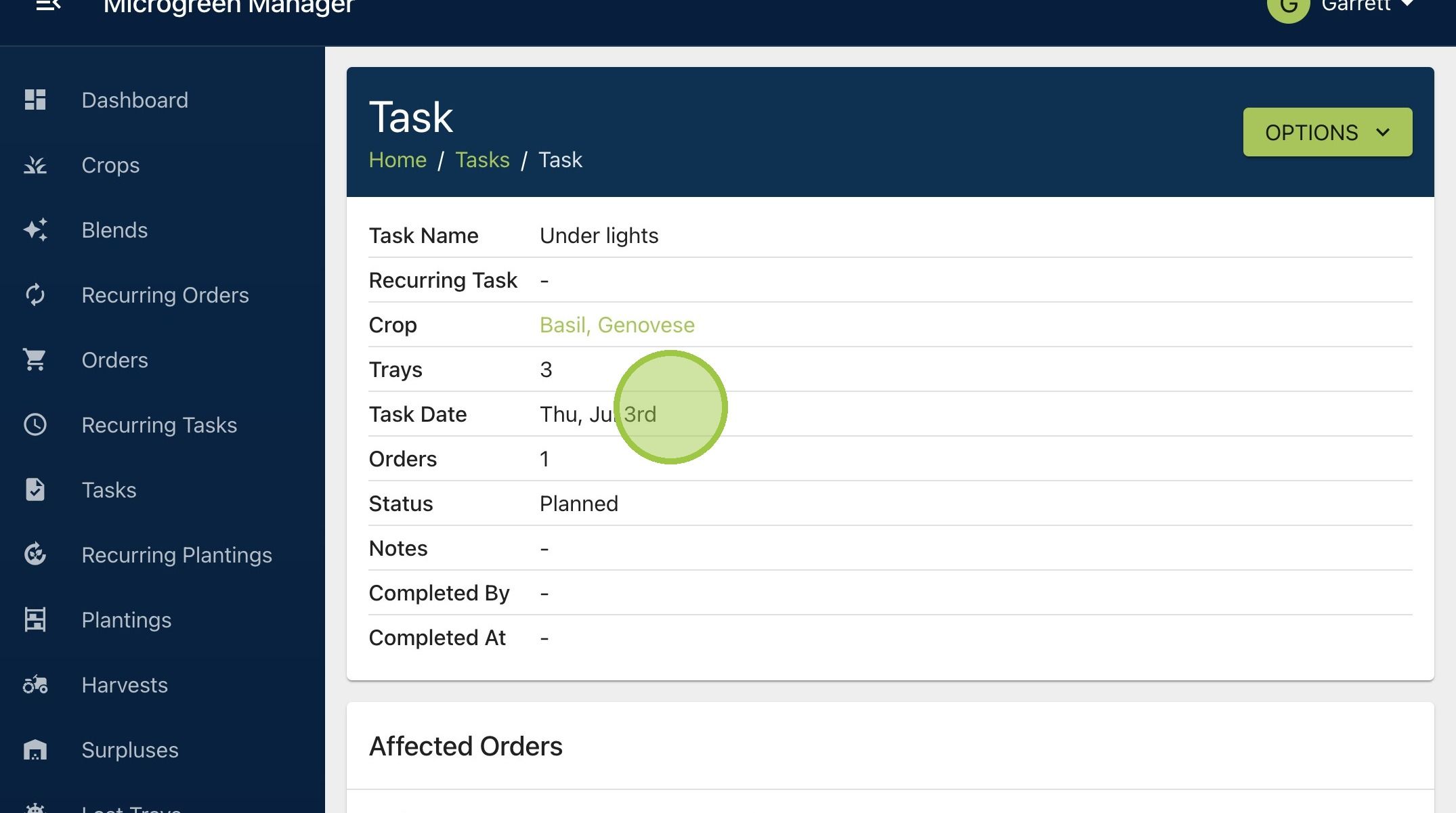
How to Edit a Task’s Date
Microgreen Manager creates and schedules tasks based on your order dates and grow steps. Sometimes you need to override the programming and pick a different date for a task.

Written by Garrett Corwin
Last updated1. Looking at our tasks dashboard, we can see the scheduled dates for a few upcoming tasks
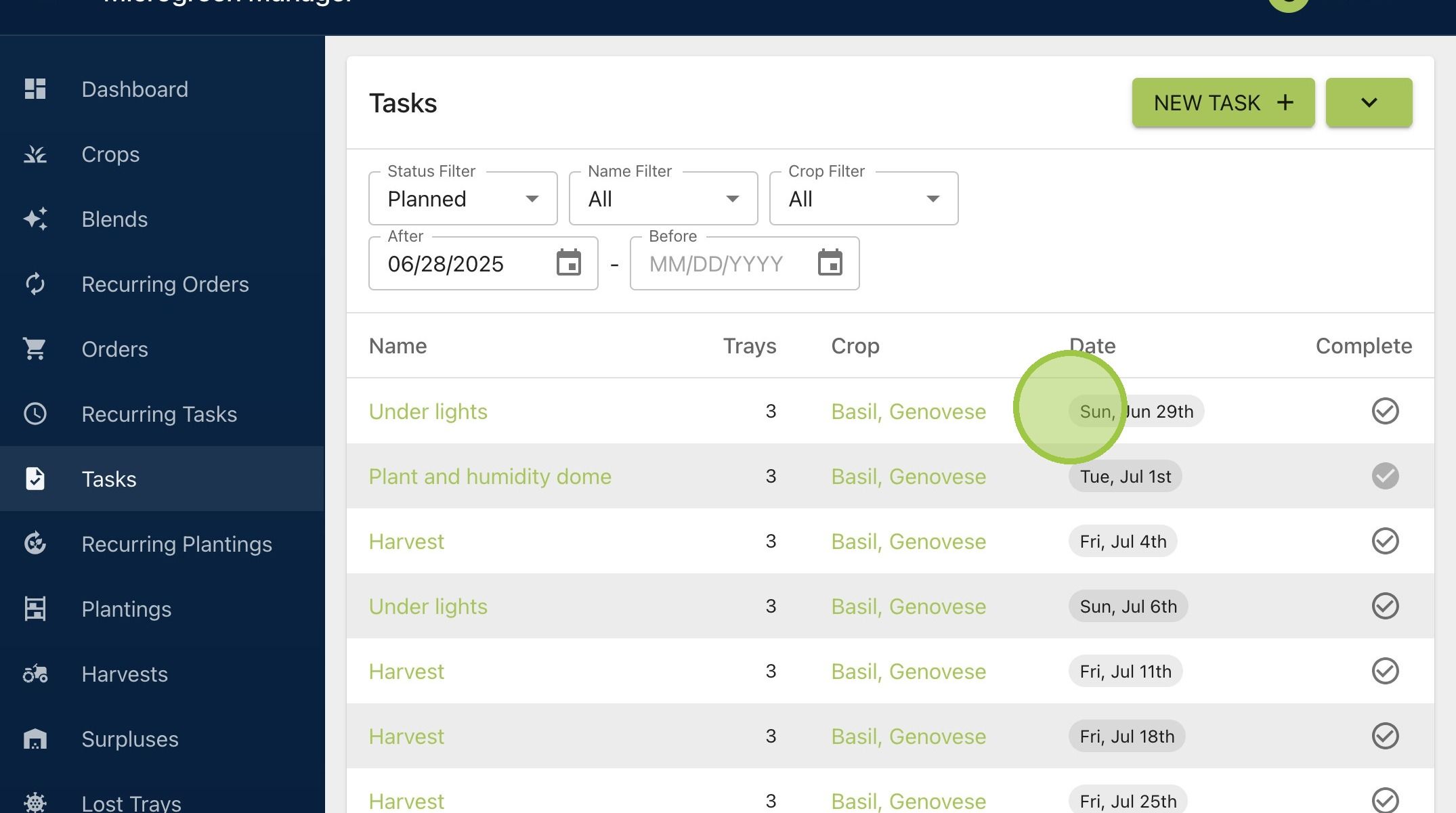
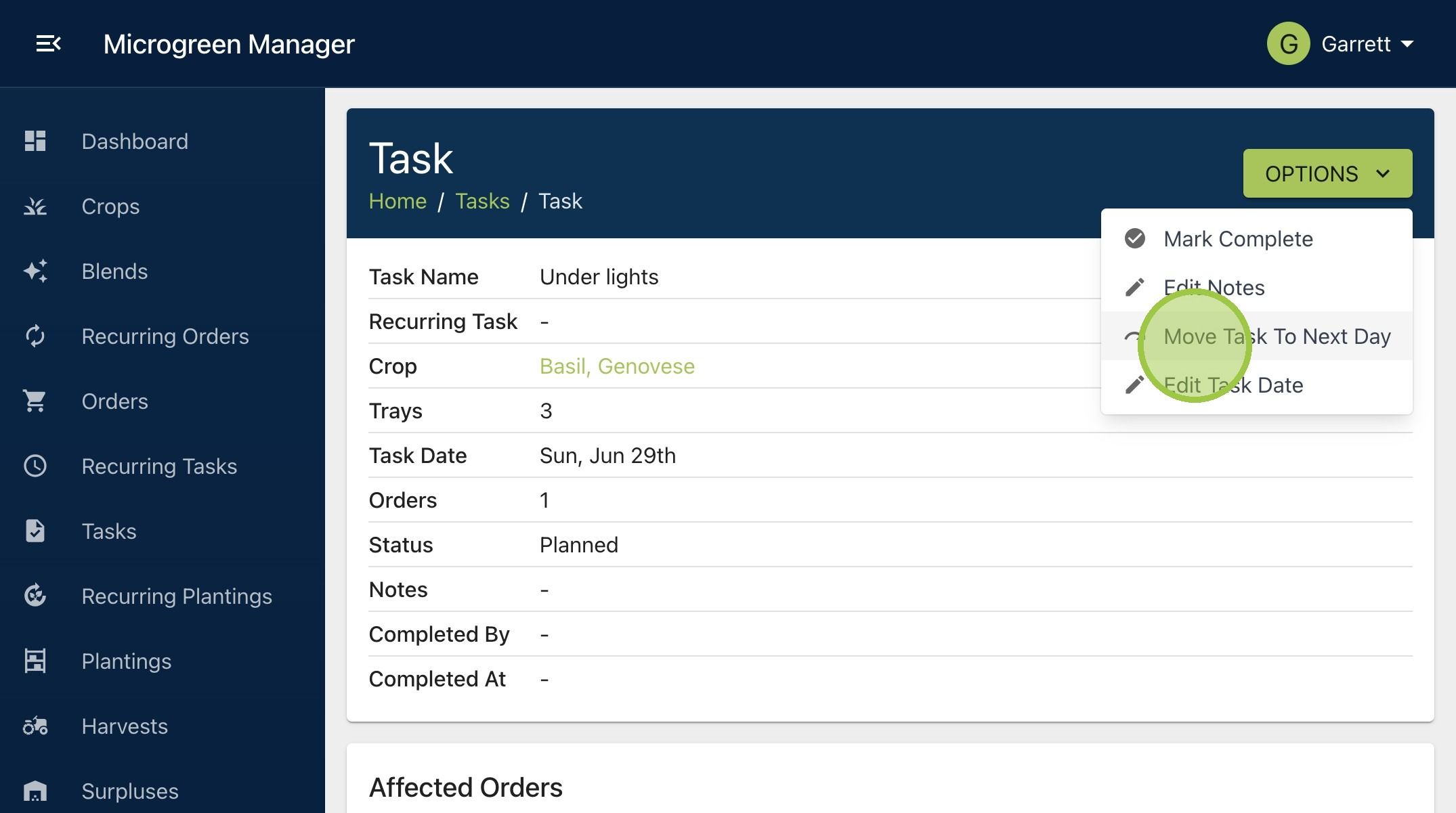
2. To change a task's date, click on the task name to get more details. Once inside the task's page, click "Options." The first way to move a task is to move it back by one day. Click "Move Task To Next Day." This option works well when crops are taking longer to germinate because of colder temperatures in the farm
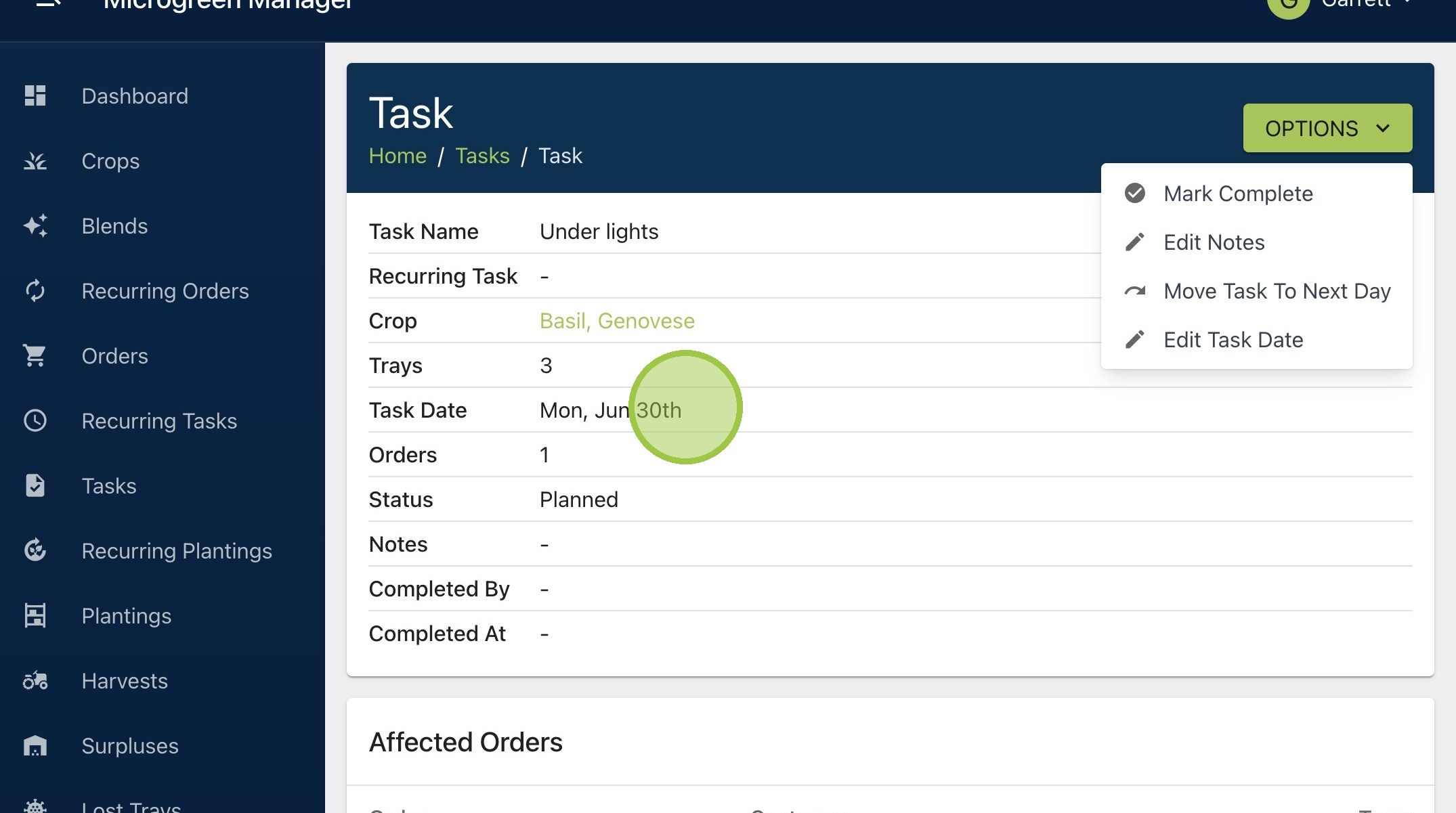
3. We can see the "Task Date" changed from Sun, June 29th to Mon, June 30th
4. The other option for changing a task's date is to "Edit Task Date"

5. Use this form to change the task date. You can pick any date, but it must be before the harvest date for this planting
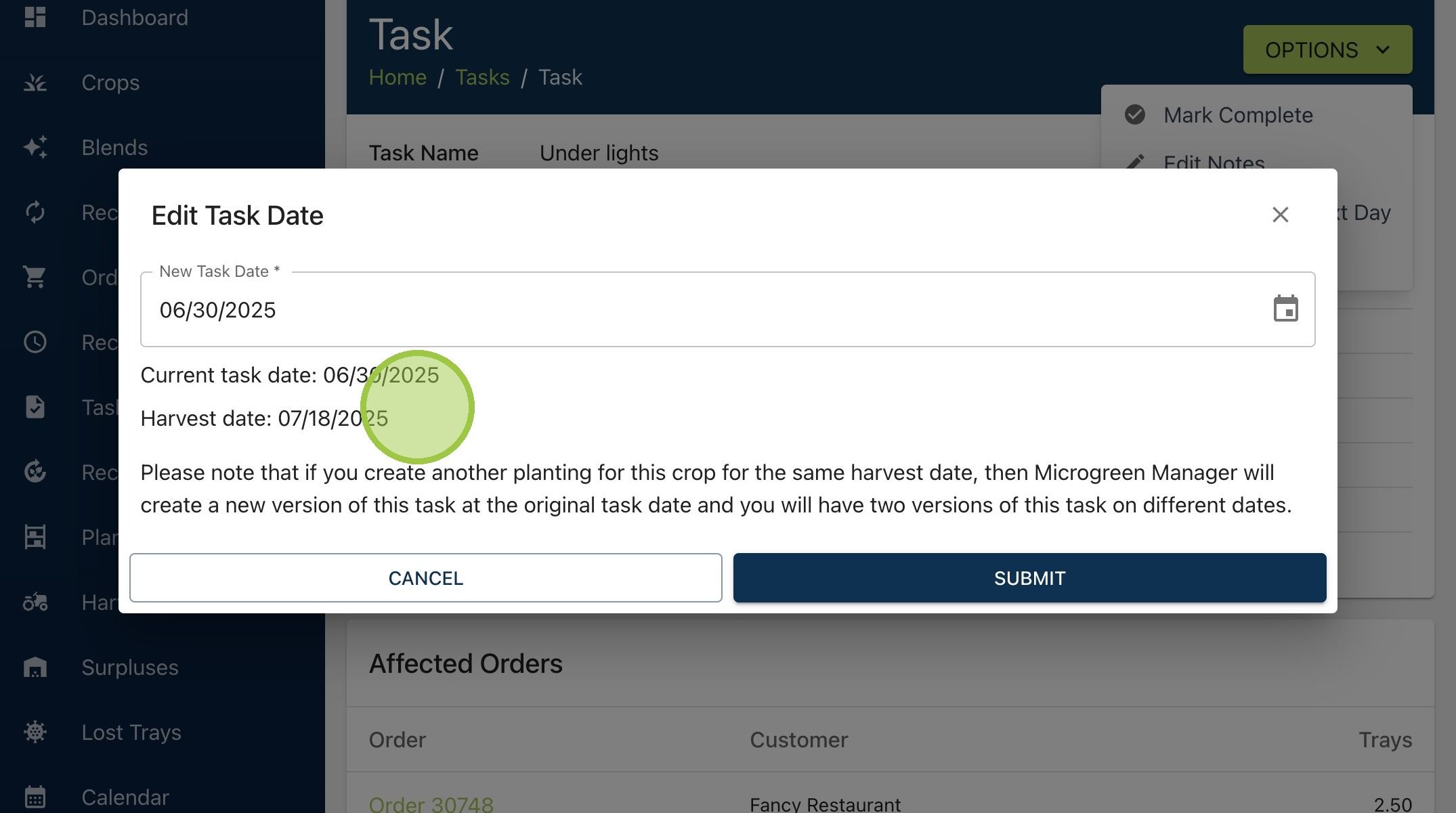
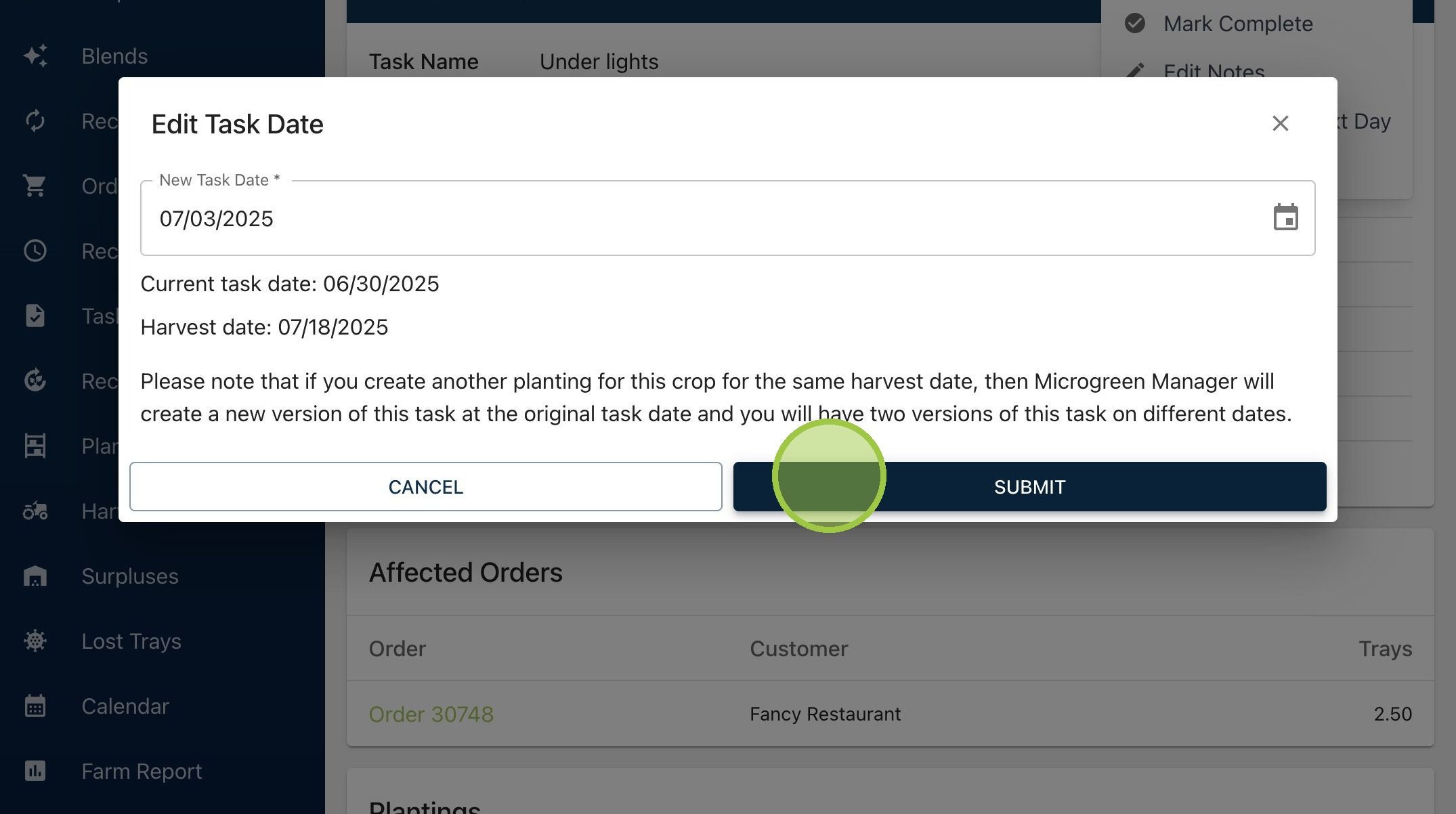
6. Pick a new date

7. Click "Submit"
8. The new date will appear next to "Task Date"