How to Edit the Contents of One-Time Orders (In Progress & Planned)
We'll cover how to edit the contents of a one-time order. We'll use other guides for editing the name and notes, cloning, changing the delivery date, and adding plantings.

Written by Garrett Corwin
Last updated1. Navigate to the orders dashboard. We'll start by showing what happens when you want to edit the contents of an in-progress order
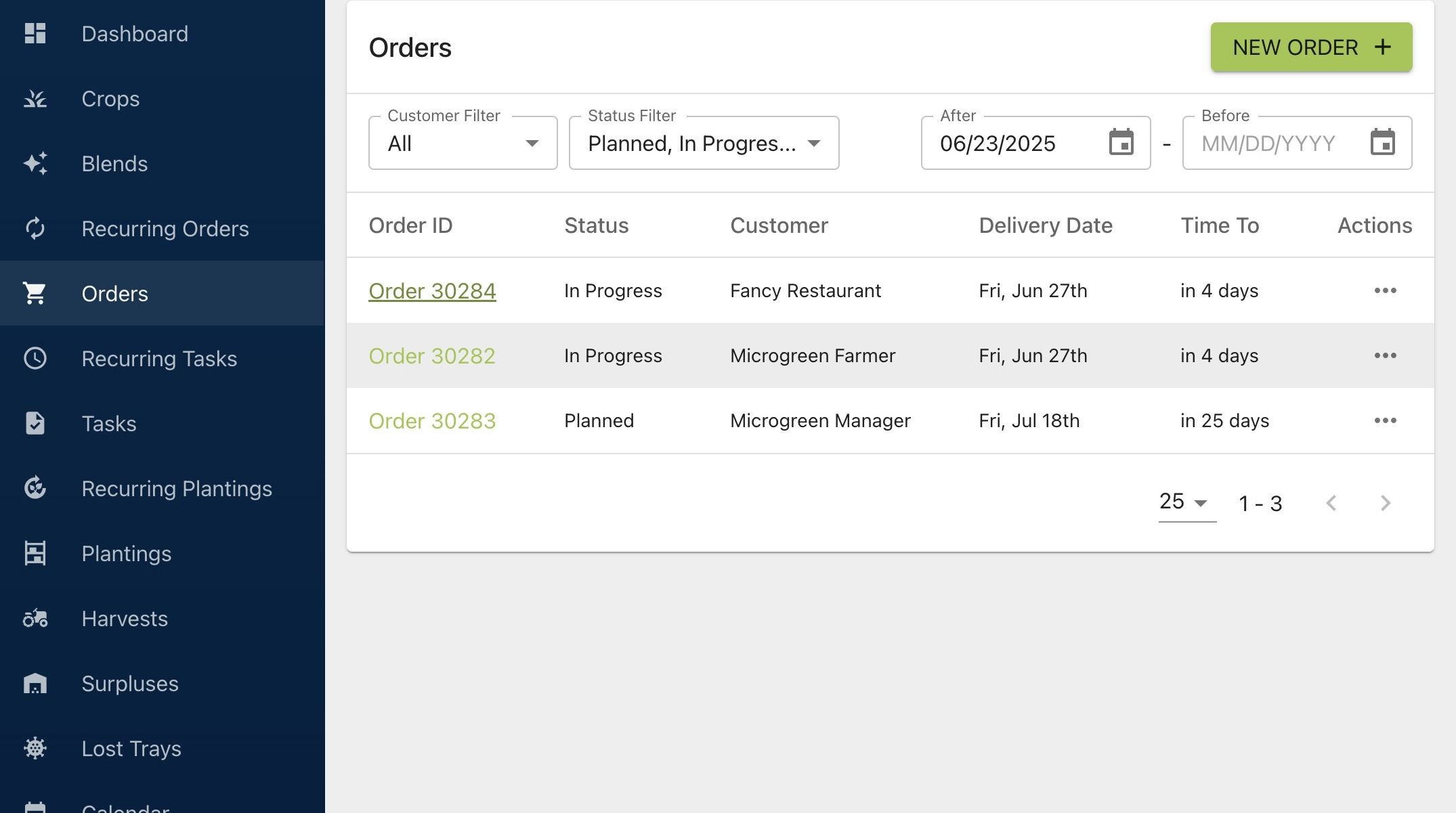
2. Click "Order 30284" to inspect the order and create edits. You can also edit an order from the dashboard by clicking the icon under "Actions"
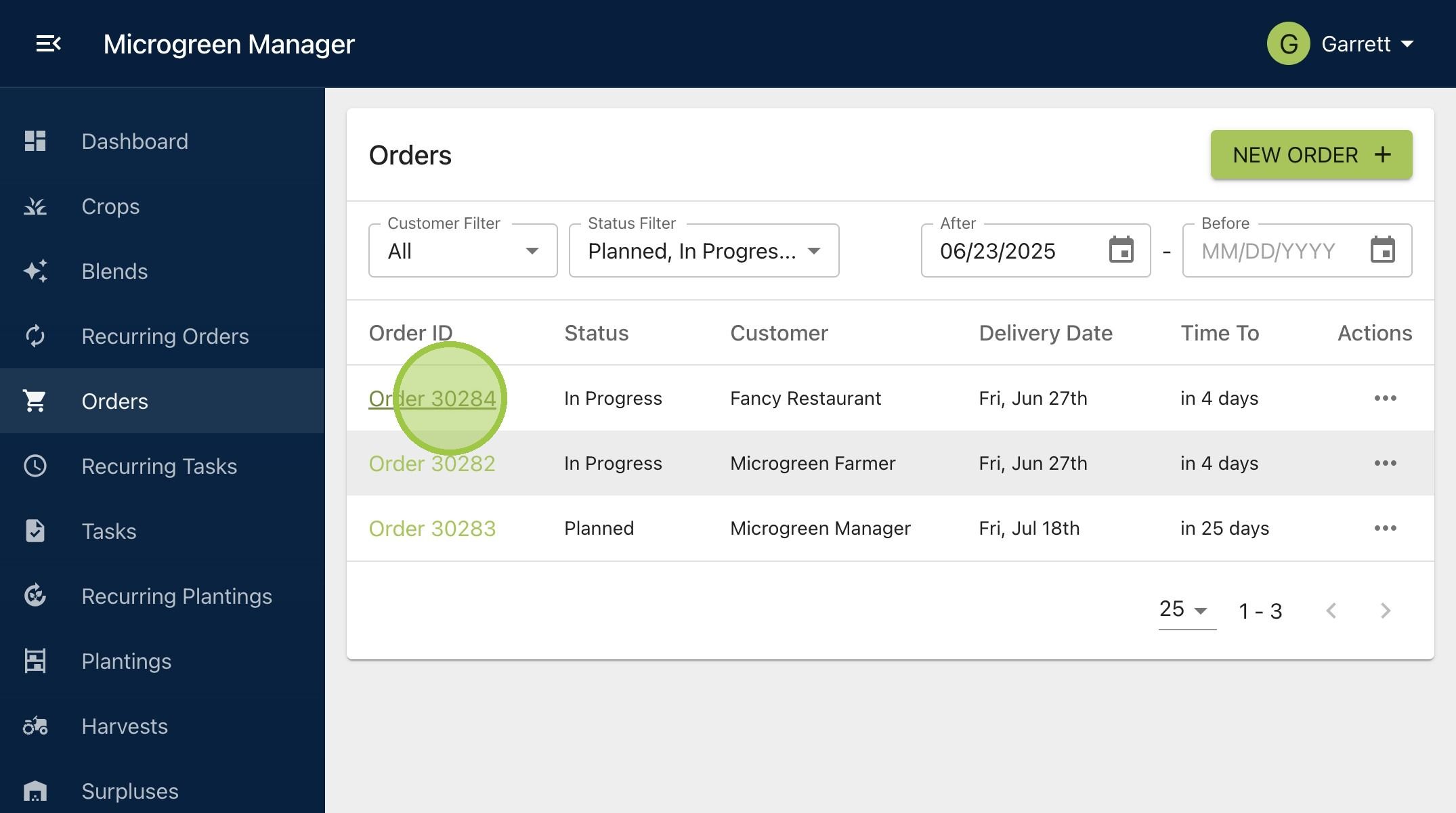
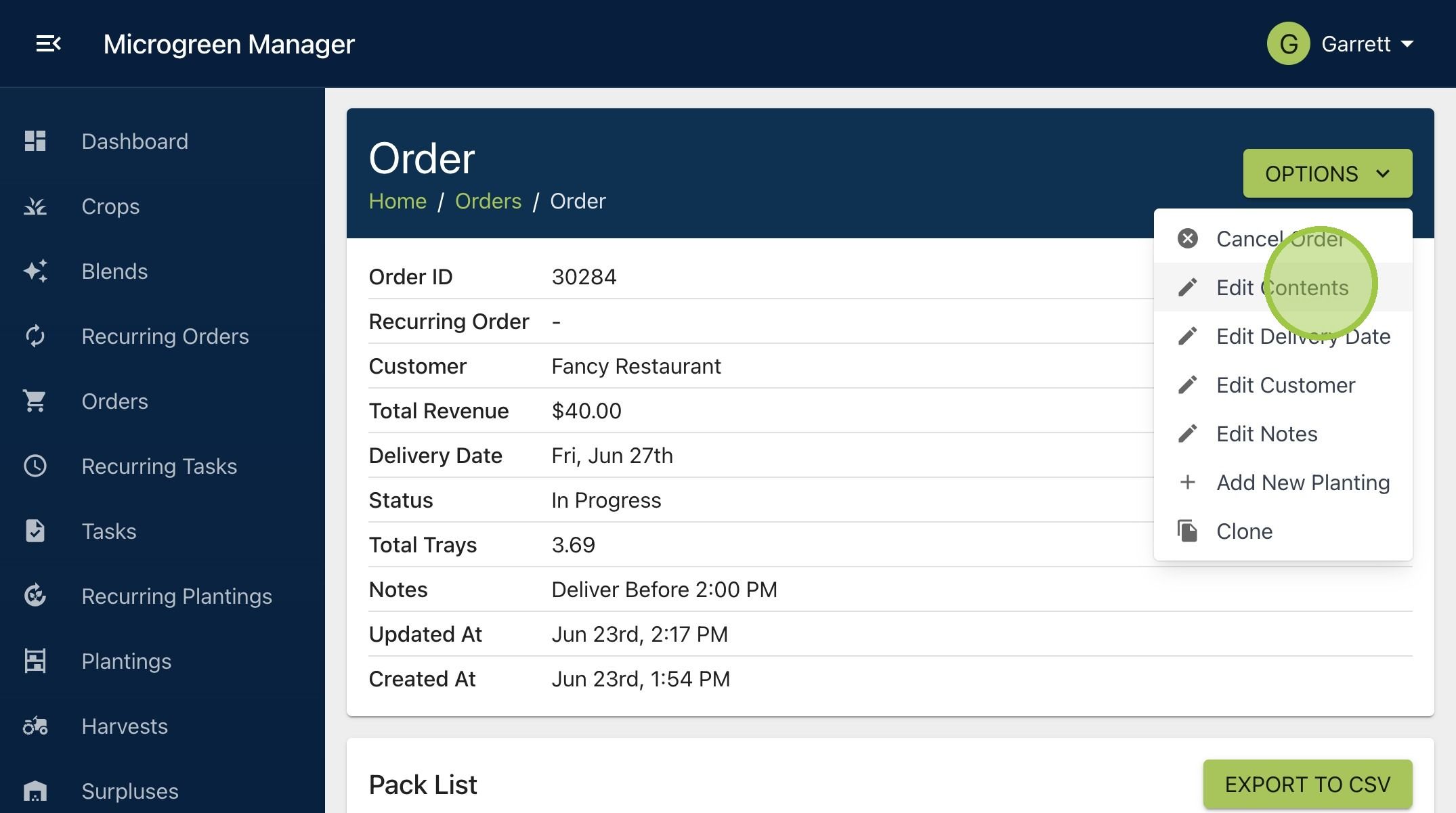
3. Click "Options" then click "Edit Contents"
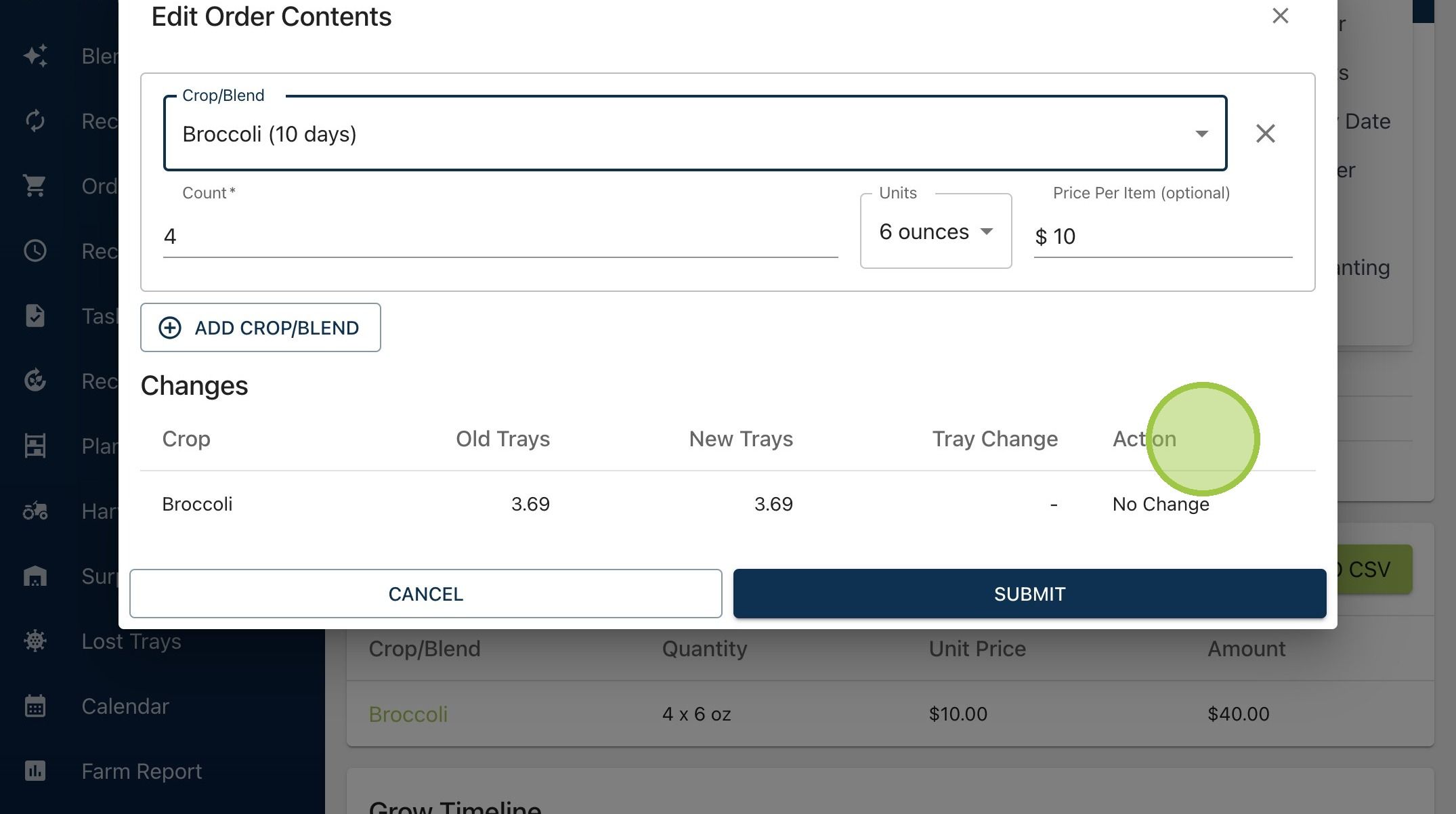
4. A form will appear with the current order contents. You can see under "Actions" it says "No Change" because we haven't altered the parameters yet
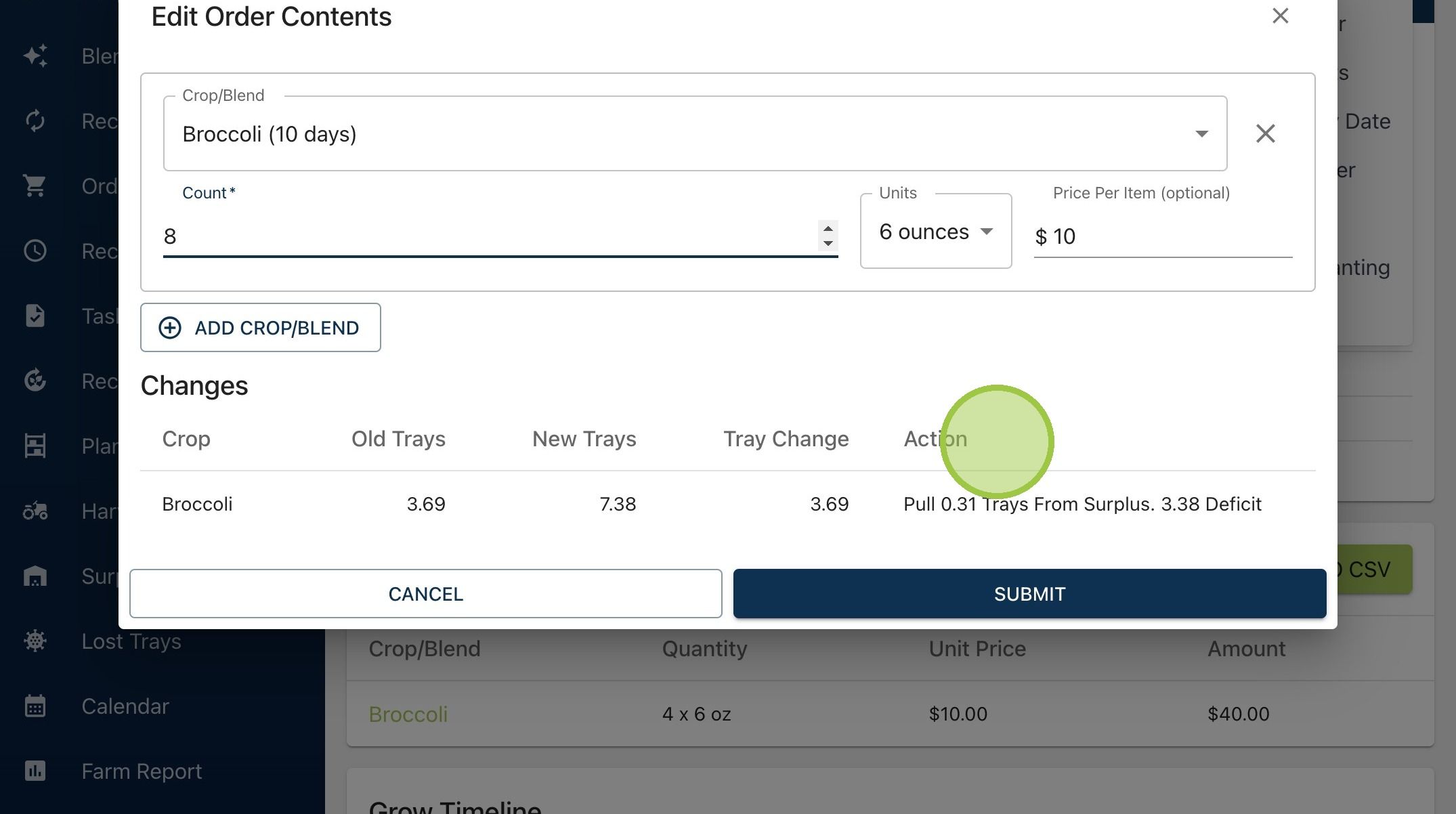
5. Let's see what happens if we make various edits. First, if we double the volume, but keep the crop the same, the "Action" becomes "Pull 0.31 Trays From Surplus. 3.38 Deficit." The software pulled all the excess broccoli in surplus to fulfill the order, but it still needs 3.38 trays. Therefore, it also created a deficit for the remaining amount
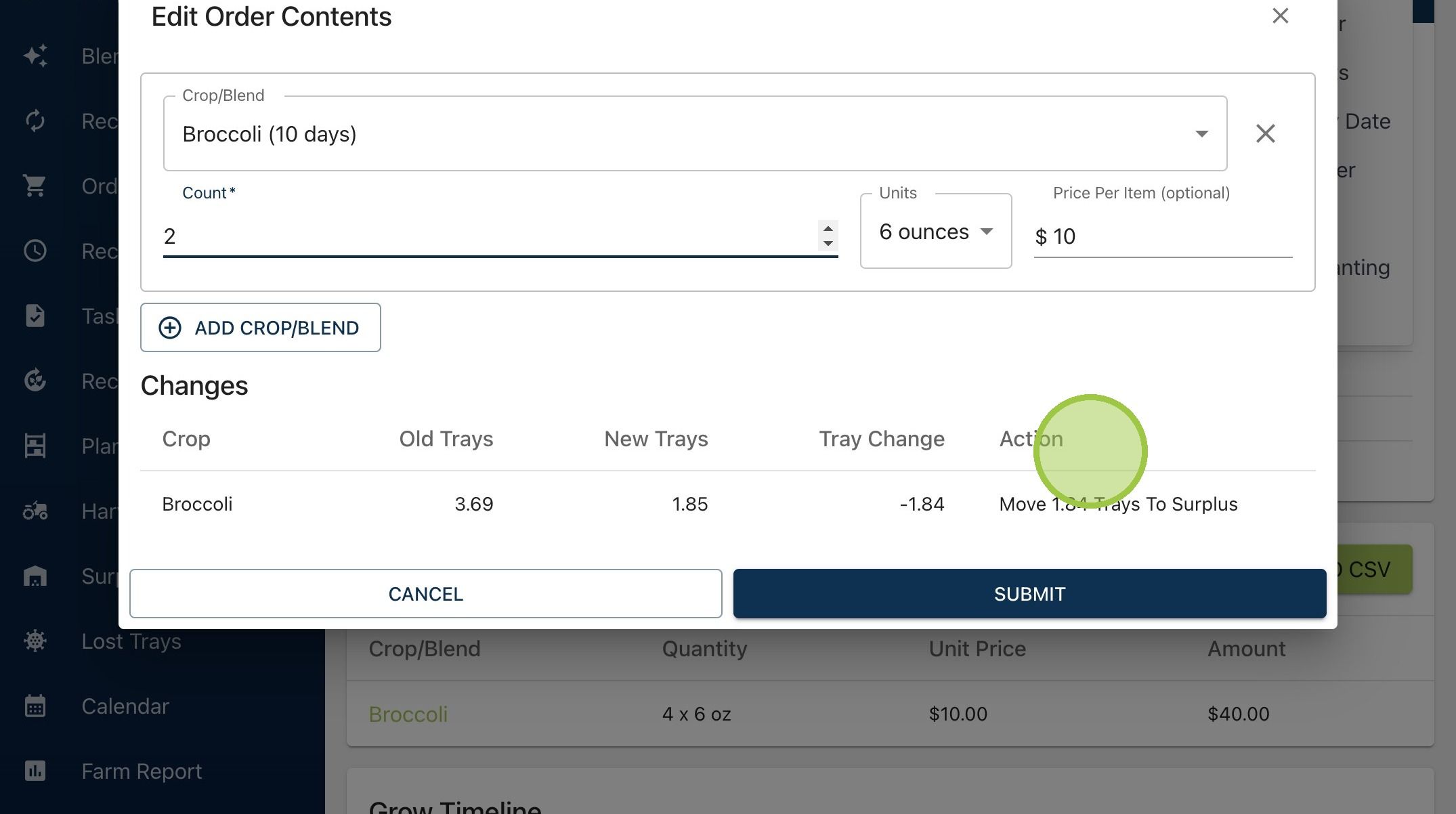
6. If we keep the crop the same, but cut the volume in half, the "Action" becomes "Move 1.84 Trays to Surplus." The trays are already growing, already in production, so the excess we no longer need will move to surplus
7. What happens if we change the crop?
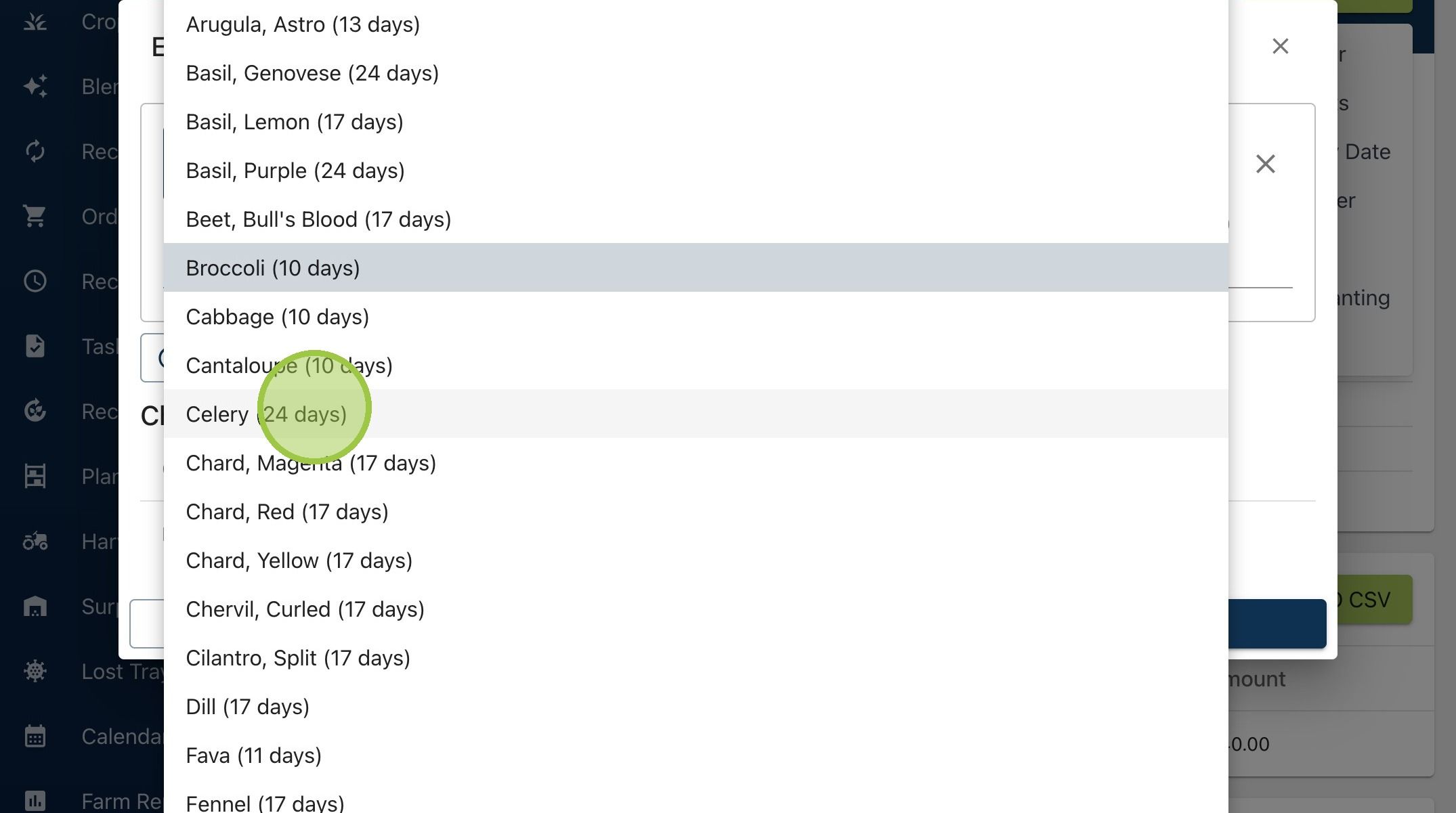
8. We're informing the software that we don't want the broccoli anymore. However, since it's already in production, the entire amount will move to surplus. If it's too late to plant the celery for this order, and no extra celery is available, there will be a shortage
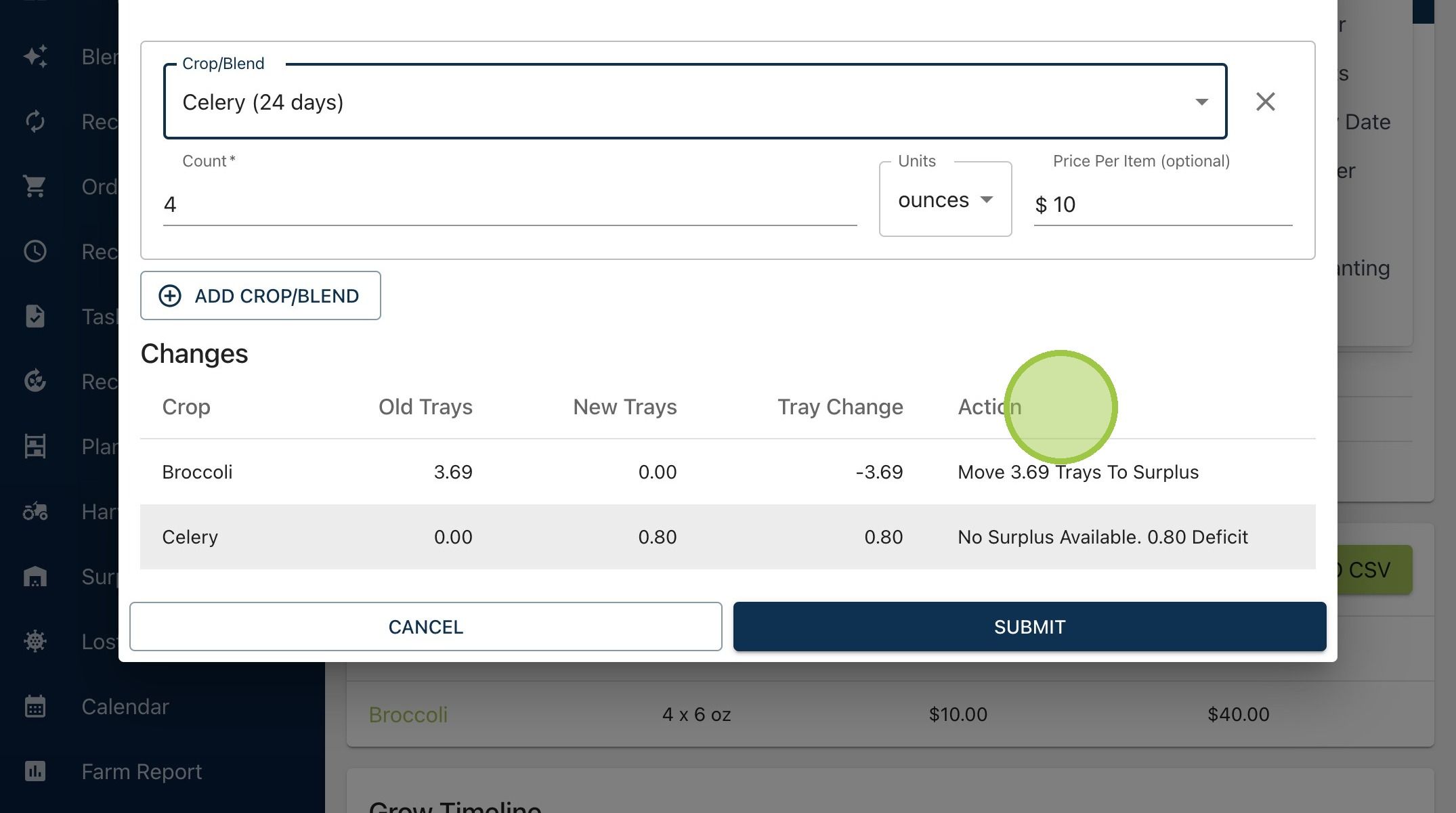
9. Click "Submit" to finalize the changes
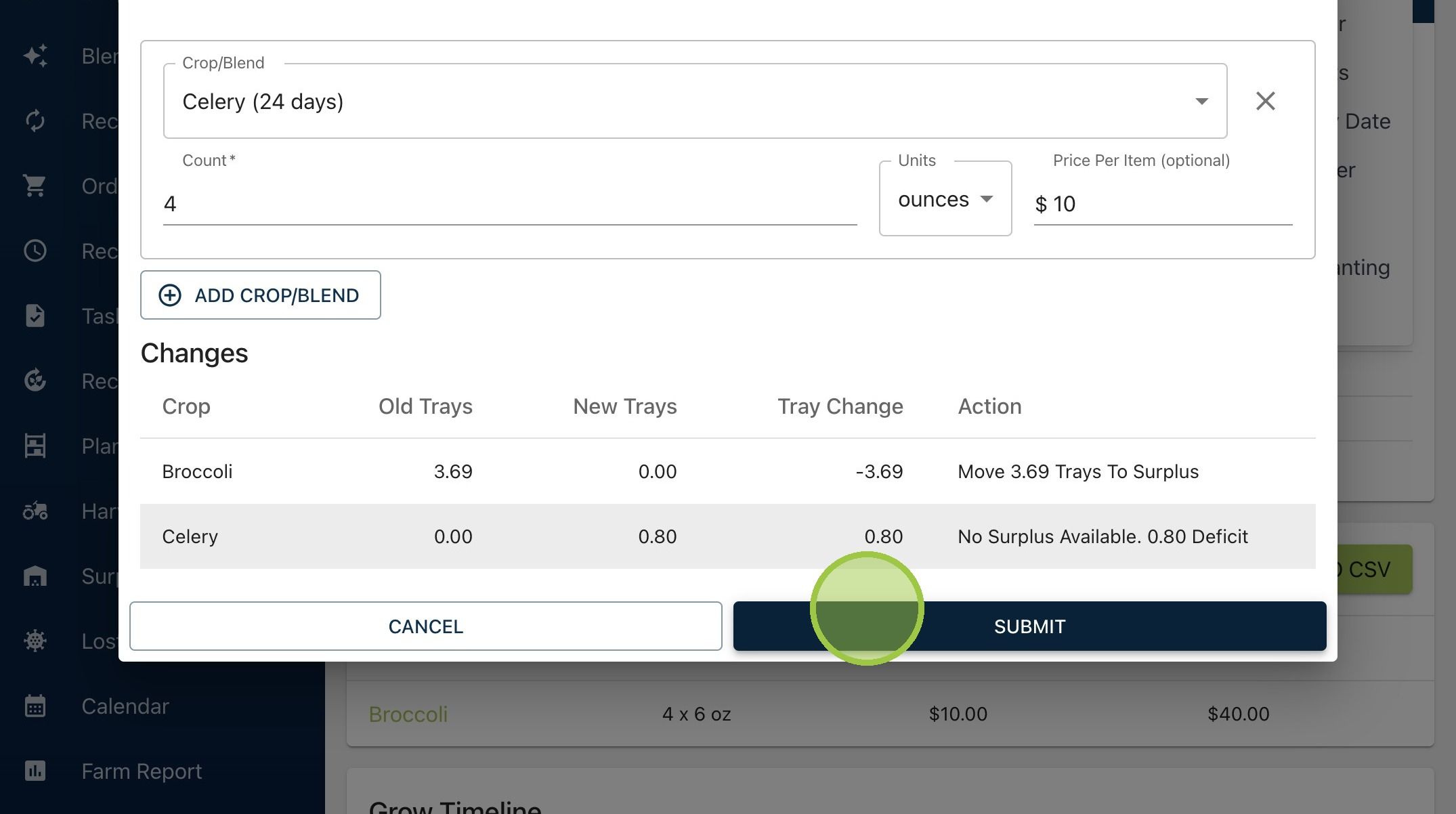
10. We can see the changes reflected in the new deficits table and the pack list. Now let's see what happens if we edit the contents of a planned order, one that hasn't started yet
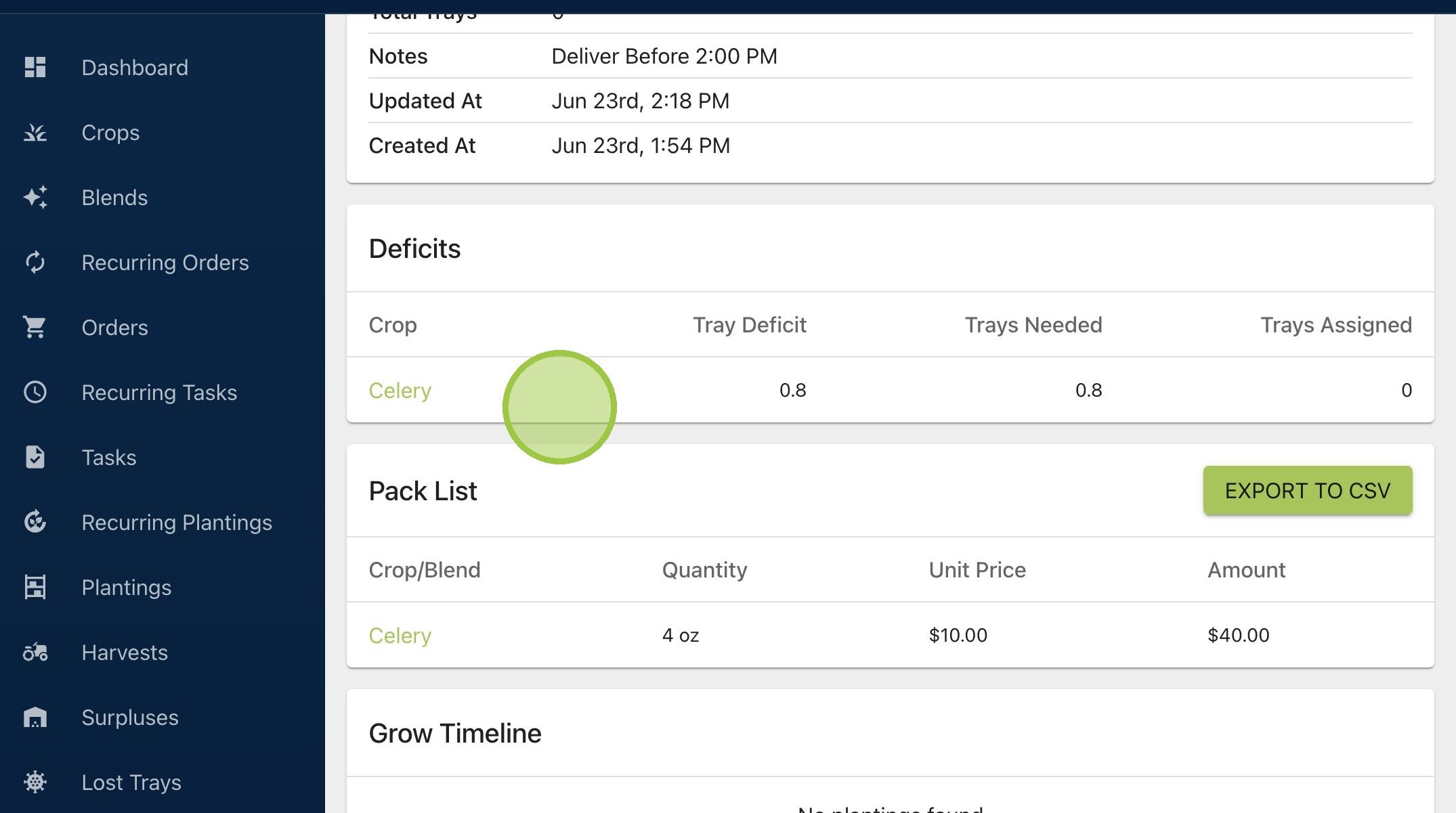
11. This is a similar order, but instead of having a delivery date for four days from now, it's a month away. That's enough time to grow any crop. Nothing has been planted for this order yet
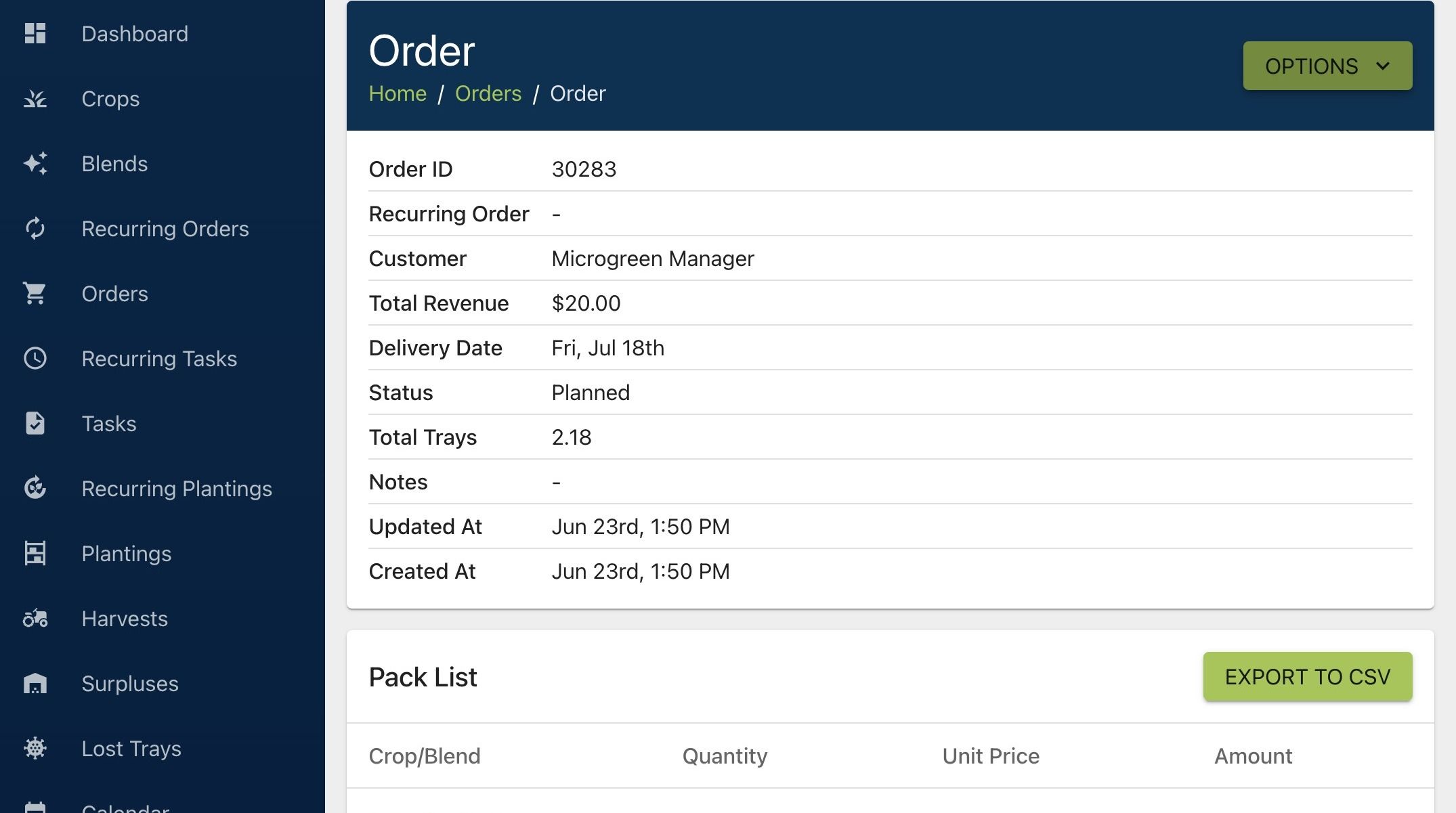
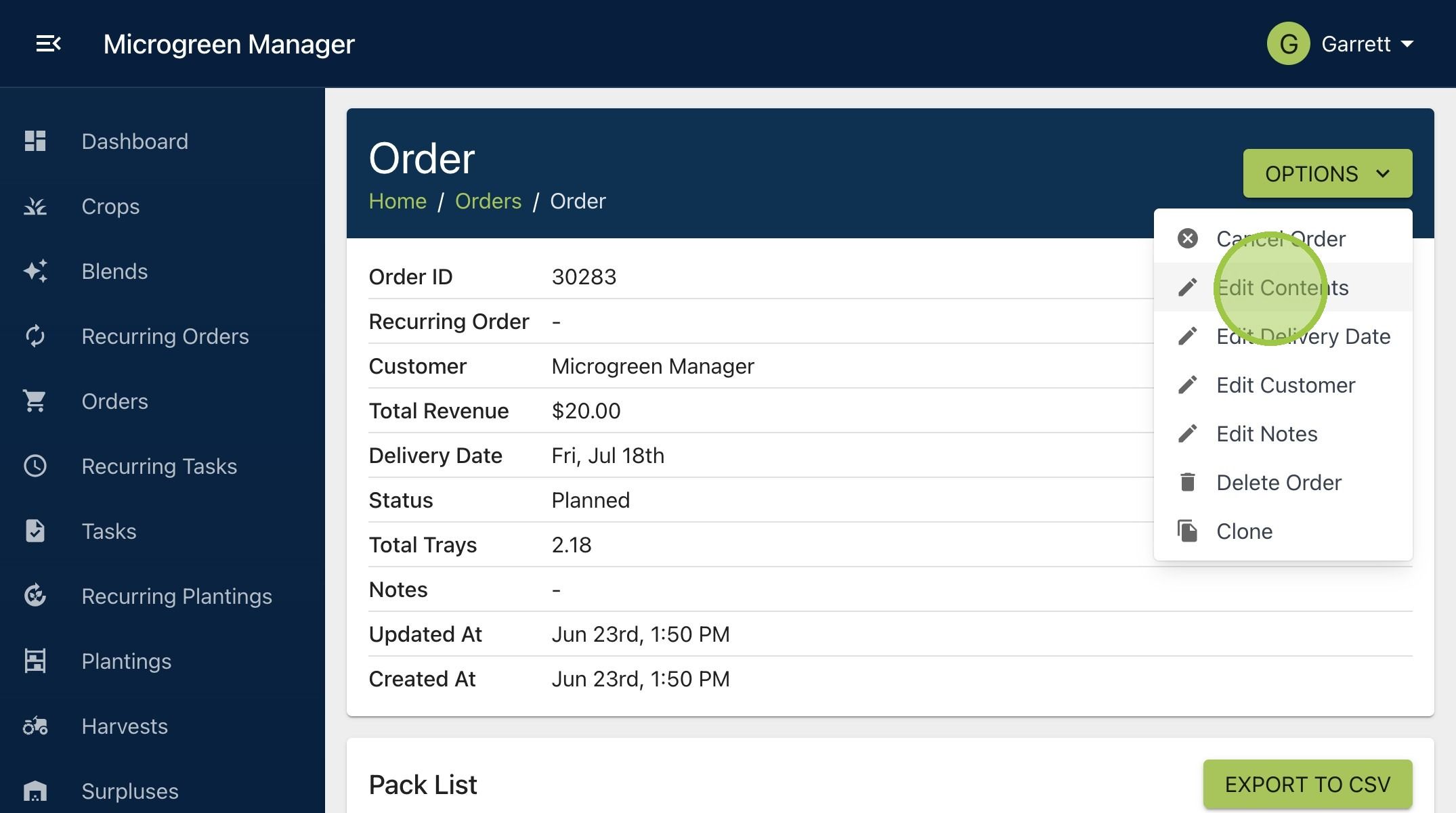
12. Click "Edit Contents"
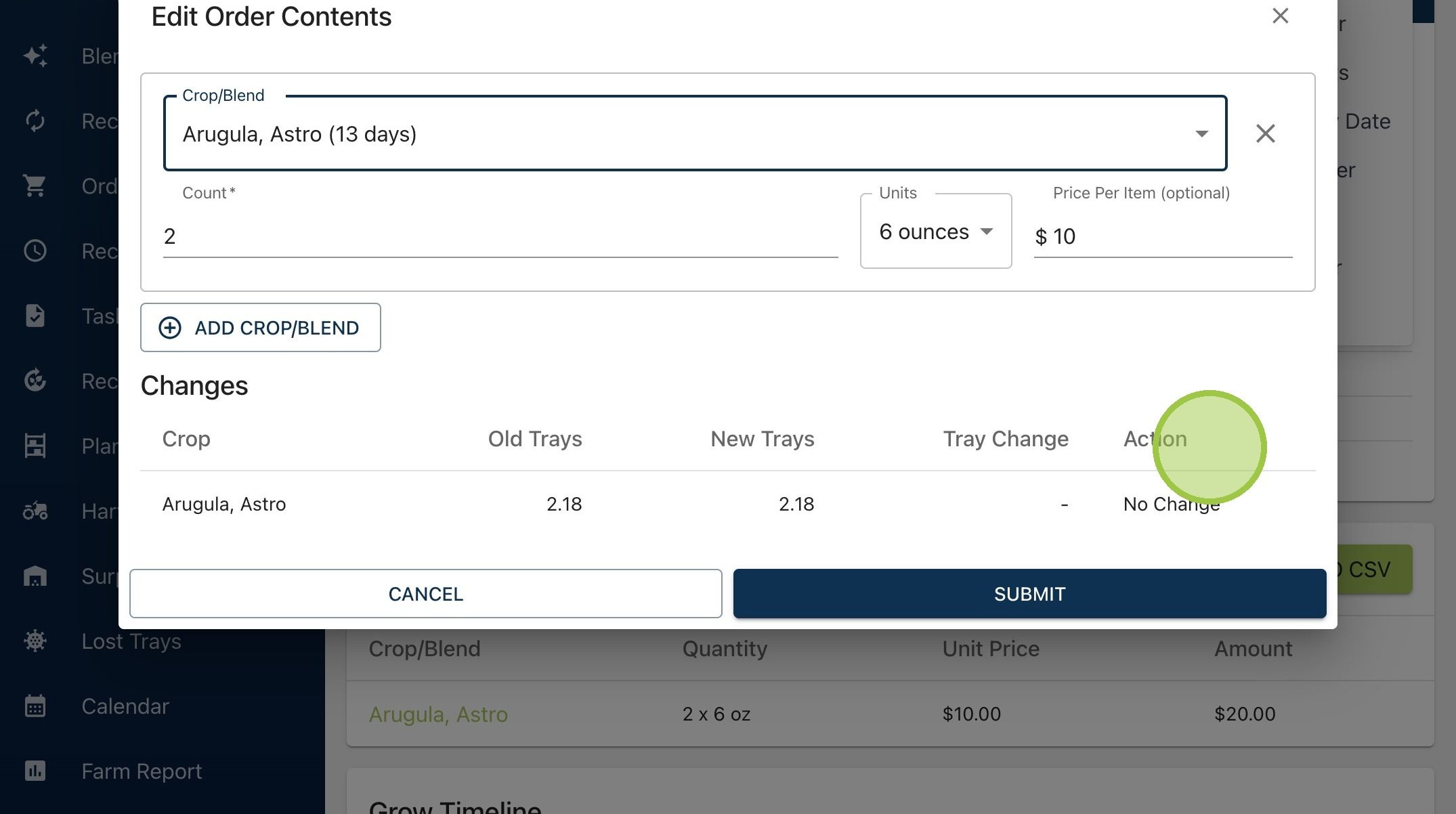
13. A form will appear with the current contents. Under "Action" it says "No Change" because we haven't modified anything yet
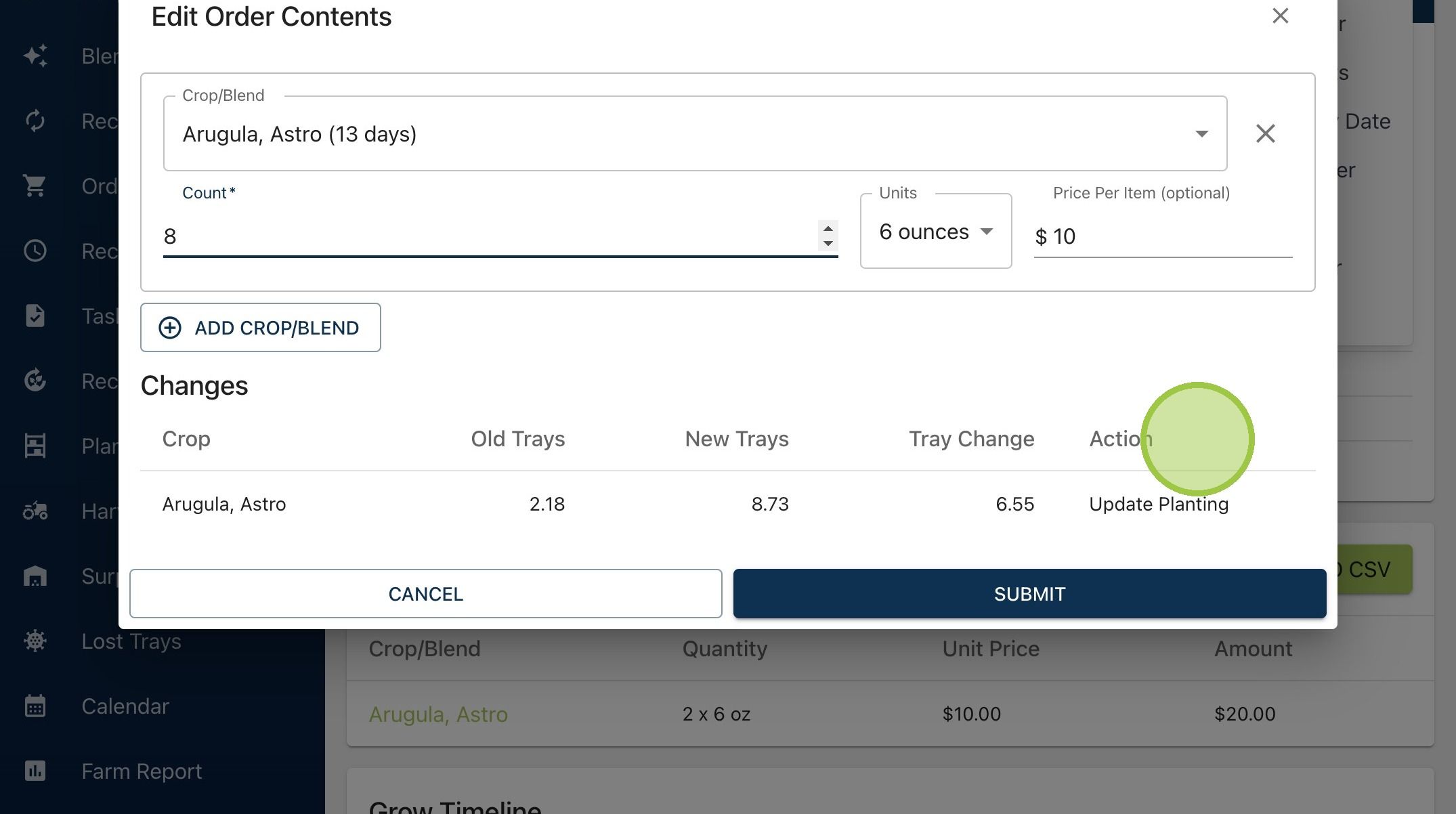
14. Just as with the in-progress order, we'll increase the volume from two containers to eight. The order used to require 2.18 trays (Old Trays), and now it requires 8.73 (New Trays). The "Action" says "Update Planting." Since nothing has been started yet, it's easy to simply increase the planting volume
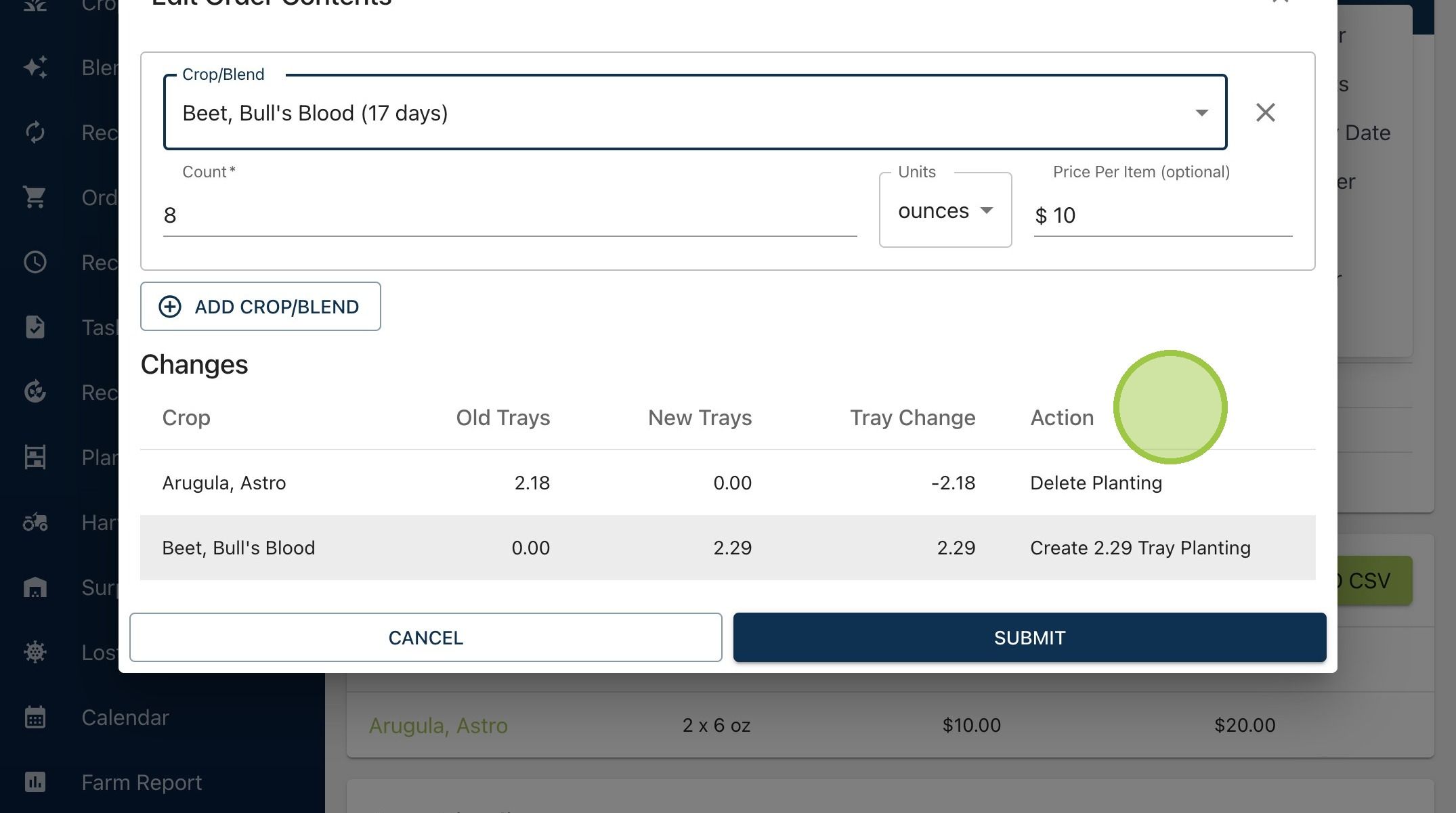
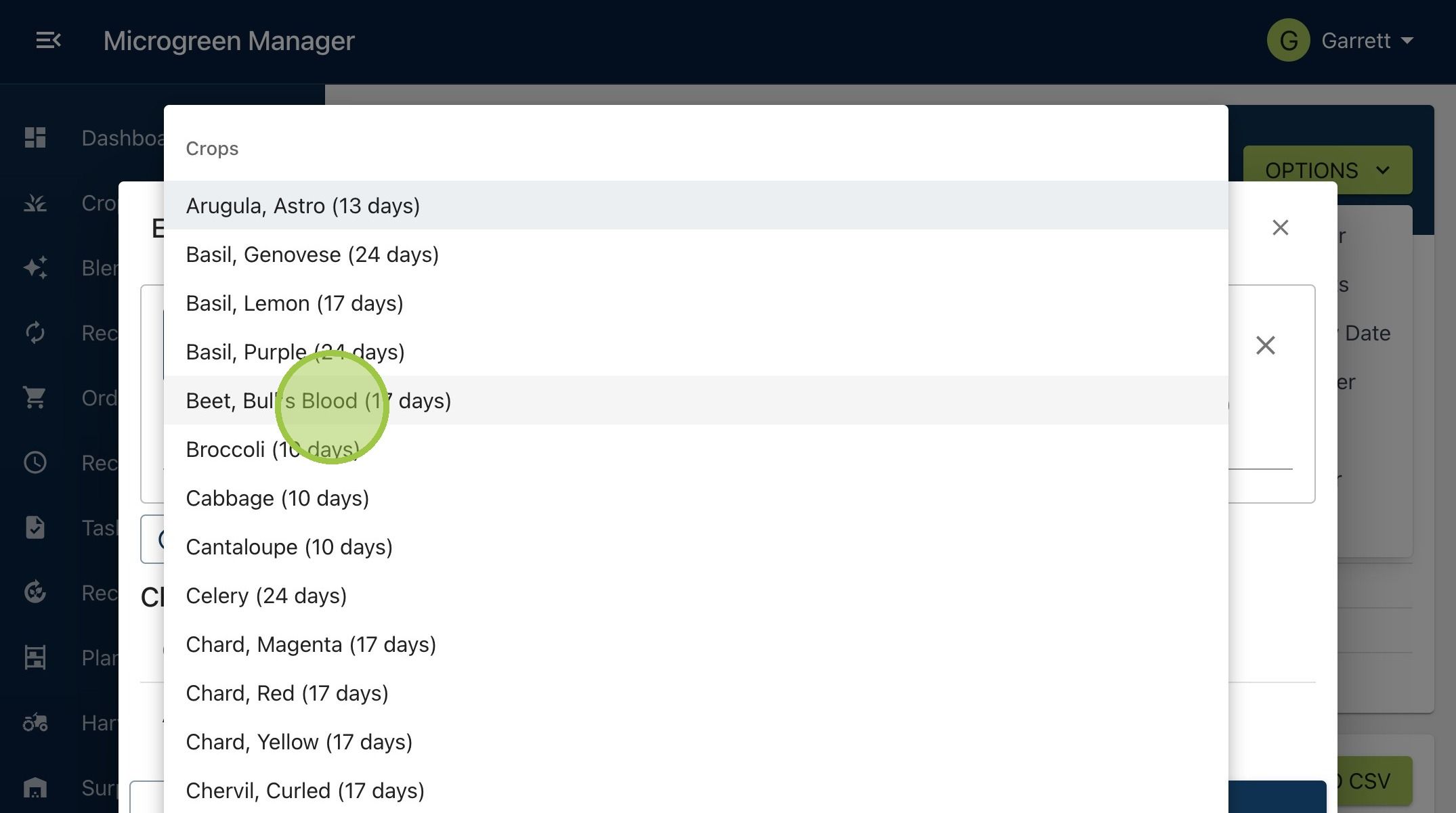
15. What if we change the crop? We're going from arugula, ready in 13 days, to beet, which takes 17 days. There’s still enough time between now and the order date to grow the new crop
16. We're removing the arugula. So, the "Action" now says "Delete Planting" since it hasn't started yet. We still have time to grow the beet, which means we'll plant the 2.29 trays