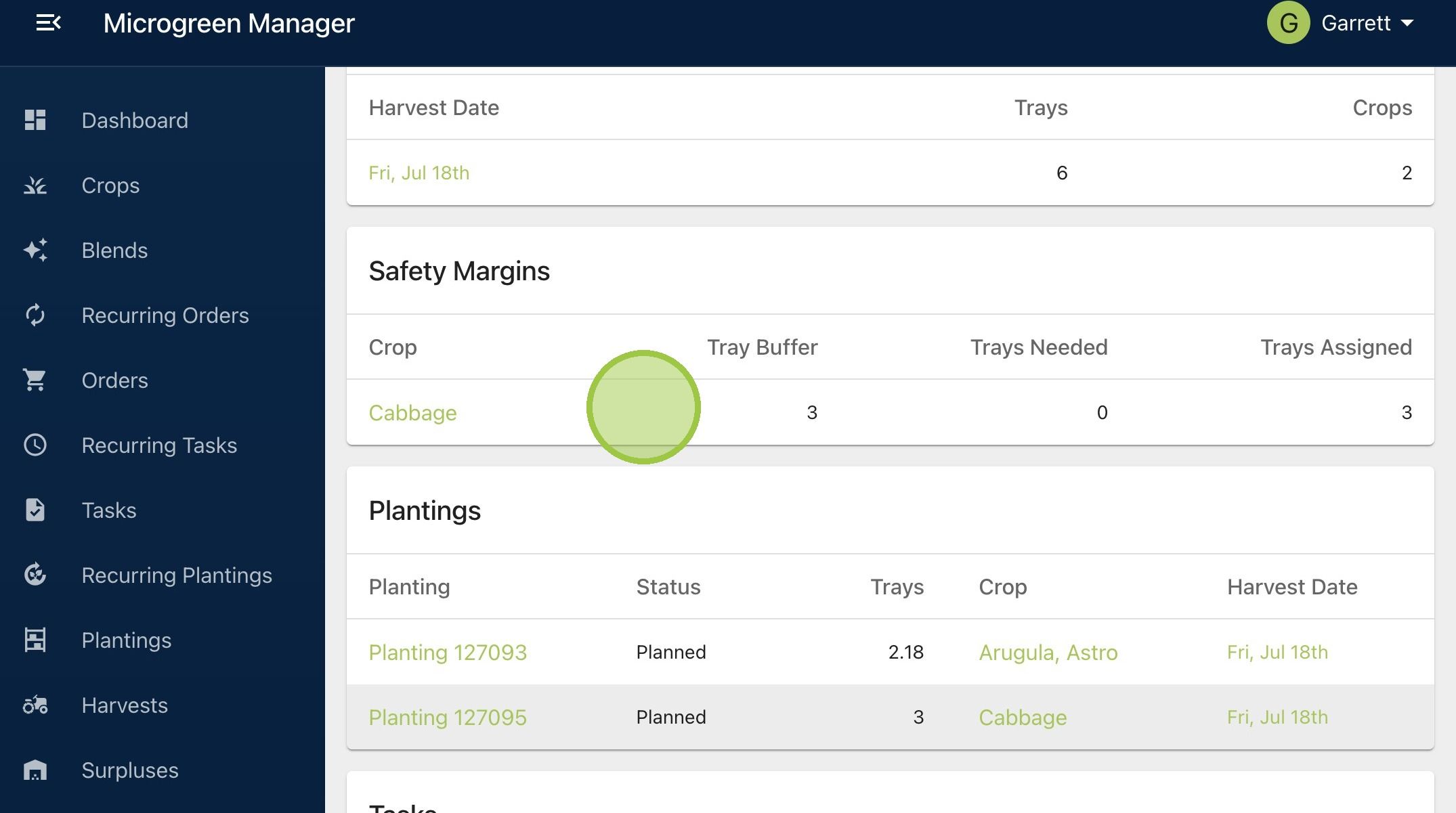
How to Add a Planting to One-Time Orders
This guide shows you how to add a planting to an existing one-time order.

Written by Garrett Corwin
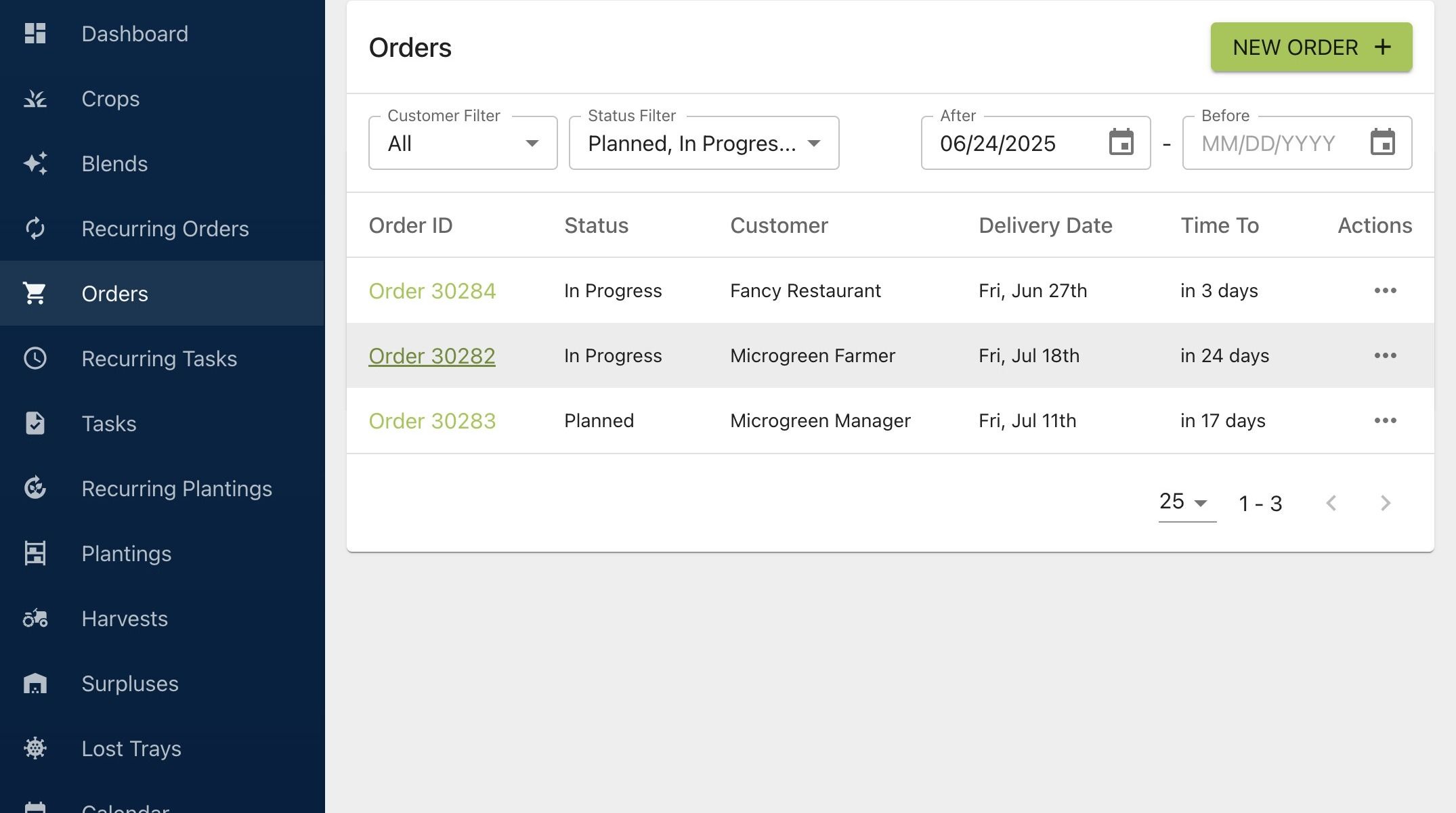
Last updated1. Navigate to your orders dashboard and select the order ID
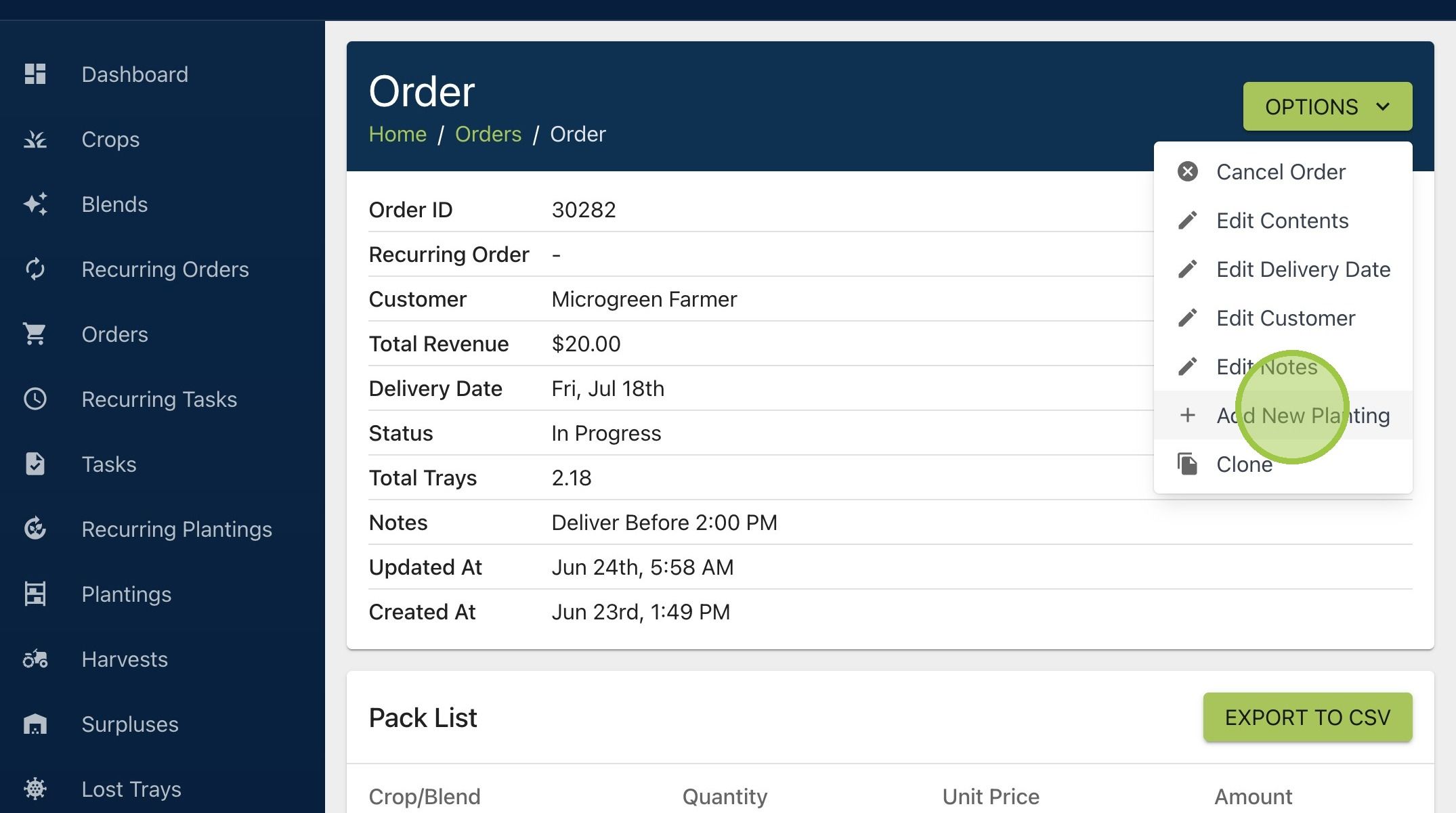
2. Click "Options" then "Add New Planting"
3. Choose whether to base your planting on the start date or the harvest date. Next, select the right date. We're adding a planting of cabbage with the same harvest date as the other crop in this order
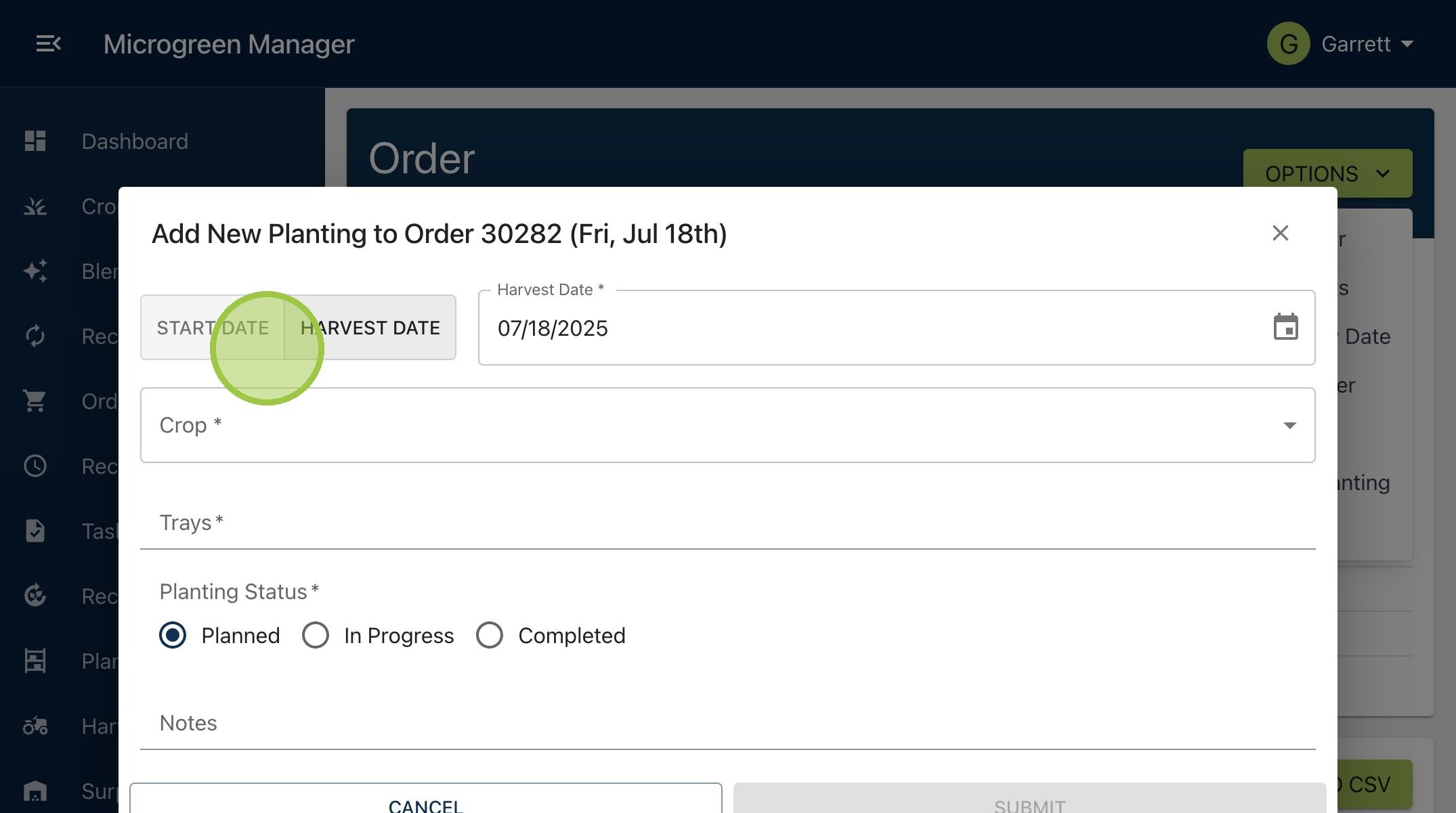
4. Select your crop
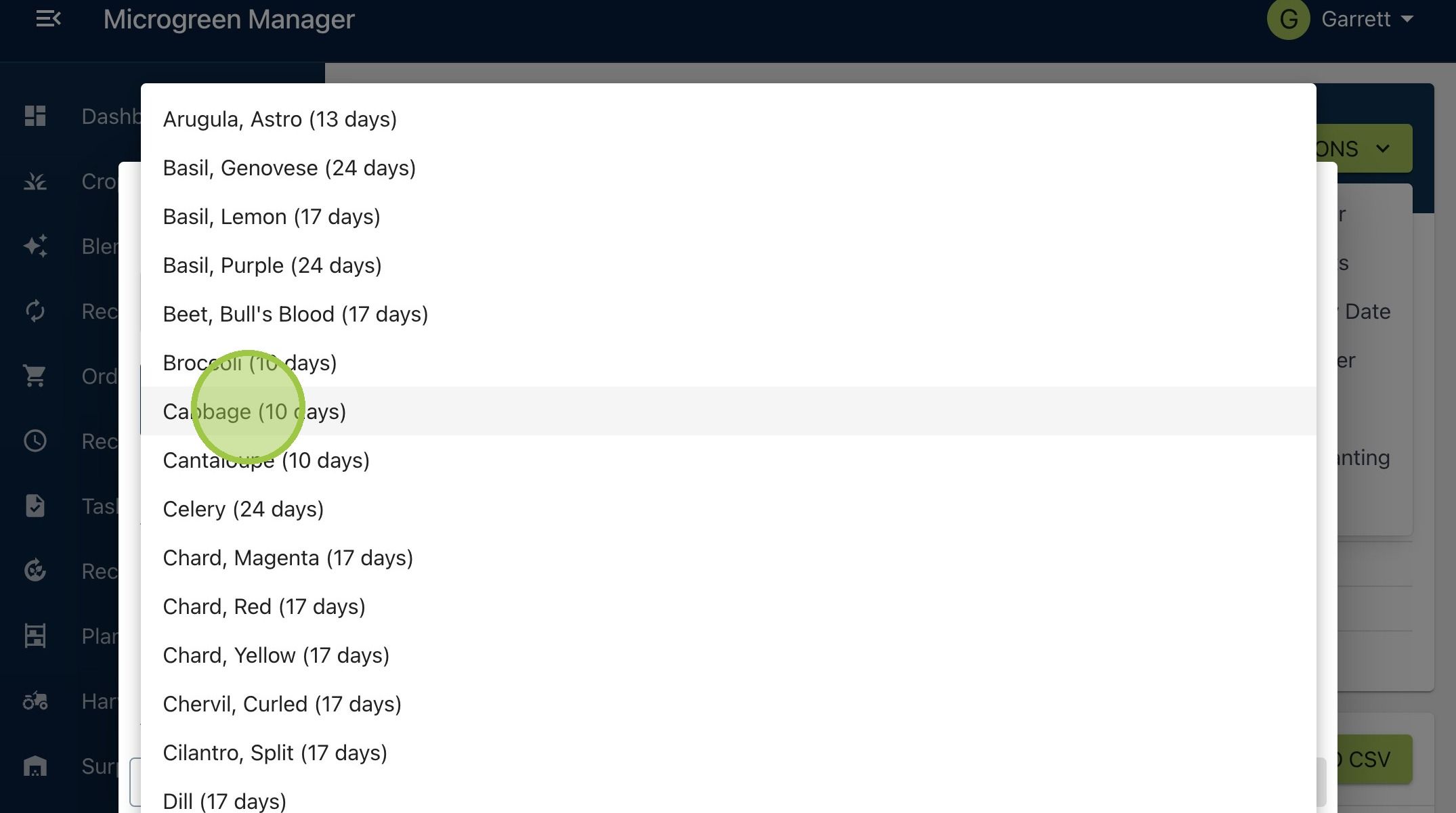
5. Enter the number of trays for this planting group
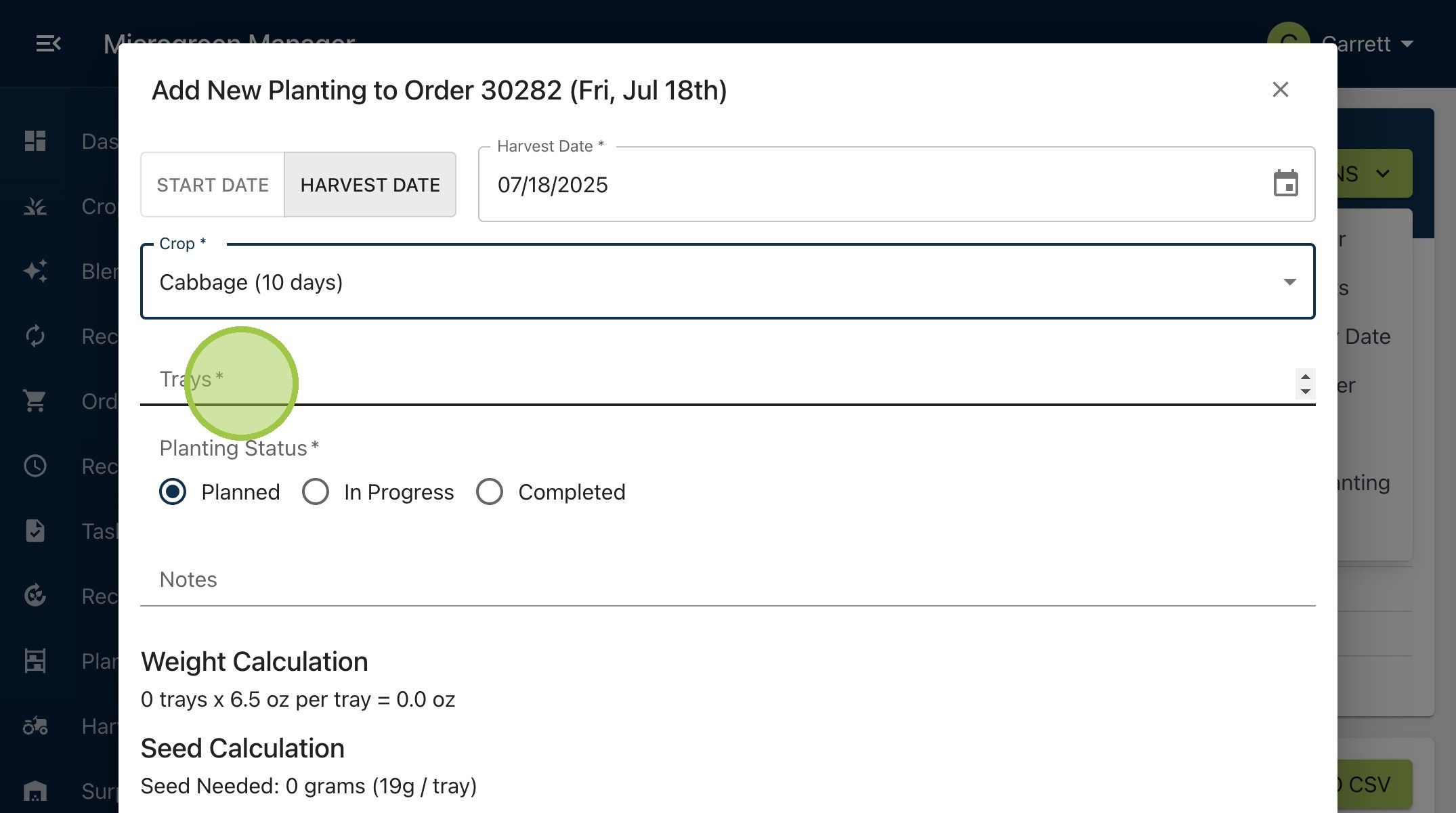
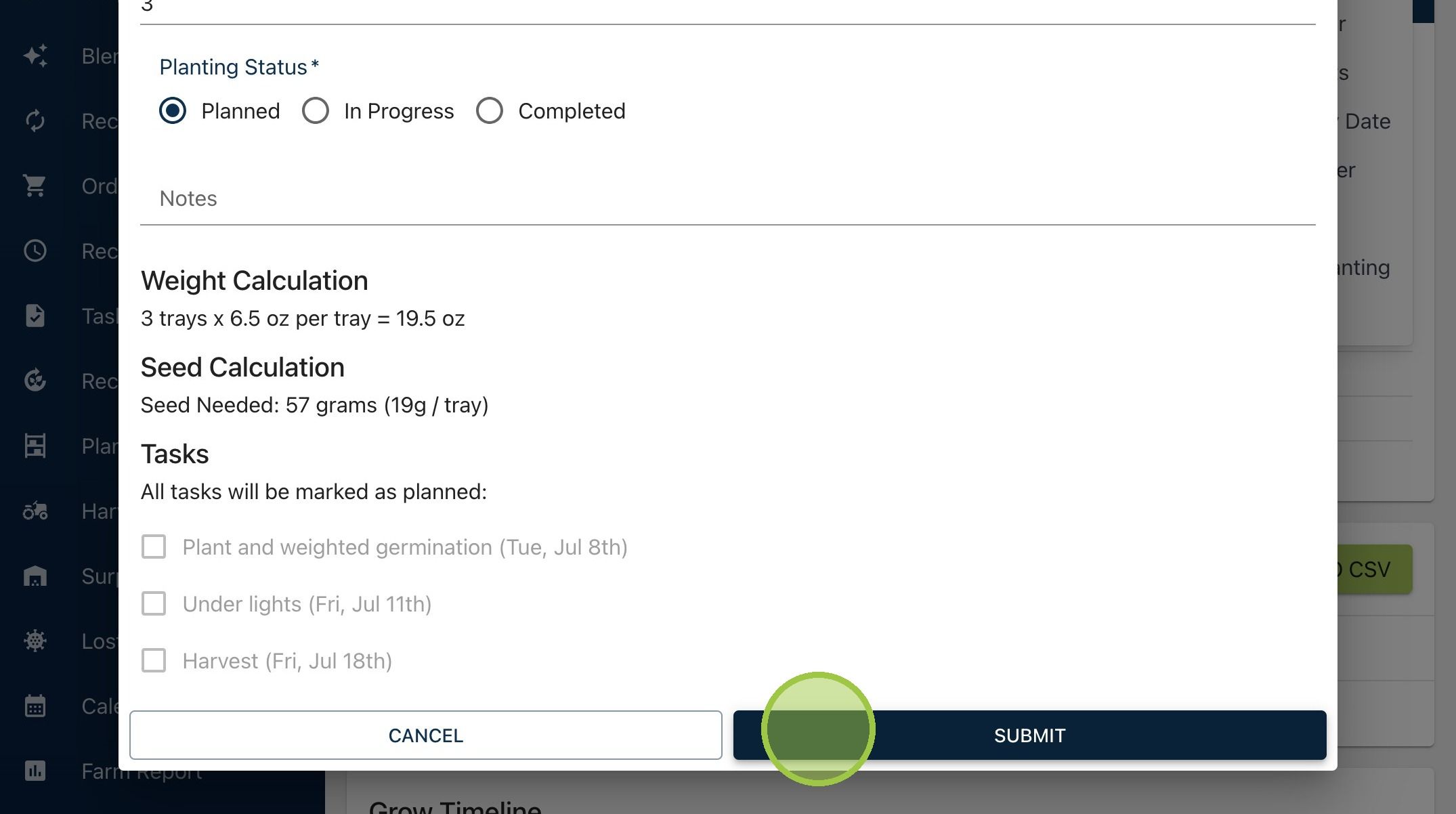
6. Tell Microgreen Manager where in the grow cycle this crop is. The software will automatically create tasks and their dates for growing the chosen crop. This is based on the harvest or start date you provided. You'll see those tasks at the bottom of the form
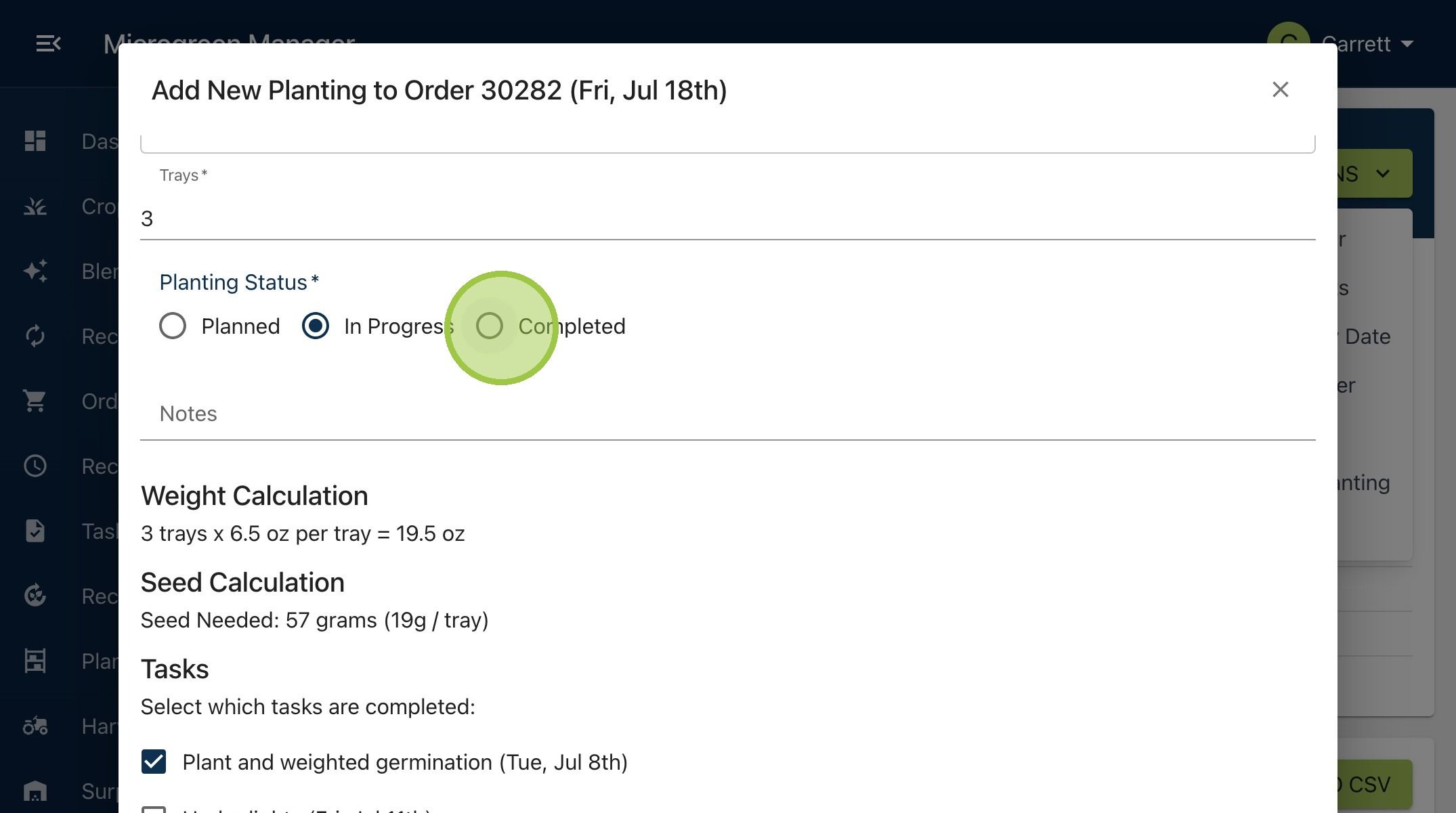
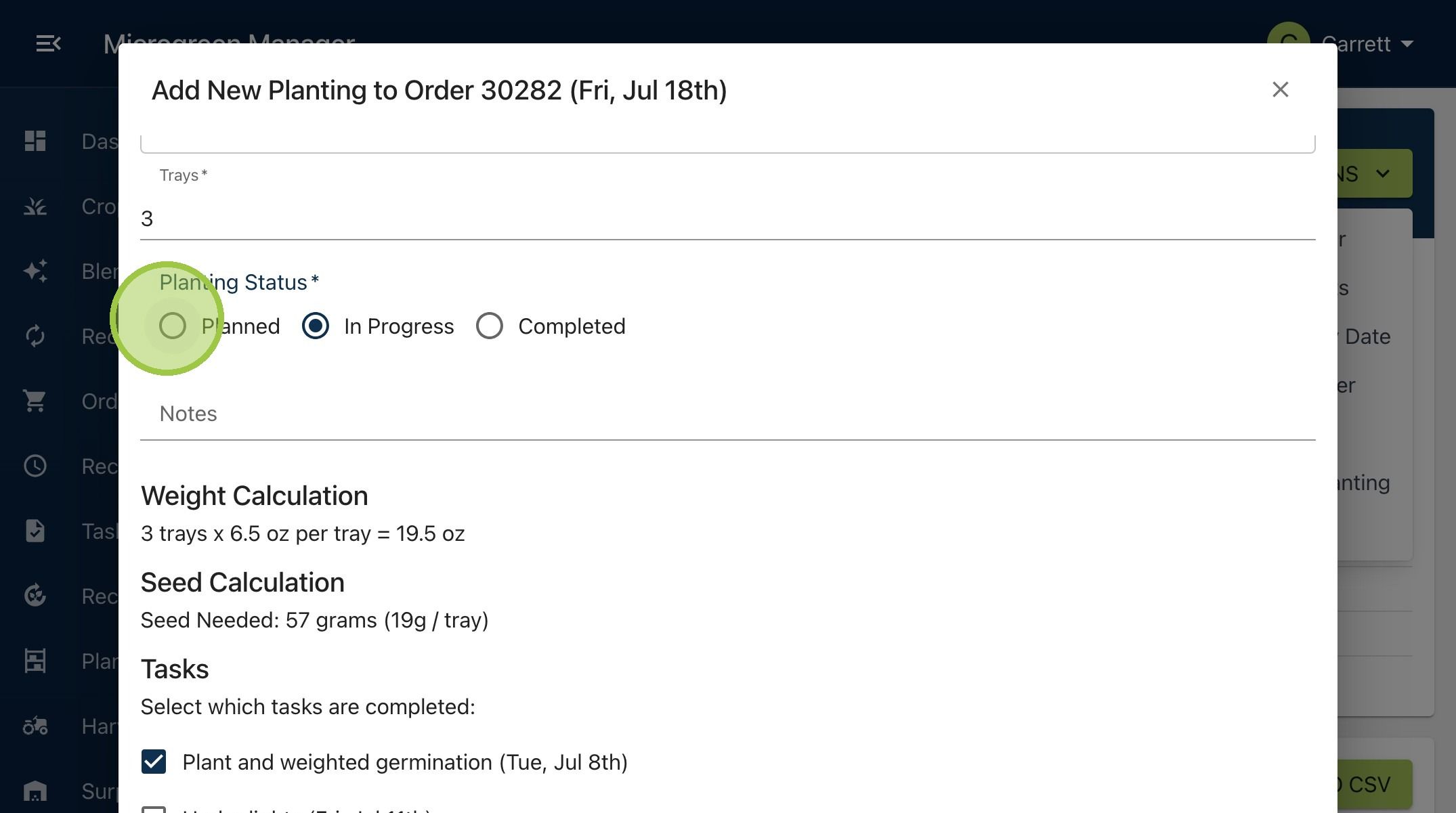
7. We haven't start growing this cabbage yet, so we'll leave the "Planting Status" as "Planned"
8. Click "Submit"
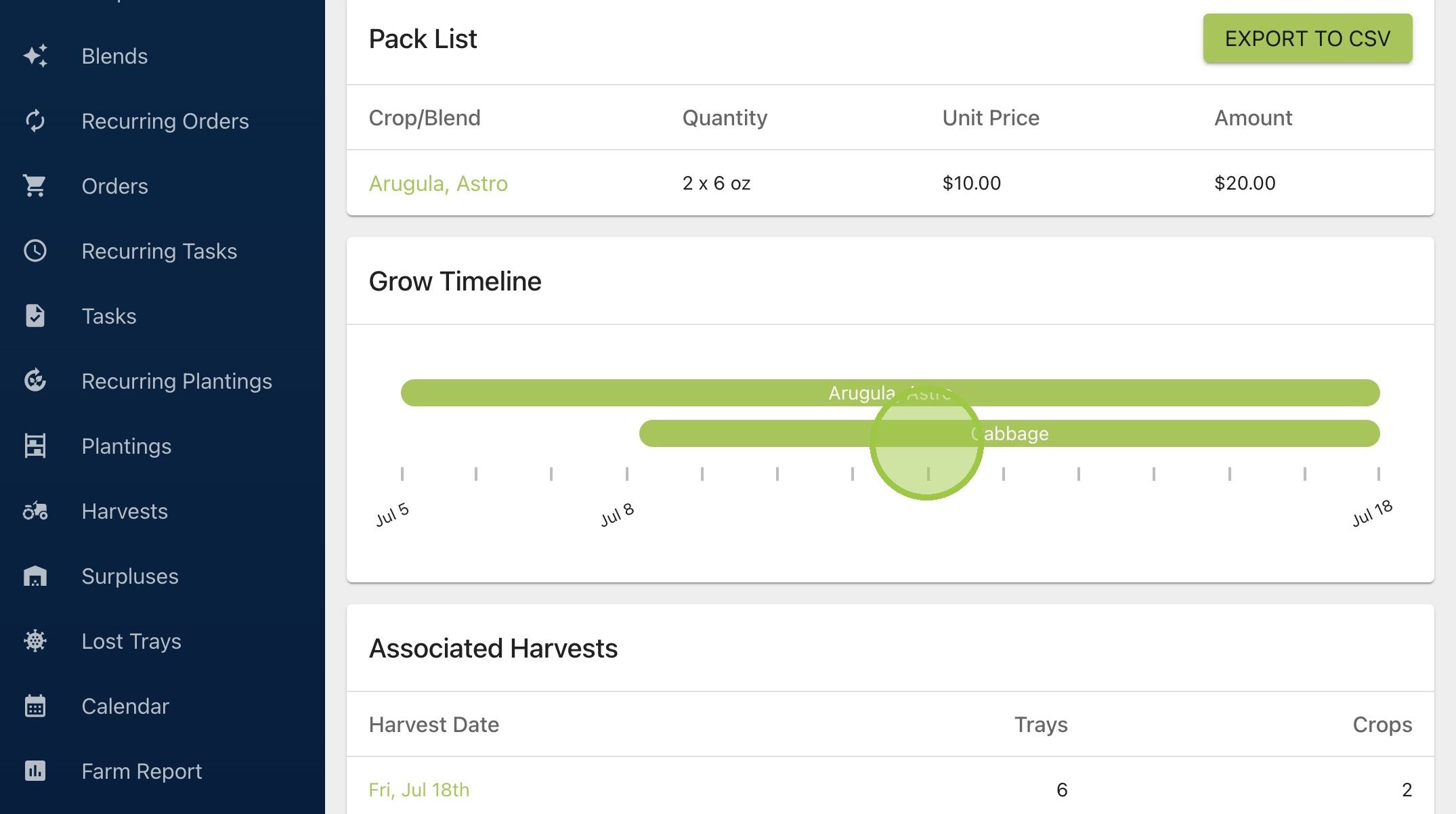
9. Back on the order we can see the cabbage was added to the grow timeline
10. As well as the safety margins table